Motion effects can turn a simple Elementor page into an engaging visual experience. Subtle fades, smooth scroll effects and interactive animations help guide visitors and keep them interested. At the same time, too many effects or poorly optimized settings can hurt page speed and user experience.
This guide explains how to add motion effects in Elementor without slowing down your website. You will learn how to balance design and performance using built-in Elementor tools and lightweight animation options from Essential Addons. The goal is simple. Create smooth motion effects while keeping your site fast on desktop and mobile.
What Are Motion Effects in Elementor?
Elementor includes motion effects such as scroll animations, mouse interactions, entrance animations and background movements. These effects rely on JavaScript and CSS to work smoothly across browsers and devices. Motion effects are visual movements applied to elements based on user actions or page load events. They make pages feel more dynamic and interactive.
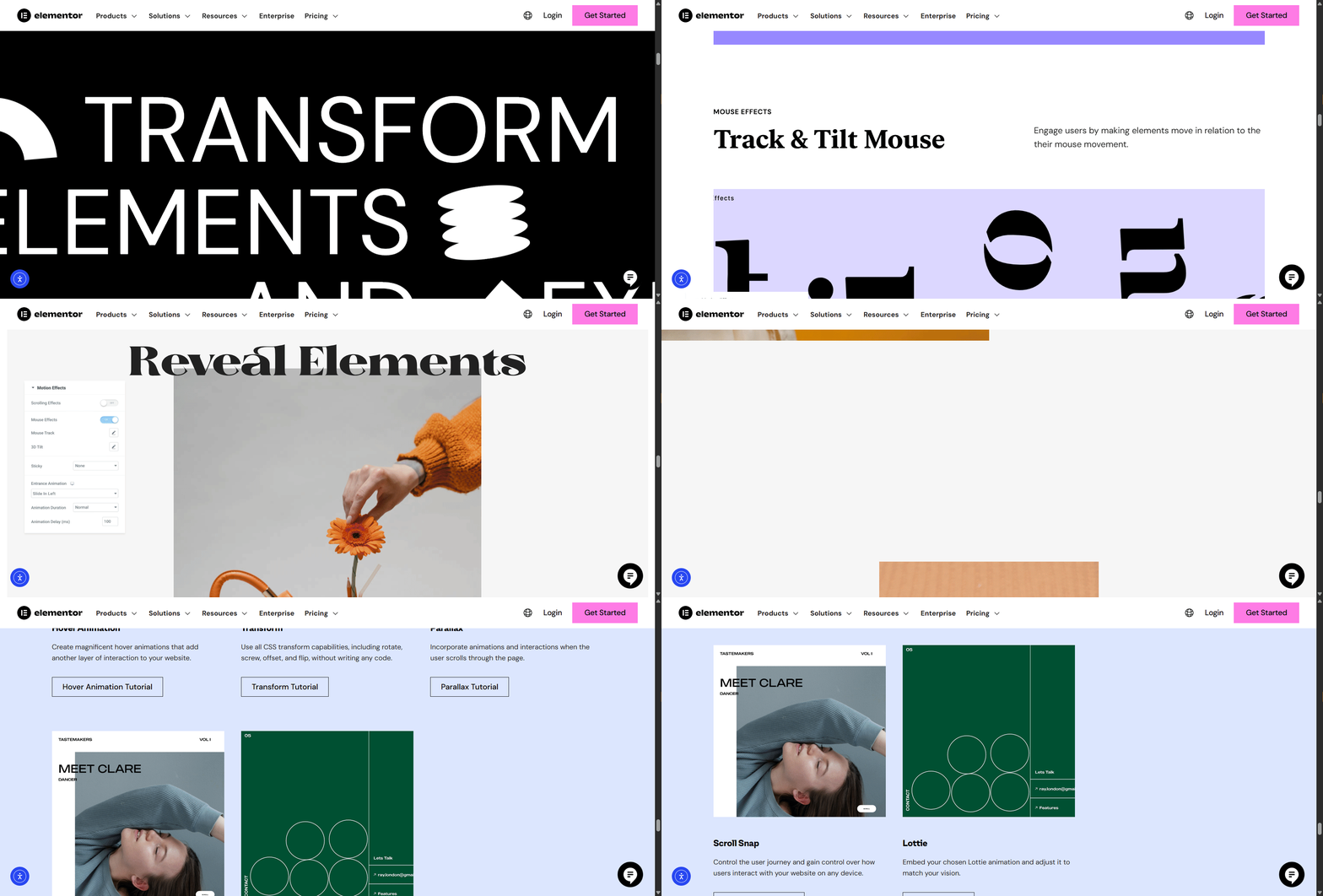
Most common types of motion effects in Elementor:
- Entrance animations: These animations trigger when an element appears on screen. Common examples include fade in, slide up, and zoom in. They improve visual flow but can stack up if overused.
- Scroll-based effects: These effects move elements based on scroll position. Parallax scrolling is the most popular example. It looks attractive but can be heavy on slower devices.
- Mouse track effects: These effects react to cursor movement. They create depth but increase script execution on every mouse move.
- Hover animations: These animations trigger when users hover over elements. They are usually lightweight but can still affect performance if applied to many items.
Why Motion Effects Can Slow Down Elementor?
Many designers notice slower load times after adding animations. This happens because motion effects rely on scripts, styles and browser rendering tasks.
Animations affect performance in several ways. Each one may seem small but together they can reduce speed. Before listing the reasons, remember that mobile devices feel these issues more than desktops.
- Increased JavaScript Execution: Motion effects depend on scripts that run during scroll or interaction. Too many scripts increase processing time.
- Extra Repaint And Reflow Tasks: Animations force browsers to redraw elements repeatedly. This can slow down rendering.
- Larger Page Size: Some effects require additional styles or assets. This increases total page weight.
- Mobile Performance Strain: Phones have less processing power. Heavy motion effects can cause lag and higher bounce rates.
These factors directly impact website speed, Elementor metrics like Largest Contentful Paint and Total Blocking Time.
Plan And Apply Motion Effects the Right Way
Planning is the first step to add motion effects without hurting speed. A clear plan reduces unnecessary animations. Every animation should have a reason. Decorative effects without purpose add load without value. Note that purposeful design improves conversions and speed.
🟦 Does the animation guide attention?
Yes. Motion should be used strategically to draw the eye toward important elements, such as call‑to‑action buttons, highlighted offers, or navigation cues. Subtle animations, like a button pulse or a smooth fade‑in, help users notice what matters without overwhelming them. The goal is to guide focus, not distract.
🟦 Does it improve user understanding?
Absolutely. Animations can visually demonstrate how different sections or steps are connected. For example, sliding transitions between form steps show progression, while expanding panels can reveal additional details without cluttering the page. These effects make complex processes feel more intuitive and help users understand the flow of information.
🟦 Is it necessary on every device?
Not always. Some motion effects are more effective on larger screens, like desktops, where space and performance allow for smoother transitions. On mobile, heavy animations can slow down the experience or feel distracting. It is best to optimize animations per device, keeping them lightweight and functional on mobile while using richer effects on desktop.
How to Add Motion Effects the Smart Way in a WordPress Website?
Motion effects can transform a plain WordPress site into something dynamic and memorable, if you use them wisely. With Elementor’s built-in feature and Essential Addons’ plugin, you can create smooth, modern interactions that look great without slowing down your pages. This guide shows you the smart way to do it.
Elementor offers Motion Effects as a premium feature, so you will need Elementor PRO to access advanced options like parallax scrolling, entrance animations, sticky headers, and mouse‑based effects
Adding motion effects in Elementor is simple and fast. Follow these quick steps to bring smooth animations and interactive transitions to your design without extra effort.
Step 01: Log in to your WordPress Admin
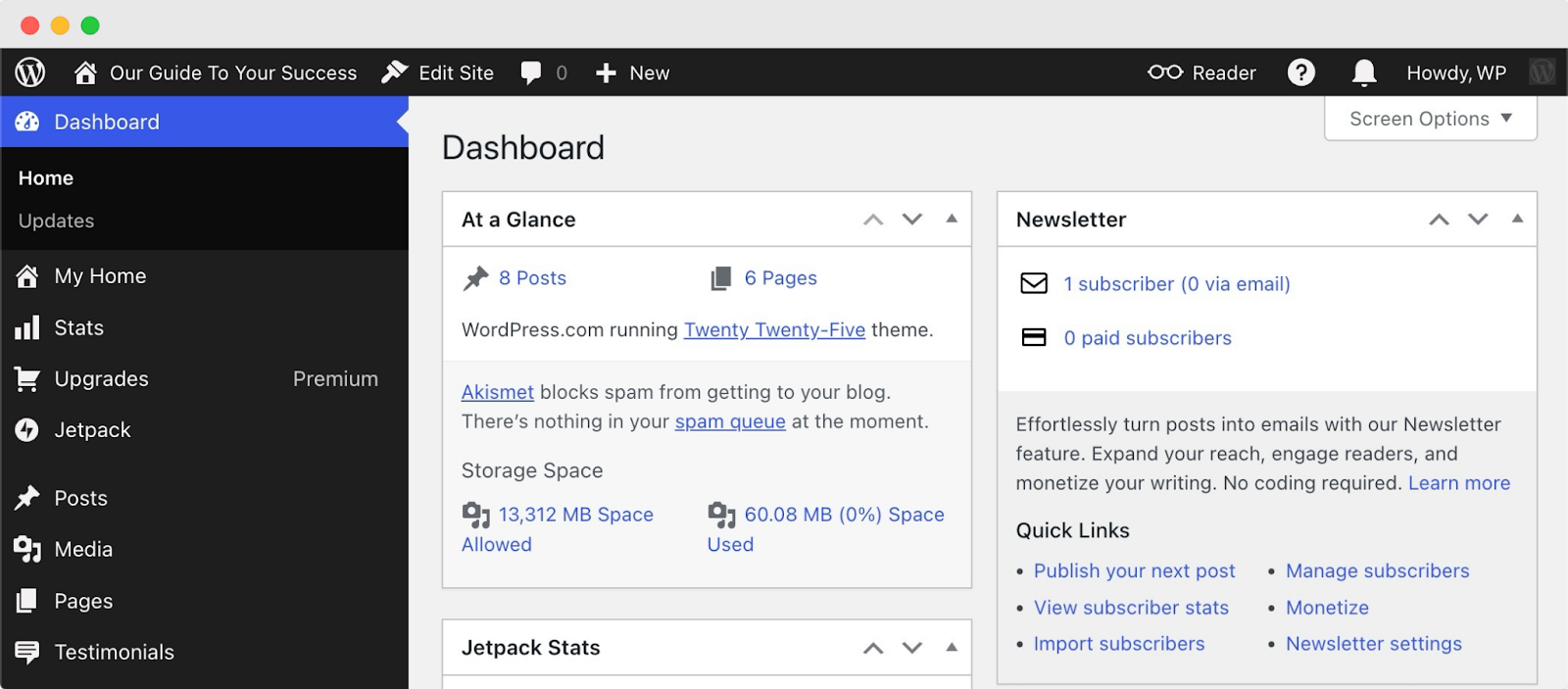
Start by accessing your WordPress dashboard. Enter your username and password to log in. Once inside, you will have full control over your site’s content and design. This is the central hub where you can manage pages, posts, plugins and Elementor settings.
Step 02: Edit the Image, Section or Widget Where You Want Motion
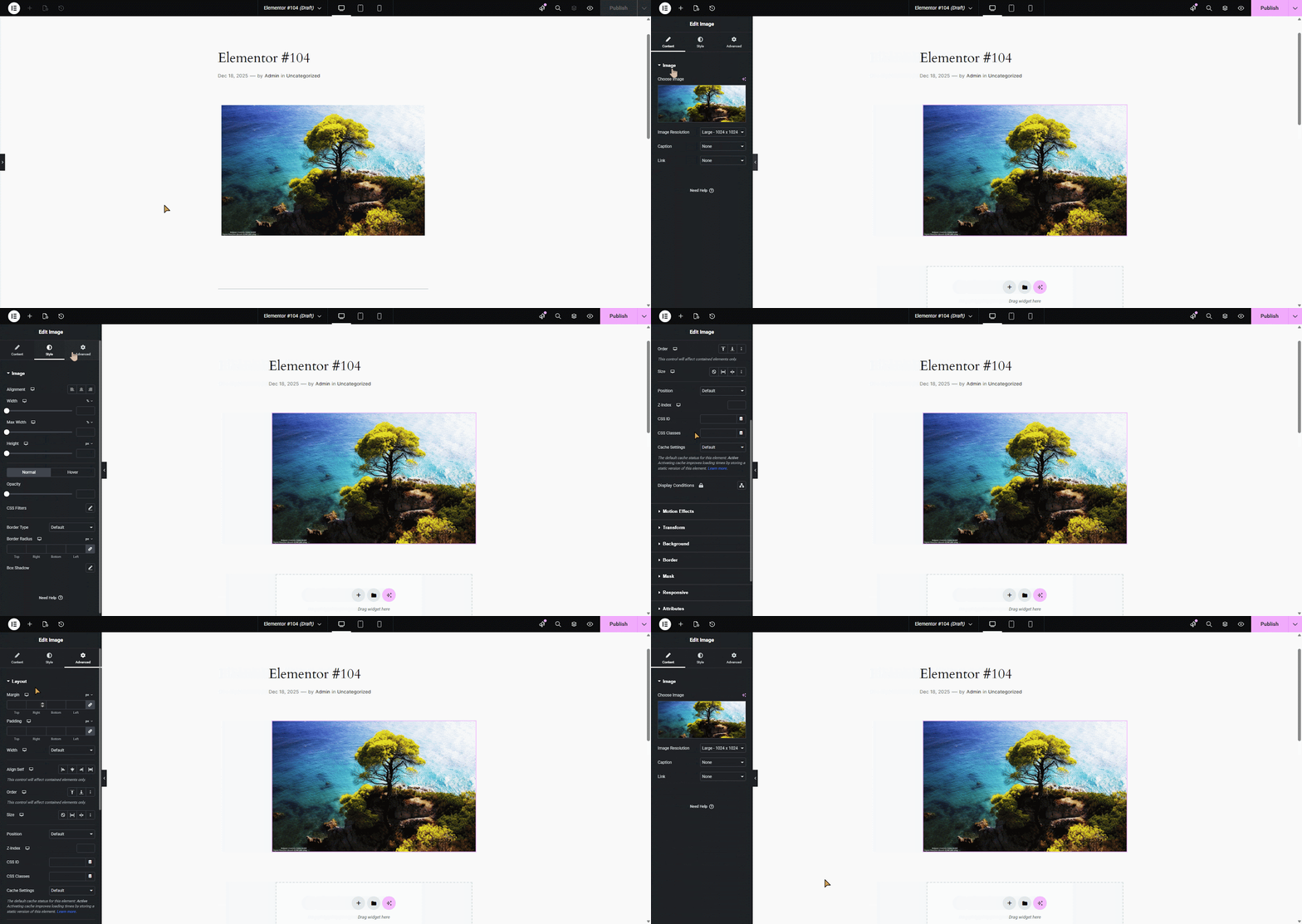
Navigate to the page or post where you want to add motion effects. Open it with the Elementor editor. Select the specific element, whether it is an image, a section or a widget, that you want to animate. The editing panel will appear on the left side, giving you access to customization options.
Step 03: Configure Advanced Settings
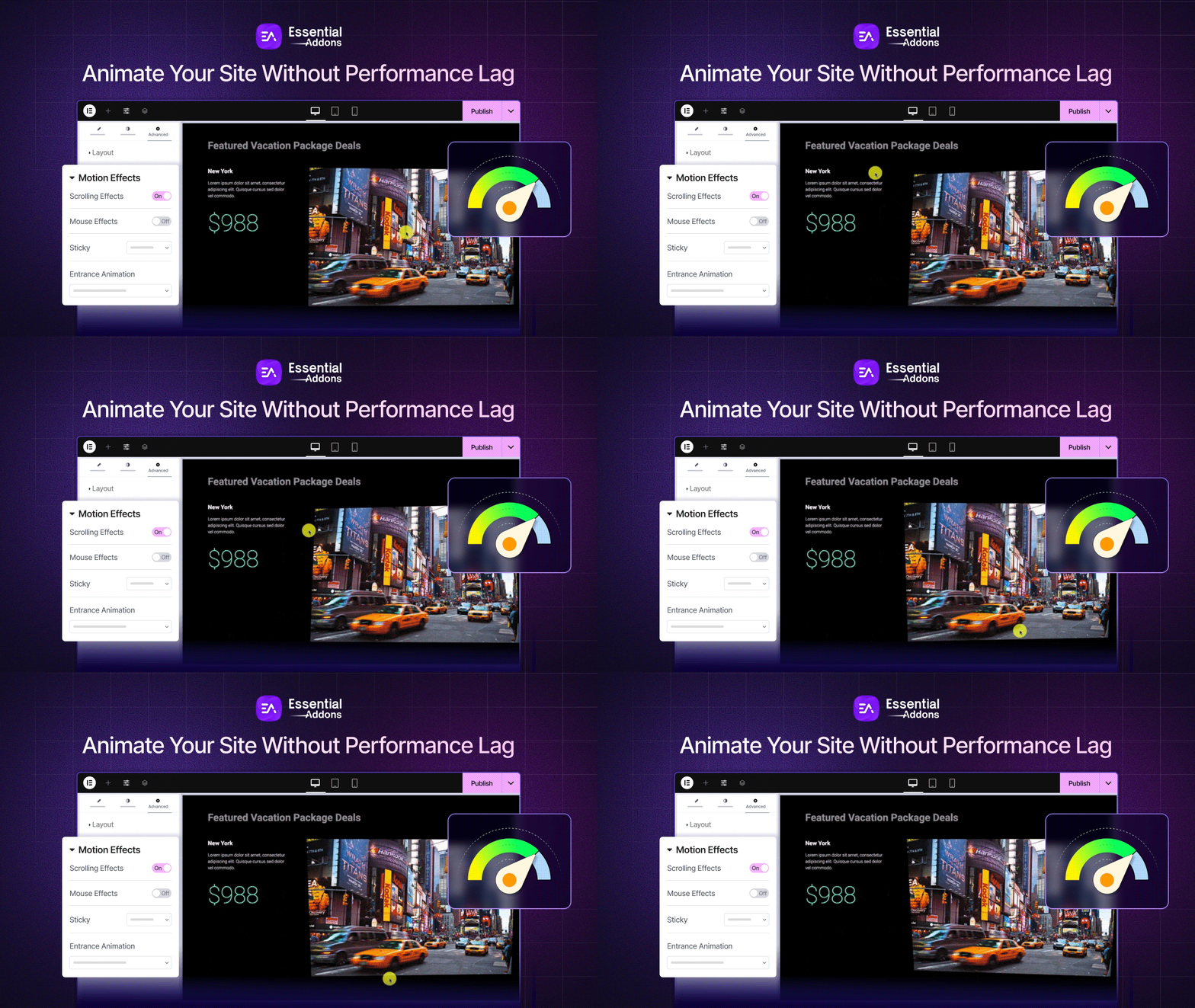
With the element selected, click on the ‘Advanced‘ tab in the left panel. Under this tab, you will find the Motion Effects section. This is where you can enable and configure animations to bring your design to life.
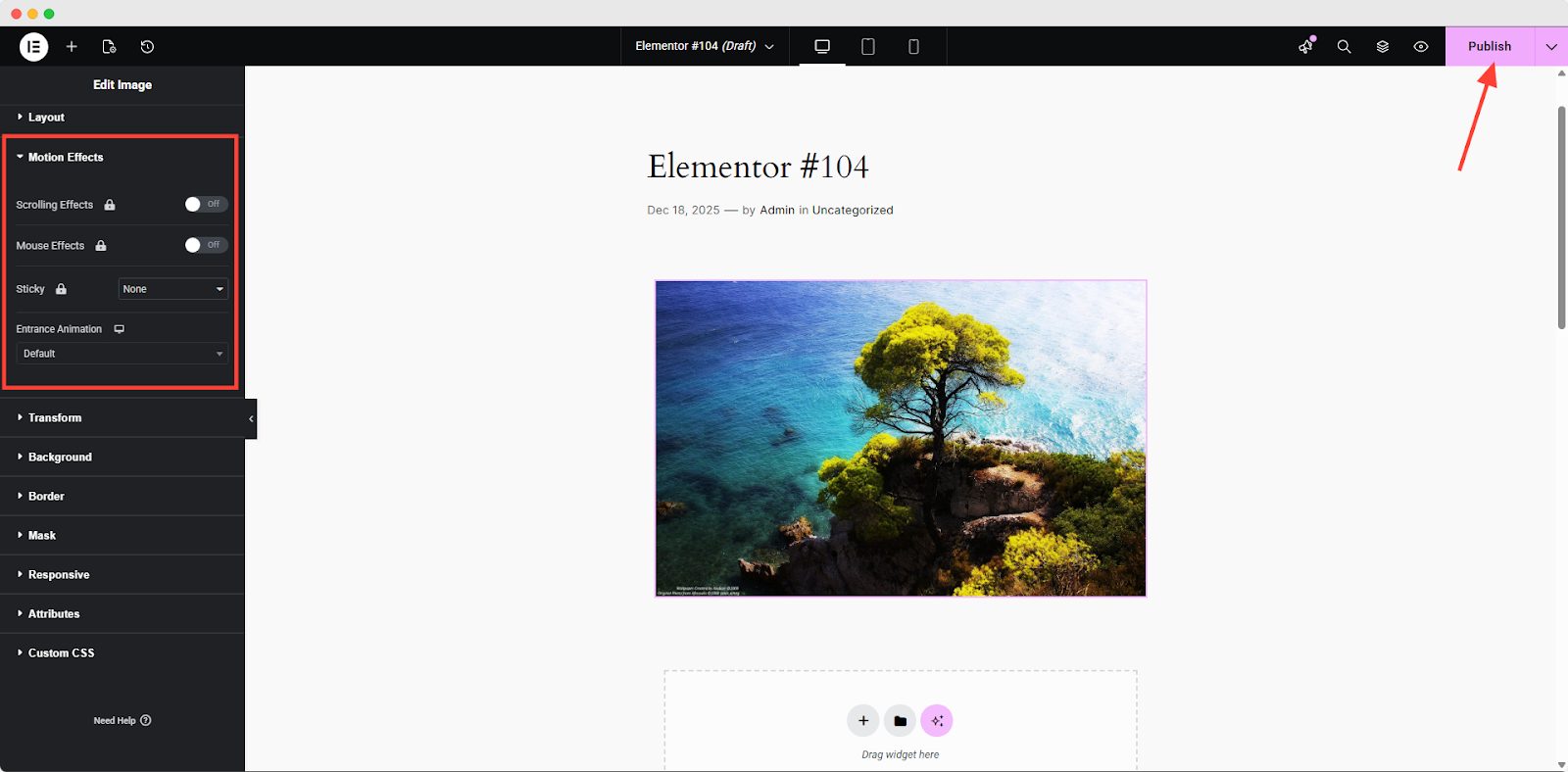
Once you have applied your motion effects, click ‘Publish‘ to save changes. Always preview your page on different devices and browsers to confirm that animations run smoothly and do not slow down performance.
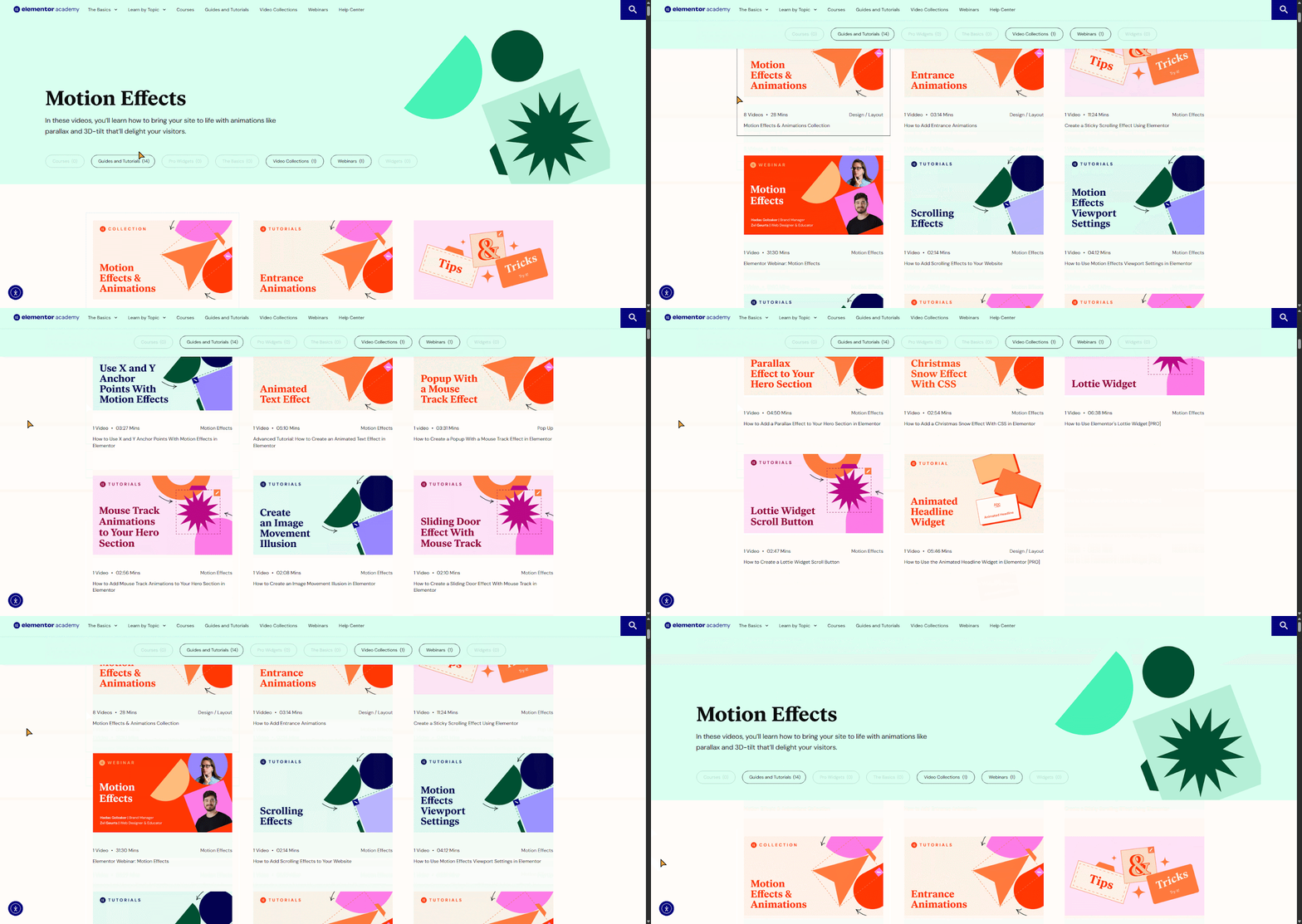
For more learning, visit Elementor Academy where you will find guides, videos and webinars on Motion Effects. From smooth transitions to advanced animations, these resources help beginners and experts master Motion Effects in Elementor.
Introducing Essential Addons for Powerful Motion Effects
Besides using Elementor alone, you can enhance your website with Essential Addons for Elementor, the number‑one most‑popular Elementor addon. It gives you advanced motion effects, smoother animations and extra design controls that help your pages feel more dynamic and professional.
If you want a stronger visual impact without a complex setup, Essential Addons is an easy upgrade to your Elementor workflow. It provides several features that help you do this without slowing down your site. Such as:
🖼️ Image Scroller
You can showcase your images with a smooth scrolling effect that feels modern and effortless. This is perfect when you want visitors to naturally follow your visuals, whether it is a gallery, product display or a storytelling section. The motion guides the eye and makes your content feel more alive.
🌄 Parallax Extension
Give your site depth and dimension with smooth scrolling effects that move with your visitors. Parallax motion adds visual interest and keeps your pages feeling dynamic without slowing them down. When combined with other optimization strategies, it lets your site stay fast while looking modern and engaging.
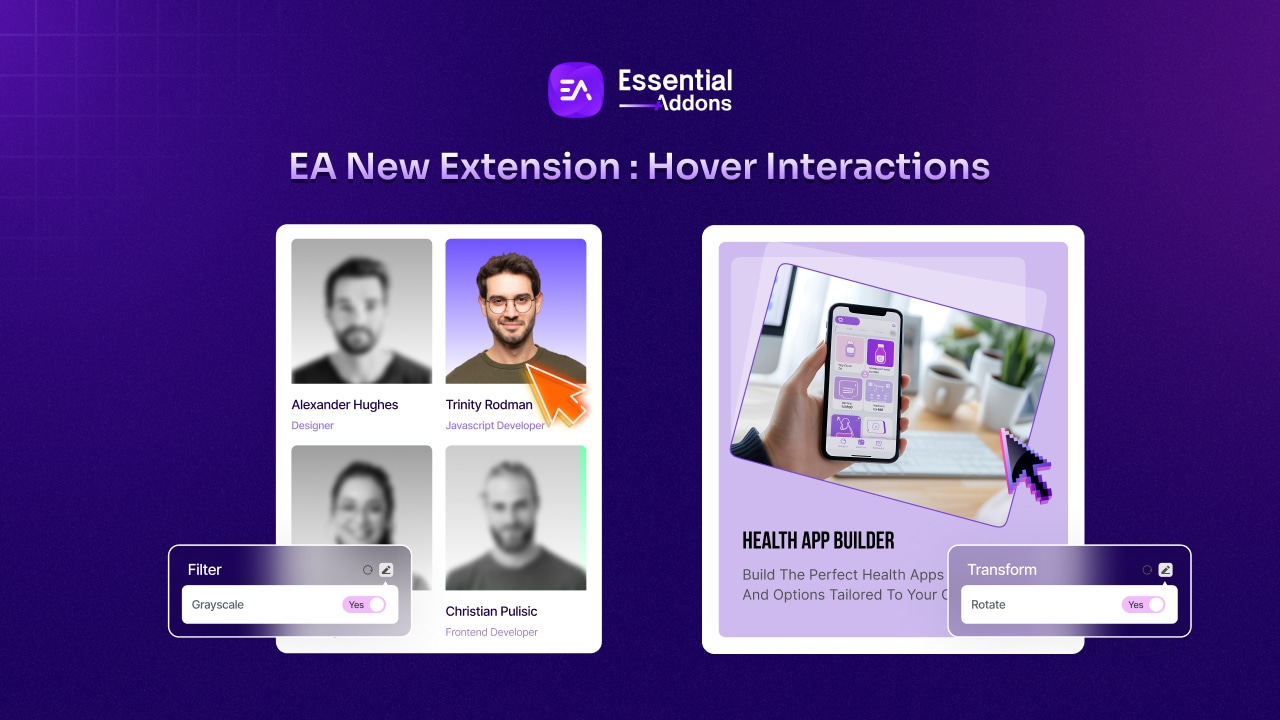
🖱️ Hover Interaction
You can make your elements react when someone hovers over them. Images can shift, buttons can animate and sections can highlight, all helping your page feel more interactive. These small motions encourage users to explore and engage with your content more naturally.
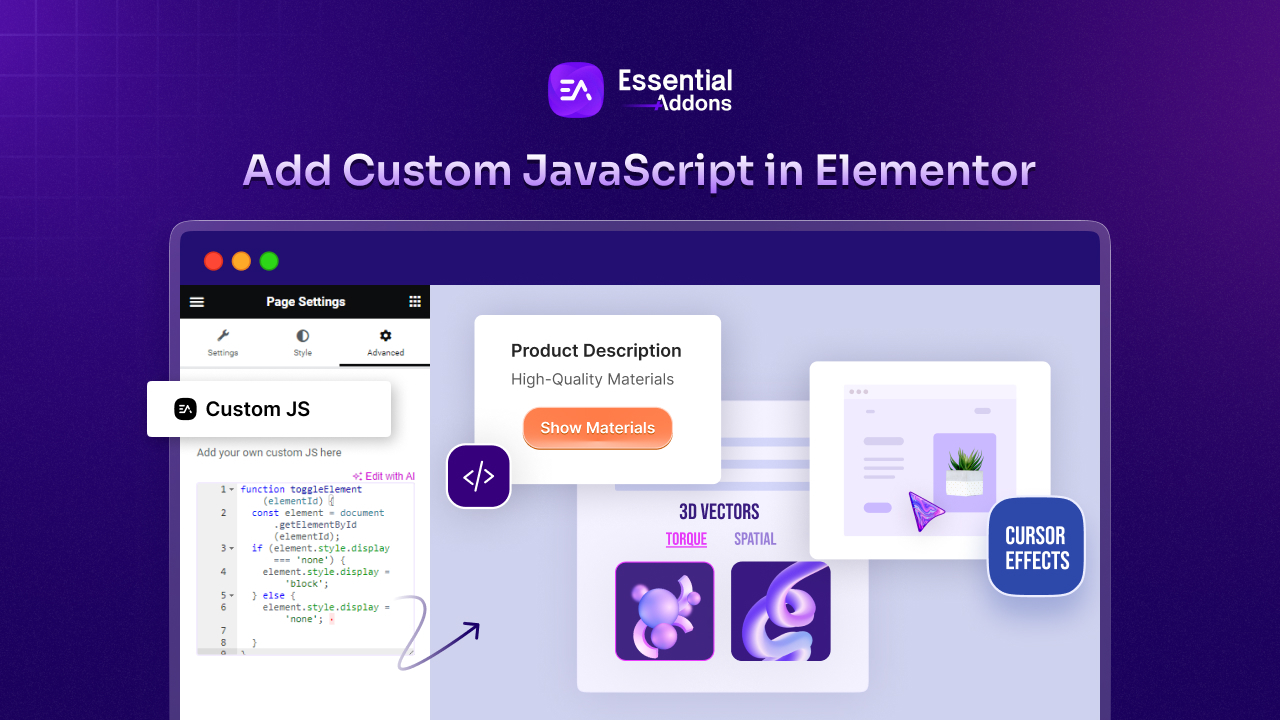
⚡ Custom JS
You can take full control by adding your own JavaScript. This allows you to build custom animations, advanced interactions or unique motion effects that match your brand’s personality. If you want something beyond the built‑in options, Custom JS gives you the freedom to create it.
Display Stunning Motion Effects with Essential Addons Interactive Animation
Speeding up your Elementor website is important but animations can make it feel vibrant and interactive. The key is to add motion thoughtfully so your pages stay fast and responsive. Bring your website to life with interactive animations that react to your visitors. You can highlight important content, guide attention to key areas and make every interaction feel lively and fun.
How to Activate the EA Interactive Animations Extension?
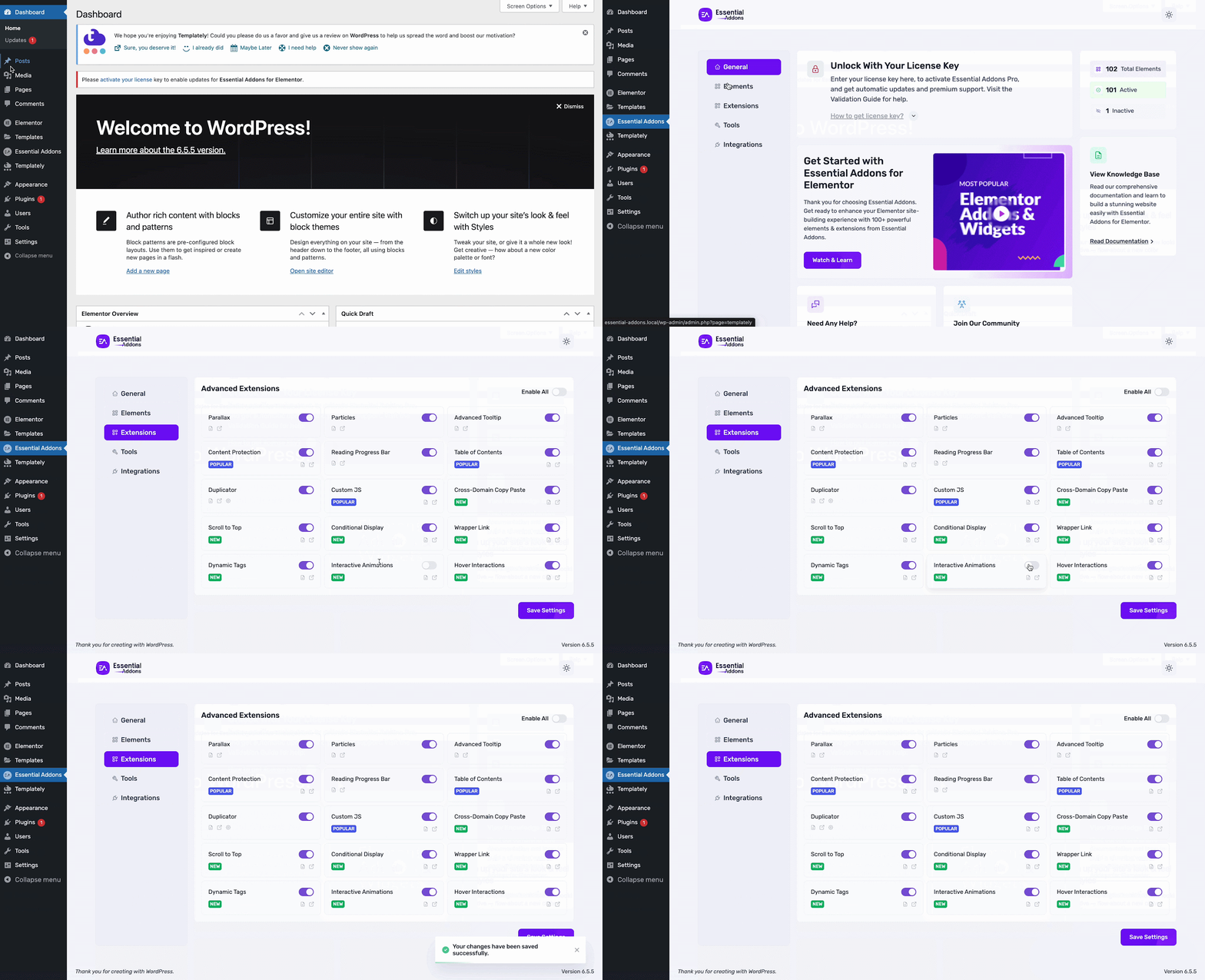
Before you begin, activate the EA Interactive Animations extension. Go to your WordPress dashboard, open Essential Addons, then go to the Extensions tab. Turn on ‘Interactive Animations’ and click ‘Save’ Settings.
How to Configure & Style EA Interactive Animations Extension Settings?
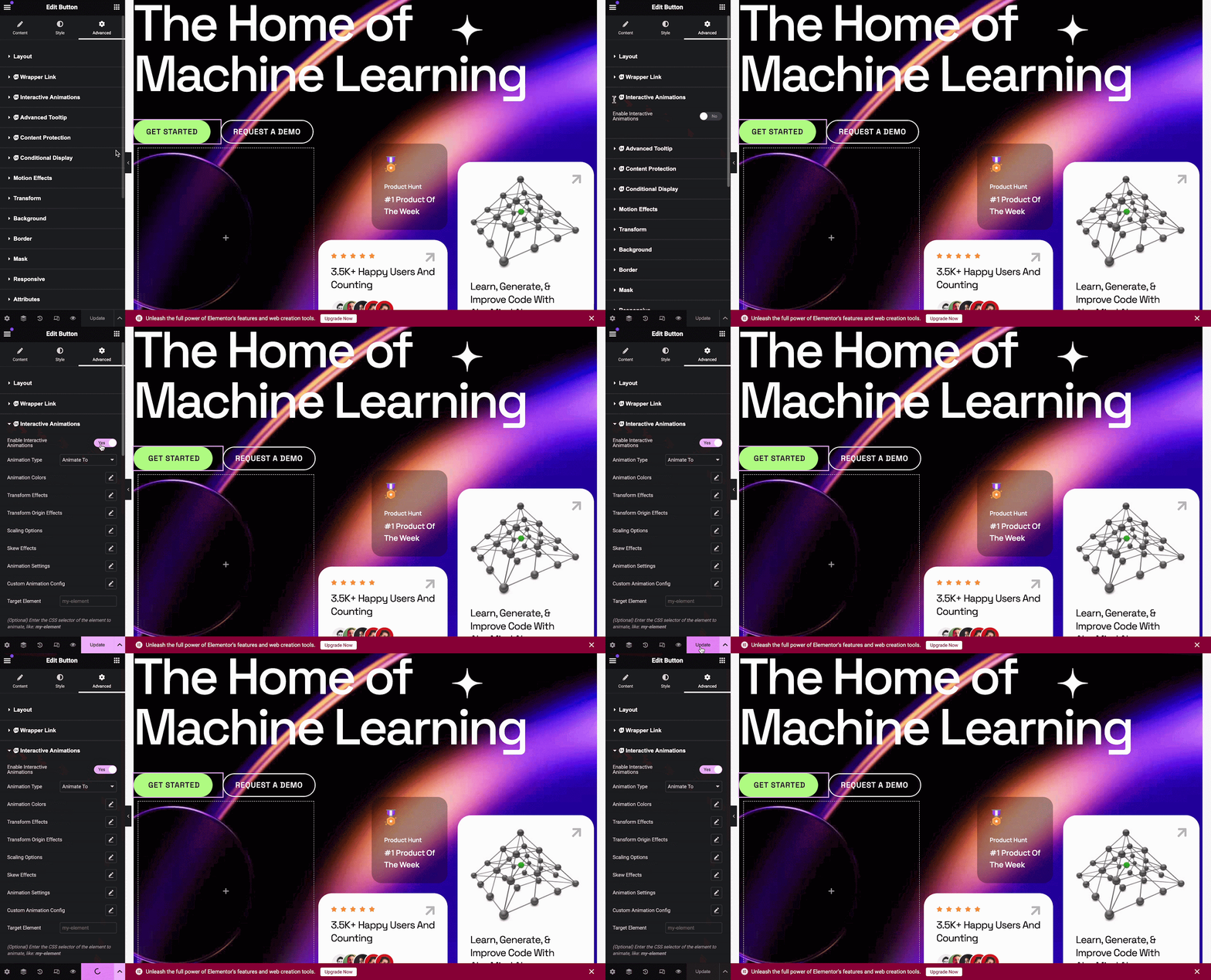
Open any page from your WordPress dashboard, select a section, then go to Advanced. Then navigate to Essential Addons’ ‘Interactive Animations’. Toggle on ‘Enable Interactive Animation’ to activate the extension.
After you have successfully done the previous step, you can see all the configuration options under EA Interactive Animations.
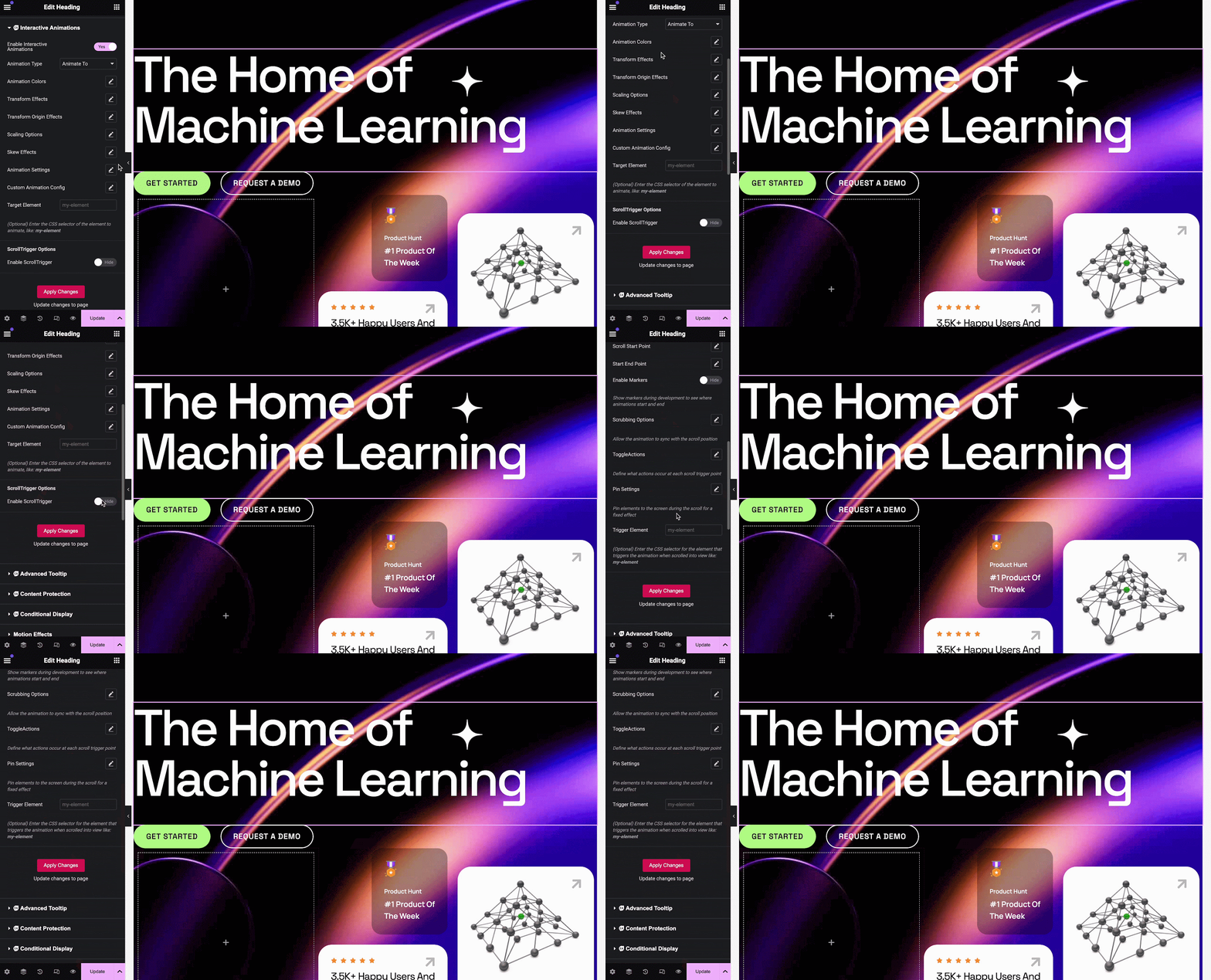
Interactive Animations Settings
The Interactive Animations extension offers different types of animation settings that can bring your Elementor website to life with responsive design options.
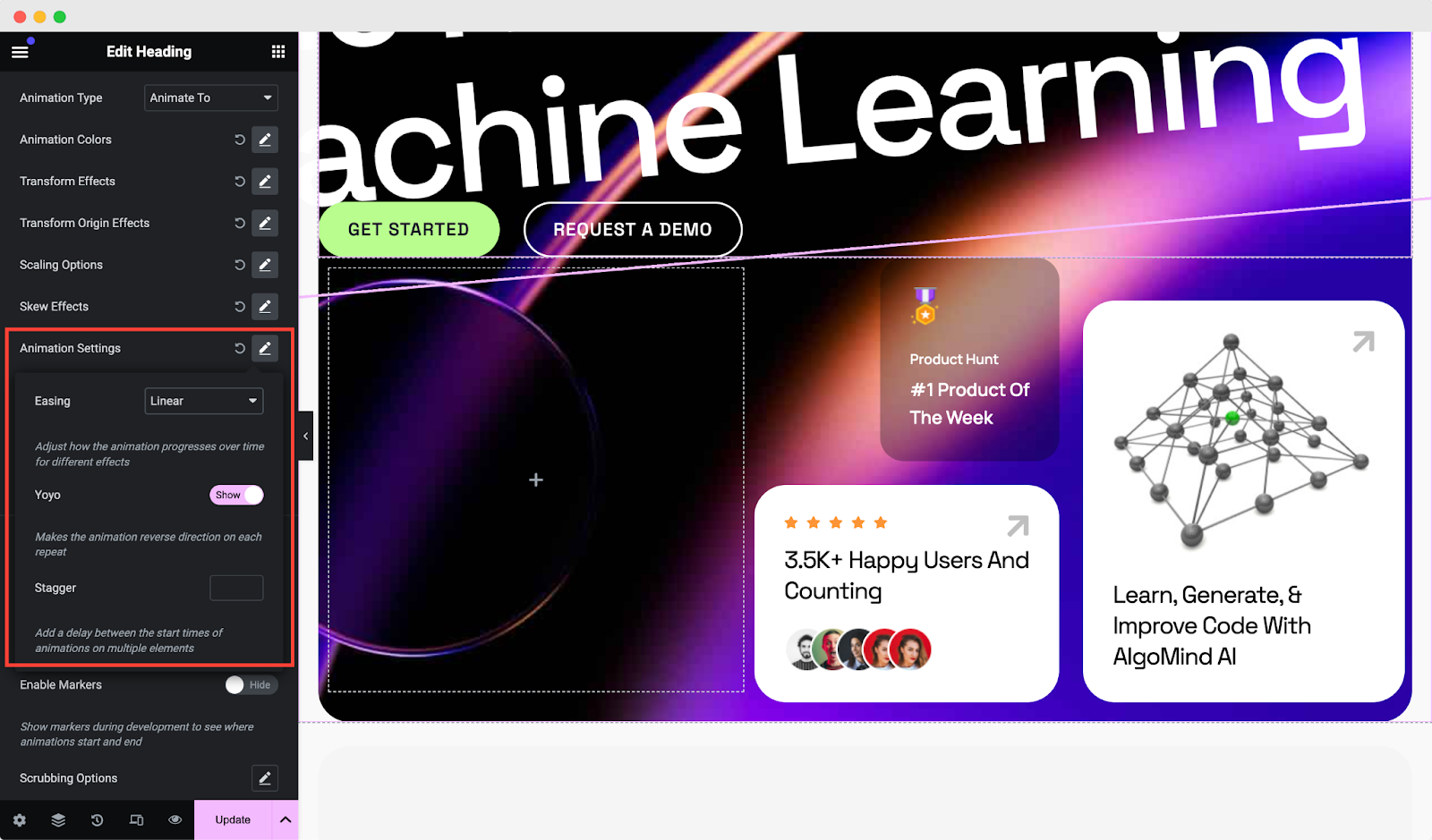
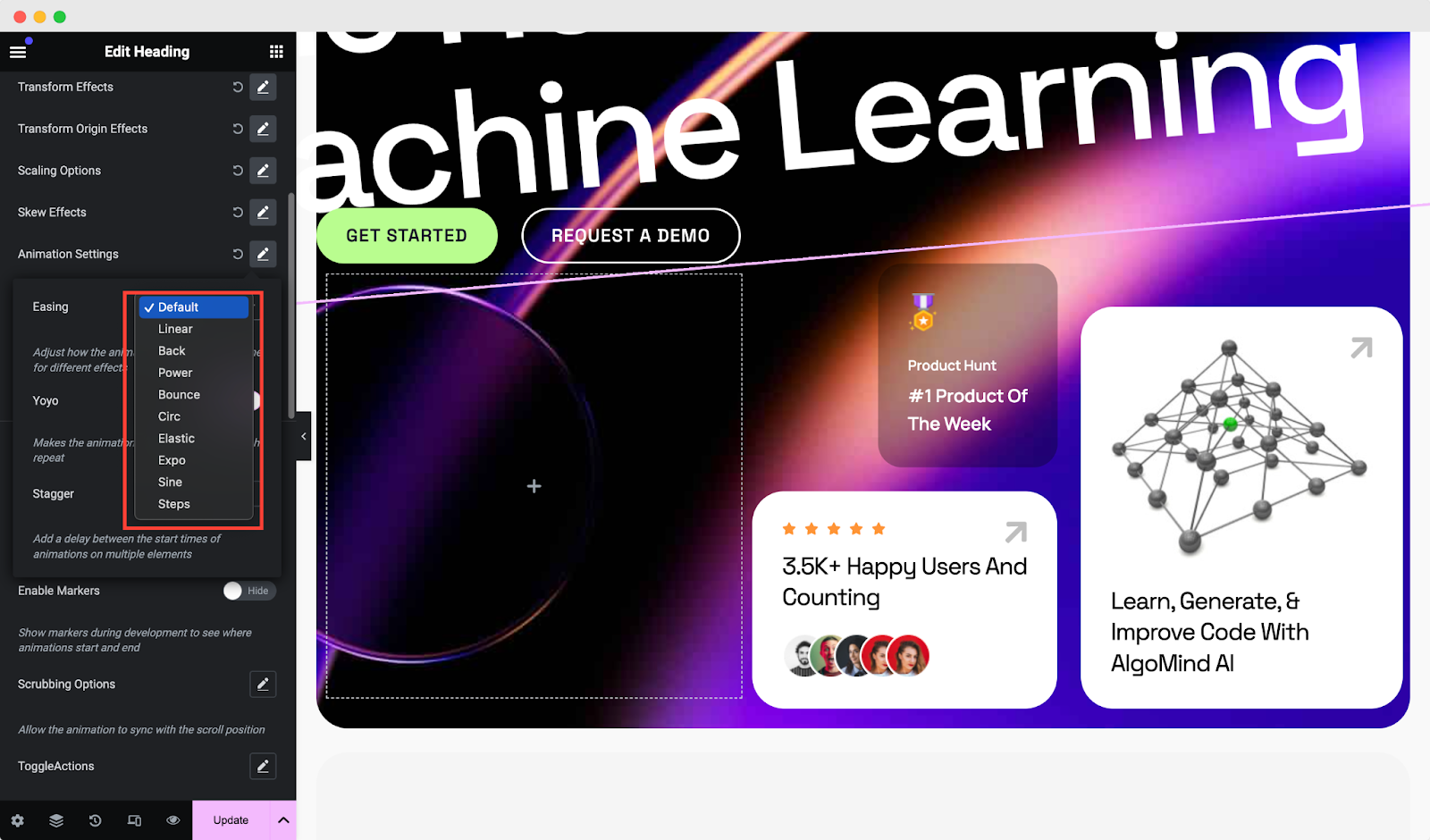
Easing
With the easing, you will be able to adjust how the animation progresses over time for different types of effects you set. You can set your effect as default or choose 9 different types of easing animations.
Custom Animation Settings
With the EA Interactive Animation extension’s custom animation, you can animate any section, column, container or widget in Elementor of your own. Set the ‘Duration,’ ‘Delay,’ and ‘Loop Count’ on your elements & style the way you want.
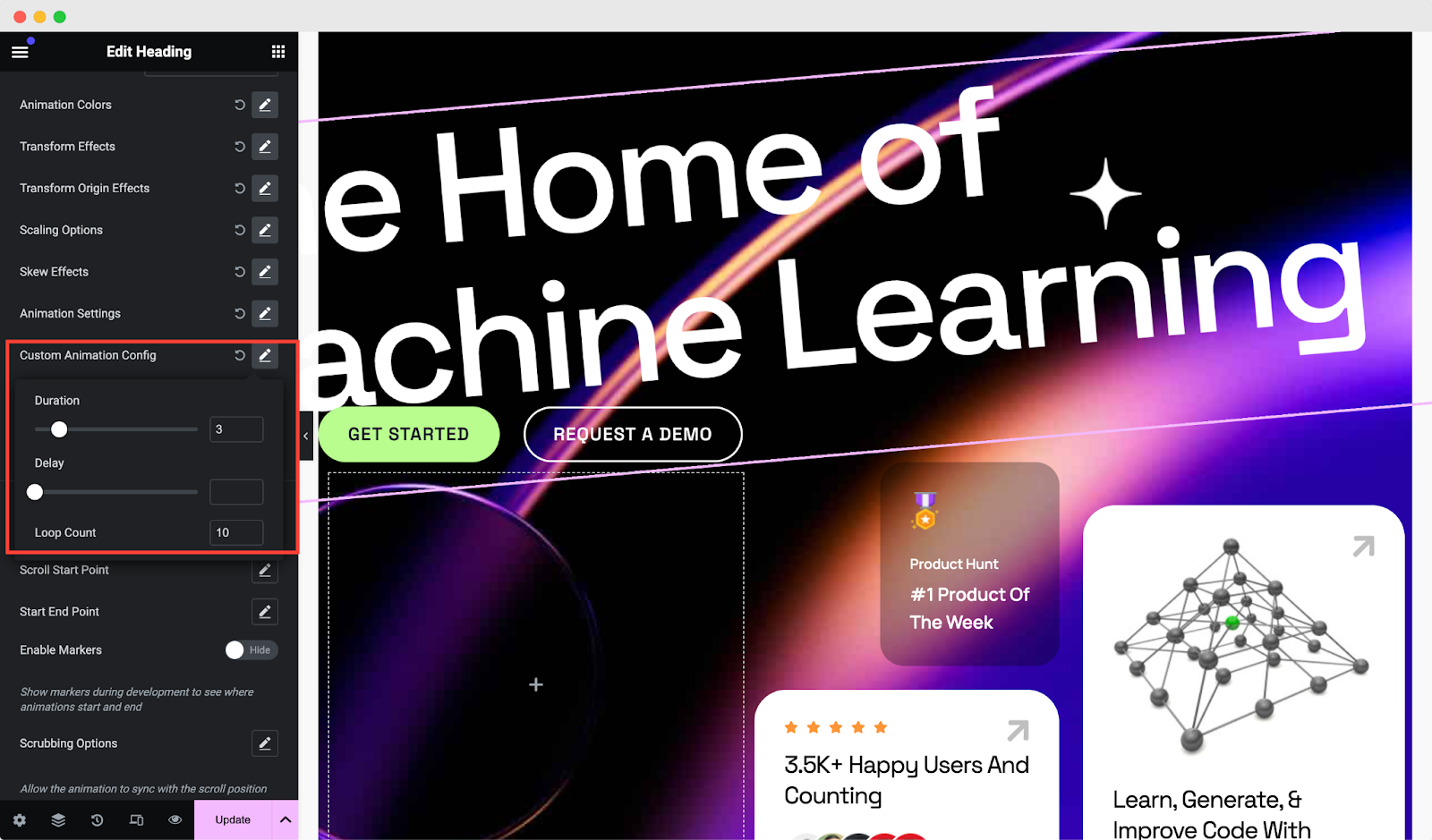
With all these EA Interactive Animations options, you can style any section, column, container or widget in Elementor the way you prefer. Let’s have a look at how you can add visually engaging animations to your desired element or container without coding.
Smart Animation Strategies for Faster Elementor Pages
Animations make websites more dynamic and engaging, but if not optimized, they can slow down your pages and frustrate visitors. Smart animation strategies help you create visually appealing motion effects while keeping Elementor pages fast and responsive.
By combining fine-tuned settings, system-wide optimization, and real-world testing, you can enjoy smooth animations without compromising performance.
Check the table below to begin optimizing your website and boost performance by improving motion effects.
| Category | Setting / Mistake / Tool | Recommendation / Purpose | Performance Impact / Fix |
| Animation Settings | Animation Easing | Use simple easing styles (linear, ease-in-out) | Reduces rendering complexity and ensures smooth transitions |
| Offset Values | Keep offsets minimal | Large offsets increase calculation load | |
| Scroll Trigger Points | Trigger animations later in the scroll | Reduces initial load and improves perceived speed | |
| Limit Simultaneous Animations | Avoid animating many elements at the same scroll position | Prevents browser overload and lag | |
| Common Mistakes | Animating too many elements | Focus on key sections only | Each animation adds overhead |
| Using multiple animation plugins | Limit plugins and rely on Elementor built-in effects | Conflicting scripts increase load | |
| Ignoring mobile optimization | Test animations on mobile and adjust settings | Mobile devices experience lag faster | |
| Skipping performance testing | Test after each change using performance tools | Unnoticed issues persist | |
| Testing Tools | Google PageSpeed Insights | Measures real-world performance and provides suggestions | Helps track optimization impact |
| GTmetrix | Shows waterfall charts to pinpoint heavy scripts and animations | Identify bottlenecks in scripts or animations | |
| Browser Developer Tools | Monitors rendering and script execution times | Adjust animations based on real performance data |
General Optimization for Faster Elementor Pages
Optimizing your overall website performance complements animation settings and ensures smooth page loads. By focusing on system-wide improvements, you can make Elementor animations run efficiently while keeping your site fast and stable.
- Use optimized images: Reduce image file sizes to speed up animated sections significantly.
- Enable caching: Store assets locally for returning visitors, reducing page load times.
- Use a lightweight theme: Keep the base site load low so animations run smoothly on top of minimal load.
- Keep Elementor updated: Apply the latest performance improvements to enhance speed and stability.
Best Practices for Smooth Motion Effects
Keep your animations simple and purposeful to enhance user experience without slowing down your pages. Limit the number of effects running at the same time and test them on real devices.
Combine these practices with optimized images and caching to ensure your Elementor motion remains smooth and your website is fast 👉🏻
- Use Lightweight Animations: Stick to subtle scrolling effects like vertical or horizontal scroll, transparency or scale. These are less resource‑intensive compared to complex combinations.
- Limit Effects Per Page: Avoid stacking multiple motion effects on the same element. Too many animations can overwhelm users and slow down rendering.
- Device‑Specific Optimization: Apply effects selectively. For example, keep advanced motion on the desktop but disable or simplify it on mobile, where performance and usability matter most.
- Respect Accessibility Settings: Elementor automatically disables motion effects for users who enable ‘Reduce Motion’ in their system preferences. This ensures inclusivity and prevents discomfort.
- Check Browser Compatibility: Motion Effects are supported across Chrome, Firefox, Safari, Opera and Edge (though Edge may respond more slowly). Internet Explorer is not supported. Always test across devices and browsers.
- Avoid Heavy Mouse Effects: Mouse Track and 3D Tilt are desktop‑only and can cause lag, especially in Safari due to jQuery issues. If you notice glitches, disable entrance animations or remove overlapping mouse + scroll effects.
For a smoother, lightweight alternative, consider using Essential Addon’s Custom Cursor, which delivers engaging motion without slowing down your pages. - Publish Smartly: After editing, preview your page before publishing. This helps you catch performance issues early and adjust animations accordingly.
Your Next Step: Add Motion Effects That Look Great And Load Fast
Motion effects play a key role in modern web design. When used correctly, they increase engagement and improve user flow. When misused, they harm performance and user trust.
This guide showed how to add motion effects in Elementor without slowing down your site. You learned how to plan animations, use built-in controls, optimize settings and rely on performance-focused plugins like Essential Addons.
If you found this blog helpful, join our community to stay updated with the latest articles, product reviews and WordPress solutions. You can also subscribe to our Blog for in-depth tutorials and tips. Check our customer support for know how to add motion effects properly without slowing down Elementor.