Pinterest is more than a social platform for inspiration; it is a visual discovery engine that can actively support your brand story, product visibility, and audience engagement. If your website already runs on Elementor, adding a Pinterest Feed can help you bridge the gap between your social presence and your on-site experience. Hence, visitors see fresh, branded visual content without needing to leave your website.
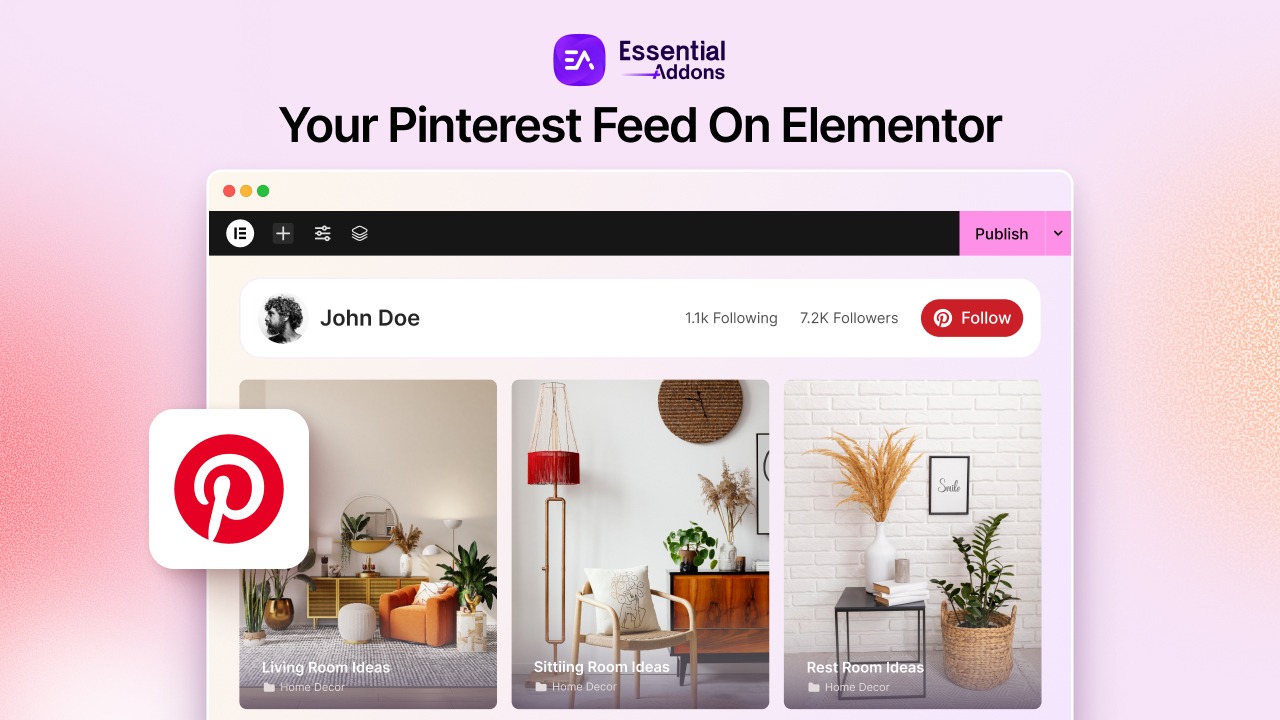
For brands, creators, stores, and portfolio sites, this matters because consistency builds trust. When your Pinterest Feeds on Elementor pages reflects the same boards, pins, aesthetics, and ideas people see on your Pinterest account, your website feels more alive and more connected to your wider content strategy. That makes a strong case for using an Elementor Pinterest Feed instead of treating your website and social media as separate channels.
TL;DR (Quick Summary)
| Topic | Quick Take |
| What it is | A way to display Pinterest boards and pins directly on an Elementor website using the EA Pinterest Feed widget |
| Why it matters | It connects your social presence with your website branding and keeps your website visually fresh with automatically updated Pinterest content |
| Best for | Bloggers, eCommerce stores, interior designers, lifestyle brands, agencies, and portfolio sites |
| Main benefit | You can show live Pinterest content without manually embedding pins one by one |
| Feed types | User Pins, Board Pins, and Boards |
| Key layouts | Grid Overlay, Masonry Overlay, Polaroid Wall, Card Slider, and Featured Slider |
| Customization | Columns, pin count, captions, board names, source domain, profile header, and styling controls |
| Requirement | Essential Addons PRO is required for the EA Pinterest Feed widget |
| Setup flow | Activate widget → connect Pinterest → drag into Elementor → configure feed → style it |
| Extra help | Full setup details are available in the official documentation |
Why Add Pinterest Feeds to Your Elementor Website?
Adding a Pinterest Feed on WordPress gives your site a constant stream of fresh, visual content without forcing your team to update gallery sections manually every week. It helps visitors discover your brand’s style, products, ideas and inspiration in a format they already enjoy browsing. For websites built with Elementor, that means you can turn static sections into dynamic brand touchpoints while still keeping full control over layout and presentation.
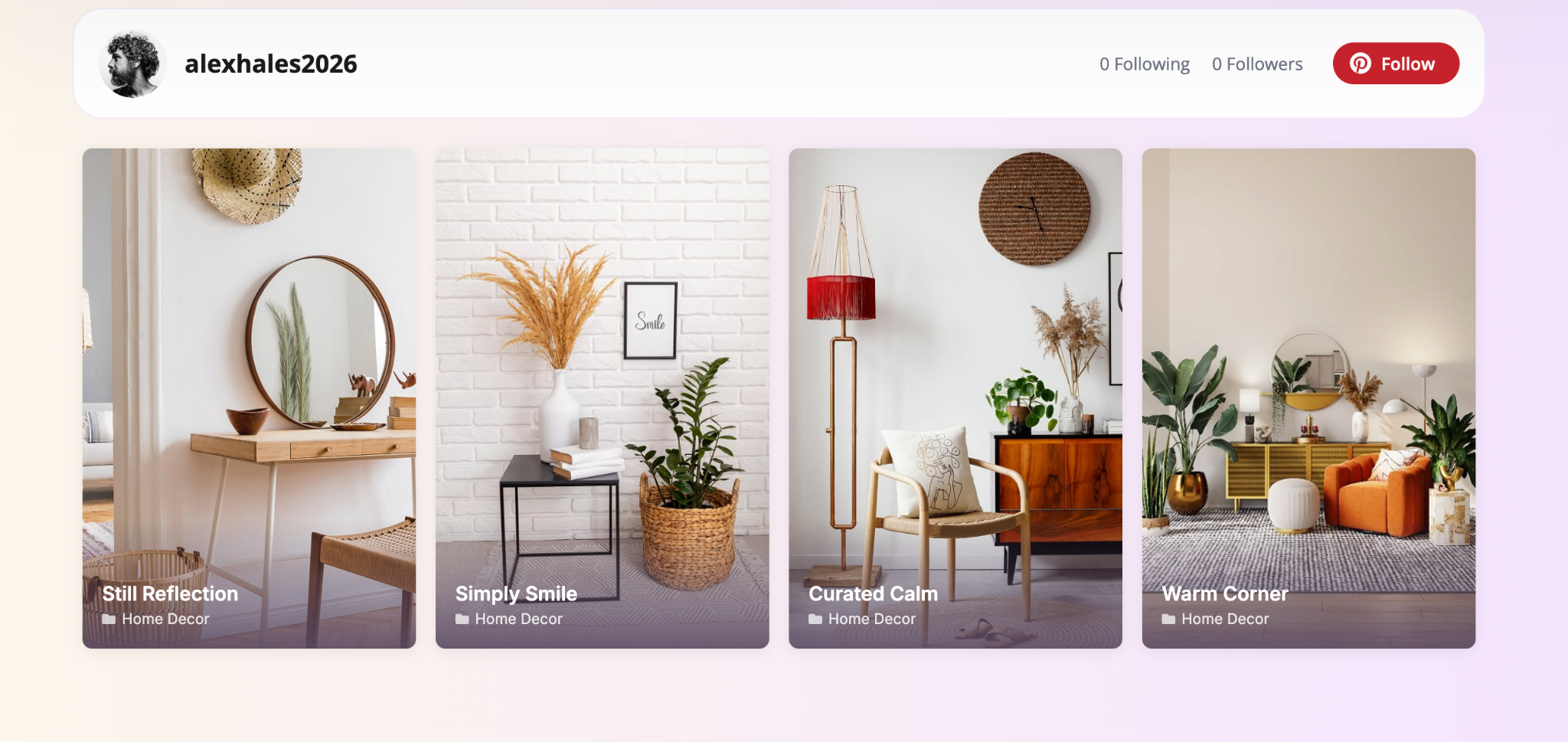
A simple use case would be a home décor brand that regularly posts room ideas and mood boards on Pinterest. Instead of rebuilding those ideas as separate website galleries, the brand can display its latest pins or curated boards right inside its site using an Elementor Pinterest Feed. That keeps product inspiration visible, strengthens visual branding, and gives visitors more reasons to keep exploring.
Common Challenges of Displaying Pinterest Content Manually
Manually showing Pinterest content on a website often sounds simple at first, but it can quickly become repetitive and hard to scale. As your Pinterest activity grows, so does the amount of effort required to keep your website in sync. That is where many site owners start to realize that static screenshots, hand-picked embeds, or one-off updates are not sustainable.
If you want a polished social profile in Elementor, manual workflows can create visual inconsistency, outdated content and extra maintenance. Below are some of the most common challenges businesses face when they try to display Pinterest content by hand instead of using a purpose-built widget.
Keeping Content Updated
When Pinterest content is added manually, every new pin or board update usually requires someone to revisit the website and replace or upload assets again. That becomes a recurring task that eats into time better spent on content planning, design, or marketing. For growing brands, this extra effort creates friction in what should be a smooth content workflow.
For example, a fashion brand posting new seasonal looks on Pinterest may need to update its website gallery every few days to keep both channels aligned. If that process depends on manual uploads, the site will often lag behind the actual social content, making the brand look less active than it really is.
Visual Inconsistency
Manual embeds or screenshots often do not match the rest of the site’s design. Spacing, image proportions, captions and hover effects can feel disconnected from the surrounding Elementor sections, which weakens the overall brand presentation. Instead of looking integrated, the Pinterest area can end up feeling like a pasted-on add-on.
Imagine a minimalist portfolio site with carefully controlled typography and clean section spacing. If the owner drops in mismatched Pinterest screenshots or inconsistent pin previews, the visual rhythm of the page breaks. That hurts the premium feel they worked hard to create.
Displaying the Right Mix of Boards And Pins
Pinterest accounts usually contain different content types for different audience interests. Manually selecting which pins to feature, which boards to highlight and how to organize them across pages is not only slow but also difficult to manage at scale. As the content library grows, curating it by hand becomes increasingly inefficient.
For instance, a wedding planner may have separate Pinterest boards for venues, floral inspiration, table décor and bridal styling. If they want each service page to show relevant inspiration, manually maintaining separate visual sections for each one becomes a long-term burden.
Mobile Presentation Often Gets Overlooked
What looks fine on a desktop page does not always translate well to smaller screens. Manual Pinterest sections can easily end up with awkward cropping, uneven alignment, or poor spacing on tablets and phones. That affects both usability and the quality of the brand impression.
Take a lifestyle blogger who manually arranges Pinterest screenshots into a grid. On desktop, it may feel acceptable, but on mobile, the images can stack poorly or lose visual balance. A feed section that is meant to inspire users can instead feel cluttered and difficult to browse.
Little Room for Scalable Customization
Manual display methods usually lock you into limited design choices. Once you need better overlays, captions, pin counts, columns, sliders, or branded headers, the manual approach starts showing its limits. You end up spending more time patching the presentation than actually improving the user experience.
A good example is an online store that wants to show only a certain board, add a followable profile header and present pins in a stylish slider. Doing that manually would require multiple workarounds, and even then, it would still be harder to maintain than a dedicated Pinterest Feed on Elementor.
On top of that, the default WordPress approach to showing Pinterest content usually relies on basic embeds or manual placement, which is not enough if you want better layout control or styling flexibility. That is where Essential Addons stands out. With its rich collection of 110+ widgets and extensions, including a more customizable Pinterest Feed on Elementor setup that matches your brand better.
Meet the Pinterest Feed Widget in Essential Addons for Elementor
The Pinterest Feed widget from Essential Addons for Elementor is designed to make Pinterest content display easier, cleaner and more brand-friendly. It lets you showcase Pinterest boards and pins directly on your website with Elementor integration and without writing code. That makes it a practical solution for brands that want dynamic visual content but do not want the complexity of custom development.
The widget supports multiple feed types and offers configuration areas for account settings, feed settings, profile header options, and styling controls. In other words, it is not just a basic embed tool; it is meant to help you create a more polished social profile in Elementor that looks native to your site while still reflecting your Pinterest presence. One key note from the documentation is that this is a PRO widget, so Essential Addons PRO needs to be installed and activated before use.
Key Features of the Pinterest Feed Widget
The strength of this Pinterest Feed widget lies in how it balances automation with design flexibility. You are not limited to a one-size-fits-all display. Instead, you can decide what type of Pinterest content to show, how it should appear and how closely it should match your website branding.
That matters because different websites have different visual goals. A personal blog may want a warm, editorial wall of inspiration, while an eCommerce brand may prefer a cleaner product-focused layout. The Pinterest Feed widget gives enough control to support both approaches while still keeping setup fairly simple.
Display Your Latest Pinterest Pins
One of the most useful capabilities is the option to display live Pinterest pin content, including feed types such as User Pins and Board Pins. This helps turn your website into an extension of your Pinterest activity instead of a separate, static destination. If you post new ideas regularly, your website can reflect that momentum with less manual effort.
This is especially valuable for brands that rely on seasonal or trend-based visuals. A beauty blog, for example, can use its Pinterest Feed on WordPress pages to surface recent tutorials, product mood boards, or trending inspiration pins, helping readers discover newer content in a visually familiar format.
Showcase Pinterest Boards Beautifully
The widget also supports showing Boards as a content type, not just individual pins. That is important because boards often tell a broader story than standalone posts. They group ideas by category, campaign, style, or audience need, which makes them perfect for brands that organize content strategically.
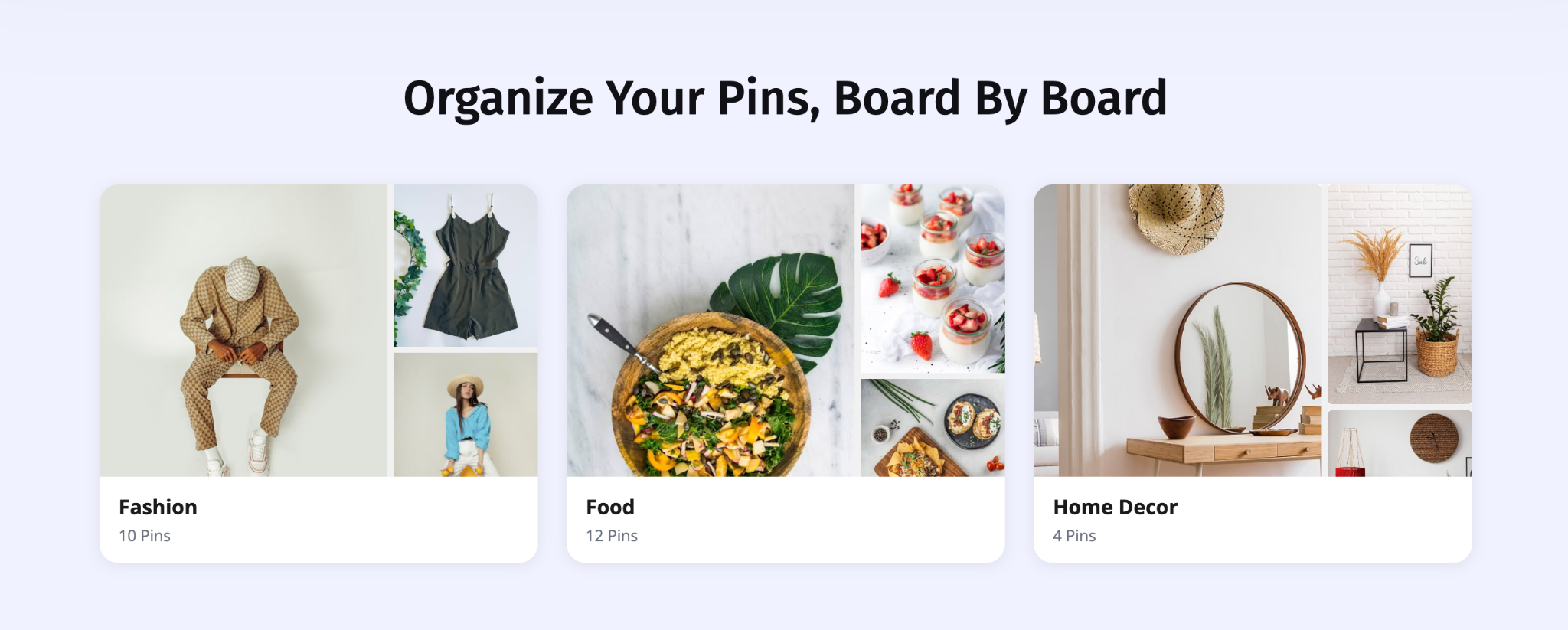
For instance, an interior design studio could feature separate boards for kitchens, bedrooms, office spaces and color palettes. Rather than overwhelming visitors with disconnected images, the site can present these Pinterest collections as intentional inspiration hubs, making browsing feel more curated and brand-aligned.
Fully Customizable Layout & Styling
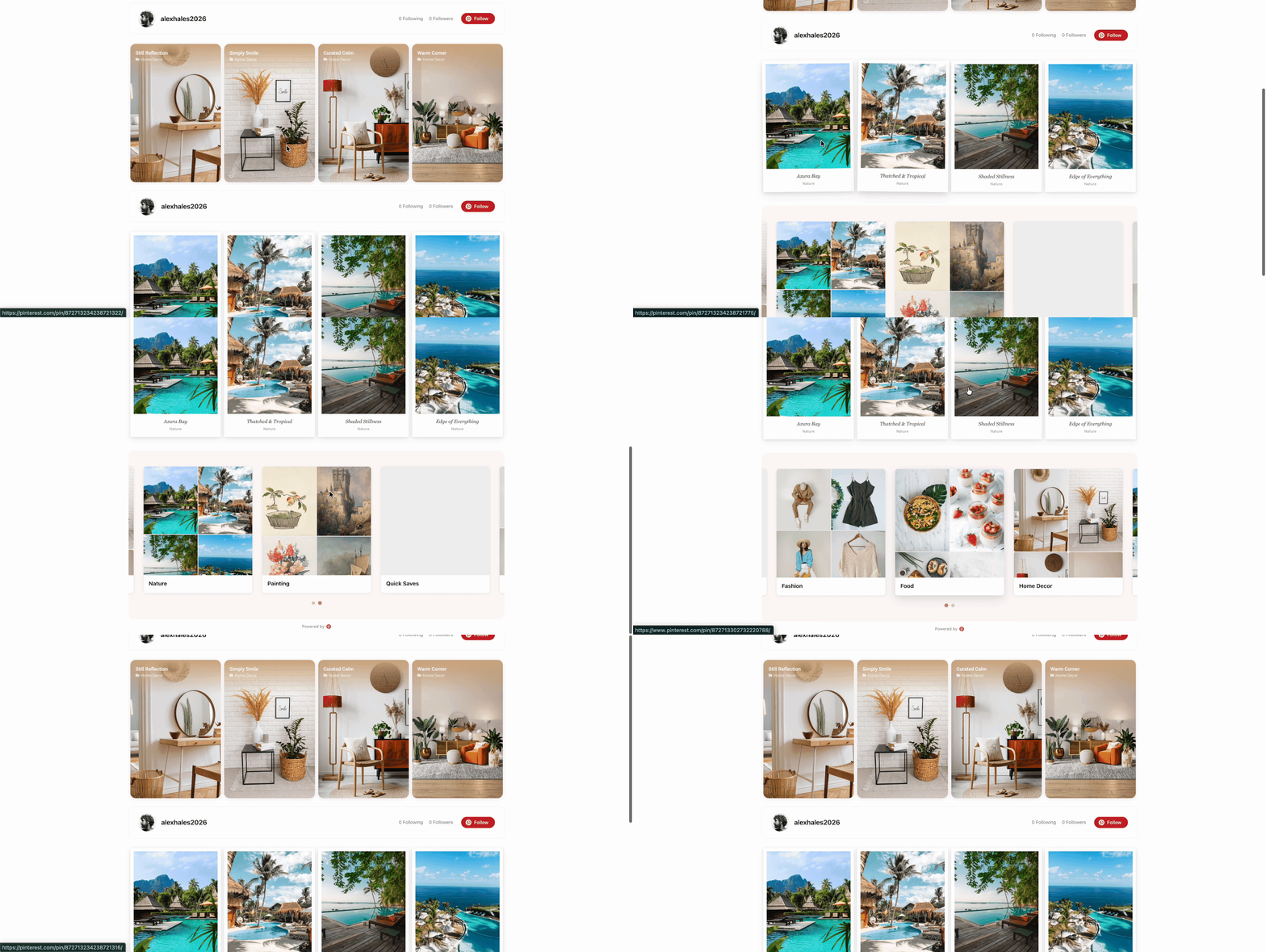
There are several layout options for Board Pins, including Grid Overlay, Masonry Overlay, Polaroid Wall, Card Slider and Featured Slider. It also mentions controls for columns, number of pins, caption display, board names, source domain, and multiple style settings such as typography, spacing, colors, margin and padding. That gives users meaningful creative freedom while staying inside Elementor’s workflow.
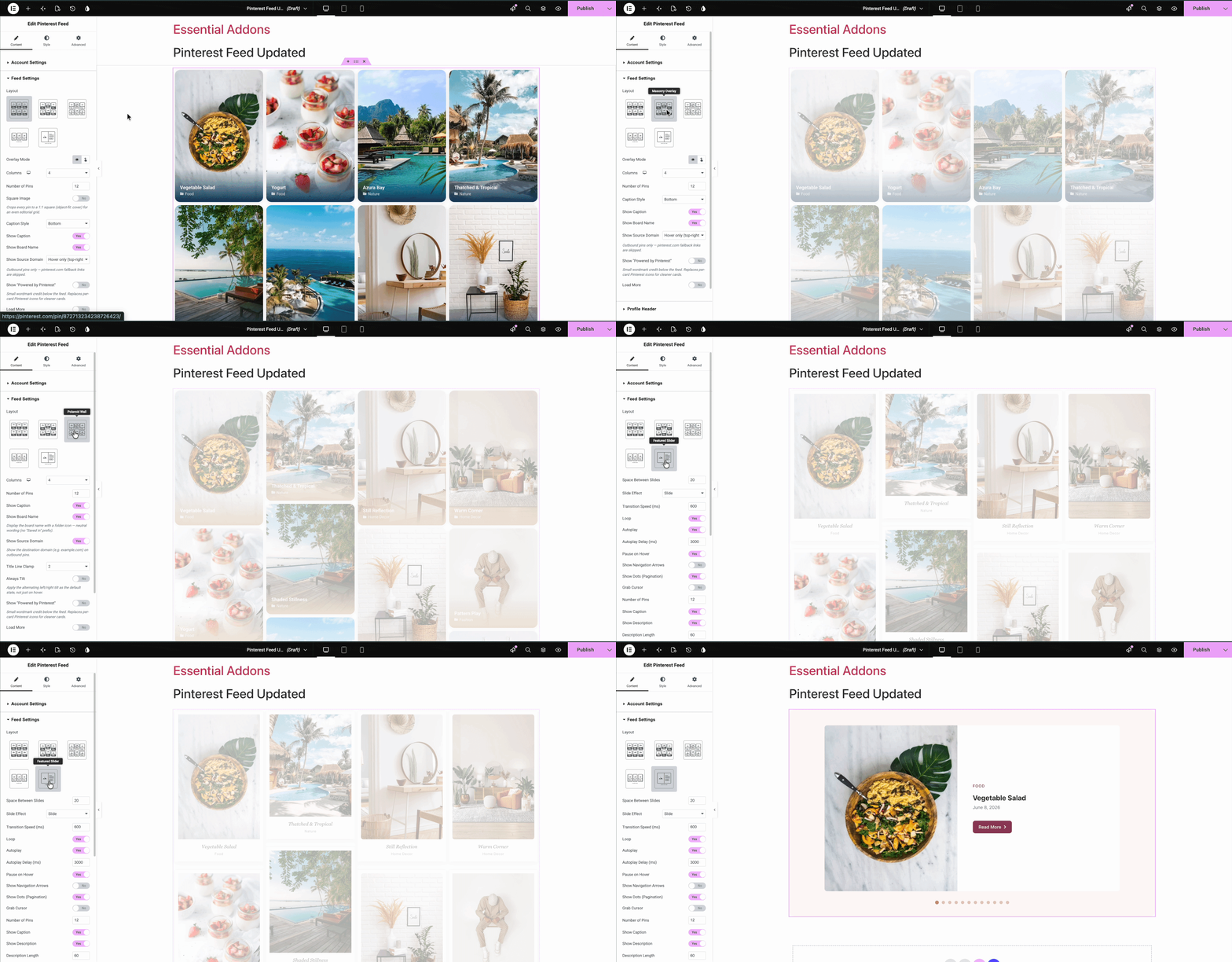
This level of flexibility is useful because Pinterest content should not look identical on every website. A travel blog may prefer a masonry layout with captions for a scrapbook feel, while a SaaS landing page using a social profile in an Elementor section may choose a cleaner slider layout that complements a more structured interface.
Mobile-Responsive Design
The availability of column and layout controls strongly supports building a feed that adapts well across devices. In practical terms, that means site owners can shape a Pinterest section that feels visually balanced on desktop, tablet and mobile screens rather than relying on rigid manual embeds.
That matters because many visitors discover brands on mobile first. If your Elementor Pinterest Feed looks clean and easy to browse on smaller screens, it strengthens both engagement and trust. A responsive visual feed can make the difference between a quick bounce and a longer, more meaningful session.
How to Add a Pinterest Feed in Elementor (Step-by-Step)
Setting up a Pinterest Feed on Elementor with Essential Addons is fairly straightforward. For most users, the workflow is simple enough to follow without technical help, especially if they are already comfortable using Elementor.
Step 1: Activate the Widget And Connect the Account
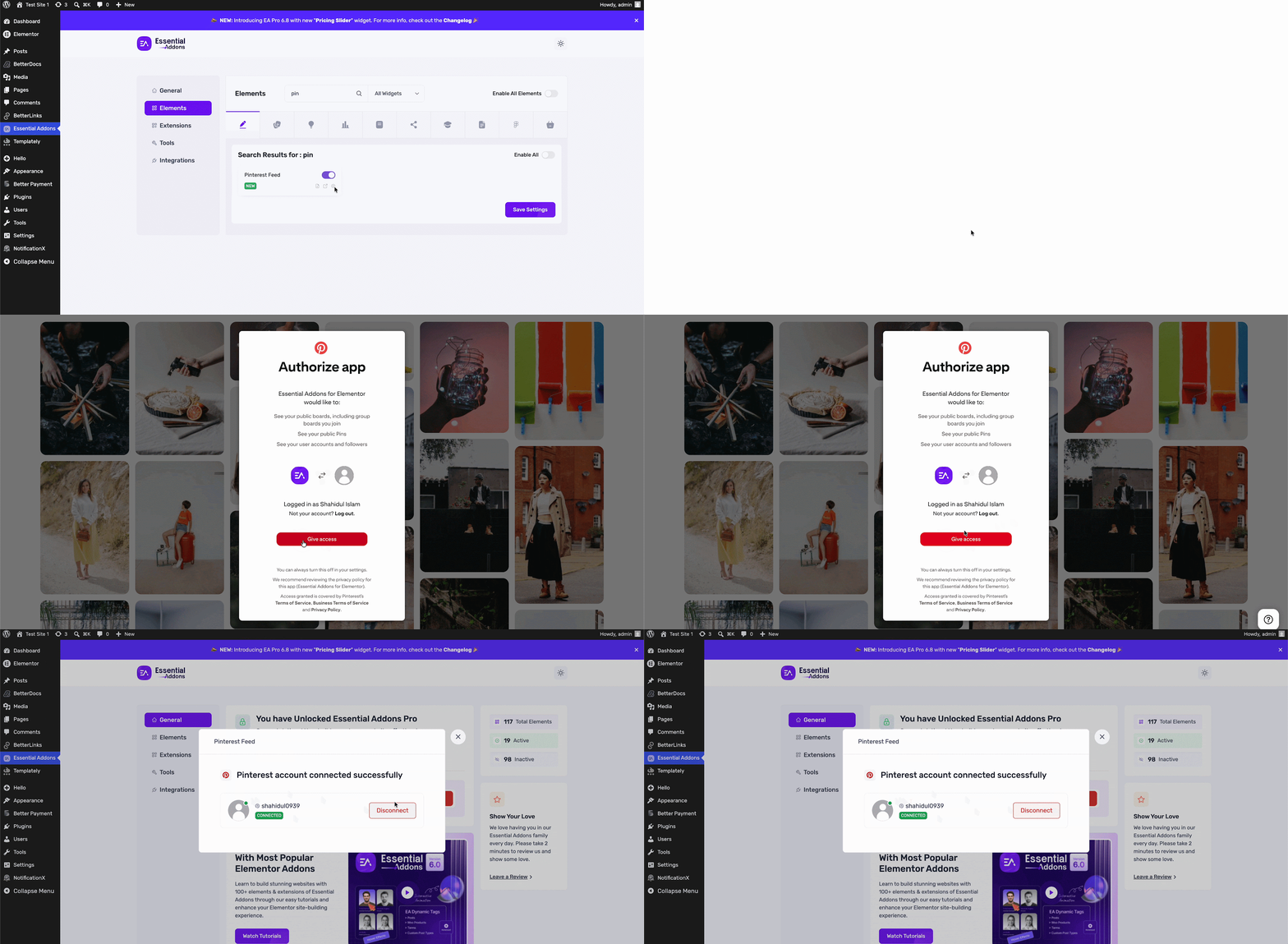
Go to your WordPress dashboard, open Essential Addons → Elements, search for Pinterest Feed, enable it, and save settings. Open the widget settings area, choose Connect with Pinterest, and grant access so the integration can pull your Pinterest content.
Step 2: Insert the Widget And Choose the Type
Edit your page with Elementor, search for Pinterest Feed in the Elements panel, then drag and drop it into the target section. In the Content tab, decide whether you want to display User Pins, Board Pins, or Boards. If you select Board Pins, you can also choose a specific board.
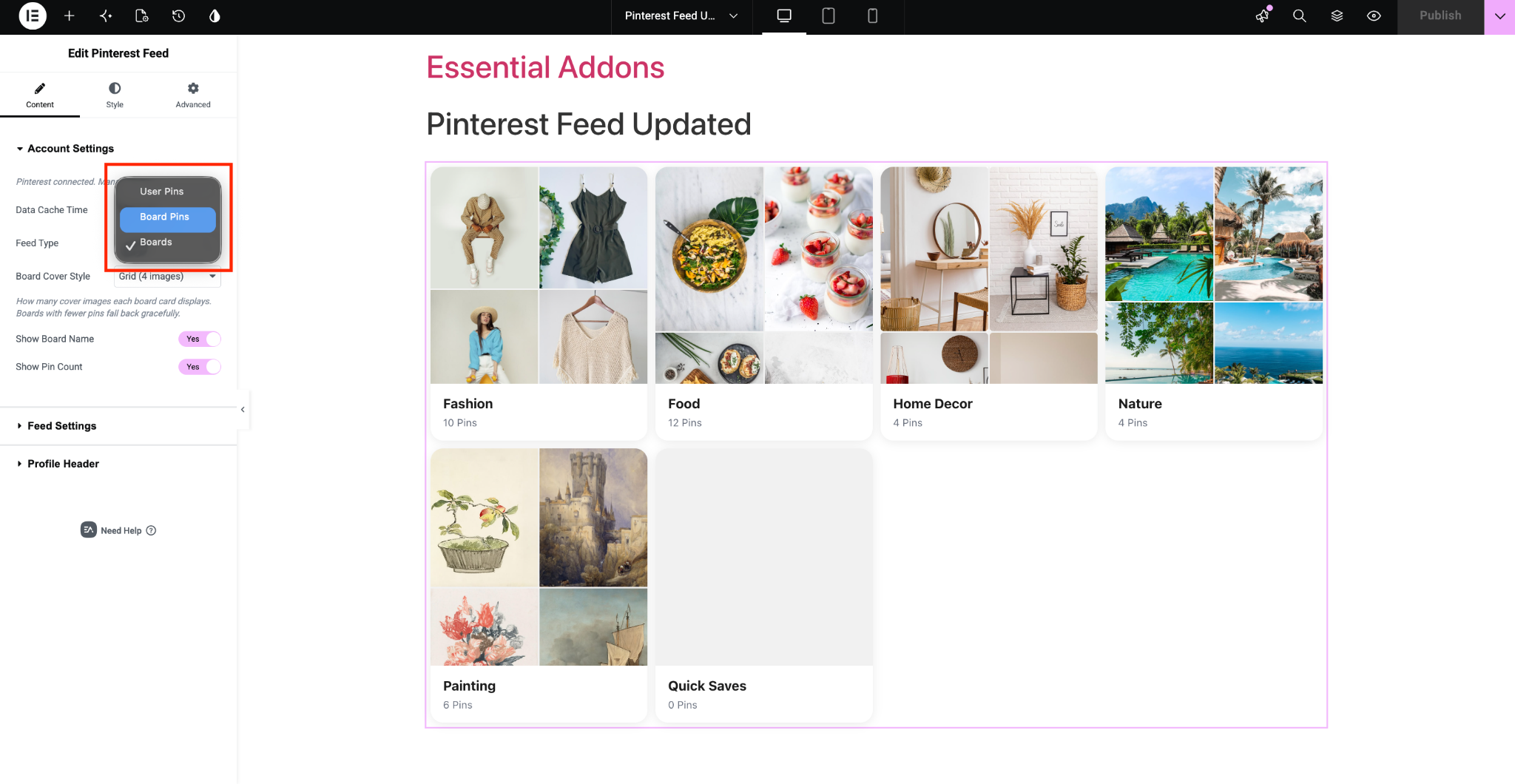
Step 3: Configure And Style
Adjust options such as data cache time, layout, overlay mode, columns, number of pins, captions, board name visibility, source domain, profile header and load more behavior based on your page goal. Use the Style tab to refine pin items, captions, overlays, meta details and the profile header so the feed blends with your site design.
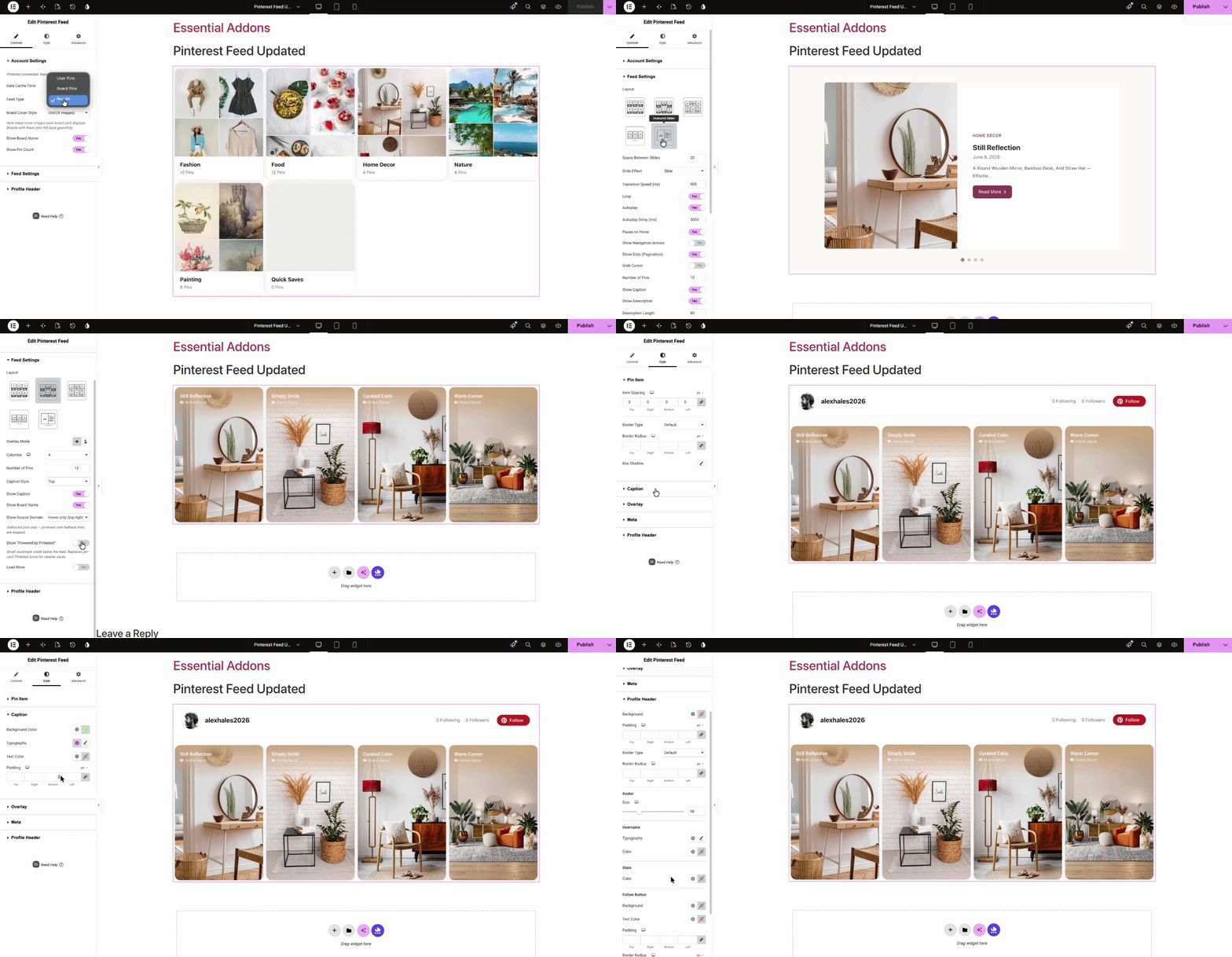
Finally, you will see the Pinterest Feed live on your website. For deeper configuration details, feature-by-feature visuals, and the full walkthrough, check the documentation.
Creative Ways to Use Pinterest Feed on Your Website
A Pinterest section becomes much more powerful when it supports a specific business or content goal. Instead of adding it just for decoration, think of it as a strategic visual block that can reinforce brand trust, inspire browsing and extend the lifetime of your Pinterest content.
Used well, an Elementor Pinterest Feed can support product discovery, storytelling, community building, and on-site engagement. Here are a few practical ways to make it work harder for your brand.
Inspire Product Discovery on eCommerce Pages
Add a Pinterest feed to product-category or collection pages to show how products look in styled, real-life, or aspirational contexts. This helps visitors move from browsing to imagining ownership, which is often where visual buying intent begins.
Turn a Blog Sidebar Into a Visual Discovery Hub
A lifestyle, fashion, food, or DIY blog can place a Pinterest feed in the sidebar or below posts to keep visitors exploring related inspiration after they finish reading. This works especially well when boards are organized around recurring themes or seasons.
Strengthen Your Portfolio Presentation
Designers, photographers, artists, and agencies can use a Pinterest Feed on WordPress to show mood boards, concept boards, references, or behind-the-scenes inspiration. That adds context to finished work and helps communicate creative direction more clearly.
Build Seasonal Campaign Pages Faster
If your brand runs seasonal promotions, you can use Pinterest boards to support campaign landing pages with fresh visual inspiration. Instead of building a new gallery for every event, you can let relevant Pinterest content enrich the page dynamically.
Showcase Brand Personality on the Homepage
A homepage Pinterest section can act like a visual signature for brands built around style, creativity, or taste. It shows visitors what inspires the business and helps the website feel more current, human, and socially connected.
Best Practices for an Engaging Pinterest Feed
A Pinterest feed should do more than simply exist on the page. To make it effective, you need to think about relevance, pacing, design harmony, and visitor intent. A feed that feels intentional will support both engagement and branding, while one that feels random may distract from the rest of the page.
That is why the best-performing Pinterest Feed on Elementor sections are usually the ones that feel curated, not crowded. They present the right amount of inspiration in the right context and complement the surrounding content rather than competing with it.
- Match the feed to the page purpose: Do not use the same Pinterest display everywhere. A homepage may benefit from broad inspiration, while a service page should show more targeted pins or a niche board. When the feed aligns with the page’s message, it feels purposeful instead of decorative.
- Choose quality over volume: More pins do not always create a better experience. If the section becomes too dense, users may skim past it. A smaller, cleaner display often works better, especially when the imagery is strong and the surrounding content needs space to breathe.
- Use a layout that fits your brand tone: Masonry and polaroid-style layouts can feel expressive and lifestyle-driven, while grid and slider formats usually feel more structured and polished. Pick the layout that reinforces your brand voice rather than simply choosing the most visually busy option.
- Show captions only when they add value: Captions can provide context, but they can also create clutter if the images already communicate enough. If your audience benefits from extra detail, keep them visible. If the focus is pure visual discovery, a cleaner presentation may work better.
- Make the profile header work for branding: If you enable the profile header, use it strategically. A clean avatar, strong profile link, and thoughtful follow-button text can turn the feed into a mini brand-introduction block rather than just another content widget.
- Keep spacing and typography consistent with the site: A Pinterest section should feel like part of the same design system. Adjust margins, padding, colors, and text styling so the feed fits naturally inside your Elementor layout and does not break the visual rhythm of the page.
- Prioritize mobile readability: Always preview the feed on smaller screens before publishing. Check whether columns collapse well, images still feel balanced, and any overlays or text remain readable. Mobile polish is essential if you want the section to support real engagement.
Start Turning Your Pinterest Presence Into a Brand Asset
If your brand is already active on Pinterest, there is little reason to let that visual content live in isolation. A well-placed Pinterest Feed can help your website feel fresher, more inspiring, and more connected to the ideas your audience already engages with on social platforms. For Elementor users, that makes the website a more active extension of the brand rather than just a static destination.
The real advantage of using an Elementor Pinterest Feed is not just convenience; it is brand continuity. When your boards, pins, layout, and on-site styling work together, visitors get a more cohesive impression of who you are and what you create. If you want to connect your visual social presence with your website in a practical, scalable way, this is a smart place to start.
Do you have more feature requests for Essential Addons? Share with us in our Facebook Community. Do not forget to subscribe to our blog for the latest updates.