Adding cookie consent to a WordPress website has long been a source of friction. You install a plugin, paste a snippet, fight with a banner that never quite matches the rest of your design and wonder whether your “We use cookies” notice is actually doing anything useful. Then a privacy regulation updates, a client asks about GDPR, and the cycle starts over.
Cookie compliance is more than dropping a banner on the page. True cookie consent means capturing a visitor’s choice, applying that choice to every non-essential script, keeping a record of what was agreed to, and respecting browser-level privacy signals. That’s a lot of moving parts, and most tools treat the banner as an afterthought rather than as part of the website itself.
Cookie Consent in Elementor was built to change that. It is Elementor’s new WordPress plugin, designed to make cookie consent simpler to set up, easier to design, and less painful to manage, all without leaving the WordPress dashboard or the Elementor Editor.
TL;DR
- Cookie Consent is a new WordPress plugin from Elementor for setting up, designing, and managing cookie consent without leaving your dashboard.
- It includes GDPR (opt-in) and CCPA (opt-out) templates, automatic cookie scanning, script blocking, Google Consent Mode v2, GPC/DNT support, and exportable consent logs.
- With Elementor Pro Popups, you can design the banner in the Elementor Editor using the widgets you already work with, including Essential Addons for Elementor.
- The free plan covers one site, 800 consents per month, 25 scanned pages, and 30 days of log retention. Premium features come with Elementor One.
Why Cookie Consent Matters for WordPress Websites
Cookies are small files your website asks the visitor’s browser to store. They power everything from logged-in sessions and shopping carts to analytics, personalization and ad targeting. Some of them are essential; the cart will not work without them. Others are optional and the visitor should be able to say yes or no to each one.
Most websites fail to make that distinction visible. They fire analytics and marketing scripts on every page load, before the visitor has had a chance to decide and rely on a small banner to “inform” them. That approach is no longer acceptable under modern privacy rules.

Privacy regulations worth knowing:
- GDPR (General Data Protection Regulation): European Union law that generally requires an opt-in consent model before non-essential data is processed.
- CCPA (California Consumer Privacy Act): California law that follows an opt-out model, giving consumers the right to decline the sale or sharing of personal information.
- Other emerging frameworks: Brazil’s LGPD, Canada’s PIPEDA updates, state-level US laws and similar regimes are pushing in the same general direction: give visitors a real choice and honor it.
A banner alone does not meet those requirements. The visitor’s choice has to control what runs on the page, and there should be a record of who agreed to what.
Cookie Consent Is More Than Just a Banner
A good cookie consent solution does four things:
- Shows a notice that actually explains what’s happening on the site.
- Blocks non-essential scripts until the visitor has made a choice, or only allows them when consent is granted.
- Records consent choices so you can demonstrate what each visitor agreed to.
- Respects privacy preferences, including signals sent by the browser itself.
Cookie Consent in Elementor was built around all four of these expectations, not just the visual layer.
What Is Cookie Consent by Elementor?
Cookie Consent is Elementor’s new WordPress plugin, and it was designed for the people who build real websites in Elementor every day:
- Freelancers managing cookie compliance on a roster of client sites.
- Agencies standardizing consent experiences across multiple projects.
- Small business owners who need professional cookie management without a complex technical setup.
- WordPress site creators who want control without bouncing between external dashboards.
The core idea is simple: consent management plus Elementor design freedom, in one workflow. You install the plugin from WordPress, run a guided setup, design your banner inside the Elementor Editor and manage everything from the WordPress dashboard. No external dashboards, no third-party banner scripts, no extra companies sitting between your visitors and your site.
Key Features of Cookie Consent in Elementor
To know more about how to implement cookie consent in Elementor, you have to know the key features. In this section, let us explain more deeply the key features of this feature.
1. Design Flexibility
If you have Elementor Pro with Popups (available in the Advanced plan and above), Cookie Consent adds the banner as a Popup template you can open in the Elementor Editor. From there, the banner is just another part of your design system:
- Layout
- Typography
- Colors
- Buttons
- Copy
- Images and icons
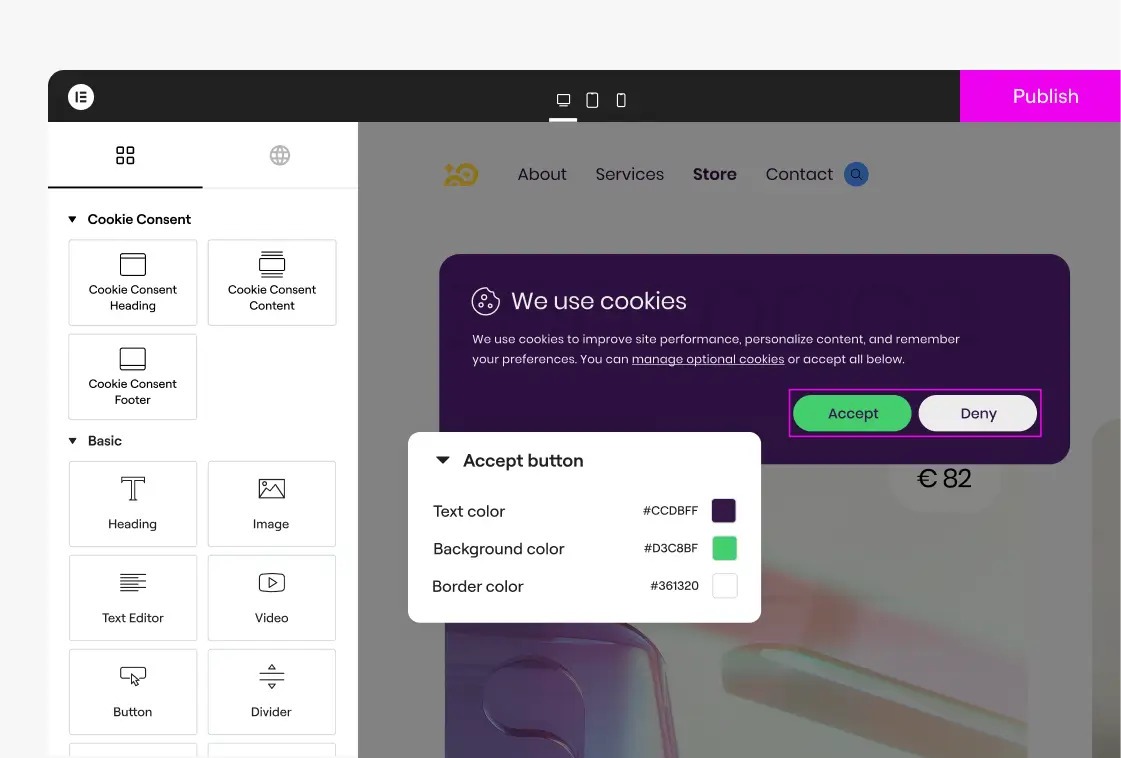
You can use the same Elementor widgets you already use on the rest of the site, taking advantage of display conditions, saved sections, and reusable templates to keep the banner consistent with the rest of your website.
Because the banner is a regular Elementor Popup template, widgets from add-ons such as Essential Addons for Elementor are available here too. You can bring elements like Creative Button or Dual Color Heading to style the banner copy and buttons, and since Cookie Consent runs as its own plugin, it sits alongside your existing Essential Addons setup without replacing any of your widgets.
2. GDPR & CCPA-Ready Consent Templates
GDPR and CCPA are different in a very practical way:
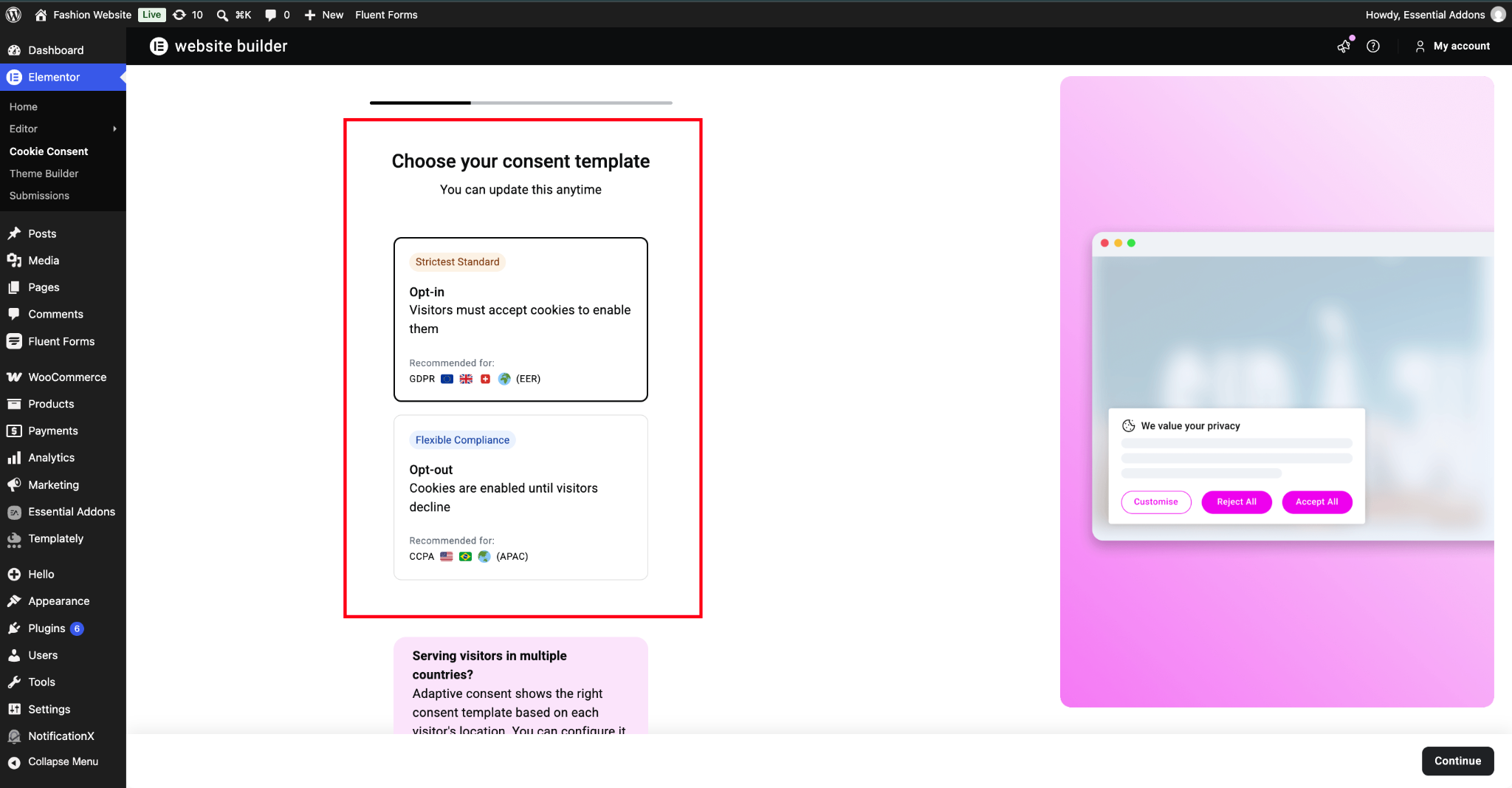
- GDPR follows an opt-in model: nothing tracks until the visitor says yes.
- CCPA follows an opt-out model: tracking runs by default, with a clear way for the visitor to decline.
Cookie Consent ships with templates for both, so you can pick the flow that your audience and jurisdiction require. If your audience spans multiple regions, you can switch between consent models without rebuilding the banner from scratch.
3. Automatically Scan And Categorize Cookies
Once the plugin is in place, the built-in scanner crawls your site, detects every cookie it sets and sorts them into four categories:
- Necessary: required for the site to work (cart, login, security).
- Functional: remember preferences such as language or region.
- Analytics: usage data, for example, Google Analytics.
- Advertising: personalization and ad targeting.
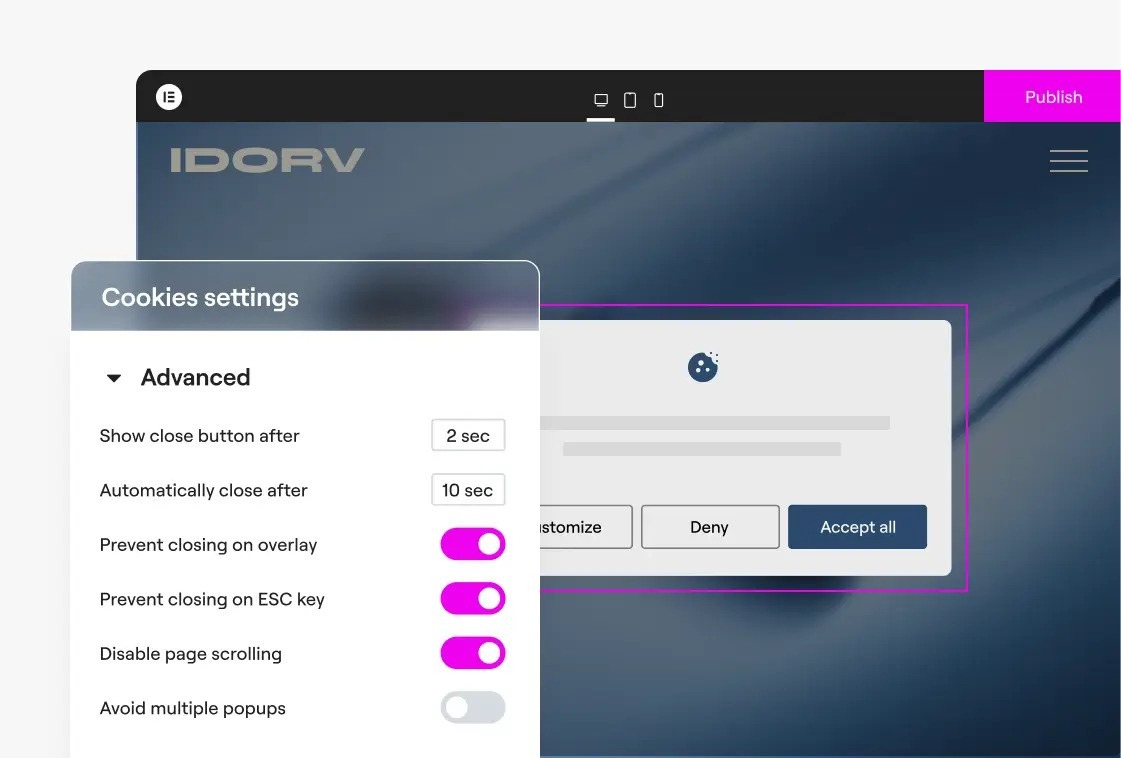
It is a good habit to rescan after installing a new plugin or changing integrations, because a new third-party script can quietly introduce new cookies that need to be accounted for.
4. Automatically Apply Consent Behavior
The plugin uses the visitor’s choice to control what runs on the page:
- GDPR-style opt-in: non-essential scripts wait for consent before they fire.
- CCPA-style opt-out: tracking runs by default, with a clear path for the visitor to manage or decline applicable data uses.
- Essential functionality such as shopping carts, logins, and security features keeps working regardless of the visitor’s choice.
In other words, the consent decision actually controls your tracking scripts, which is the point.
5. Keep Audit-Ready Consent Logs
Every consent choice is recorded automatically with:
- A timestamp
- The visitor’s country
- The categories they selected
- A unique consent ID
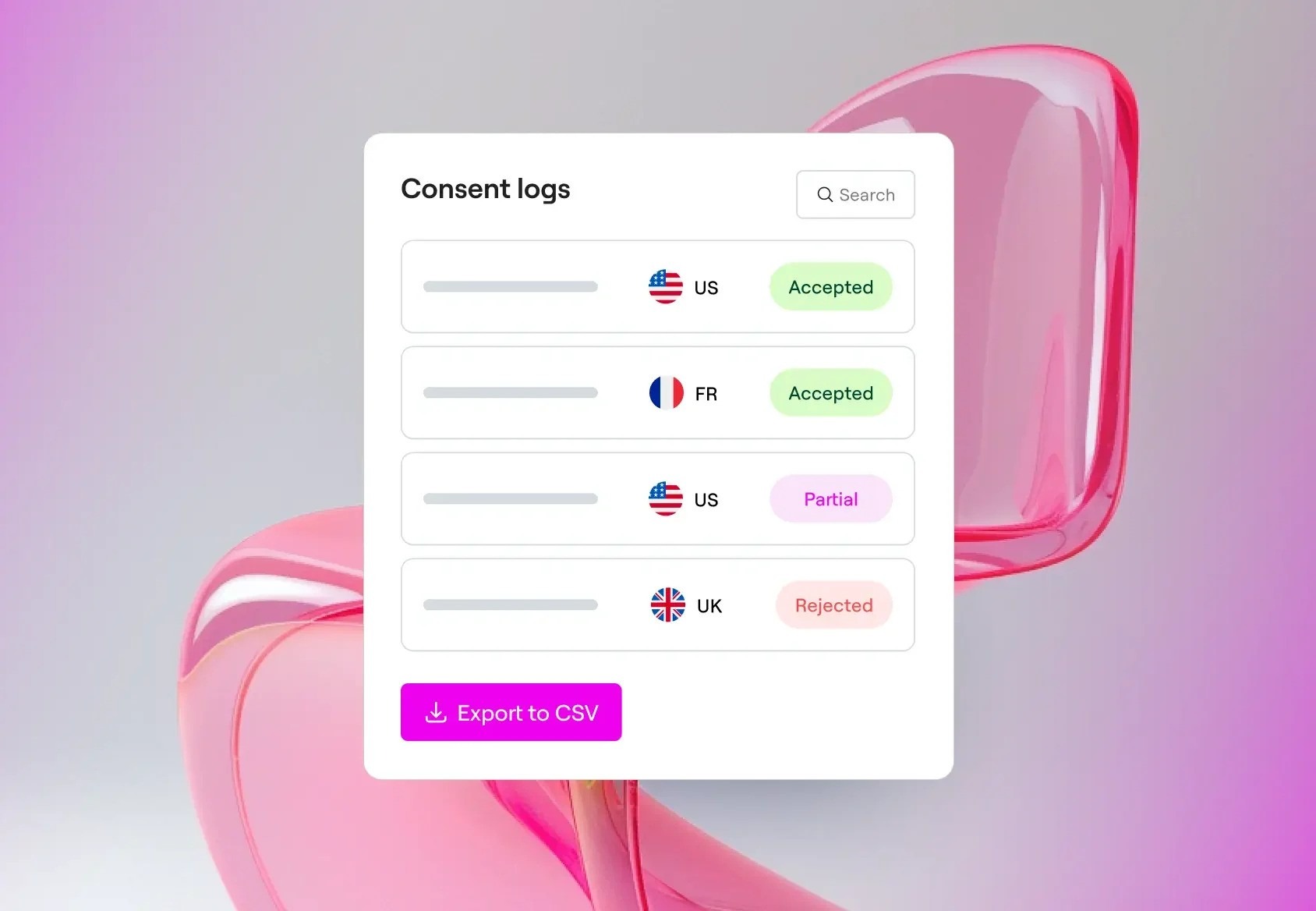
The logs can be searched, filtered, and exported as CSV. That makes it easier to answer questions like “What did this visitor agree to last month?” and to keep a clear paper trail for documentation and audits.
6. Support GPC And DNT Signals
Some browsers send privacy signals on the user’s behalf.
- Global Privacy Control (GPC) is a browser- or extension-level signal that says “do not sell or share my personal information.”
- Do Not Track (DNT) is an older browser-level signal that asks servers not to track the user.
Cookie Consent honors those signals automatically. When a visitor’s browser sends GPC or DNT, the banner stays hidden and non-essential scripts stay paused, which gives privacy-conscious visitors a smoother experience and reflects their preferences by default.
7. No External CDN or Third-Party Banner Scripts
The plugin runs entirely from your WordPress installation. The banner ships with your site and loads directly from your server. That means:
- Fewer external dependencies
- Greater control over how and when the banner is delivered
- No external banner infrastructure sitting in your visitors’ browsers
This arrangement maps cleanly onto both performance concerns (no extra third-party round-trips) and privacy concerns (no extra companies in the data chain)
How to Design a Cookie Consent Banner in Elementor
This section walks through the actual workflow for designing a cookie banner in Elementor using Cookie Consent.
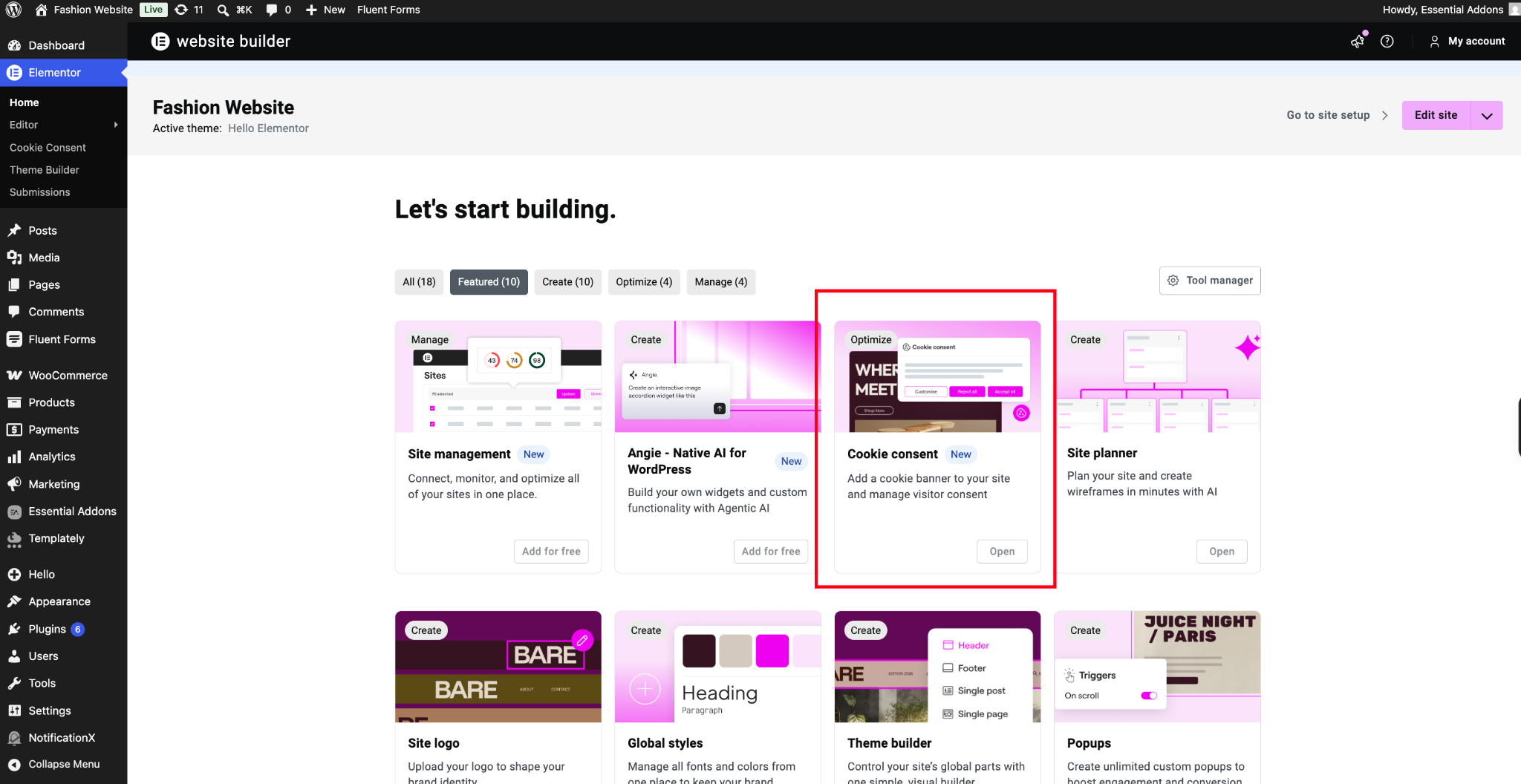
Step 1: Add Cookie Consent
From your WordPress dashboard, go to Plugins → Add New Plugin and search for ‘Cookie Consent – GDPR & CCPA Cookie Banner & Consent Manager’ by Elementor. After installing the plugin, activate it and connect it to your Elementor account to start the guided setup.
Step 2: Choose Your Consent Template
Pick GDPR or CCPA based on the regions your website serves and the kind of experience you want visitors to have. If you’re not sure which model fits your situation, treat this as a starting point and verify your legal requirements separately.
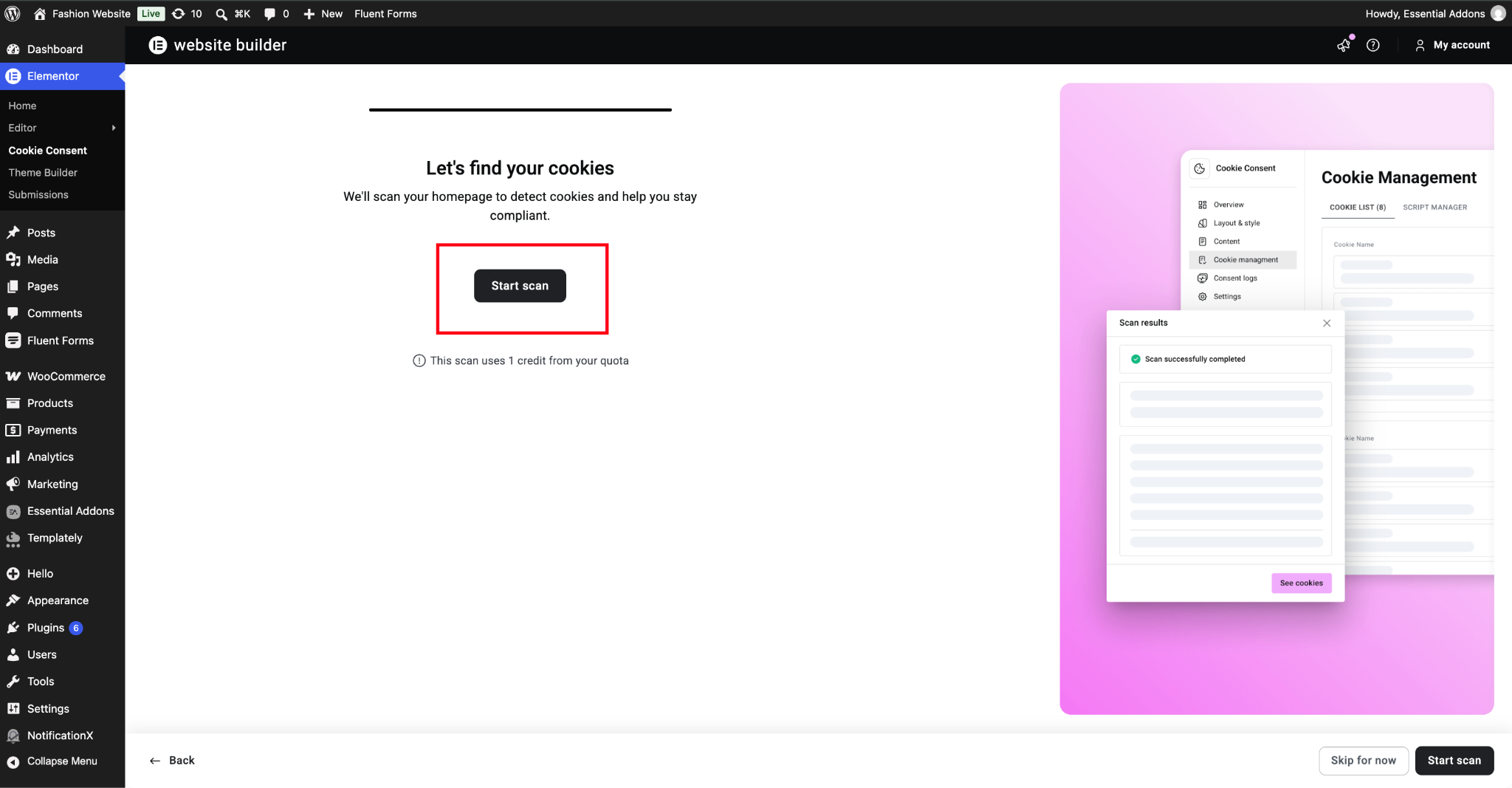
Step 3: Scan Your Website for Cookies
Run the cookie scan and review the categories the plugin detected. Make sure the items in Functional, Analytics and Advertising match the scripts you actually run, and remove or recategorize anything that does not belong.
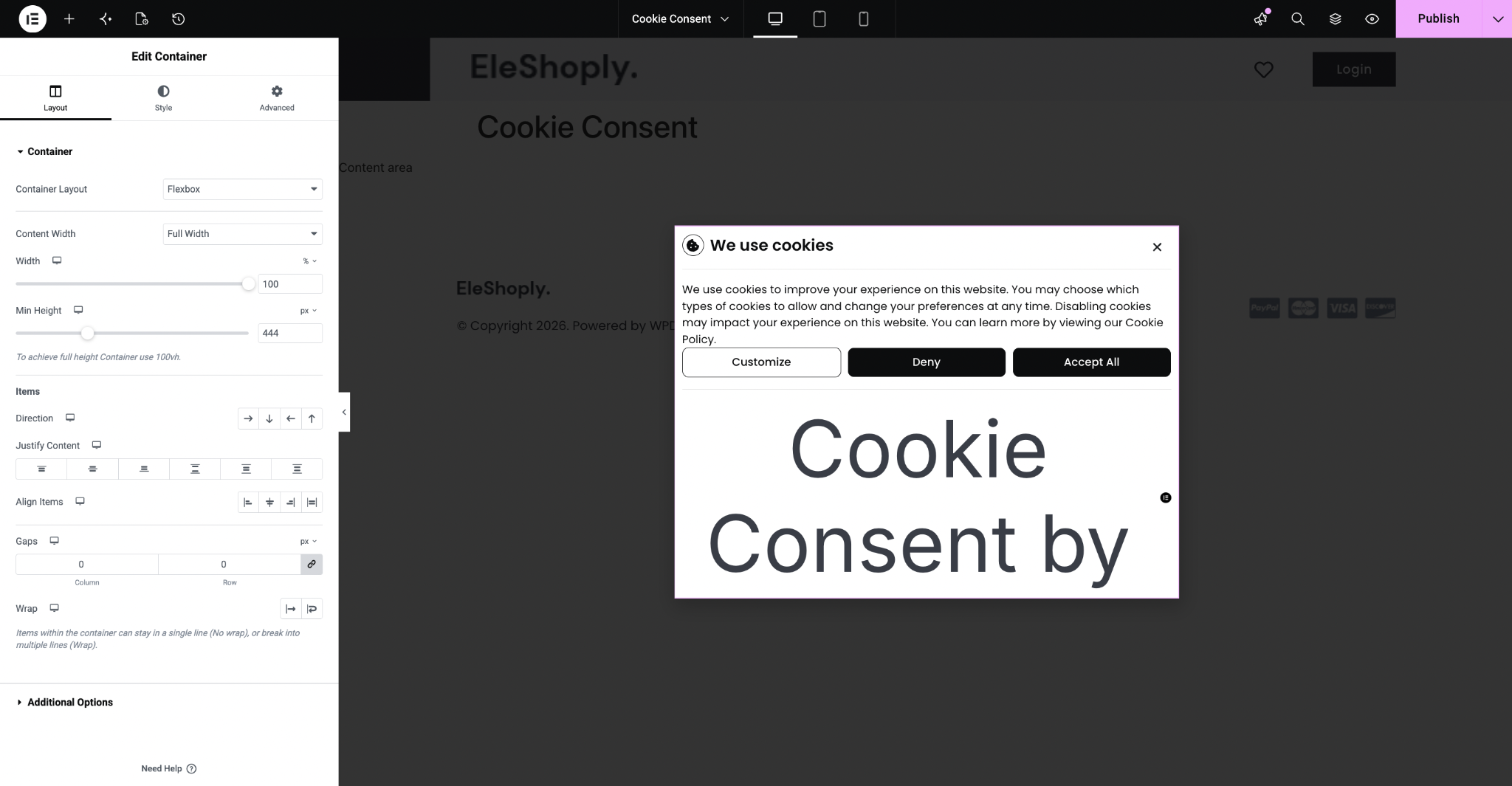
Step 4: Open the Banner in Elementor
Click Design with Elementor. The plugin generates an Elementor template for your banner, which opens directly in the Elementor Editor alongside everything else you’re used to working with.
Step 5: Customize the Cookie Banner
This is where the visual identity of the website comes through. Adjust the colors and typography, rewrite the button labels and messaging, and add icons or imagery as needed so the banner feels like a natural part of the rest of your design.
Step 6: Preview And Publish
Preview the banner to confirm the layout works on desktop and mobile, then publish. Test what happens when a visitor accepts, declines, or customizes their preferences, and adjust the display conditions if you want the banner to behave differently on specific pages or for specific audiences.
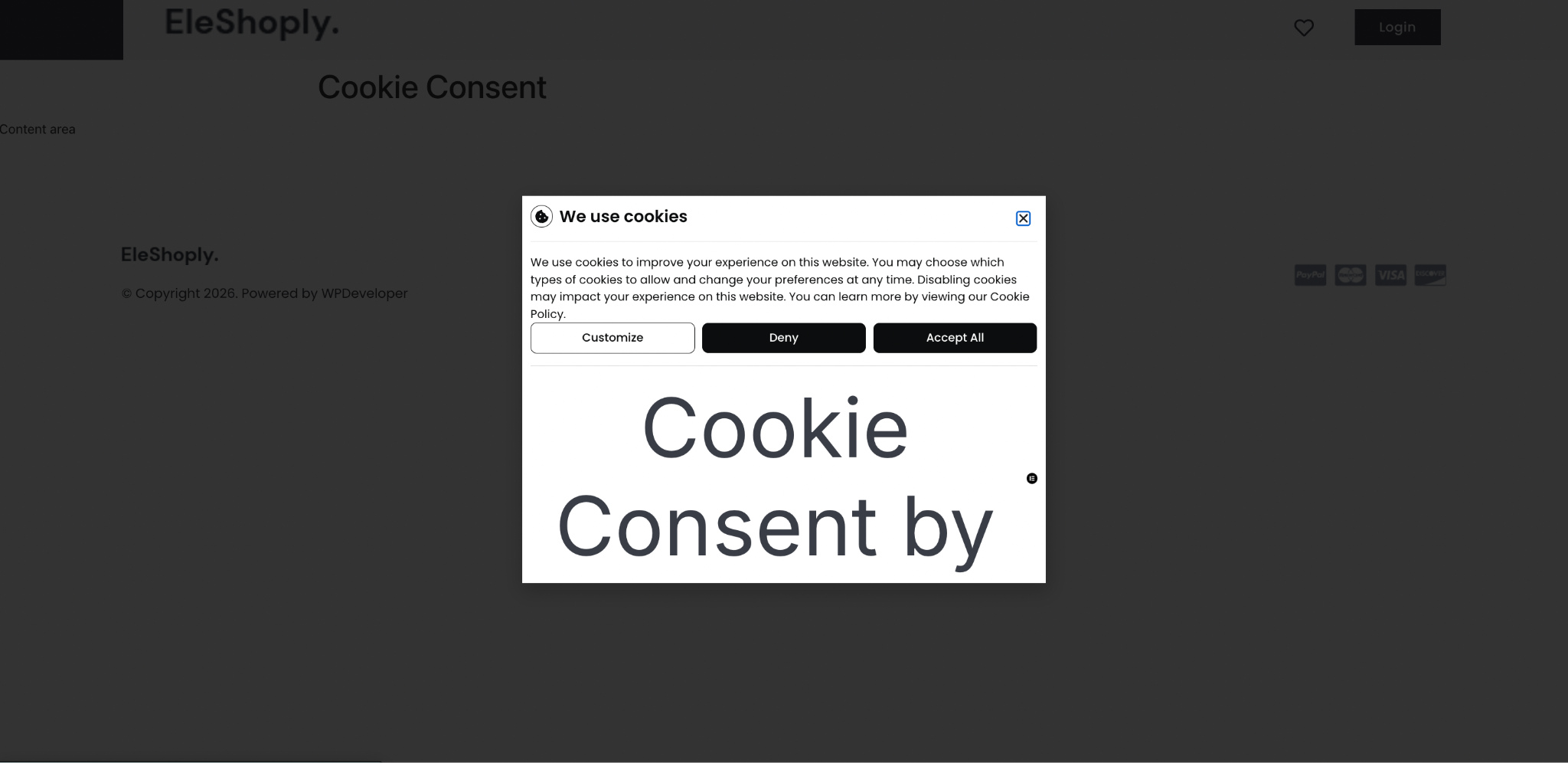
For the full editor experience, including dedicated widgets for the cookie banner and a preferences banner, you’ll need Elementor Pro with Popups (Advanced plan and above).
Cookie Consent in Elementor vs. Traditional Cookie Plugins
Till now, you may be wondering what the core difference is between traditional and Elementor cookie consent. Here is a glimpse of it.
| Feature | Traditional Cookie Plugins | Cookie Consent in Elementor |
| Cookie banner | ✓ | ✓ |
| Cookie scanning | Varies | ✓ |
| Consent management | Varies | ✓ |
| GDPR/CCPA templates | Varies | ✓ |
| Visual Elementor editing | Usually limited | ✓ |
| Consent logs | Varies | ✓ |
| GPC/DNT support | Varies | ✓ |
| External dashboard dependency | Common with some tools | No |
| Elementor ecosystem integration | Limited | Native |
Key takeaway: Cookie Consent brings the banner design workflow into the same environment where users already build their WordPress websites.
Who Should Use Cookie Consent in Elementor?
Cookie Consent is built for anyone designing, building, or maintaining WordPress websites in Elementor and it slots directly into the workflow you already use. Whether you are shipping your first site or standardizing consent across dozens of client projects, the same plugin scales with you instead of adding another tool to manage.
Freelancers
- Simplify cookie consent setup across client websites.
- Reuse banner designs as templates to keep client projects consistent and move faster.
Agencies
- Standardize consent experiences across multiple projects.
- Reduce repetitive configuration work when rolling out new sites.
Small Business Owners
- Avoid complicated technical setup.
- Get a professionally designed consent experience even without a dedicated development team.
Marketing & Analytics Teams
- Better control over when tracking scripts actually run.
- Maintain consent records while still respecting what each visitor chose.
Free vs. Premium Cookie Consent Features
The free version of Cookie Consent covers the core consent workflow needed to handle most single-site setups: GDPR and CCPA templates, automatic script blocking, cookie scanning, Google Consent Mode v2, audit-ready logs, and full access to the Elementor Editor for banner design if you have Pro Popups. The free plan is scoped to one website, with up to 800 consents per month, a one-time total of 25 scanned pages, and 30 days of log retention.
Premium features are included in Elementor One, the subscription tier that bundles Cookie Consent alongside web accessibility and other Elementor tools. Elementor One adds:
- White-label branding
- Multilingual translations
- Extended log retention beyond 30 days
- Higher consent quotas and unlimited page scans
- Access to upcoming features such as geo-targeting
Best Practices for Designing a Cookie Consent Banner
The banner is part of the website, so it deserves the same design attention as any other page. Here are some of the best practices a user should follow while implementing cookie consent banners on their Elementor website.
- Keep the copy short and understandable.
- Make consent choices clearly, including reject and manage options.
- Don’t visually hide the decline or manage button.
- Match the banner to the website’s design without making it distracting.
- Clearly distinguish essential and optional cookies.
- Test the banner on desktop and mobile.
- Test accept, reject, and customize flows to confirm the expected behavior.
- Rescan your website regularly as plugins and integrations change.
- Remember that a consent plugin is a tool to support your compliance efforts; using one does not, on its own, guarantee legal compliance.
Make Cookie Consent Part of Your Elementor Design
Cookie consent is an important part of running a modern WordPress website, but it doesn’t have to live outside the rest of your design. Cookie Consent in Elementor brings the consent workflow into the same place you already build your site, with easy setup, automated cookie scanning, real consent management, GDPR/CCPA-ready templates, Elementor-based visual customization and consent logging for your records.
To keep yourself updated with the latest Elementor news instantly, subscribe to our blogs & join our super-friendly Facebook Community.