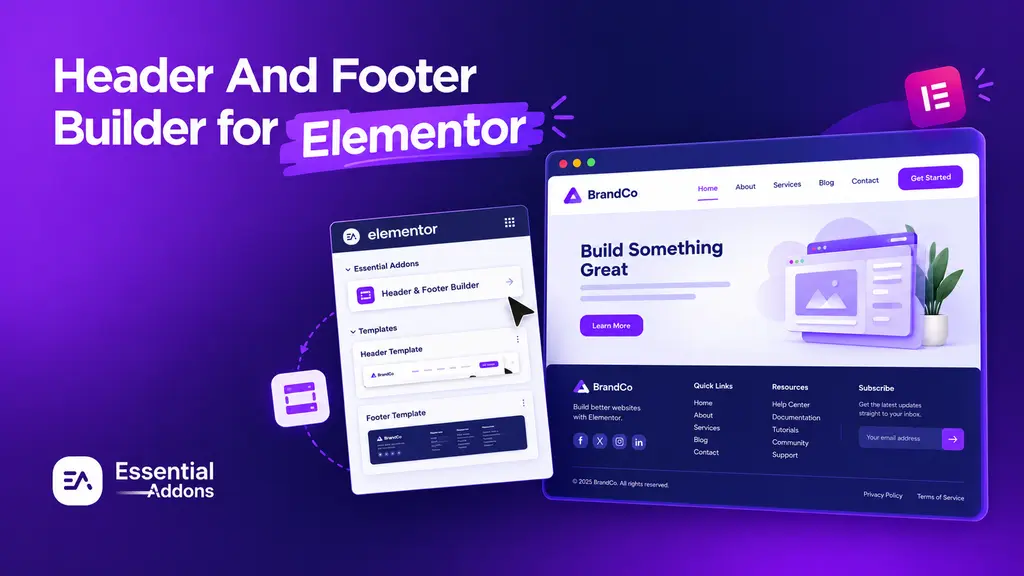
Your header is the first thing visitors see, and your footer is the last thing they scroll past. Yet on most WordPress sites, both are stuck with whatever the theme hands you. That is exactly the problem the new Header and Footer Builder in Essential Addons for Elementor solves. It lets you design custom headers and footers visually inside Elementor, save them as reusable templates, and deploy them anywhere on your site in seconds.
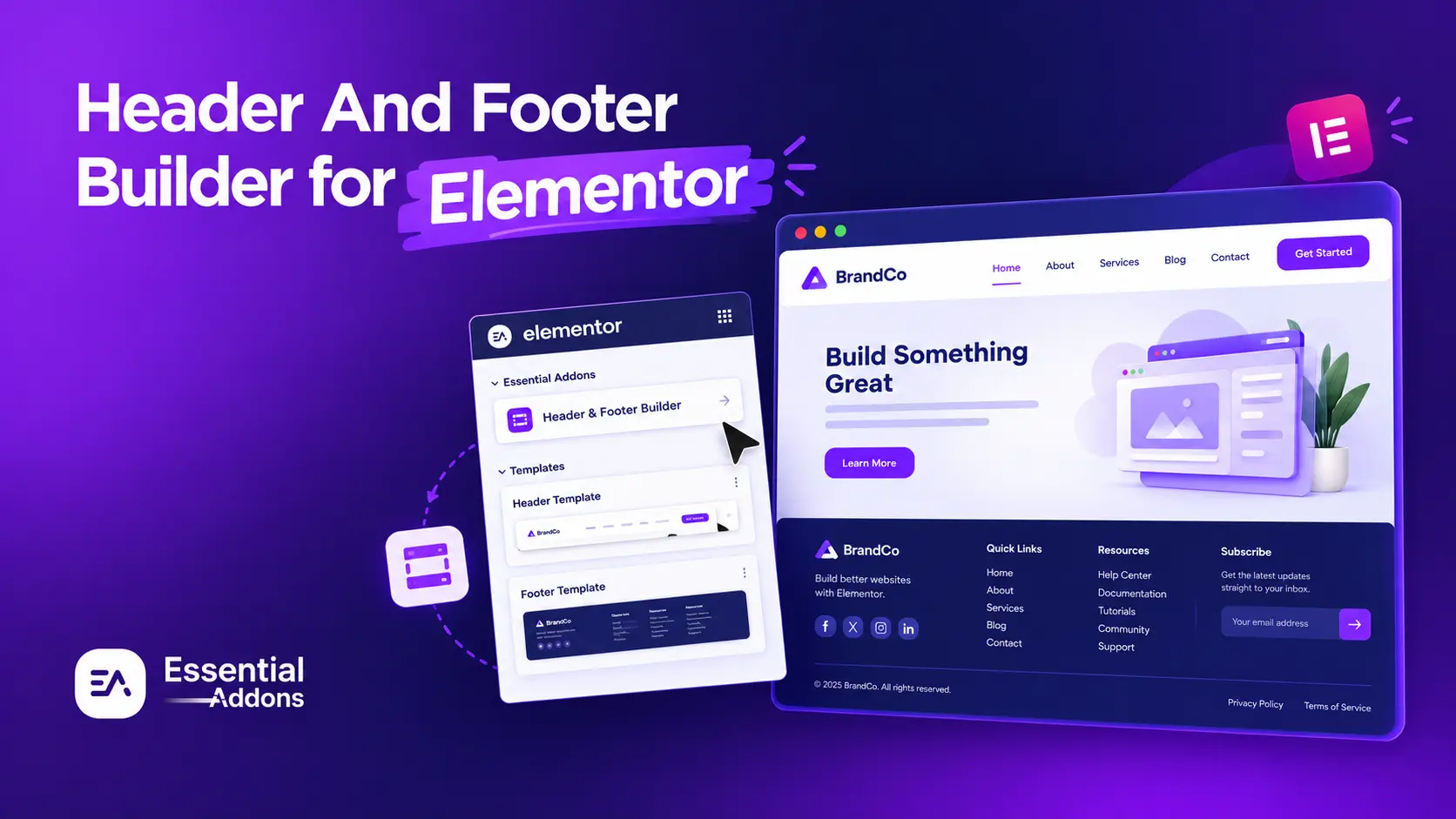
No theme hacks. No custom CSS rabbit holes. No extra plugins to install. In this post, we will walk you through what the EA Header and Footer Builder can do, the presets you can start with, how to set it up in a few quick steps, and some real-world ideas for using it on your own Elementor sites.
TL;DR
- Essential Addons now comes with a Header and Footer Builder (found under Essential Addons → Theme Builder) that lets you design custom headers and footers right inside Elementor.
- Start from 6 ready-made presets: Classic, Mega Menu, and Shop headers, plus Simple, Modern, and Brand footers. Or connect Templately for thousands more designs.
- Customize everything visually, then use display conditions to show your header or footer on the entire site, specific pages or posts, archives, and more.
- Templates are reusable, fully responsive, and work with any WordPress theme. No extra plugin, no code.
Why Your Elementor Site Needs a Custom Header And Footer
Headers and footers appear on nearly every page of your website. That makes them some of the most-viewed sections you will ever design. When they are generic or poorly organized, visitors notice. When they are clean, on-brand, and easy to navigate, they quietly do a lot of heavy lifting for your user experience and your conversions.
First Impressions Happen at the Top
Visitors decide whether to stay on a site within seconds, and your header is front and center during that moment. A clear logo, a well-structured menu, and a visible call-to-action button tell people they are in the right place. A cluttered or default-looking header does the opposite.
With a custom header, you control that first impression completely. For example, a SaaS business might place a bold “Start Free Trial” button in the top-right corner, while a portfolio site might keep things minimal with just a logo and three menu links.
Footers Are Prime Real Estate
People who scroll all the way down are usually interested. They are looking for contact details, policies, social links, or a reason to stick around. A well-designed footer gives them exactly that, whether it is a newsletter signup, quick links to popular pages, or trust signals like payment badges.
Think of an online store footer that includes shipping info, a returns policy link, and social icons. It answers common questions before customers even ask, which helps reduce support tickets and builds confidence.
Brand Consistency across Every Page
When your header and footer match your brand’s colors, fonts, and tone, your whole site feels more polished and professional. Reusable templates make it easy to keep that consistency everywhere, even as your site grows.
Introducing Header And Footer Builder by Essential Addons
The Header and Footer Builder is part of the Theme Builder in Essential Addons. It gives you a dedicated space in your WordPress dashboard to create, manage, and publish header and footer templates, all built with the Elementor editor you already know. Instead of digging through theme settings or child theme files, you design your site’s top and bottom sections the same way you design any other Elementor page: drag, drop, style, done.
Since it is built right into Essential Addons, there is nothing extra to install. If you are already using EA’s 120+ widgets and extensions, you can pull elements like the EA Advanced Menu and Advanced Search (both Pro) straight into your header. That means your header and footer can do a lot more than just hold a logo and a few links.
Key Features of the Essential Addons Header And Footer Builder
The Essential Addons Header and Footer Builder is designed to be simple enough for beginners and flexible enough for agencies managing multiple client sites. Here is what you get out of the box and why each feature matters for your everyday workflow.
Built Right into Essential Addons
There is no separate plugin to install, configure, or keep updated. The Theme Builder lives inside the Essential Addons library you already trust, so your plugin stack stays lean and your site stays lighter.
Works with Any Theme
Love your current WordPress theme but hate its header? No problem. The Header and Footer Builder lets you add custom headers and footers on top of your existing theme, so you do not have to switch themes just to get the layout you want.
Ready-Made Presets
You do not have to start from a blank canvas. Pick from header and footer presets, then customize every detail in minutes. More on these presets in the next section.
One-Click Designs with Templately
Want more variety? Connect Templately and you will get access to a library of 3,000+ free and premium templates, including headers and footers you can import and deploy in a single click.
Display Conditions
Decide exactly where each header or footer appears. Show one across your entire site, or assign different ones to specific pages, posts, or archives. For example, your shop pages can use a WooCommerce-friendly header while your blog uses a cleaner, content-focused one.
Reusable, Responsive And No-Code
Every header and footer you build is saved as a template you can edit or reuse anytime from the Theme Builder. Your designs look sharp on desktop, tablet, and mobile, and you can preview each view right in Elementor. And of course, zero coding required.
Ready-Made Presets to Get You Started
Presets are the fastest way to go from idea to live design. Each one gives you a solid, ready-to-use layout that you can fully customize to match your brand. Here is a quick look at what is available and when each one makes the most sense.
Header Presets
- Classic Header: A clean, professional layout for standard business and portfolio websites.
- Mega Menu Header: An expanded menu layout built for larger, content-rich sites. Pair it with the EA Mega Menu for even richer navigation.
- Shop Header: A layout designed for WooCommerce and online stores.

Footer Presets
- Simple Footer: A minimal footer for sites that only need the essentials.
- Modern Footer: A contemporary, multi-column layout for well-organized footer content.
- Brand Footer: A footer that highlights your brand and key links.

How to Build a Custom Header And Footer in Elementor with Essential Addons
Setting up your first header or footer takes just a few minutes. Before you begin, make sure Essential Addons for Elementor is installed and activated on your WordPress site. Then follow these quick steps.
Step 1: Open the Theme Builder
Head over to Essential Addons → Theme Builder from your WordPress dashboard and hit Add New Template.

Step 2: Create Your Template
A popup will appear. Pick Header or Footer from the Template Type dropdown, give it a name you will recognize later (like “Main Shop Header”), and click Create Template.

Step 3: Pick a Preset (Or Go Templately)
Choose one of the header or footer presets that fits your style. Want more options? Click Connect Templately and browse thousands of ready-made designs instead.

Step 4: Make It Yours in Elementor
Your template opens in the Elementor editor. Swap in your logo, tweak the menu, change colors and fonts, and add or remove widgets. Do not forget to check how it looks on tablet and mobile.

Step 5: Set Display Conditions And Publish
Click Publish, then Add Conditions to choose where it shows up: your entire site, specific pages or posts, archives, and so on. Hit Save & Publish, and you are live!
That is it. Your template is now saved in the Theme Builder, so you can come back, tweak it, and reuse it anytime.

Need the full walkthrough? Check out the Header and Footer Builder documentation.
Real-World Ideas: Who Gets the Most Out of It?
The Header and Footer Builder is flexible enough to fit almost any kind of website. Whether you are running a single blog or managing dozens of client sites, here are a few practical ways to put it to work and save hours of design time along the way.
WooCommerce Stores
Start with the Shop Header and add product search with EA Advanced Search (Pro). Then use display conditions to show a promo-focused header only on your shop and product pages, while keeping a simpler one on your blog.
Agencies And Freelancers
Build a set of go-to header and footer templates once, then reuse and tweak them across client projects. It is a big time-saver when you are spinning up new sites regularly.
Blogs And Content Sites
Use the Mega Menu Header to organize lots of categories without overwhelming readers. Pair it with the Modern Footer to keep your key links neatly organized in a multi-column layout.
Landing Pages And Campaigns
Running a seasonal campaign? Create a dedicated header with a bold CTA and assign it only to your campaign landing pages. When the campaign ends, simply switch it off. Your main header stays untouched.
Quick Tips to Get the Best Results
A few small habits can make your headers and footers work a lot harder. Keep these tips in mind as you build, especially if you plan to create multiple templates for different parts of your site.
- Name templates clearly. “Blog Header – Dark” is much easier to find later than “Header 3.”
- Always check your mobile. Most visitors browse on phones, so preview tablet and mobile views before publishing.
- Keep it focused. Your header does not need every link on your site. Prioritize the pages that matter most.
- Use display conditions strategically. Different sections of your site may need different headers, and that is totally fine.
- Combine with other EA features. Try Conditional Display (Pro) to show or hide specific header elements for logged-in visitors, for example.
Start Building Headers And Footers That Feel Like Yours
Your header and footer are too important to leave on theme defaults. With the Essential Addons Header and Footer Builder, you can design them visually in Elementor, start from ready-made presets or Templately designs, control exactly where they appear, and reuse them whenever you need. It is fast, flexible, and completely code-free.
So go ahead, open the Theme Builder, pick a preset, and give your website a top and bottom that actually match your brand. And if you build something cool, we would love to see it!
Enjoyed this post? Subscribe to our blog for more Elementor tips, tutorials, and feature updates delivered straight to your inbox. And do not forget to join our Facebook Community to connect with fellow Elementor creators, share your designs, and get help from the community.