
The Theme Builder in Essential Addons lets you design custom headers and footers for your website visually, right inside Elementor, with no coding. You can build a layout from a ready-made preset, save it as a reusable template, and use it across your site whenever you need it.
How to Use the EA Header And Footer Builder in Essential Addons #
This guide walks you through creating your first header or footer template from start to finish.
Note: Make sure Essential Addons for Elementor is installed and activated on your WordPress Website.
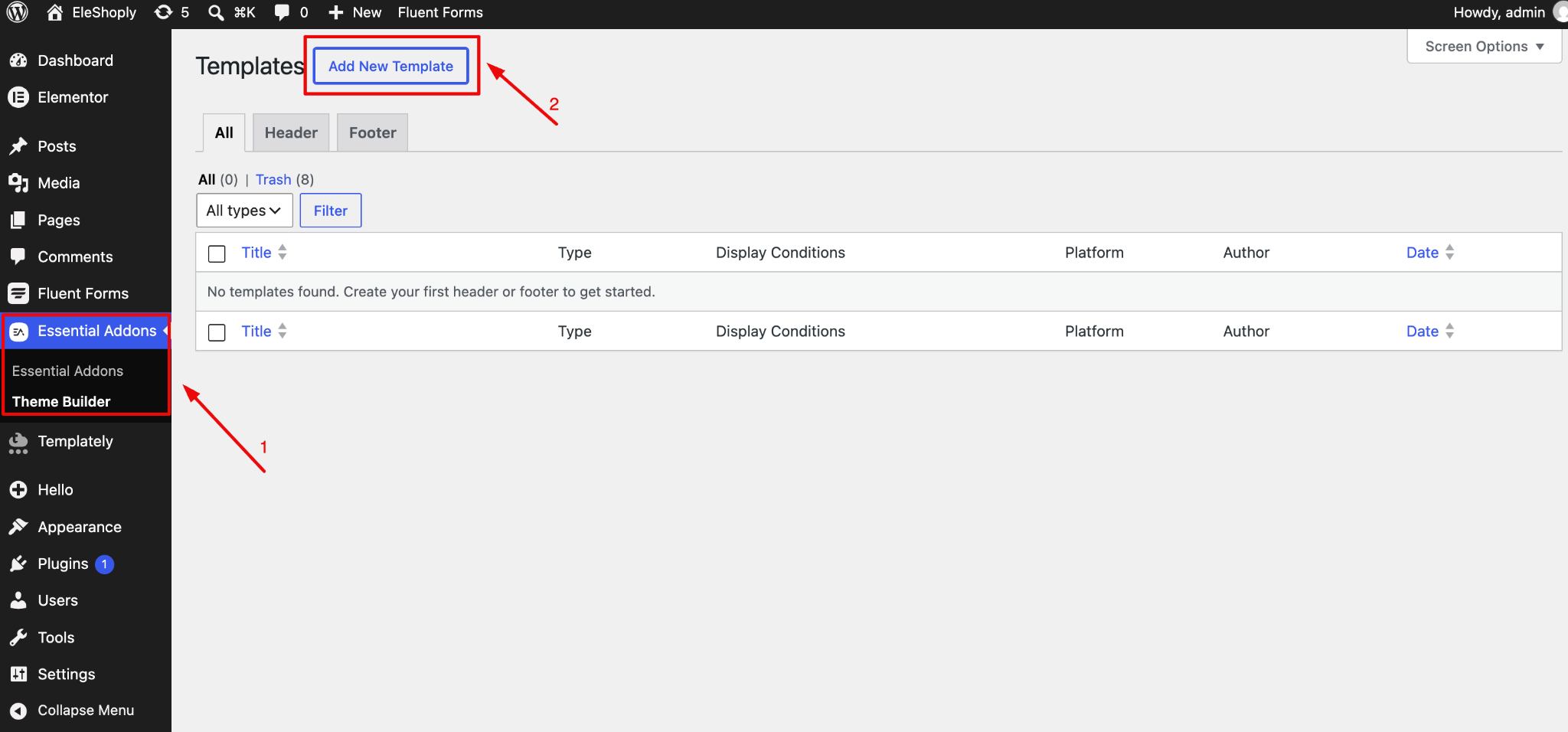
Step 1: Open the Theme Builder to Add New Template #
From your WordPress dashboard, go to Essential Addons → Theme Builder. Now click on the ‘Add New Template’ button.
Step 2: Create a New Template #
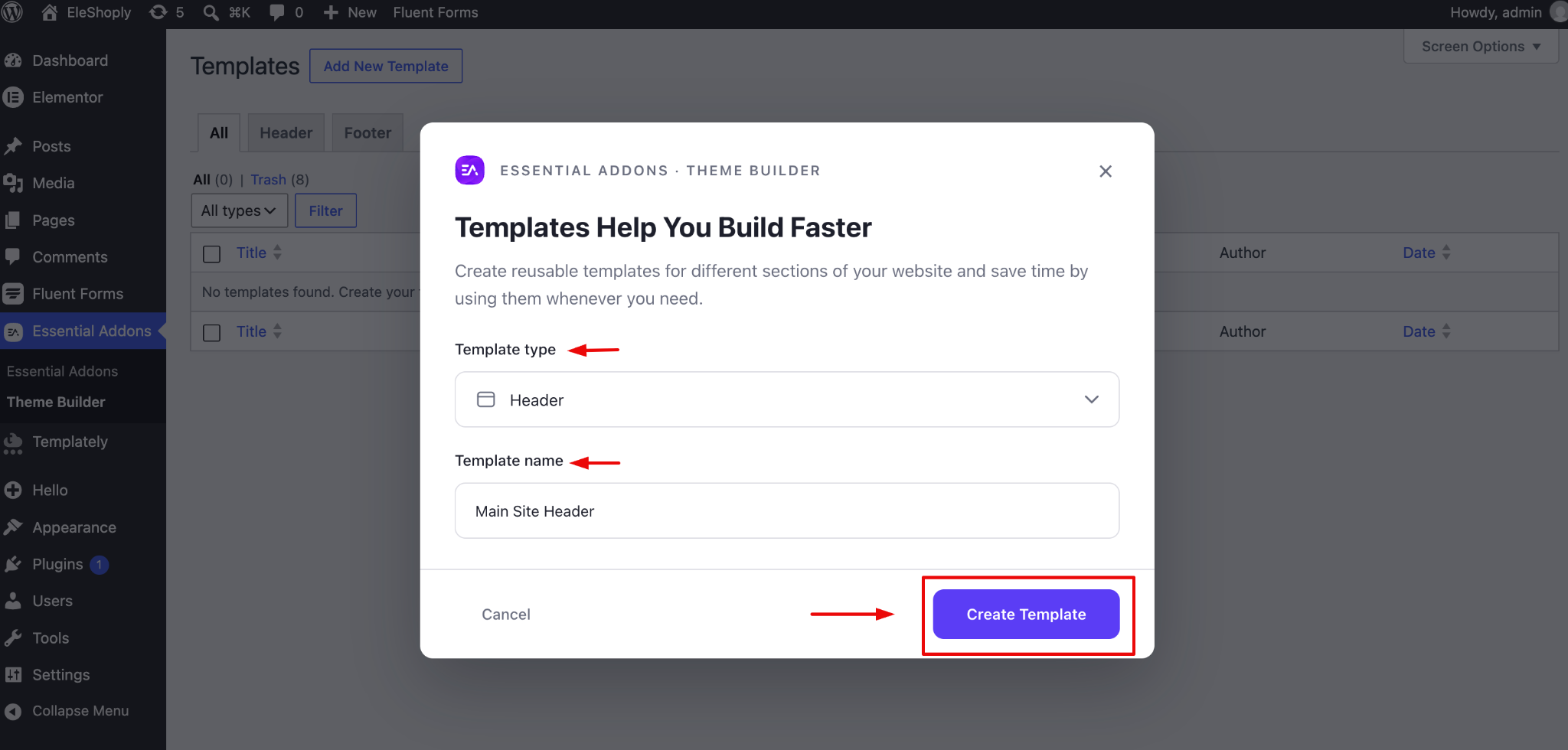
A popup will open with multiple options to create a new template. From the Template Type dropdown, choose the type you want to build: Header or Footer. Enter a Template Name so you can easily identify it later. Once done, click on the ‘Create Template’ button.
Step 3: Choose a Preset #
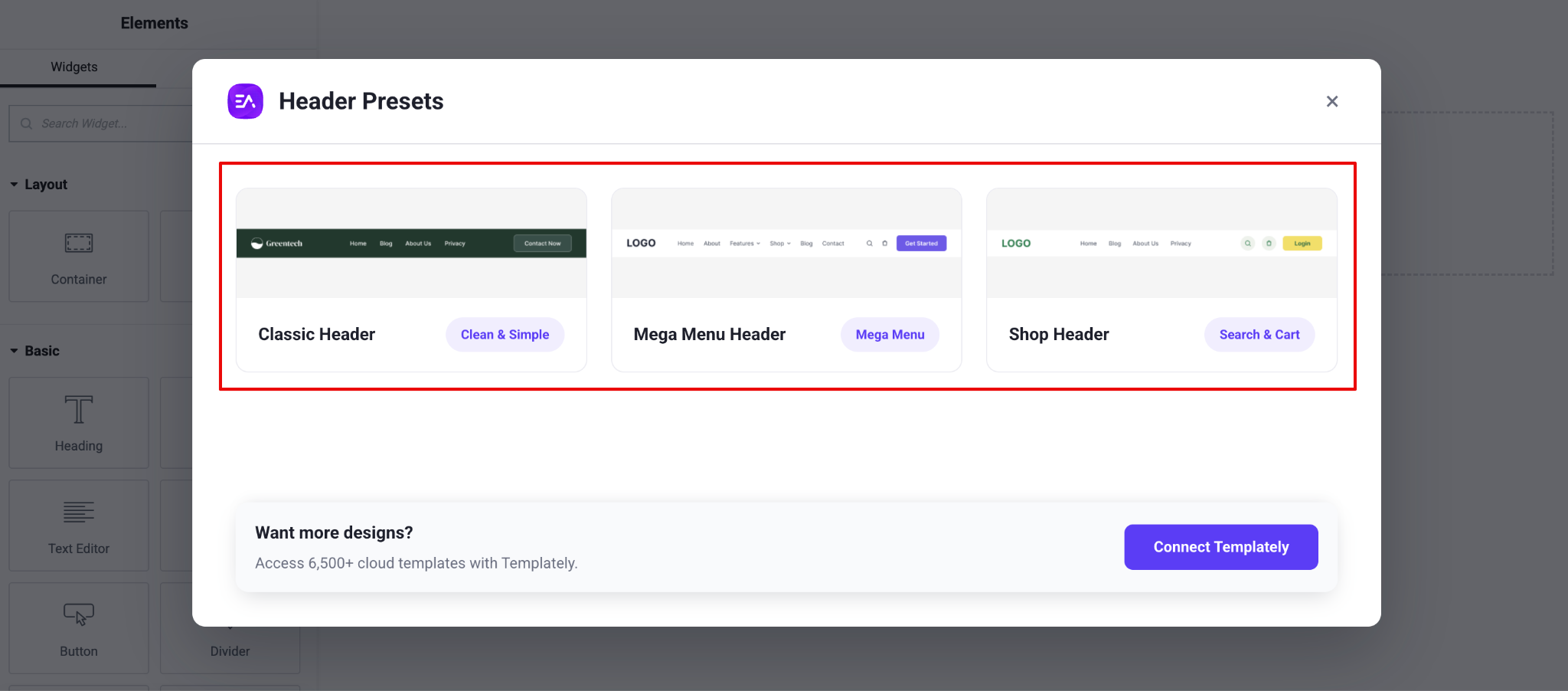
Once your template is created, pick a preset that matches the style you want. You can customize everything afterward.
Header: #
Currently, there are 3 types of Header presets available in the plugin. Classic Header is a clean, professional layout for standard business and portfolio sites. Mega Menu Header is an expanded menu for larger, content-rich sites with many links or categories. Shop Header is a layout designed for WooCommerce and online stores.
Footer: #
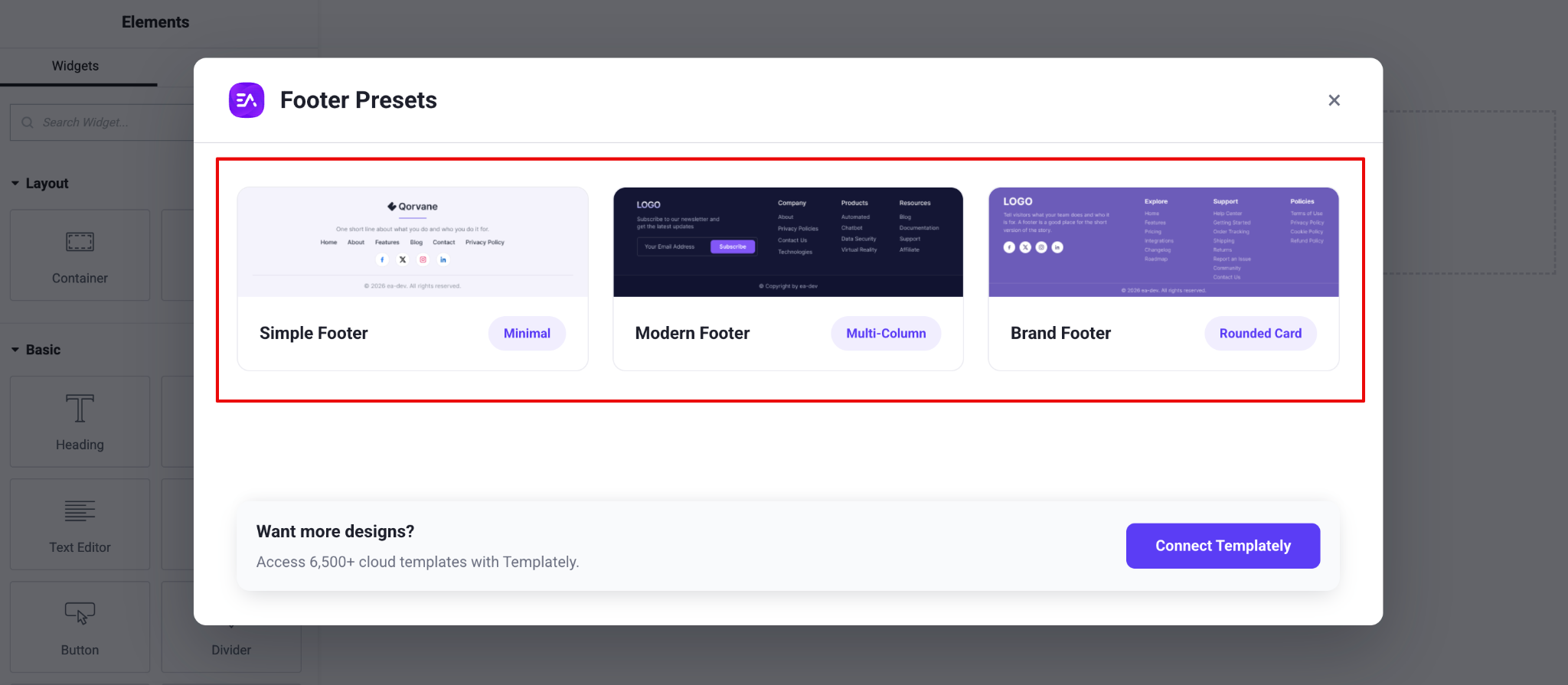
Similarly, there are 3 types of Footer presets available. Simple Footer is a minimal, no-fuss footer. Modern Footer is a contemporary, multi-column layout. Brand Footer is a footer built to highlight your brand and key links.
Explore More Designs with Templately #
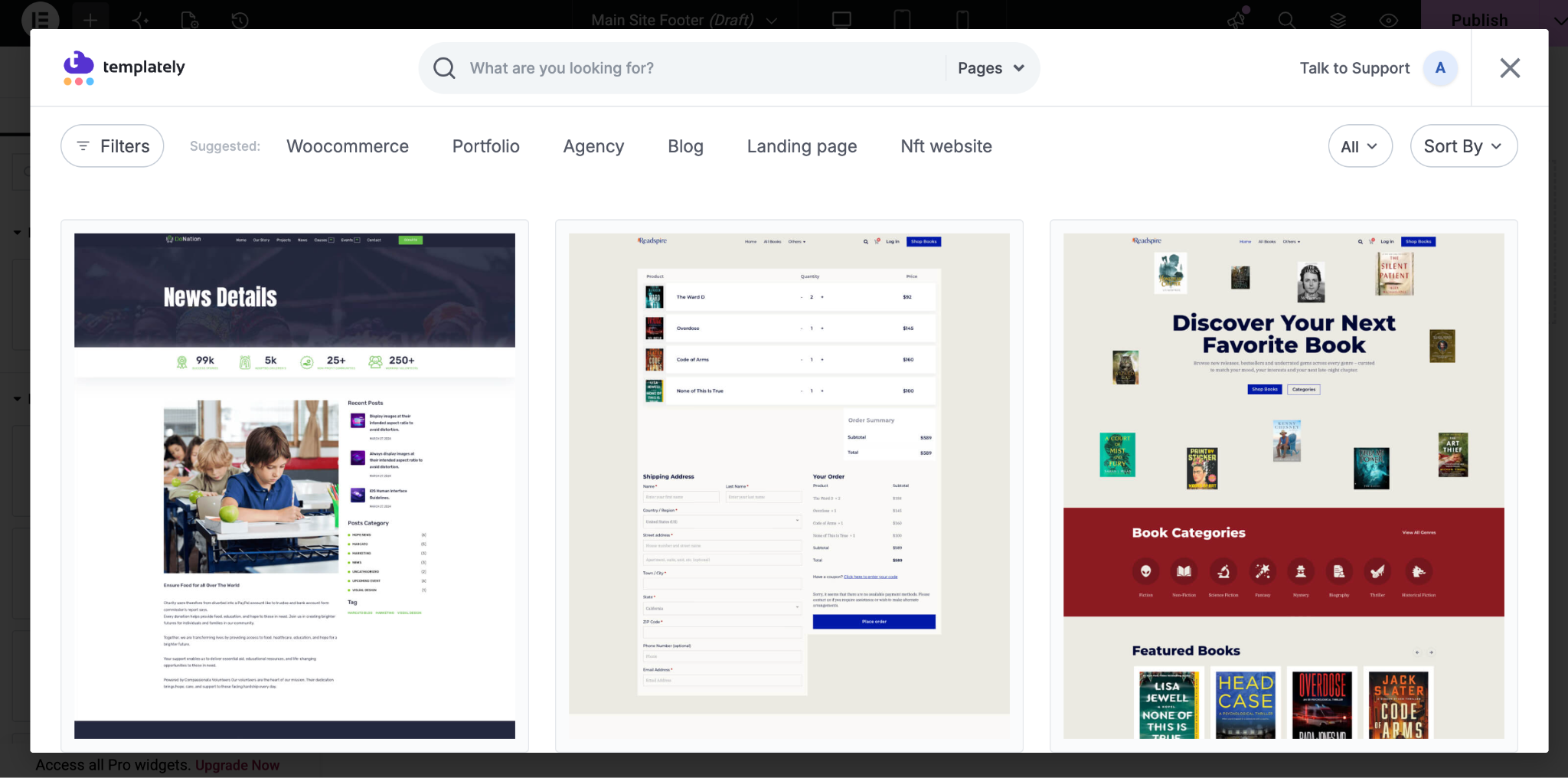
If you want more ready-made options, you can connect with Templately to import thousands of professionally designed header and footer templates and deploy them in a single click, so you never have to start from a blank canvas. Just click on the ‘Connect Templately’ button, and get access to the 4500+ templates library.
Step 4: Customize Your Design in Elementor #
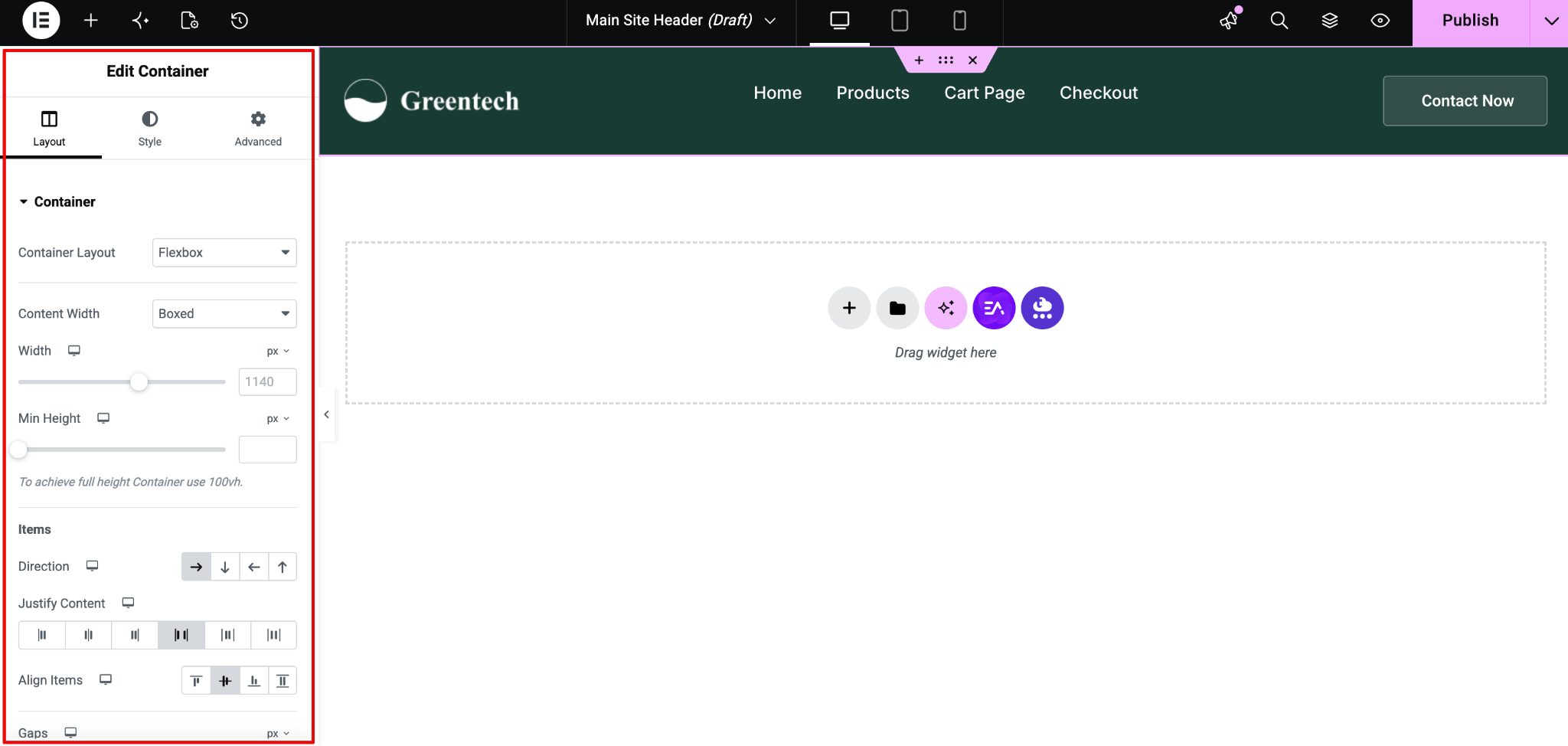
After selecting a preset or templates, the template opens in the Elementor editor, where you can edit text, logos, menus, and buttons, change colors, fonts, spacing, and backgrounds, add or remove widgets to match your design, preview your layout on desktop, tablet, and mobile, etc. You can quickly make your changes visually, no coding required.
Step 5: Set Where Your Header Or Footer Appears #
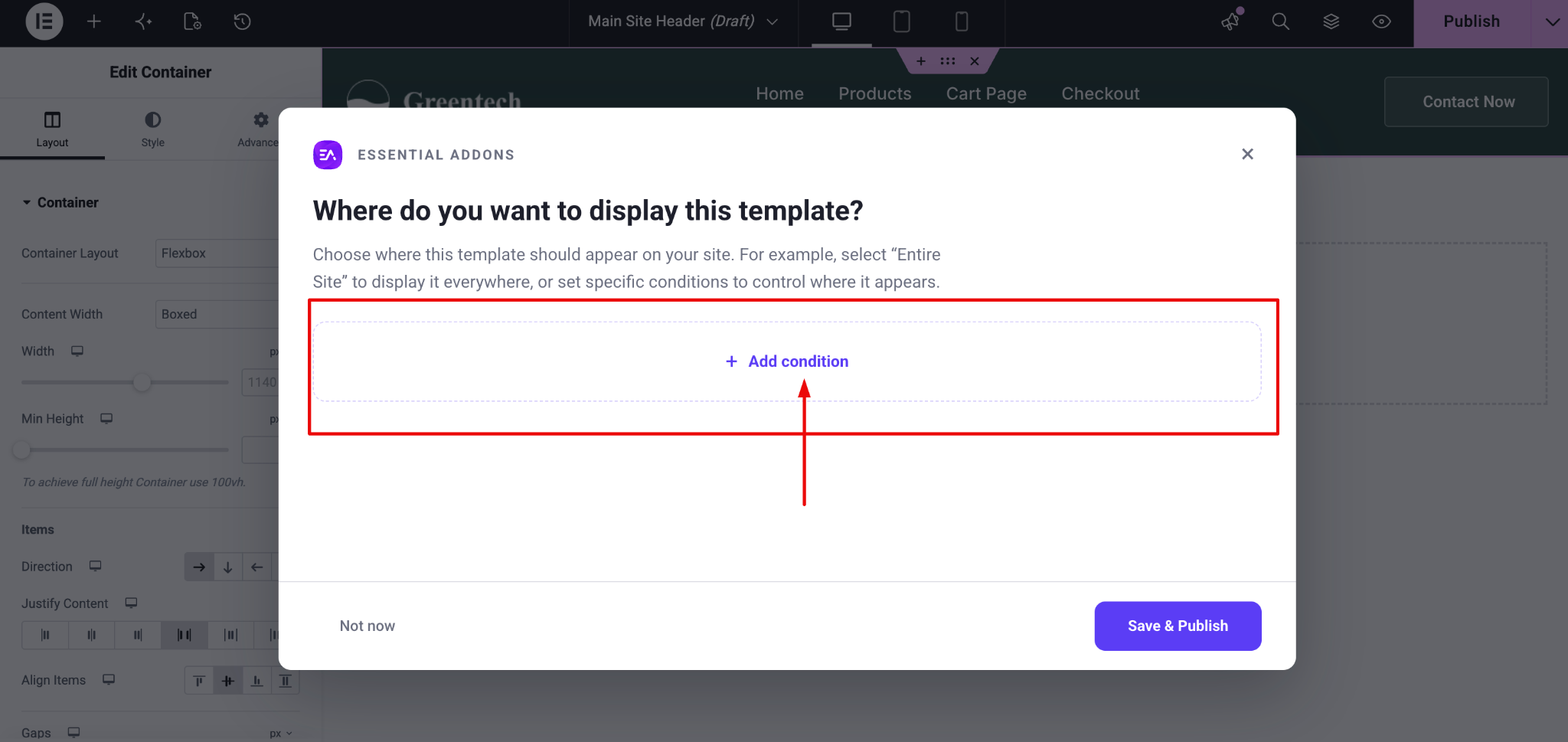
Once the customization is done, click on the ‘Publish’ button. A pop up will appear to choose where on your site this template should be displayed, for example, across your entire site or only on specific pages. Click on ‘Add conditions’ and add where this header or footer will appear. For example, on entire site, specific pages/posts, archives, etc.
Step 6: Publish And Reuse #
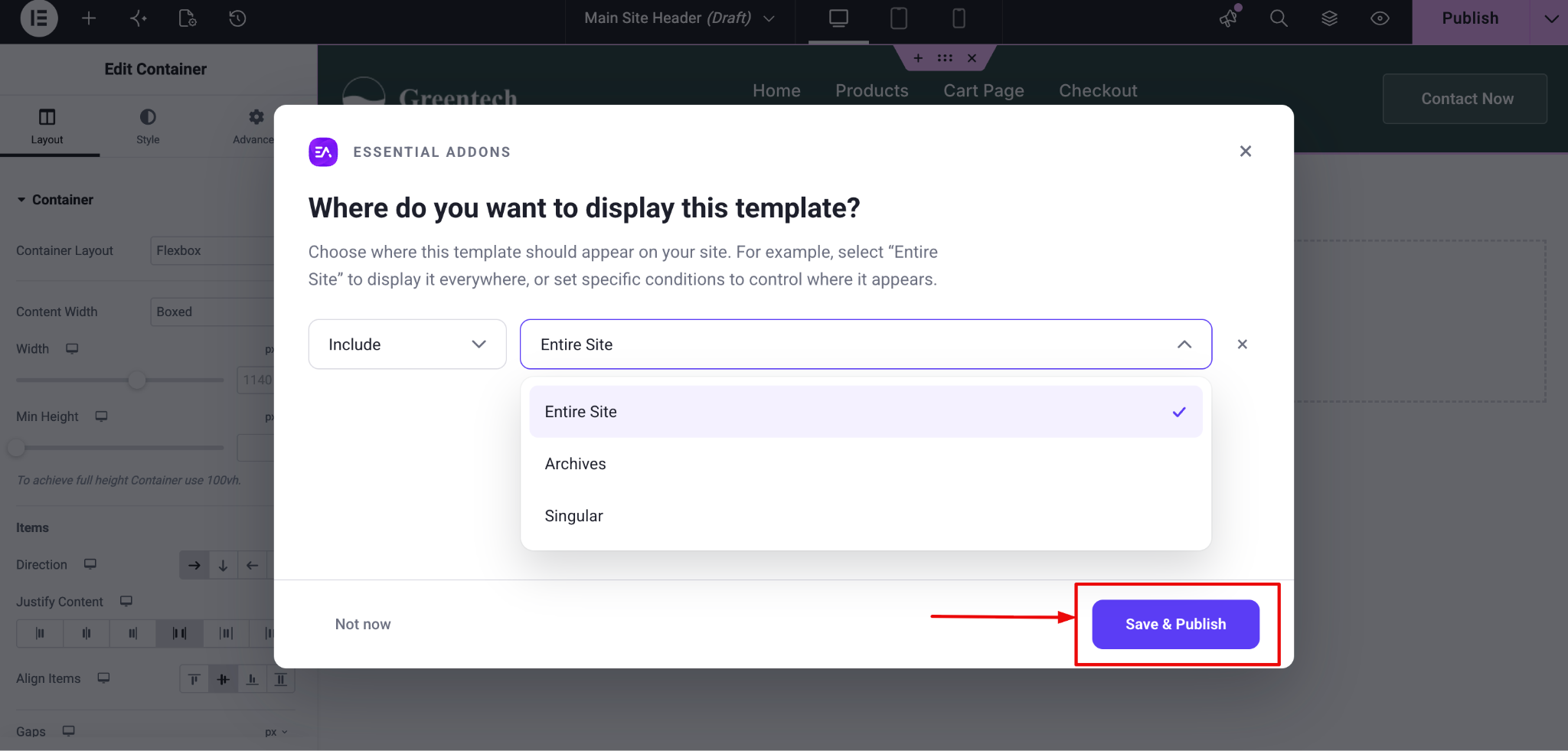
Once the display conditions are ready, click the ‘Save & Publish’ button to make your header or footer live.
Final Outcome #
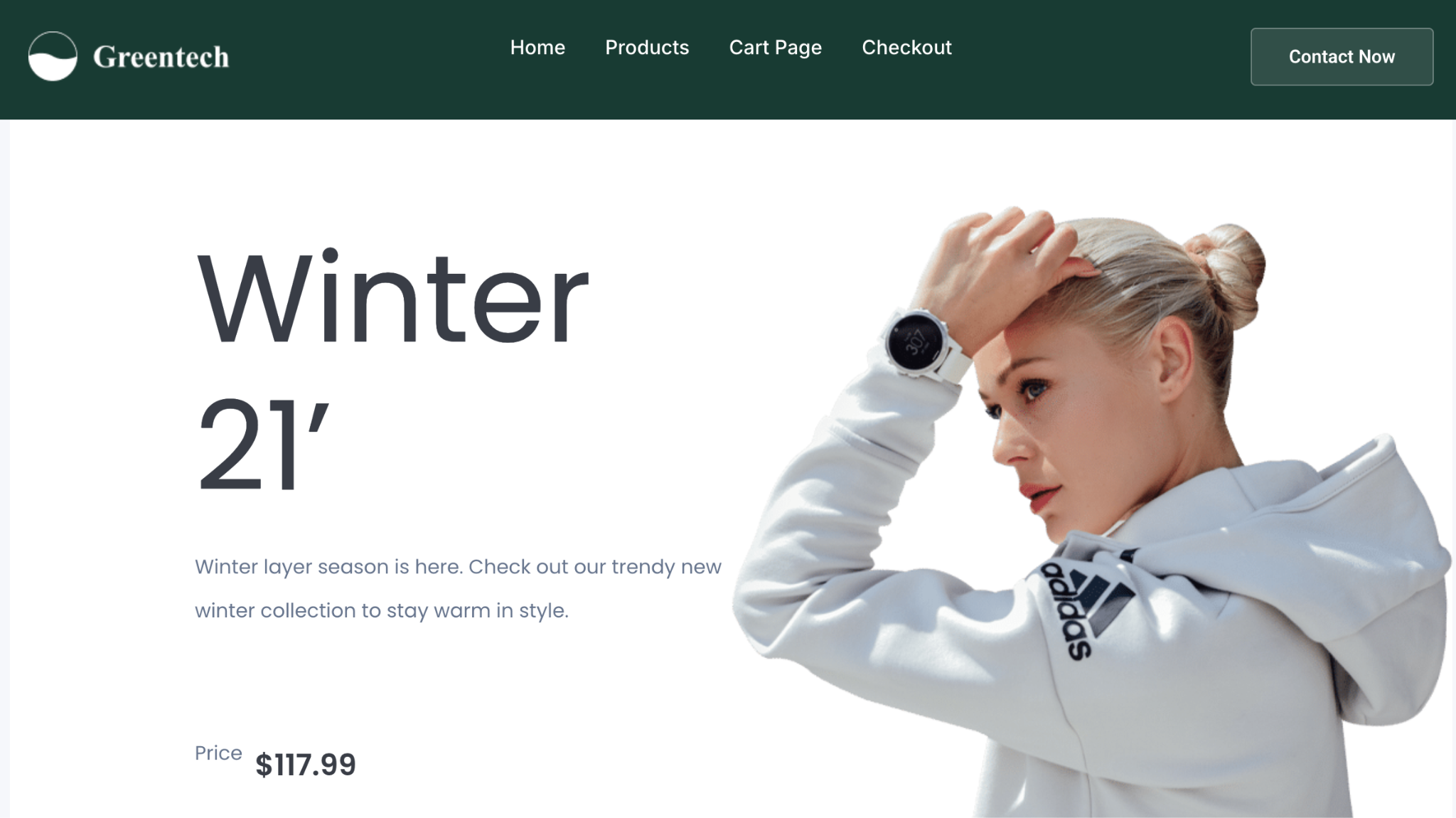
This is how your Header or Footer will appear on your website. Your template is now saved and can be edited or reused anytime from the Theme Builder. Because templates are reusable, you can return to any saved header or footer, tweak it, and reapply it , no need to rebuild from scratch.
This is how you can easily use the EA Header & Footer Builder in Essential Addons.
Getting Stuck? Feel free to contact our Dedicated Support Team.