
With the EA Woo Product Short Description widget, you can display your WooCommerce product’s short description on the single product page with full styling control, right where shoppers are deciding whether to buy. This Elementor widget lets you present that quick, persuasive product summary in a way that fits your store’s design, for FREE.
Note: Before starting with the EA Woo Product Short Description, you have to install & activate WooCommerce plugin on your WordPress dashboard & list products on your online store.
Also, install and activate Templately, as we’ll be using Templately’s Theme Builder to do this. Follow the step-by-step guidelines below to configure the Essential Addons Woo Product Short Description widget in Elementor.
Step 1: Activate EA Woo Product Short Description #
First, you need to activate the Essential Addons Woo Product Short Description widget. To do so, navigate to ‘Essential Addons’ → ‘Elements’ from your admin dashboard.
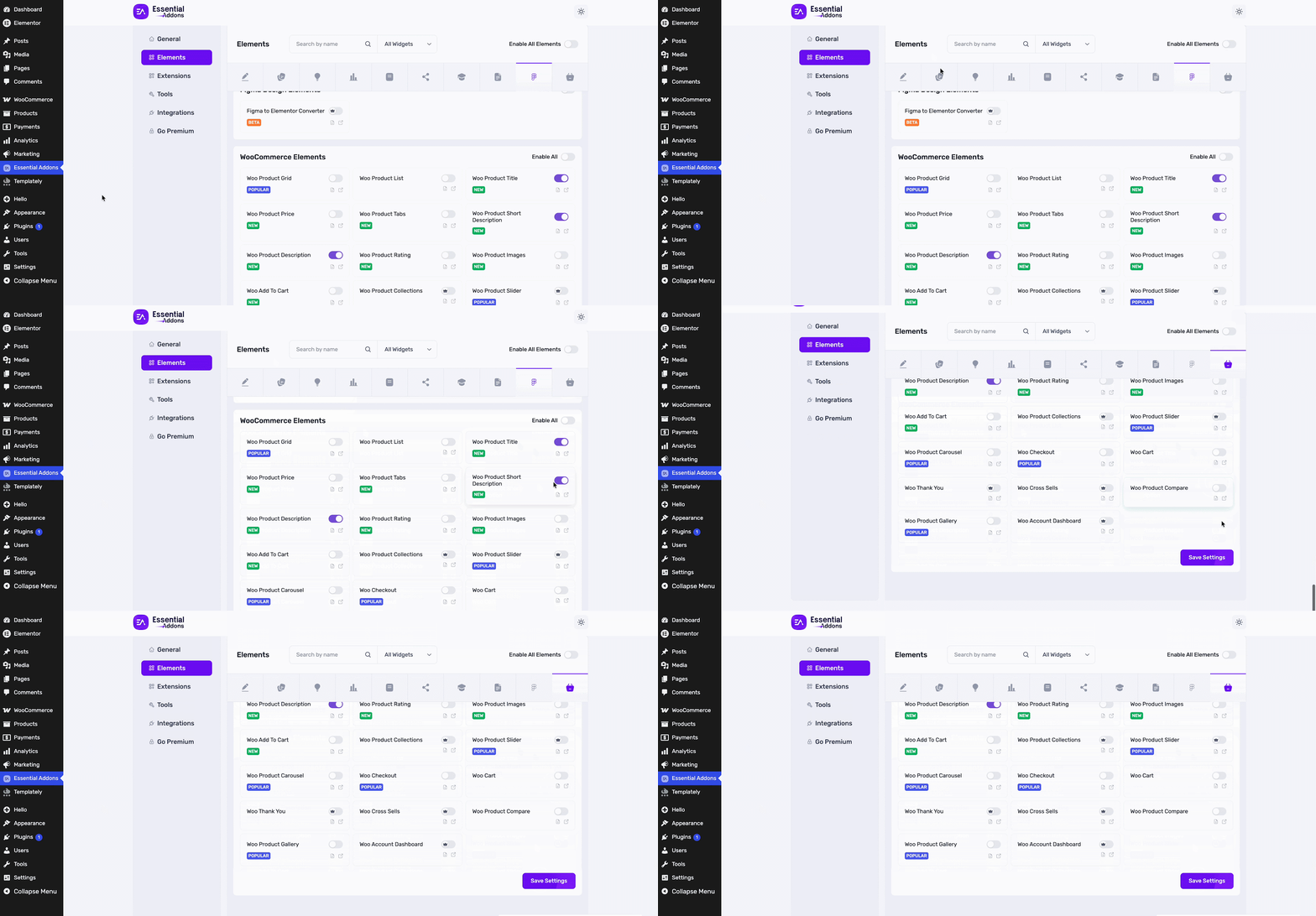
Then, scroll to the WooCommerce Elements section and turn on the toggle to enable the ‘Woo Product Short Description’ widget. Click ‘Save Settings’ to activate it instantly.
Step 2: Create a New Single Product Template with Templately Theme Builder #
Navigate to Templately from the sidebar, then go to ‘Theme Builder’ → ‘Add New Template’ to create a new product template.
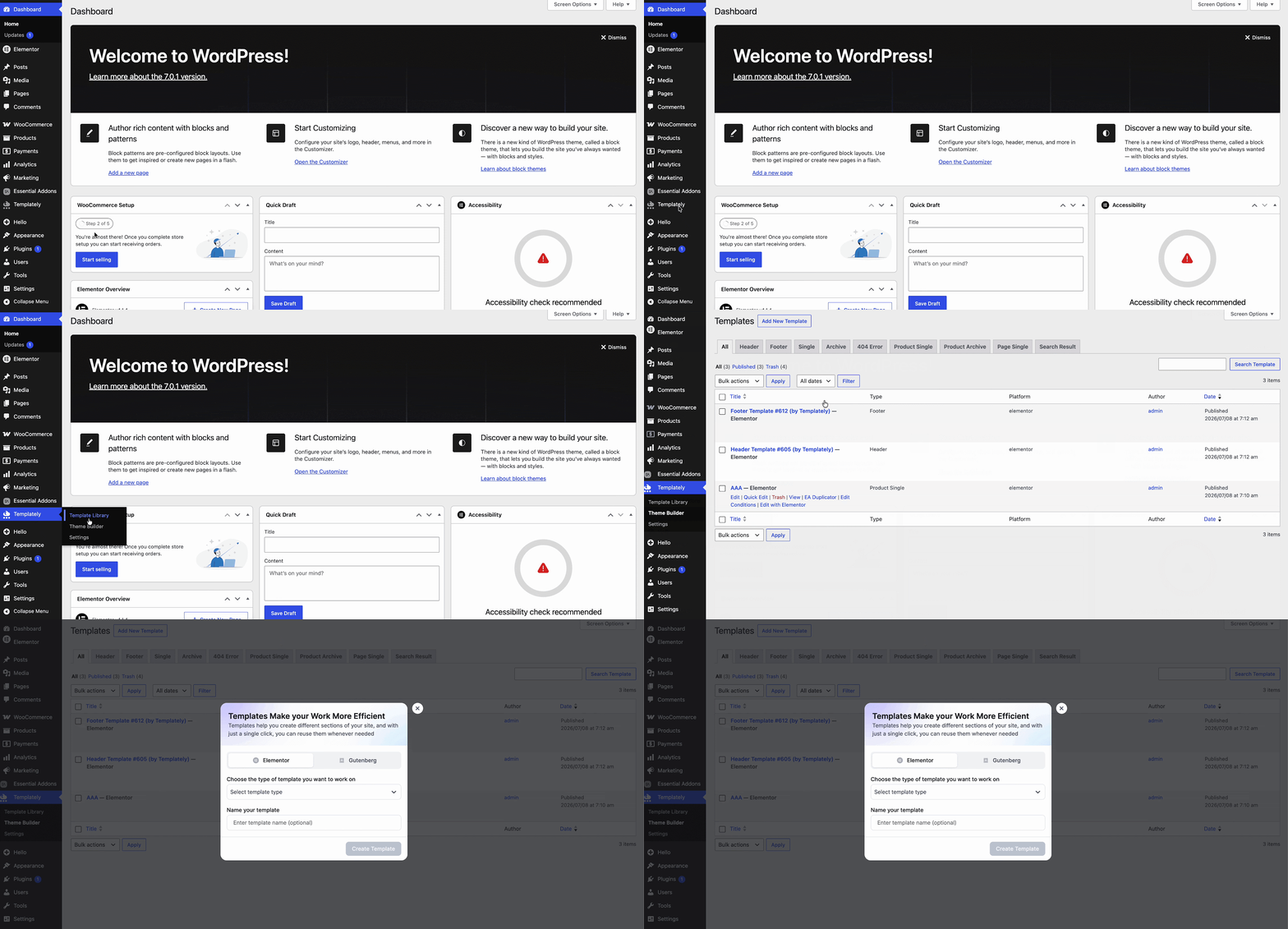
A pop-up will appear. Choose the ‘Elementor’ editor, select ‘Product Single’ as the template type, give your template a name, and click ‘Create Template.’
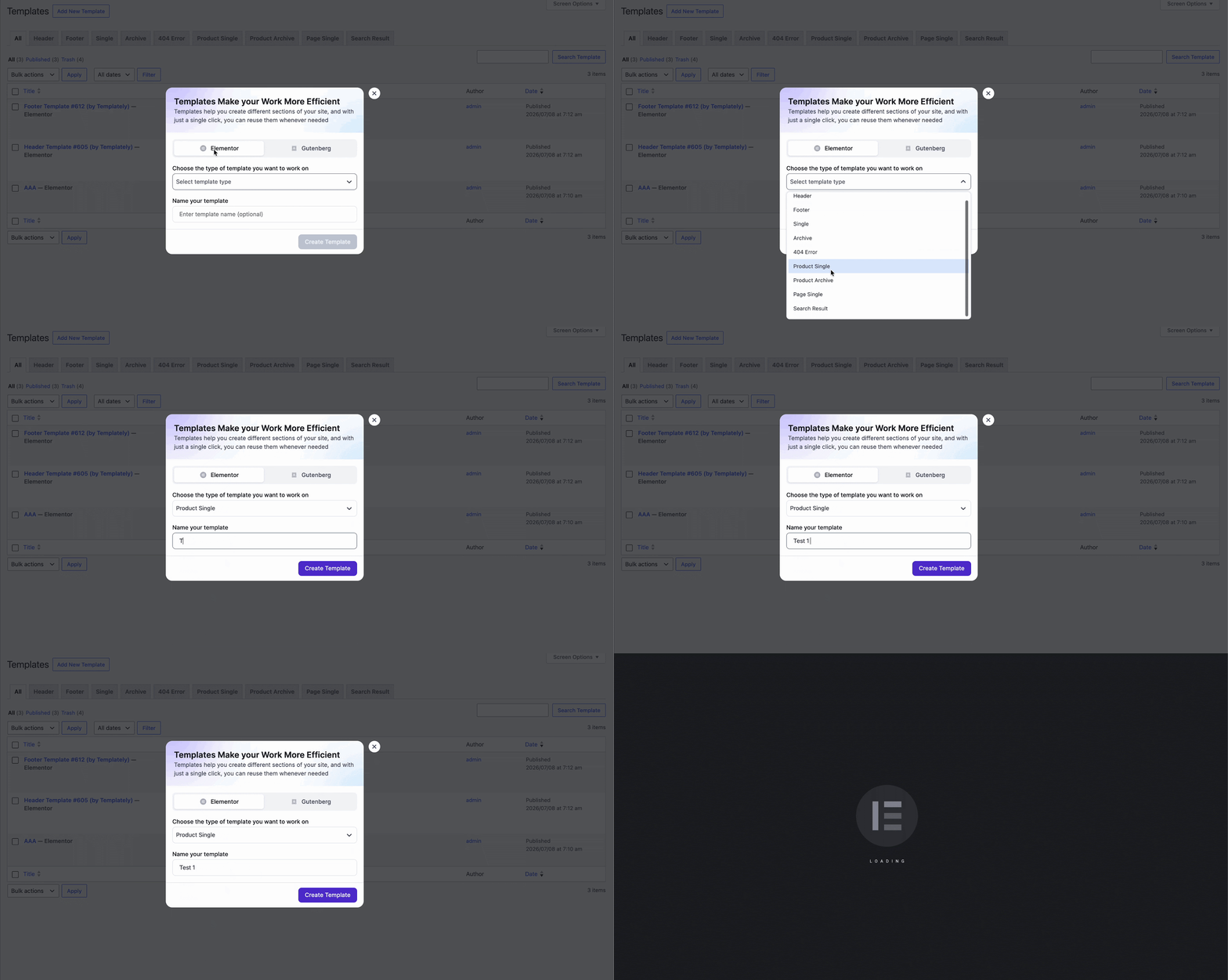
Once your template is set up, drag and drop the ‘Woo Product Short Description’ widget onto the canvas and position it wherever you’d like it to appear, commonly right below the price or Add to Cart button. Publish the template for the ‘Single Product Page.’
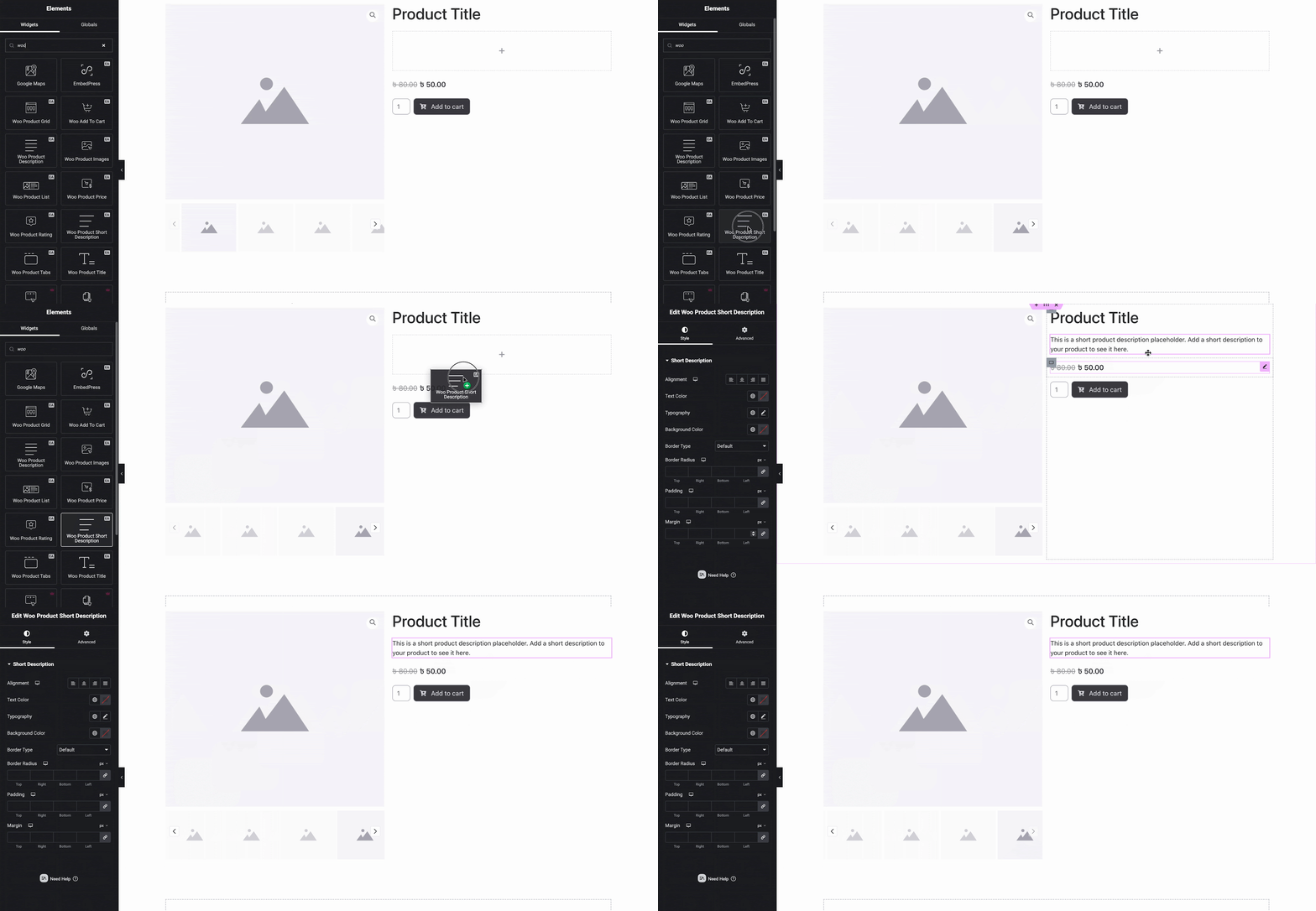
Once you’re done, the short description will be visible on the single product page along with the other elements included in the template.
Step 3: Configure Woo Product Short Description on a Single WooCommerce Product Page #
After creating the product template, move on to the style and configuration part. The widget consists of three configuration sections: ‘Style’ and ‘Advanced.’
Style #
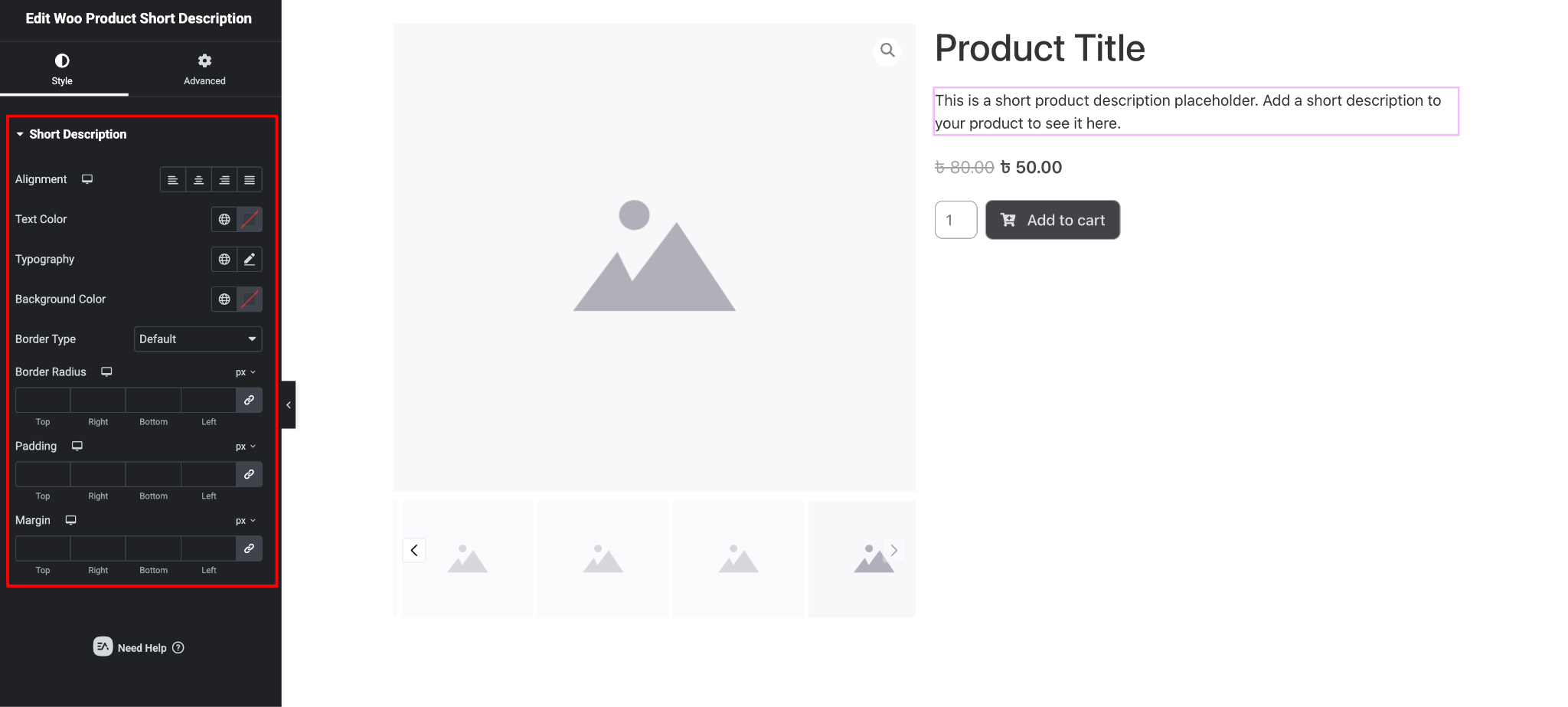
Under the ‘Style’ tab, you can customize the text color, typography, alignment, background color, border type, radius, margin & padding of your short description text to match your store’s branding.
Advanced #
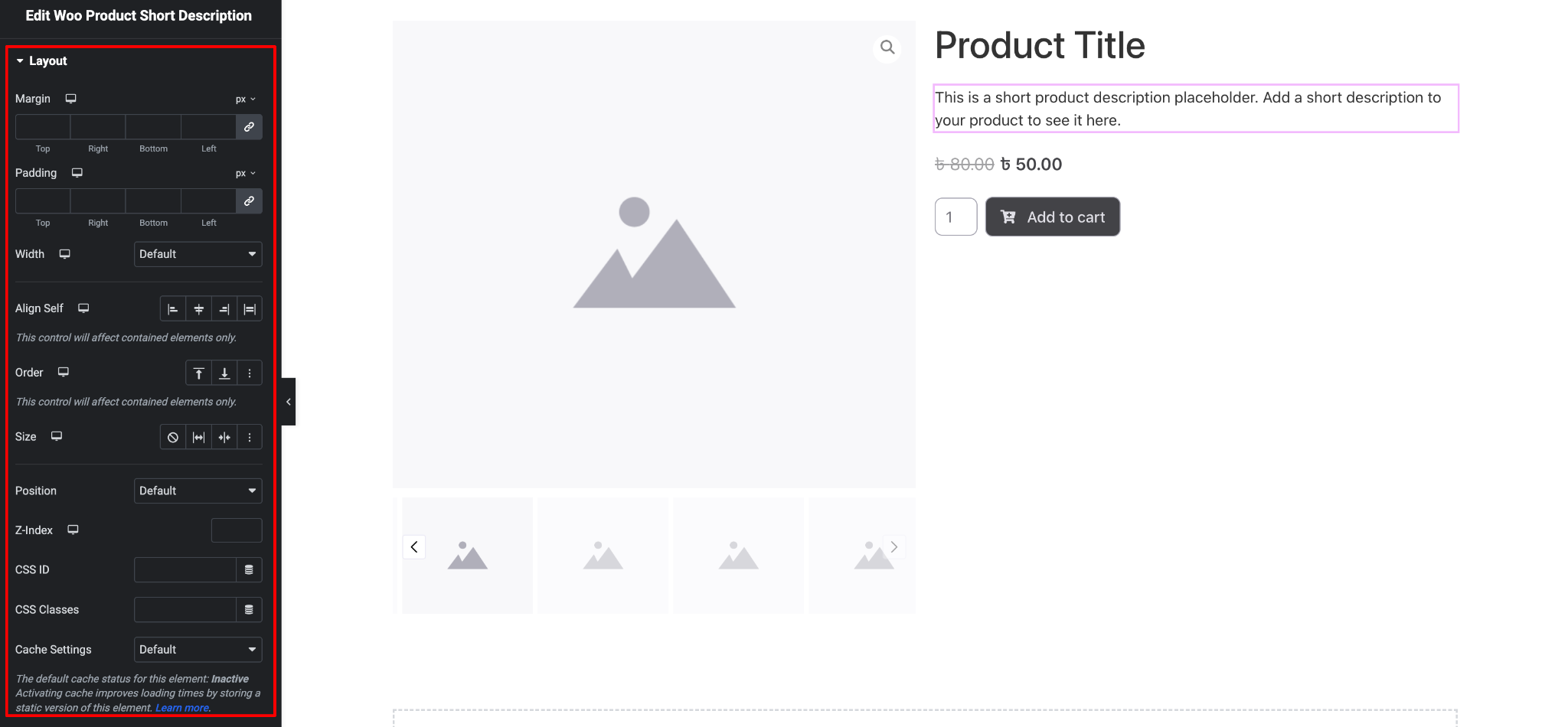
From the ‘Advanced’ tab, you can fine-tune the appearance further with margin, padding, border, and responsive visibility settings, letting you adjust how the short description looks across desktop, tablet, and mobile.
Final Outcome #
By following these simple steps, you can add and style the Essential Addons Woo Product Short Description widget on your single product page in Elementor, giving shoppers a clean, on-brand product summary exactly where they need it.
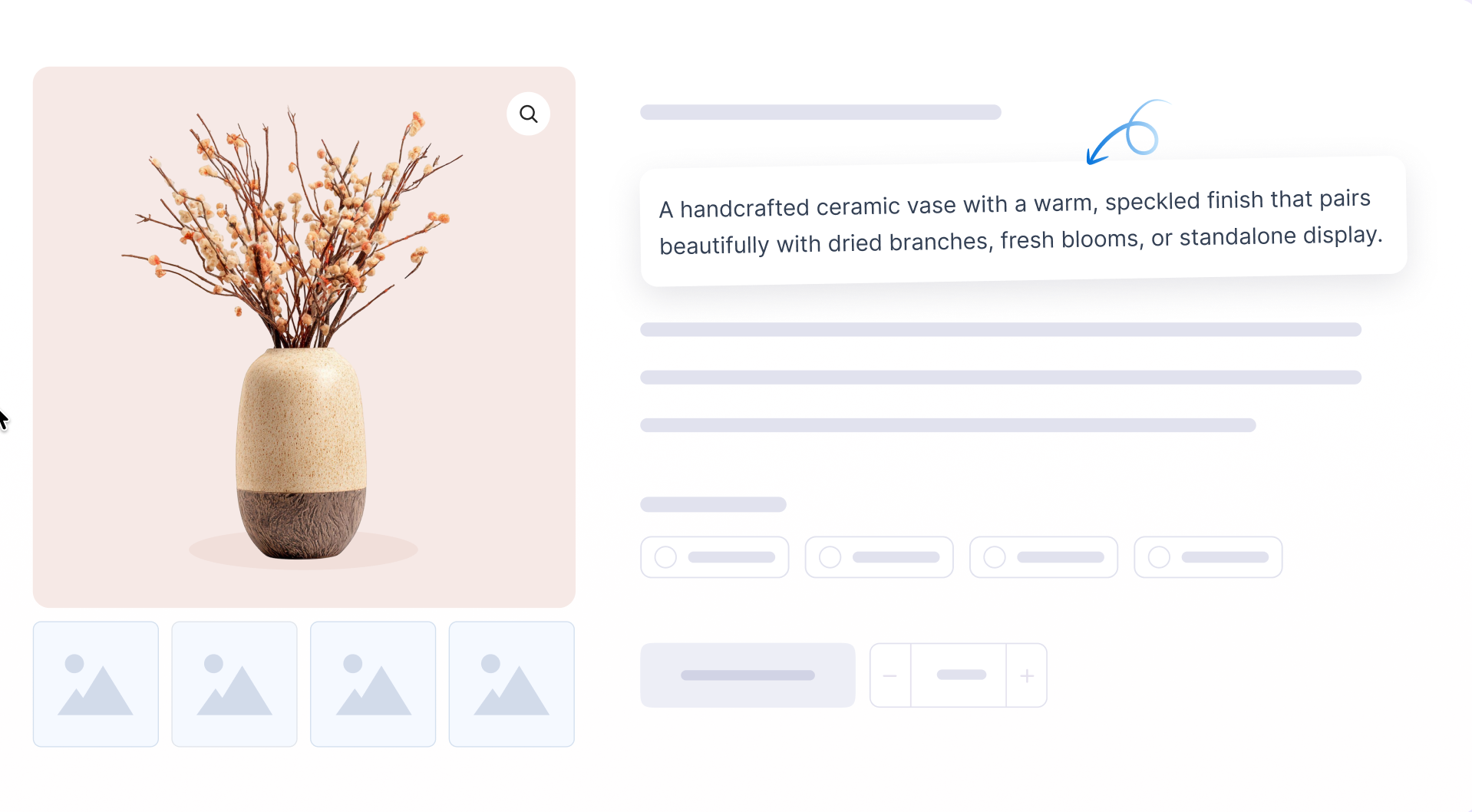
This is how you can easily set up and design the Essential Addons Woo Product Short Description widget in Elementor.
Got stuck? Feel free to contact our support for further assistance.