
Advanced Custom Fields (ACF) lets you store and manage structured, repeatable content on your WordPress website without touching a single line of code. When paired with Essential Addons for Elementor, you can pull dynamic data directly into widgets like Team Member Carousel, Price Menu, Testimonial Slider, Maps and Multicolumn Pricing Table, keeping content fresh, organized and easy to update from a single source.
Follow this step-by-step guideline to learn how to configure ACF Repeater Support and display it inside Essential Addons widgets. For this documentation, we will show you how to implement the ACF Repeater Field in the Team Member Carousel widget. For other widgets, you can add ACF repeater support following the same process.
Note: Before you begin, make sure you have installed and activated the following on your WordPress website: Essential Addons, Essential Addons (PRO), and Advanced Custom Fields (ACF) (the Repeater field is a PRO feature in the ACF plugin, so you need to activate the PRO version).
Creating the ACF Repeater Pattern #
The first step is to build your repeatable content structure in ACF. A Repeater field acts as a container that holds a group of sub-fields.
Step 1: Create a New Field Group #
From your WordPress Dashboard, navigate to ACF → Field Groups and click on the ‘Add New’ button at the top of the screen.
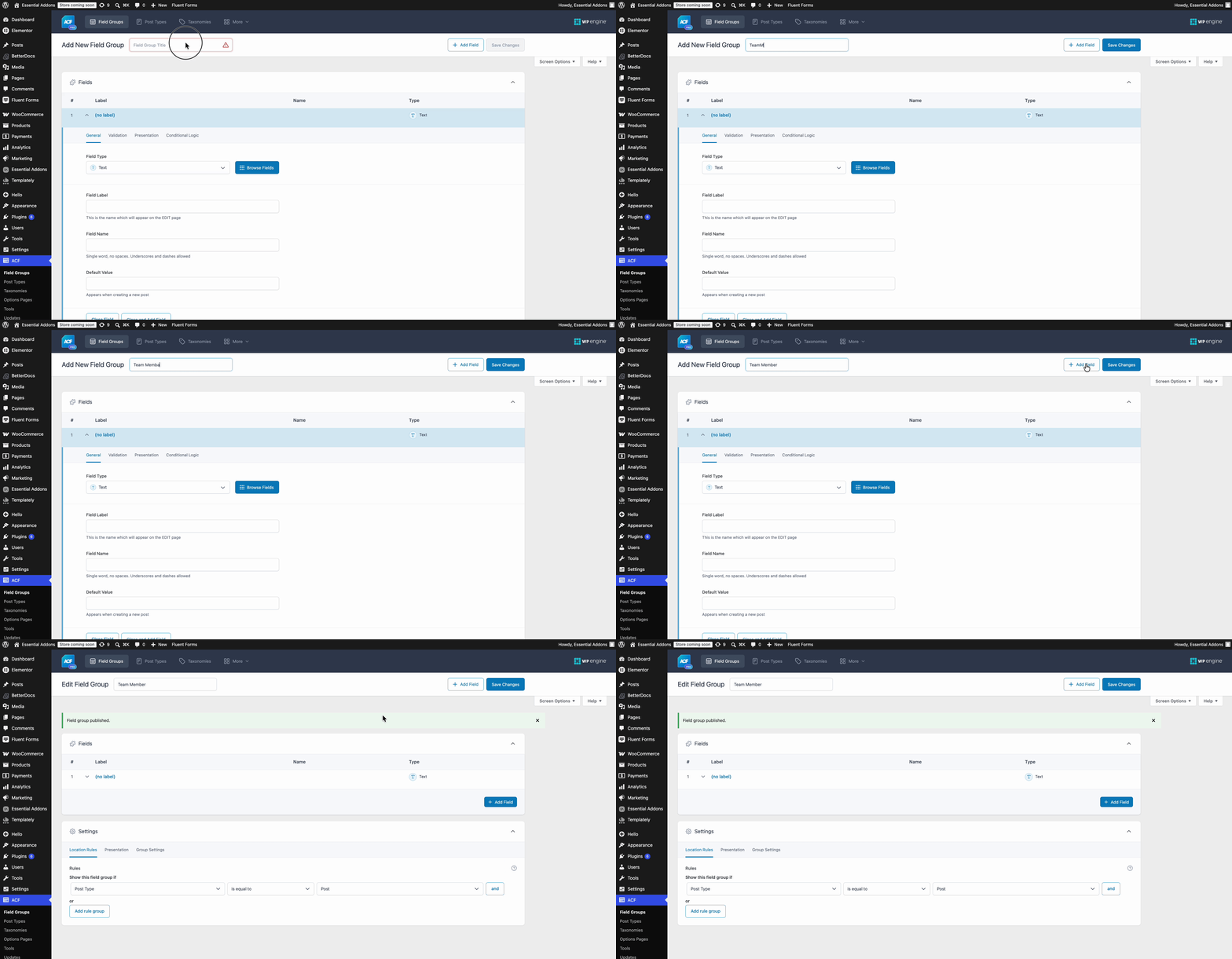
Give your field group a clear, recognizable title. This title is for your internal reference only and will not appear on the front end of your website.
Step 2: Add a Repeater Field #
Inside your new field group, click on the ‘+ Add Field’ button. You will then see the field configuration options.
- In the ‘Field Label’ box, type a name. The ‘Field Name’ will be generated automatically (for example, Team Members).
- From the ‘Field Type’ dropdown, select ‘Repeater’.
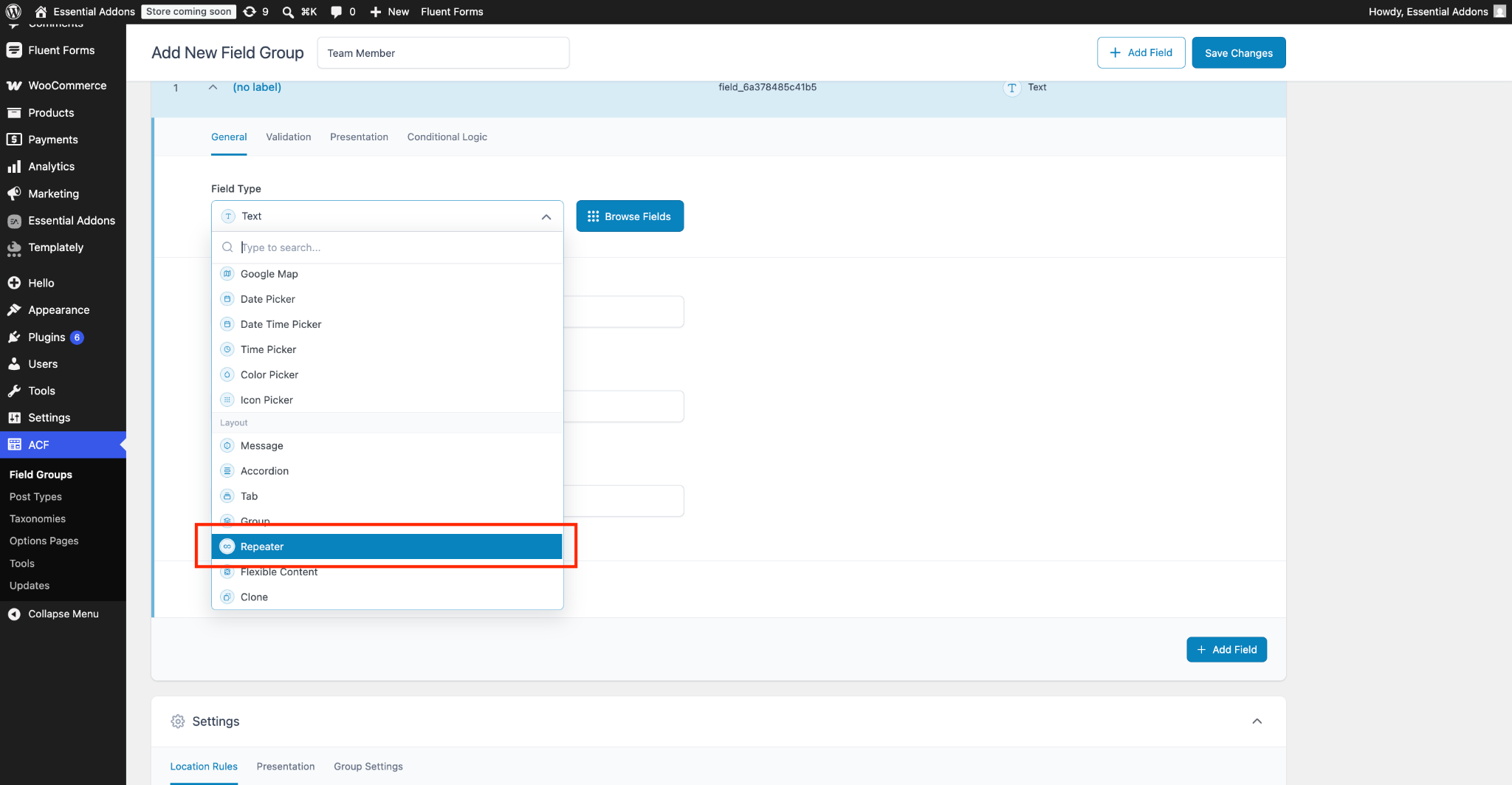
This Repeater field will act as the parent container that holds all your individual team member entries.
Step 3: Add Sub-Fields Inside the Repeater #
Within the Repeater field, you will find an option to add sub-fields. These sub-fields represent each piece of information you want to store for every single option in your Element. Click on ‘+ Add Field’ inside the Repeater to create them one by one.
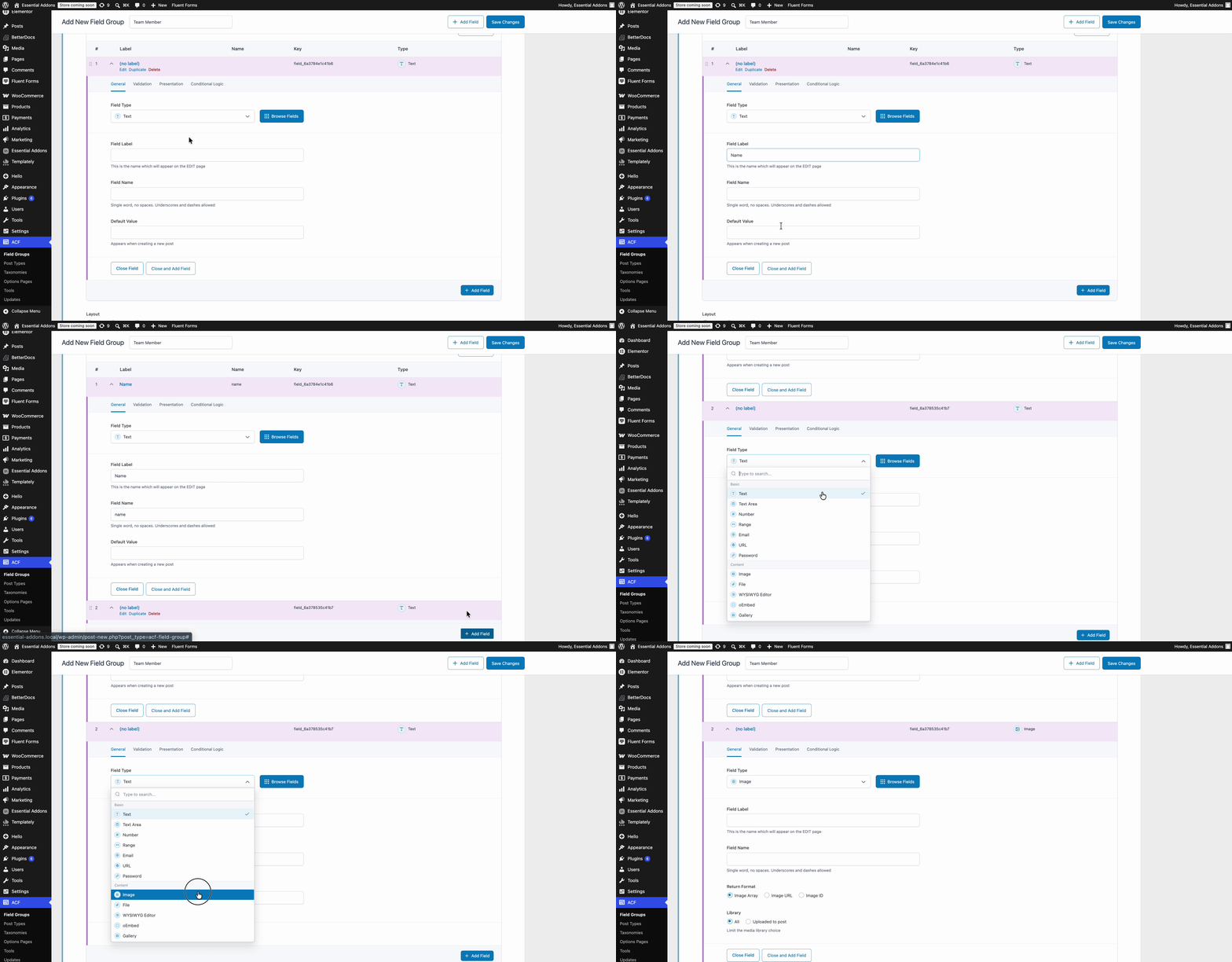
You can add as many sub-fields as your design requires. Each sub-field you create here will later become an available data source inside Essential Addons.
Step 4: Set the Location Rules #
Scroll down to the ‘Settings’ section of your field group and open the ‘Location Rules’ tab. Here, you decide where this Repeater field should appear within your WordPress editor.
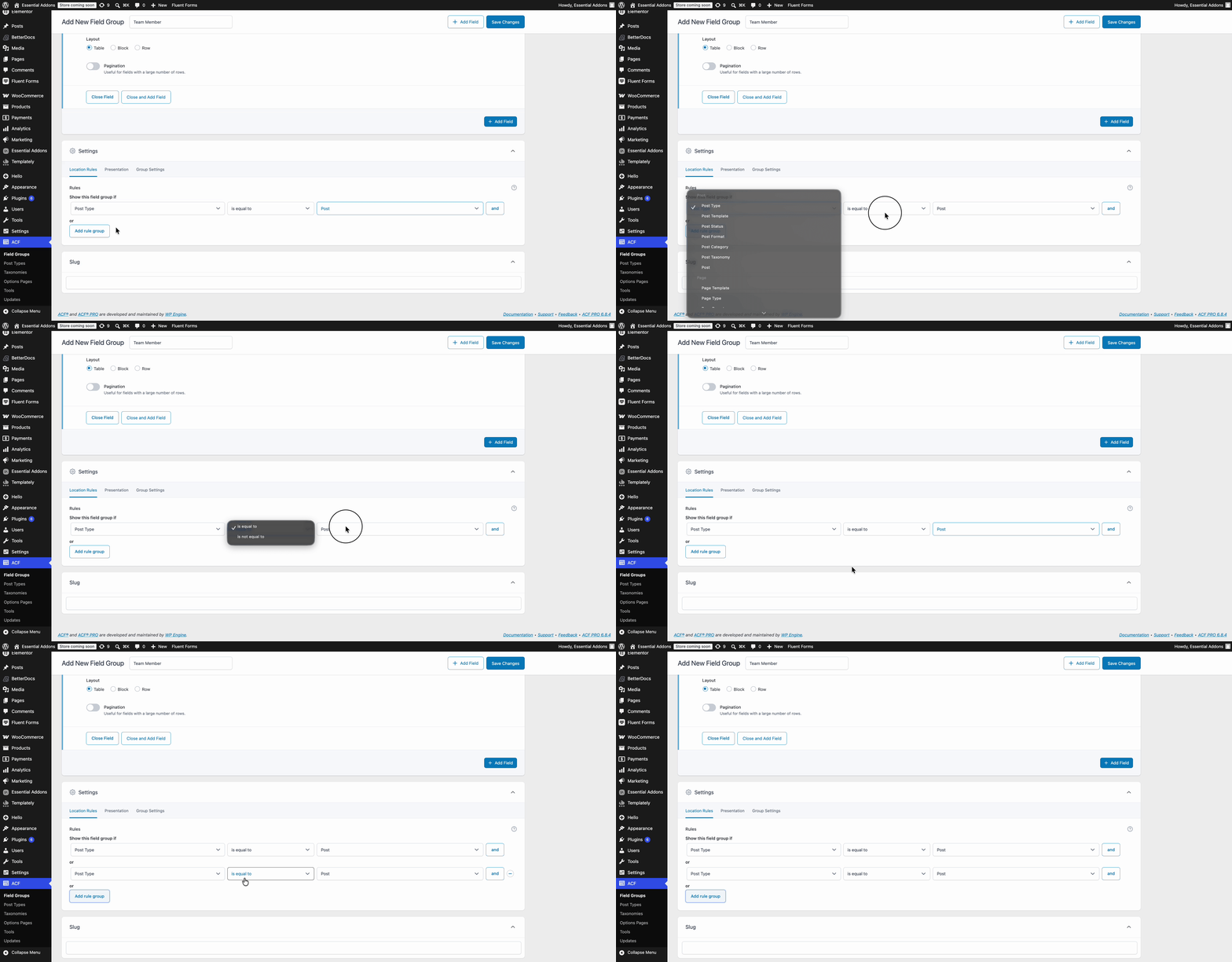
For example, you can set the rule to ‘Post Type’ is equal to ‘Post’, so the Repeater fields show up whenever you edit a post. Adjust this rule based on where you intend to display your team members.
Step 5: Publish the Field Group #
Once your Repeater field, sub-fields, and location rules are all configured, click the ‘Save Changes’ (or ‘Publish’) button at the top-right corner of the screen. Your ACF Repeater pattern is now ready to receive content.
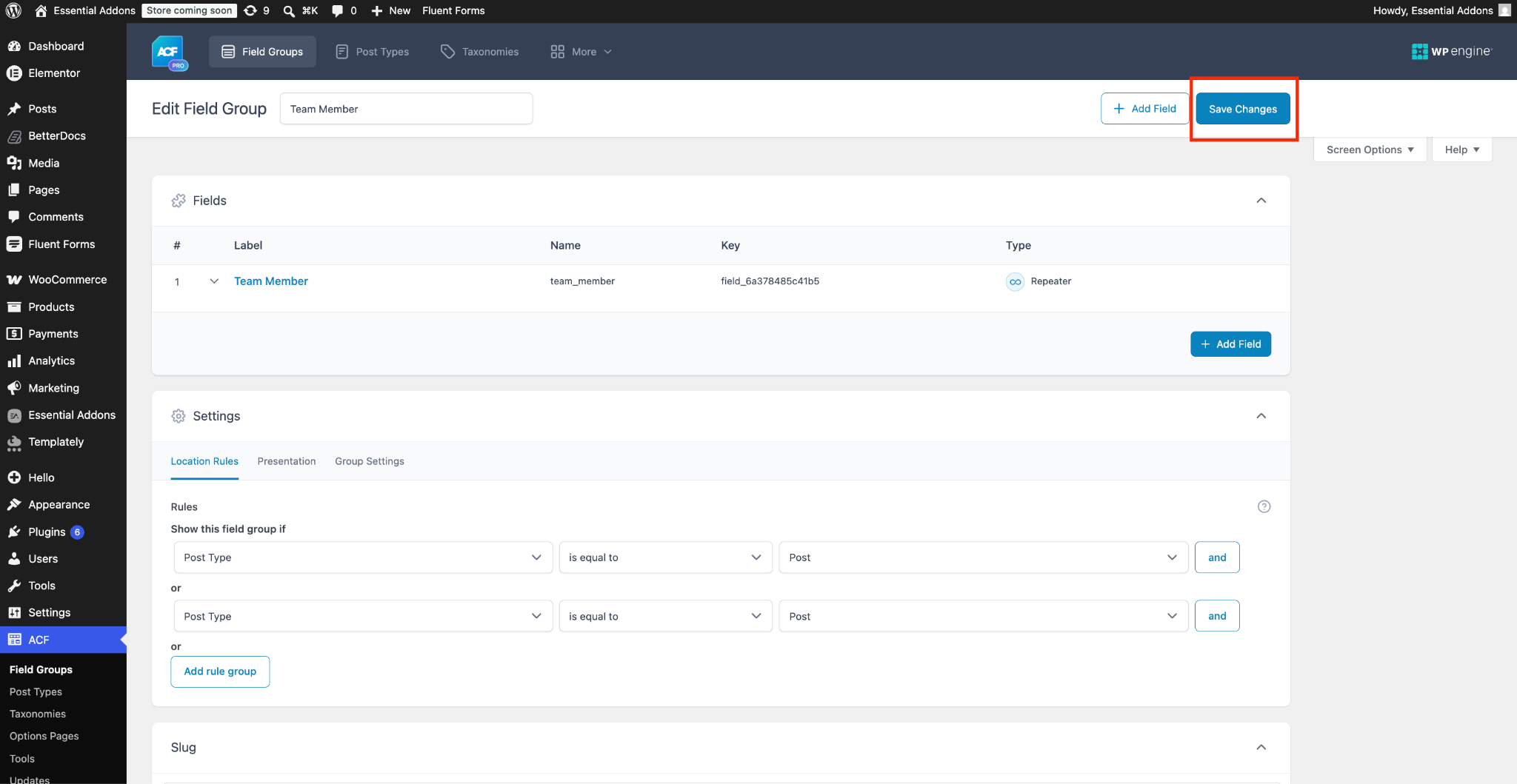
Step 6: Add Your Content #
Now, open the page or post where you set your location rule (for example, the page you want to display the Essential Addons’ widget on). Scroll down below the main content editor and you will find your Repeater field.
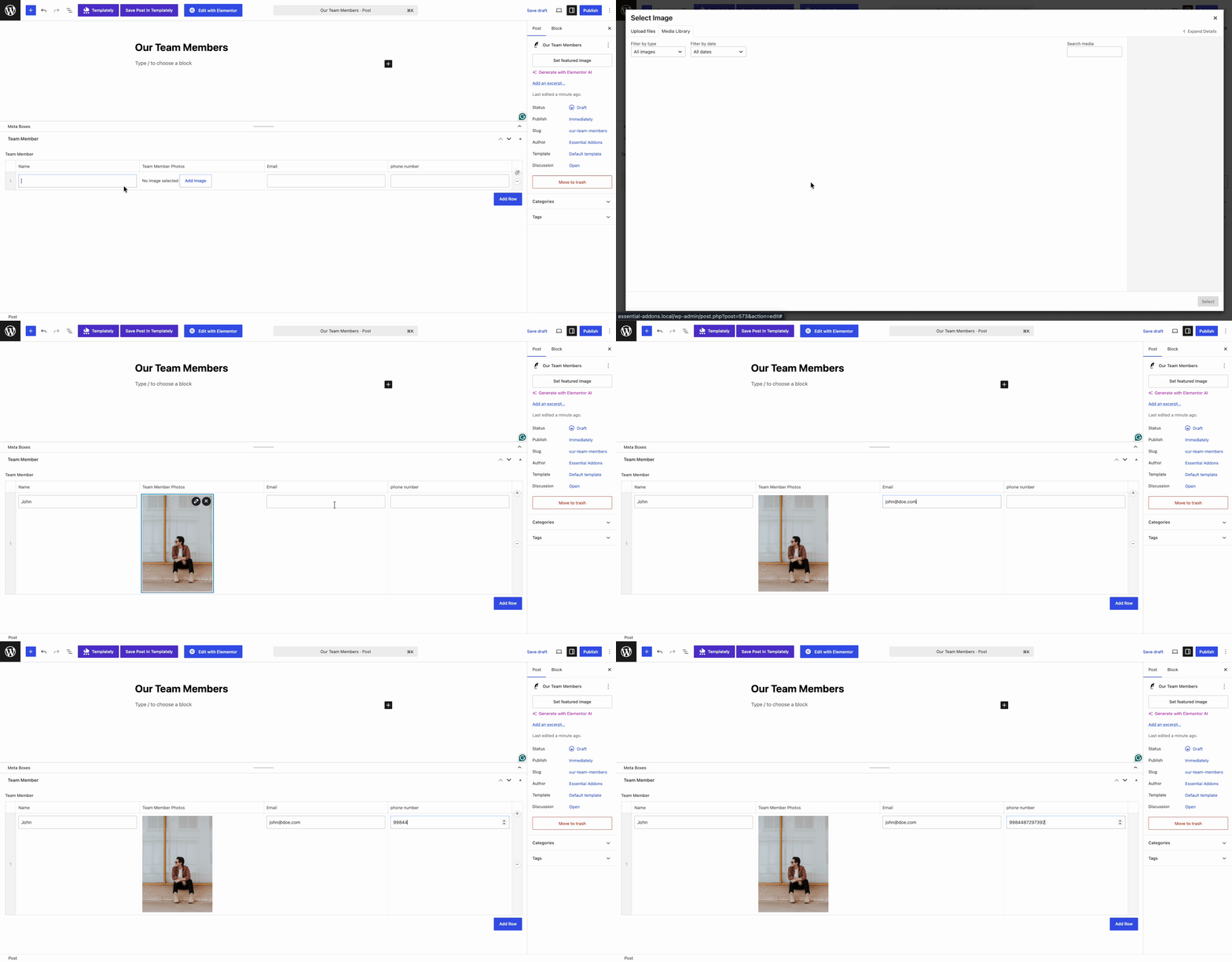
Click on the ‘+ Add Row’ button to create your first entry, then fill in the sub-fields, the name, title, image, and number. Repeat this process to add as many team members as you like, and click ‘Update’ to save them.
Your dynamic content is now stored and ready to be displayed inside Essential Addons.
Displaying the ACF Repeater in the Essential Addons Team Member Carousel #
With your ACF Repeater pattern created and populated, you can now bring that data to life using the Essential Addons. Select a widget to showcase in an attractive, animated slider format.
Step 1: Add the Essential Addons Widget #
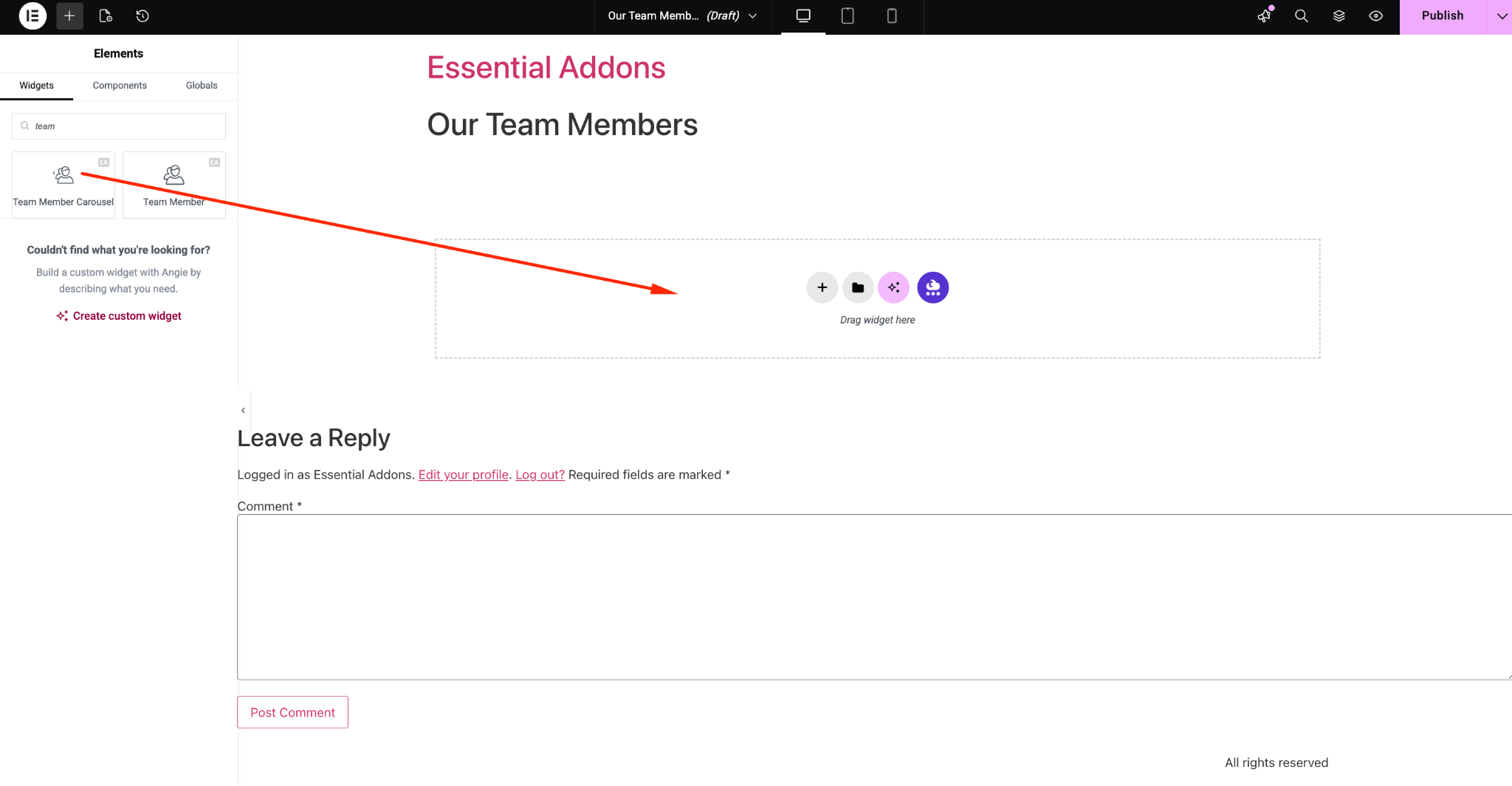
Open the page in the Elementor Editor. From the search box under the ‘ELEMENTS’ tab, look for your preferred widget. Here, we will take ‘Team Member Carousel’.
Simply drag and drop the ‘Team Member Carousel’ widget into the ‘Drag widget here’ or ‘+’ section of your page.
Step 2: Open the Content Settings #
After placing the widget, switch to the ‘Content’ tab in the left panel. Here, select ‘ACF Repeater Field’ from the ‘Data Source’ dropdown.
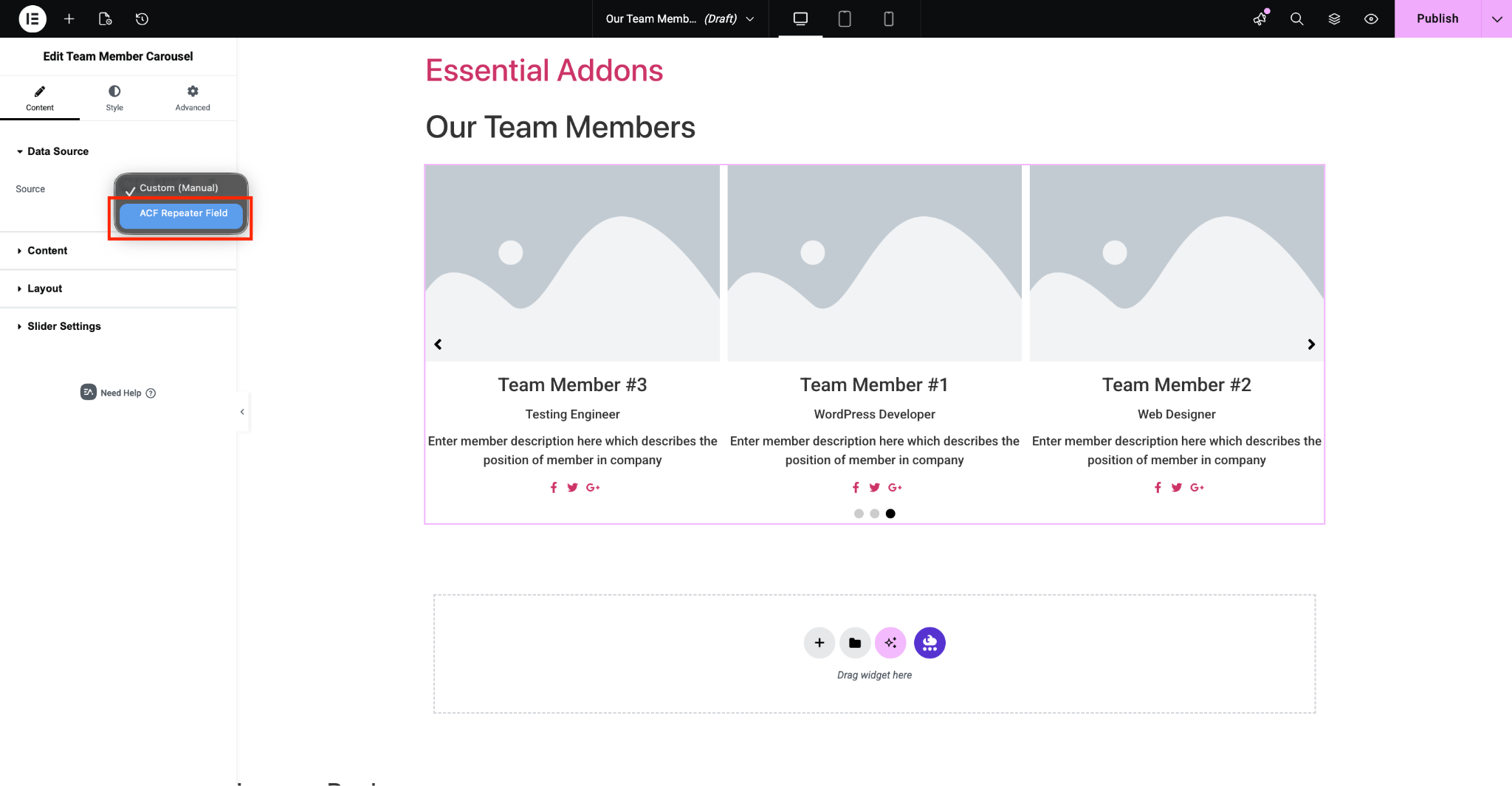
By default, the widget displays sample Team Member Carousel items. To connect your ACF data, you will replace this static content with the dynamic values stored in your Repeater field.
Step 3: Add the Repeater Field #
Next, from the ‘Repeater Field’ dropdown, select the particular field you want to showcase in your Essential Addons widget. Once connected, the widget will automatically pull the content directly from your ACF Repeater, so any future edits in ACF will instantly reflect in the slider.
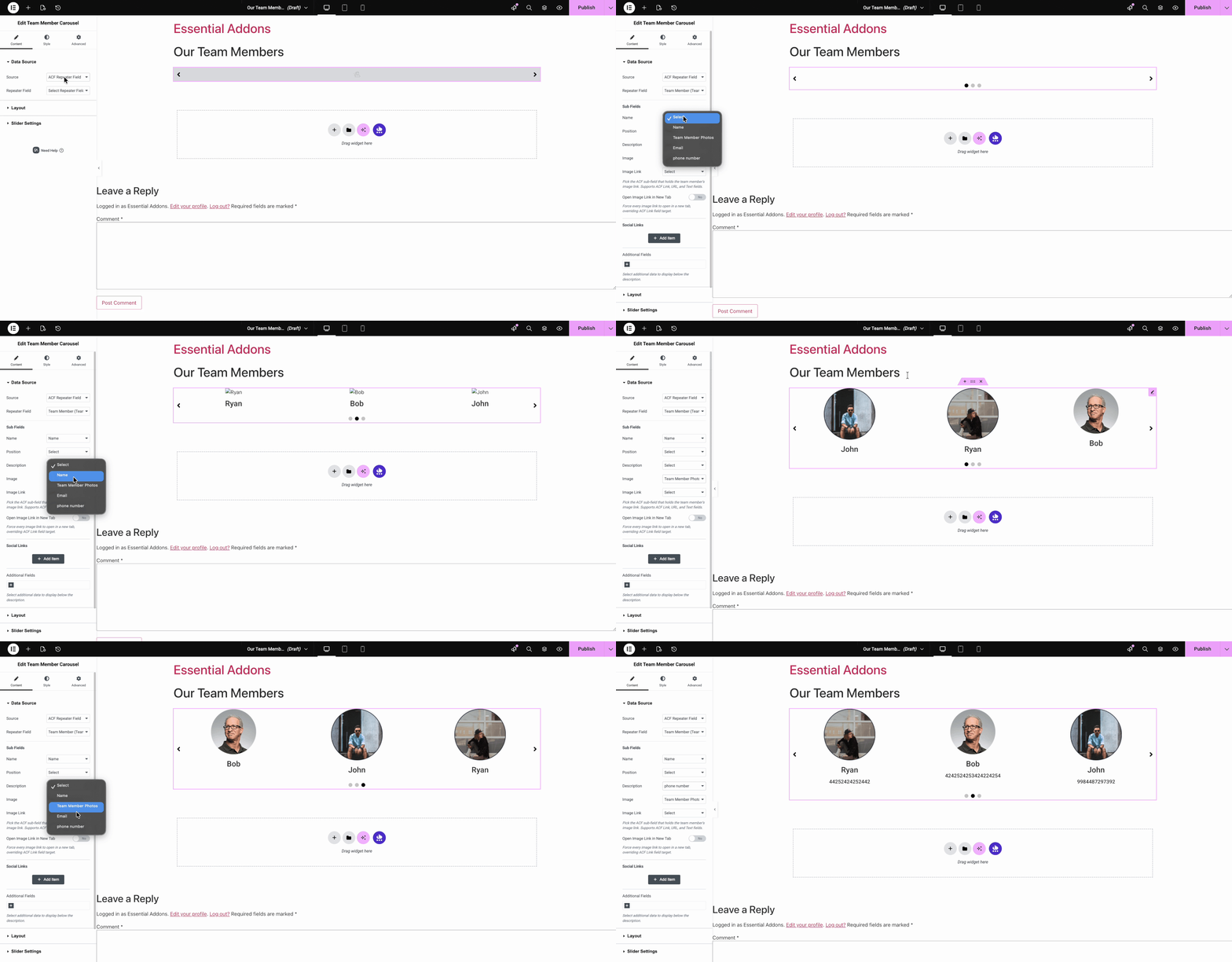
Note: The Repeater field stores multiple rows of data. To display each row as a separate slide, ensure your dynamic source is mapped to the correct Repeater sub-field.
Step 4: Add Additional Field #
To add additional fields, go down to the ‘Additional Fields’ and from there select the field you want to add to your slider.
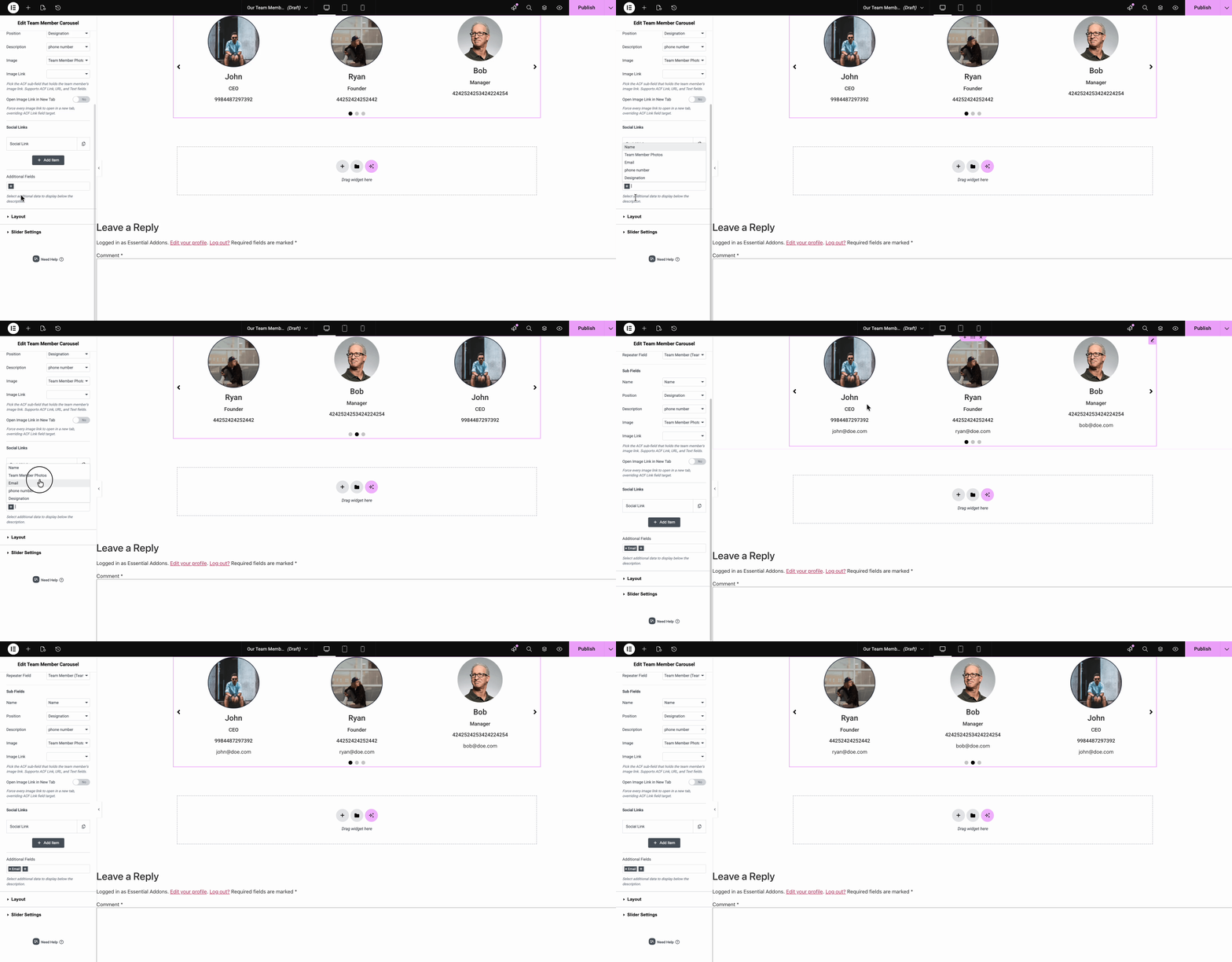
Step 5: Customize the Widget #
To customize your Team Member Carousel, switch to the ‘Style’ tab and from there you can choose a specific background, change the color and typography of text, specify the image width and customize the entire section. To know how to customize the Team Member Carousel, check the documentation
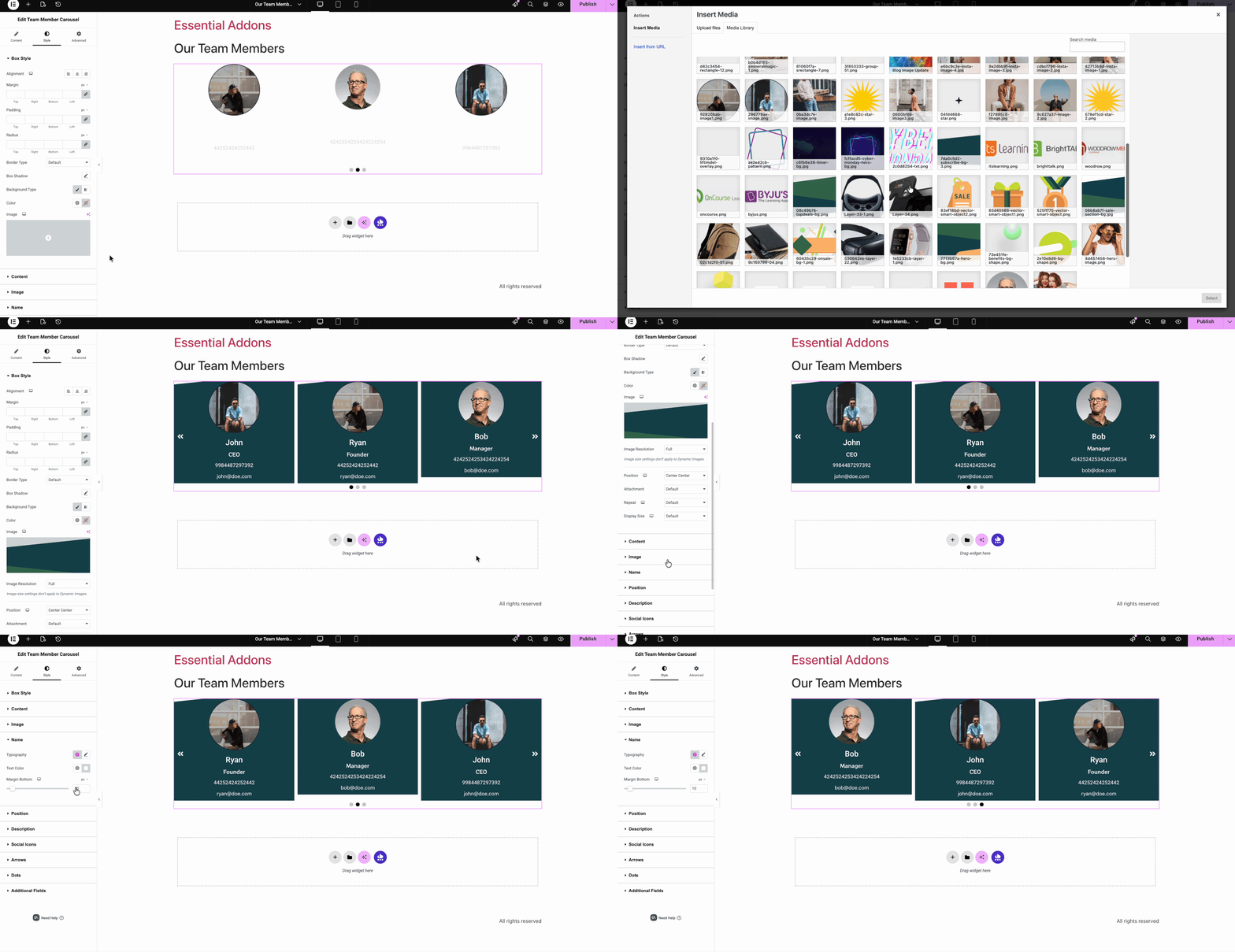
Final Outcome #
Once you are satisfied with the configuration and styling, click the ‘Update’ button to save your changes. Preview your page on the front end to see your ACF Repeater Team Member Slider displayed inside the Elementor website.
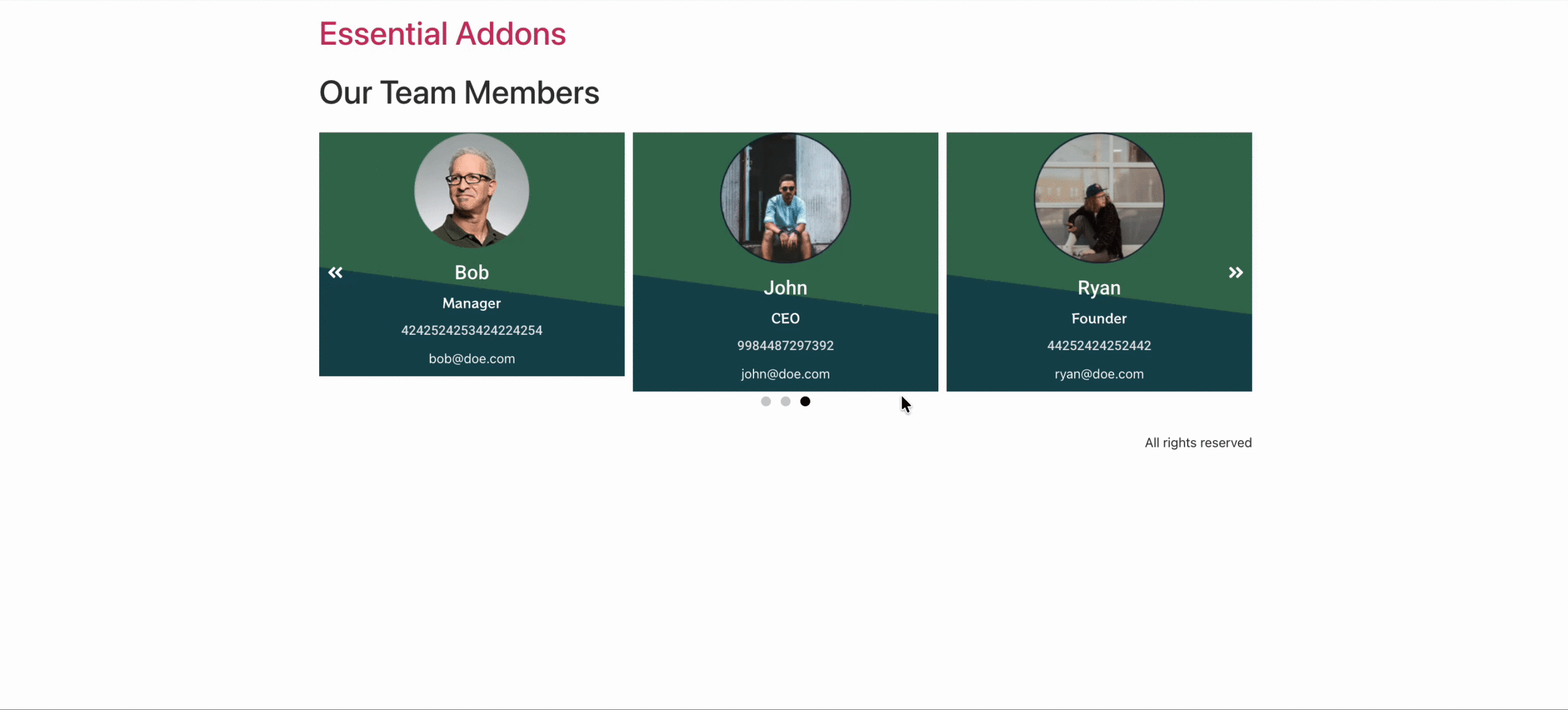
This is how you can easily configure ACF Repeater Support in Essential Addons and display structured, repeatable content inside the Elementor website. For the other widgets, you can similarly add ACF repeater support.
By combining the flexibility of ACF with the powerful widgets of Essential Addons, you can build dynamic, easy-to-manage sections that keep your content fresh without ever touching your layout.
Getting stuck? Feel free to contact our support for further assistance.