
EA Woo Product Description lets you design your WooCommerce product description. It allows for customizable and eye-catching product descriptions on your WooCommerce store. Let us follow the step-by-step guide below to learn how to use this WooCommerce element.
Note: Before you start configuring the Essential Addons Woo Product Description element, ensure you have the WooCommerce plugin and a full-site edit-available theme or plugin installed & activated on your site. We are using Templately here for free FSE access.
How to Activate EA Woo Product Description? #
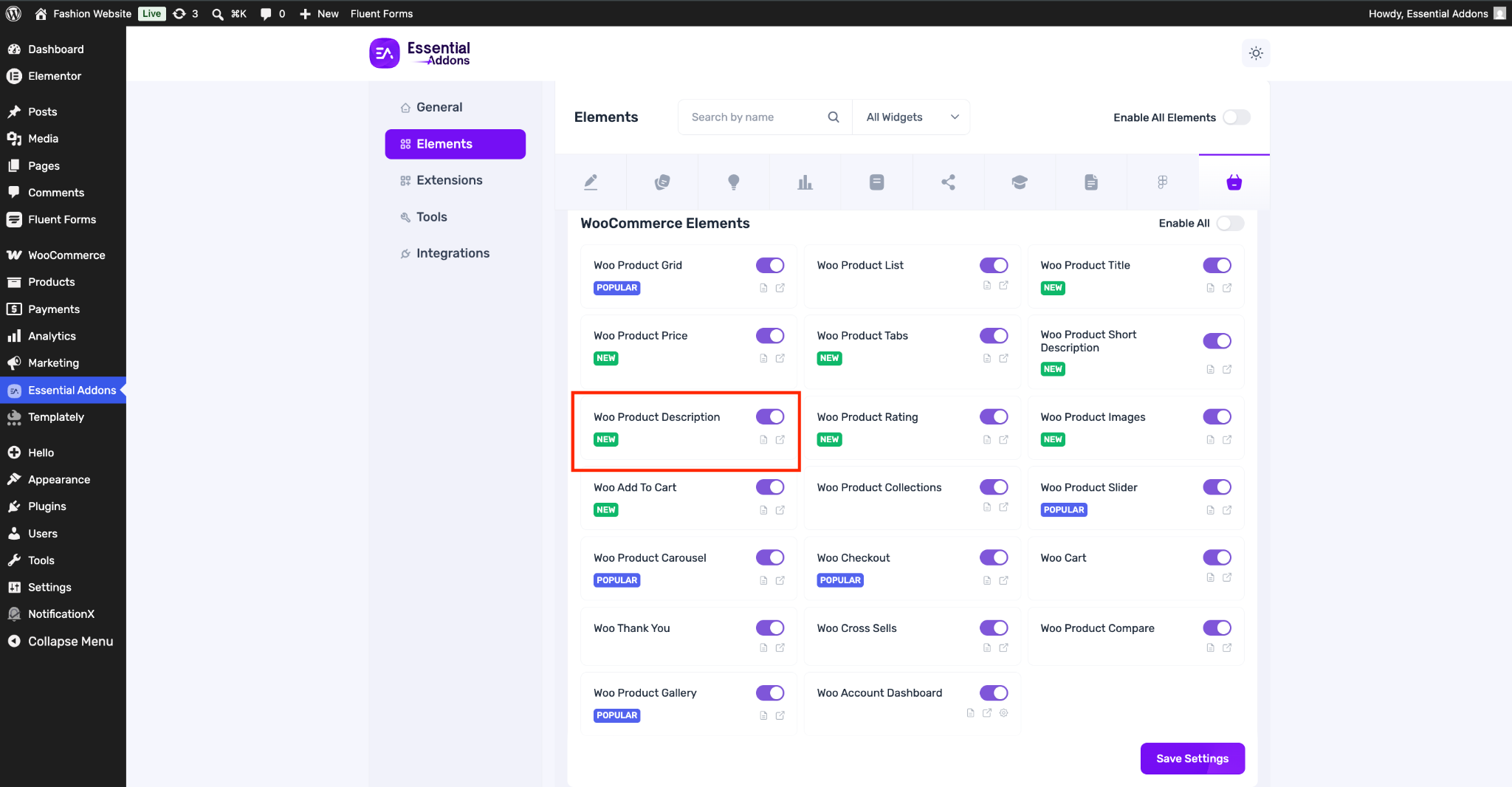
To activate the EA Woo Product Description, navigate to ‘Essential Addons’ → ‘Elements’ and select the ‘WooCommerce Elements‘ tab from the admin dashboard. Then, toggle it on to enable the ‘Woo Product Description’ element. The element will be enabled instantly once you hit the ‘Save Settings’ button.
How to Add EA Woo Product Description Widget in Single Product Page? #
To configure Woo Product Description in Essential Addons for Elementor, you will need to have full site edit functionality in your WordPress site through a plugin or theme to edit a single product page template. We are using the Templately Theme Builder for FSE.
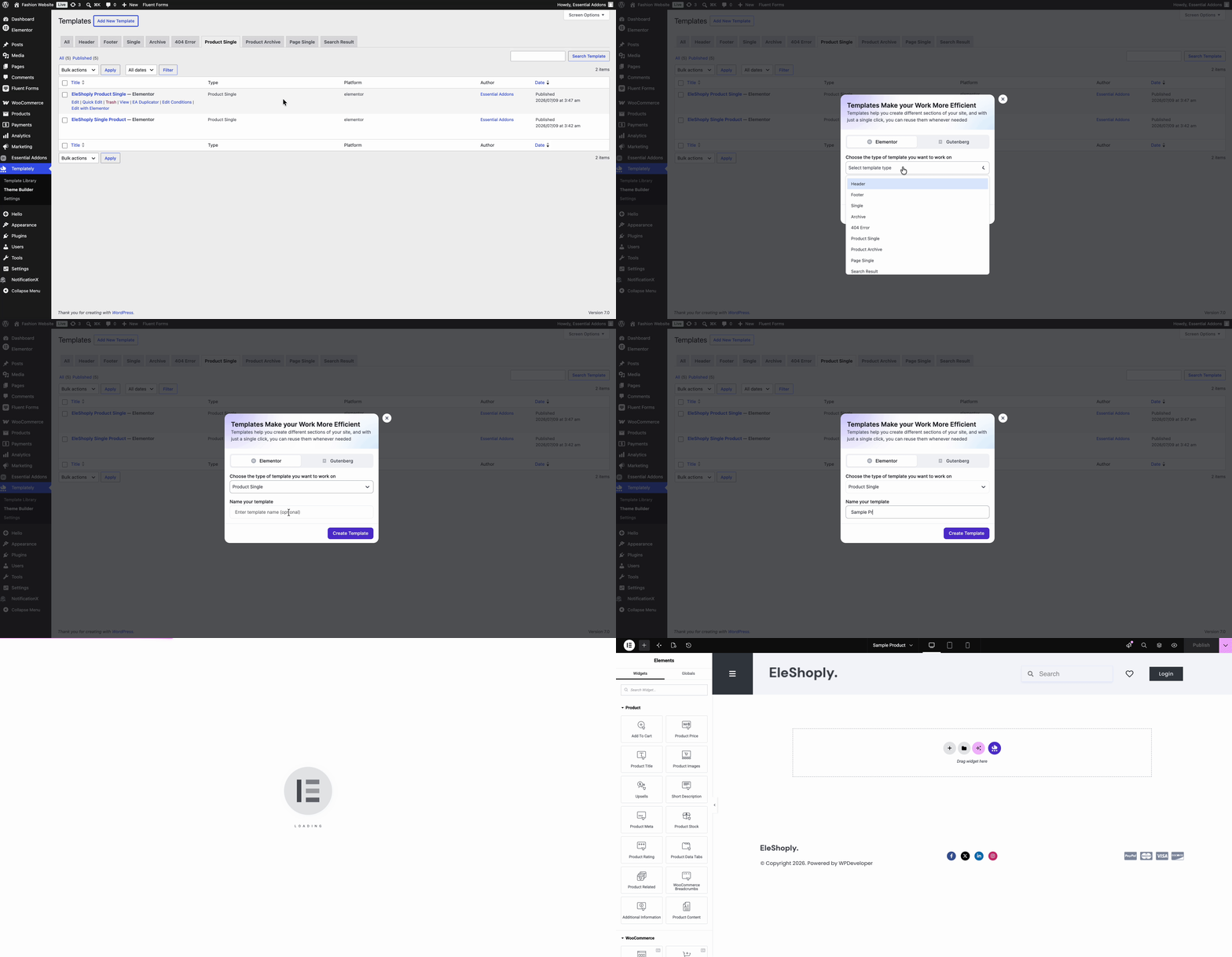
Navigate to Templately → Theme Builder in the WordPress dashboard menu, click on the ‘Add New Template’ button, select ‘Elementor’, then choose the template ‘Product Single’ from the dropdown, add a template name, and hit the ‘Create Template’ button. Your product single page template will be created on the Templately theme builder.
How to Configure EA Woo Product Descriptions in Essential Addons? #
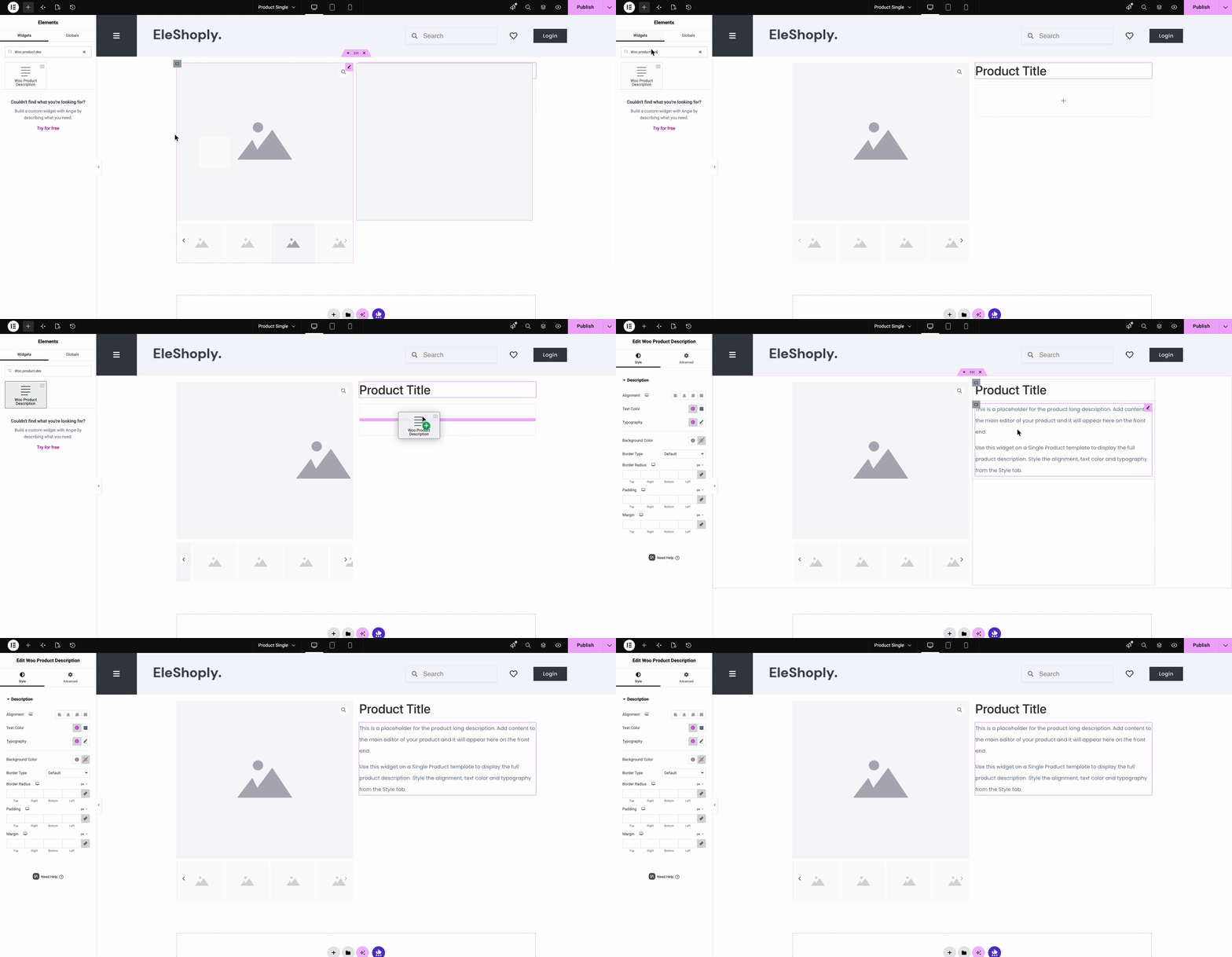
On the template page, first add the widgets you want to showcase on your Woo Product Page. Here, for example, Woo Product Image and Woo Product Title are already added. Then, click on the ‘+’ icon and search ‘Woo Product Description’ in the directory and drag and drop the widget to the page section. Now you can configure your single product description in the widget settings in different tabs.
How to Style the Woo Product Description #
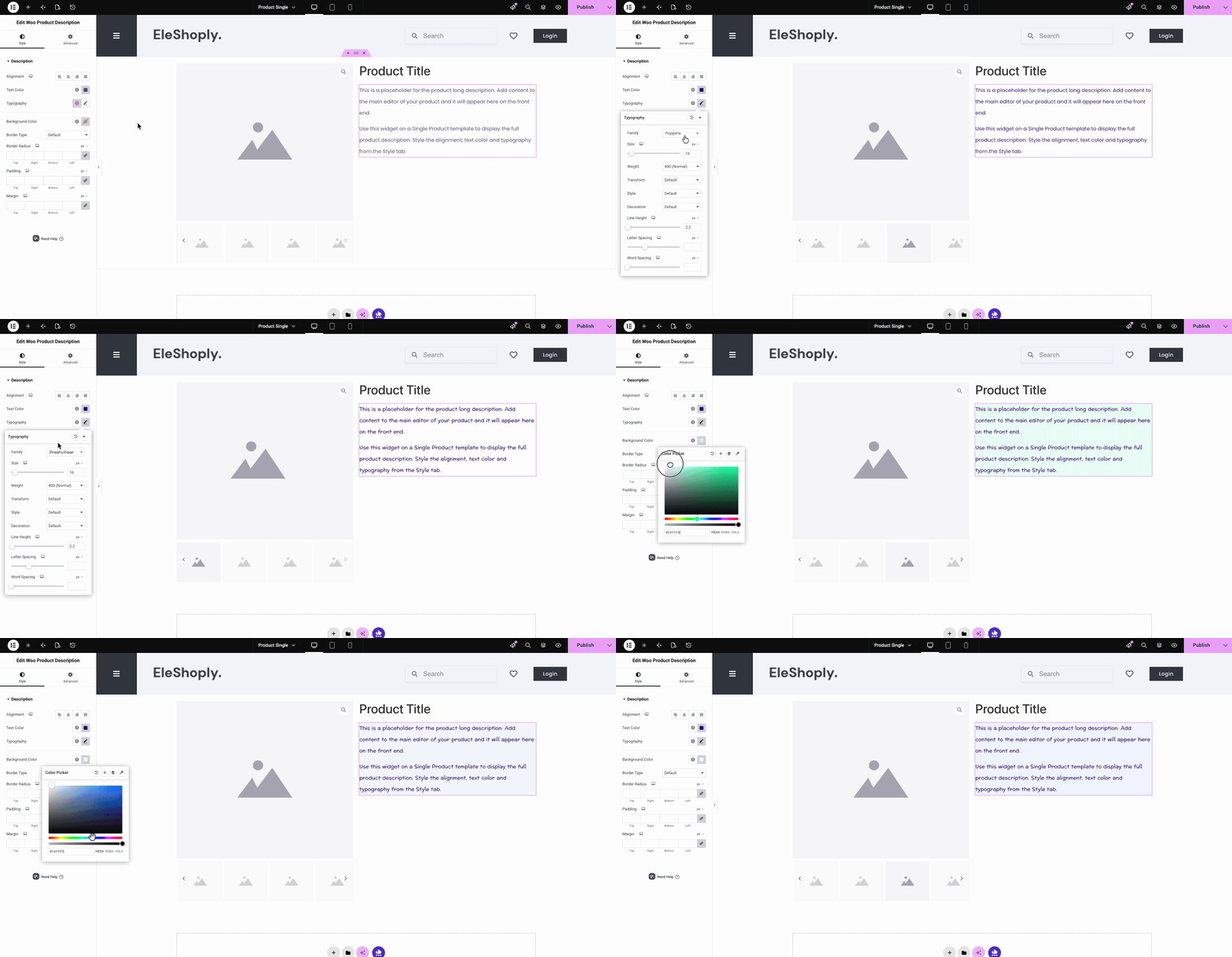
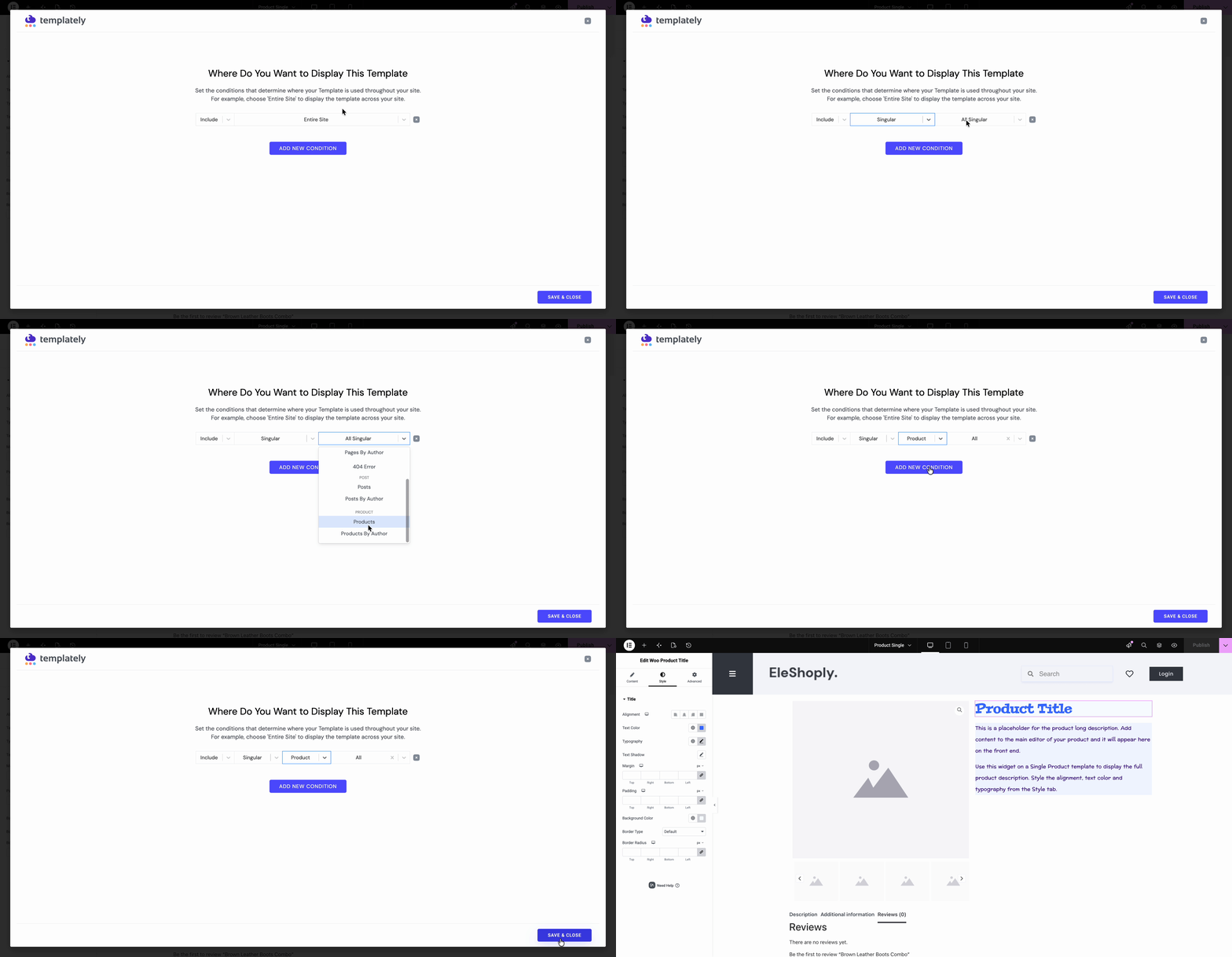
Once you have configured the description for your product page, it is time to style it. Click on the ‘Style’ tab to customize different areas of your product description. Select the alignment, add different text colors, choose typography, or add different background colors based on your brand preferences.
After configuring the EA Woo Product Description widget on the single products template, now it is time to make it live and introduce the page to WordPress as the default Single Product page.
Hit the ‘Publish’ button and click on the ‘Add New Condition’ button to configure this page as the default single product template page. Set the condition in this order: including ⮕ singular ⮕ product ⮕ all. After setting the condition, hit the ‘Save & Close’ button.
Final Outcome #
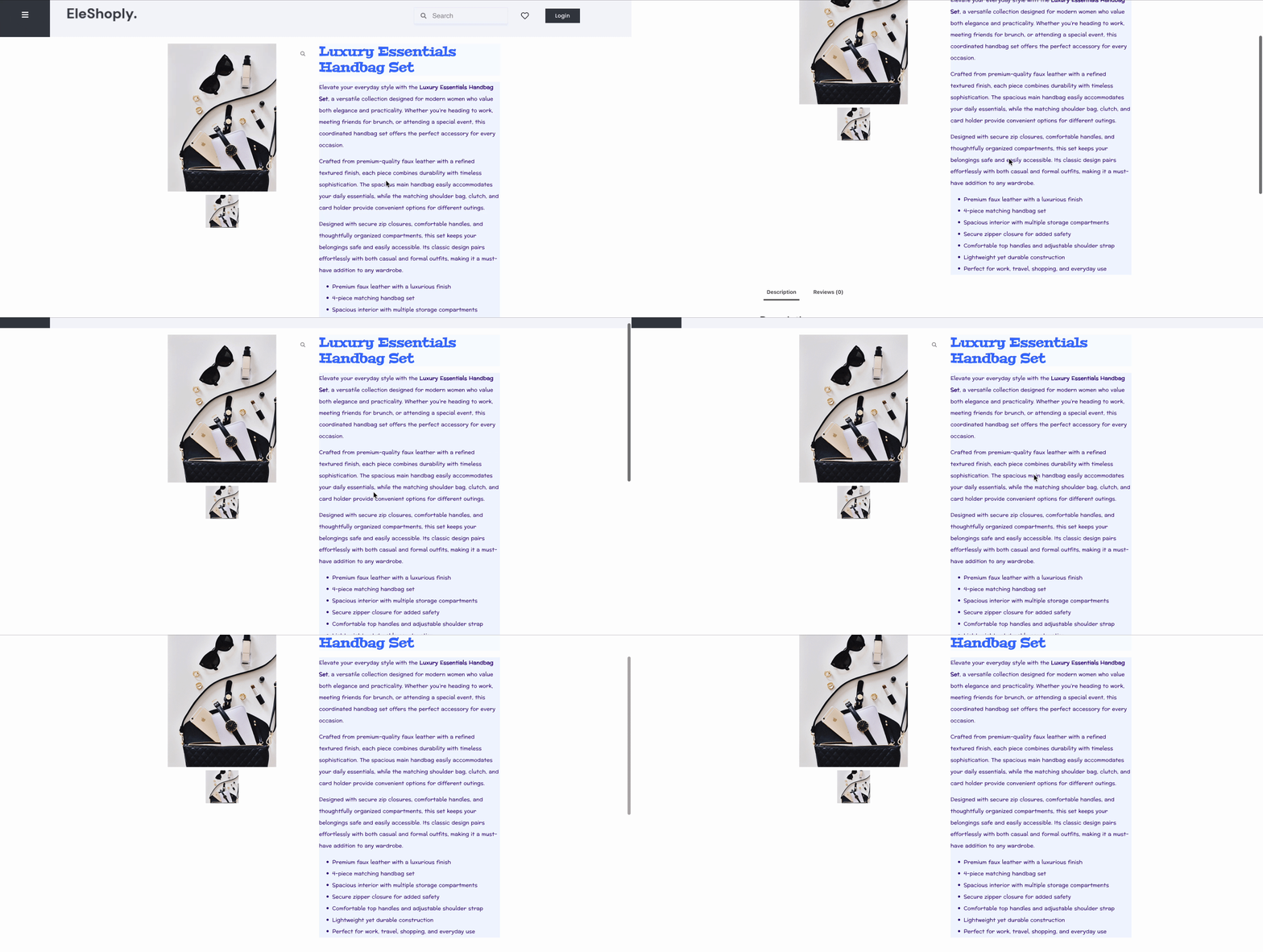
This is how easily you can add and configure EA Woo Product Description and display product descriptions based on your brand guidelines to boost your WooCommerce store conversions.
Still Stuck! Contact our support team for further assistance.