Essential Addons for Elementor now integrates directly with Angie, Elementor’s built-in AI agent, letting you build sections like pricing tables, headers, and layouts just by describing what you want in plain text. Instead of manually dragging and configuring widgets, you can prompt Angie and get a fully structured, styled section in seconds, cutting design time significantly on repetitive layout work. In this documentation learn more about how to integrate Angie with Essential Addons.
Note: This integration requires Elementor’s Angie AI agent to be available in your editor, and Essential Addons for Elementor must be active on your site.
Step 1: Open Angie in the Elementor Editor #
Navigate to your page in the Elementor editor. In the top toolbar, click the ‘Angie’ icon (the sparkle icon next to the Elements panel toggle).
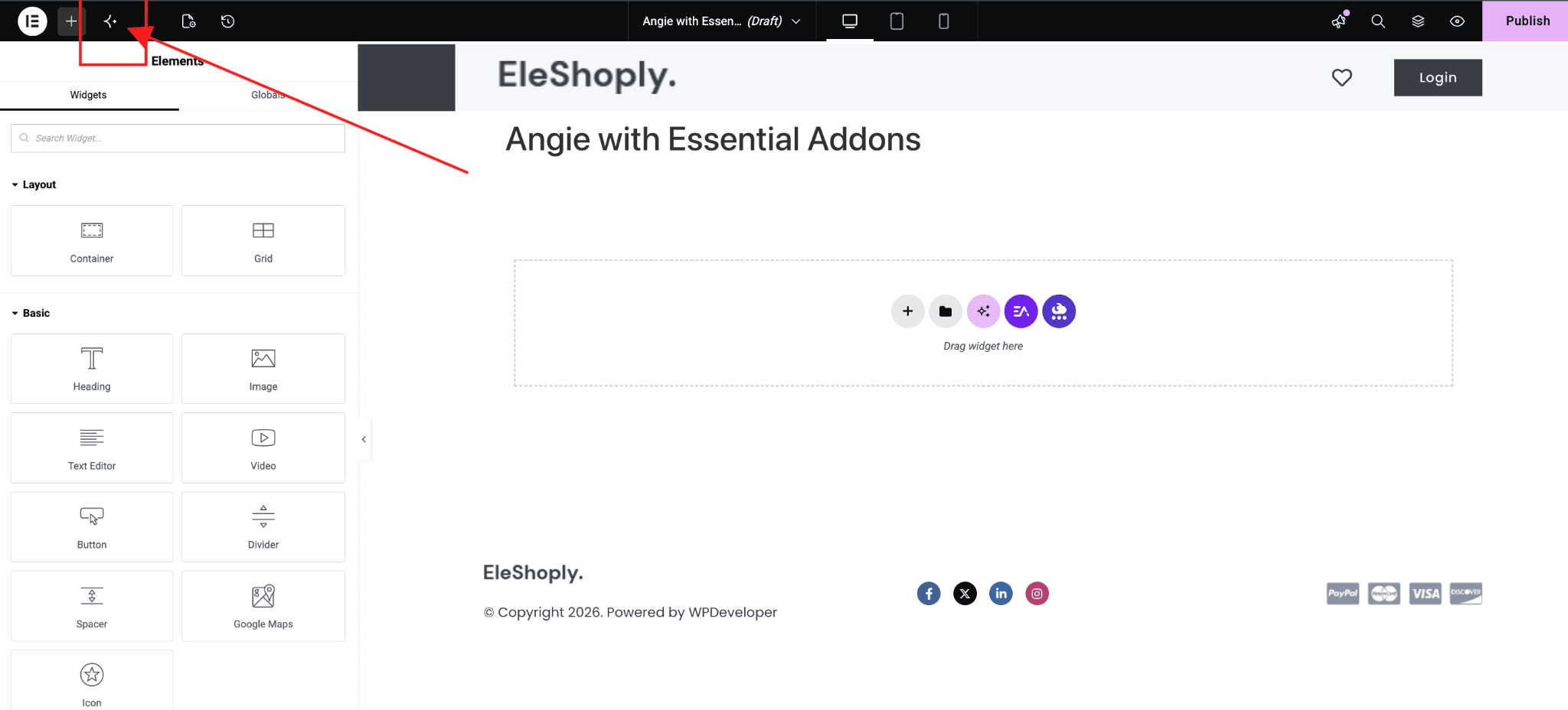
This opens the Angie panel, where you can start describing the section or widget you want to build.
Step 2: Describe What You Want to Build #
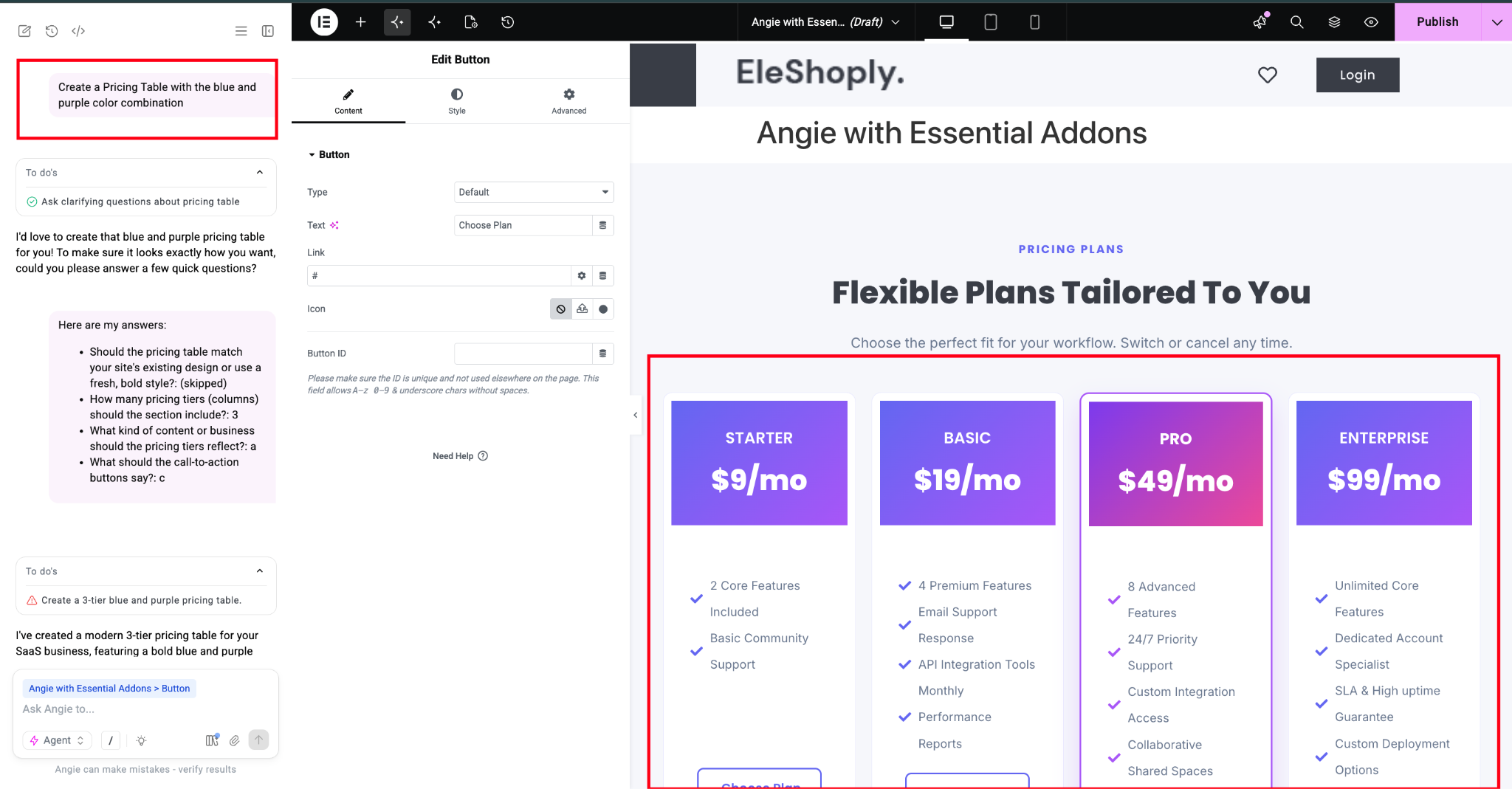
In the Angie chat input at the bottom of the panel, type a prompt describing the section you need. For example, a pricing table, hero section, or FAQ block.
- Be specific about the element type (e.g. “pricing table,” “testimonial slider”)
- Mention any color scheme or brand style you want followed
- Include the number of items (e.g. tiers, columns, slides) if relevant
Step 3: Answer Angie’s Clarifying Questions #
Angie may ask follow-up questions before generating the section to make sure the output matches your intent. Answer each question in the chat input, then send your response.
Final Outcome #
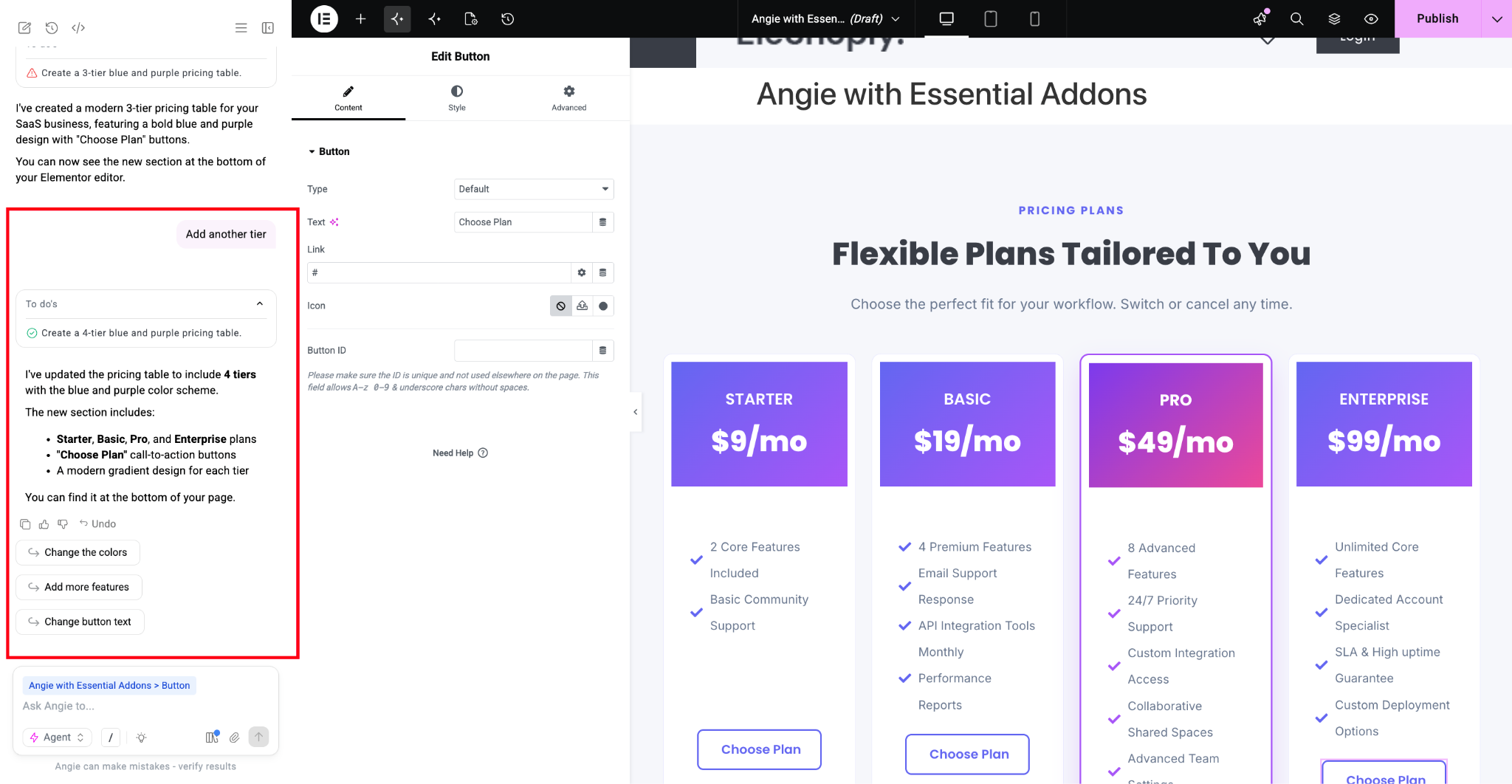
Your page now has a complete, styled section, such as a 3-tier pricing table, built entirely from a text prompt, with no manual widget dragging or styling required.
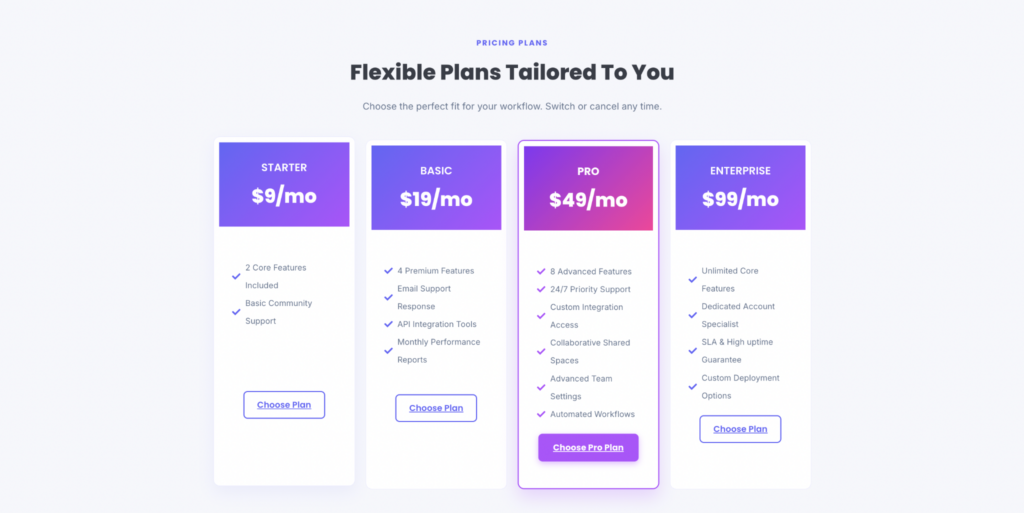
This is how, with the help of Essential Addons for Elementor’s integration with Angie, you can generate fully designed sections from simple text prompts and speed up your page-building workflow.
Getting Stuck? Feel free to contact our Dedicated Support Team.