
The EA Advanced Slider allows you to transform your regular sections into interactive, scrollable sliders with ease. Instead of stacking content vertically, you can present multiple sections in a smooth, slider-based layout that is perfect for showcasing features, storytelling or creating engaging landing pages.
With flexible customization options and seamless integration with Elementor, the Advanced Slider helps you enhance user experience while keeping your design modern and dynamic.
Note: Before you begin, ensure that you have installed & activated the Essential Addons PRO plugin to use this EA Advanced Slider extension.
How to Activate EA Advanced Slider Extension? #
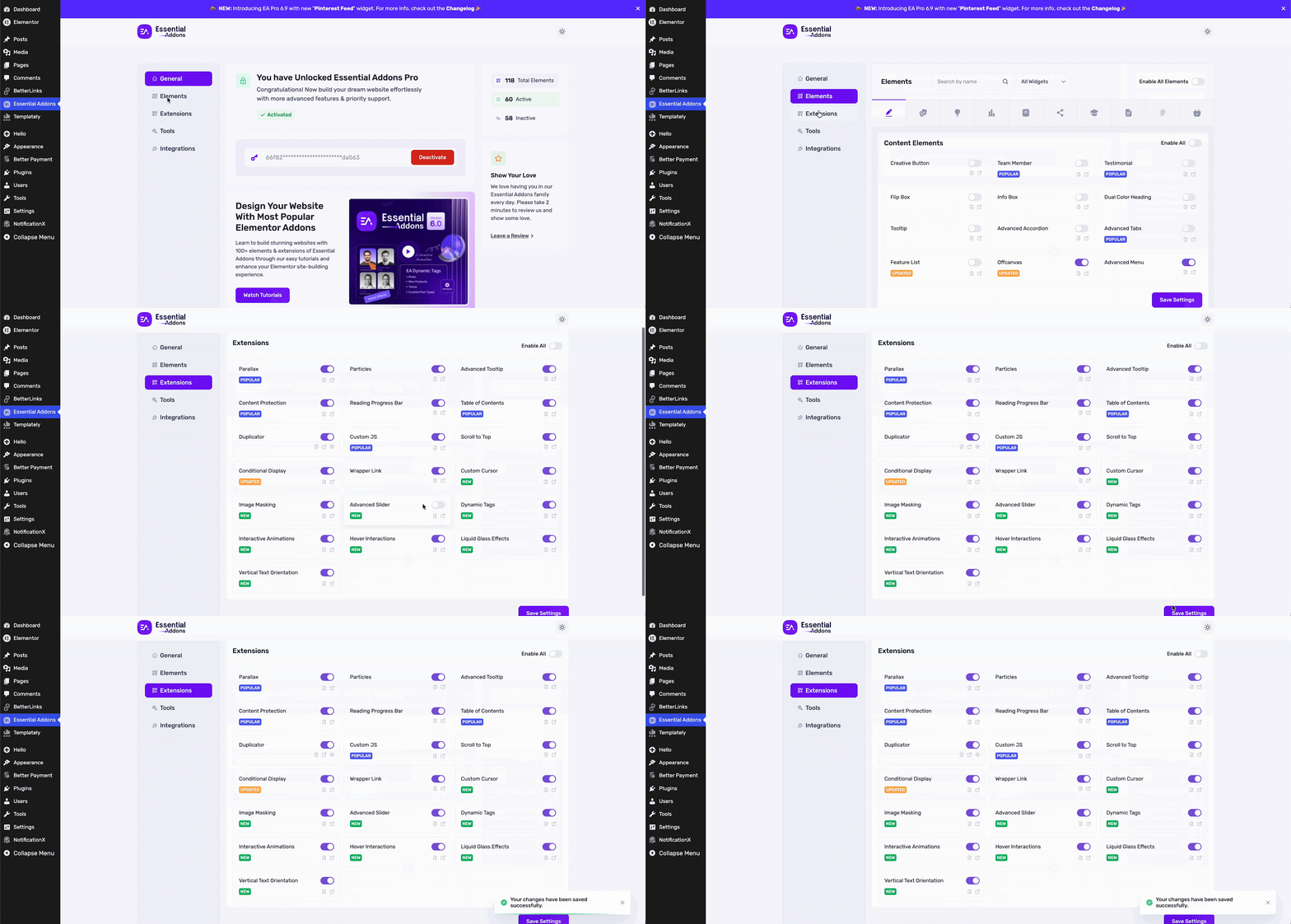
Before you start, make sure to activate the EA Advanced Slider extension on your plugin. To do so, navigate to your WordPress dashboard and select ‘Essential Addons’ → ‘Extensions’ tab. Simply click on the toggle button next to the ‘Advanced Slider’ extension to activate it and click on ‘Save Settings’ as shown below.
How to Configure the EA Advanced Slider Extension? #
When you have activated the EA Advanced Slider extension, you will find multiple options to customize it on your Elementor elements. You can easily make any static section into a slider where it is required.
First, you need to select the whole section (all elements included), then go to the ‘Advanced’ tab, where you will find the ‘Advanced Slider’ extension. Toggle the button to enable it.
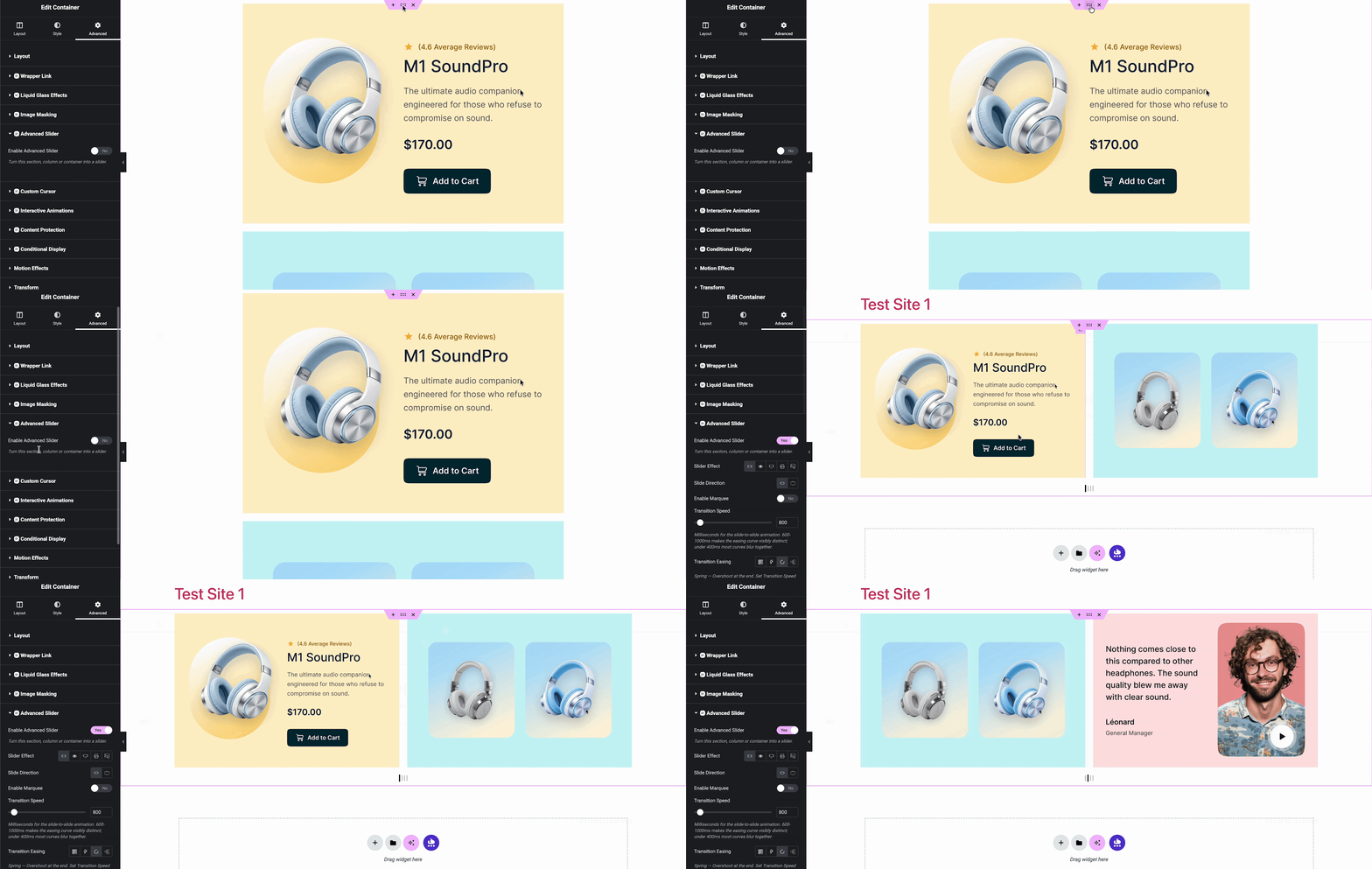
Note: Right now, the EA Advanced Slider is only available on a Flexbox container. Support for the “Grid” container will be available soon.
Pick Your Slider Effect #
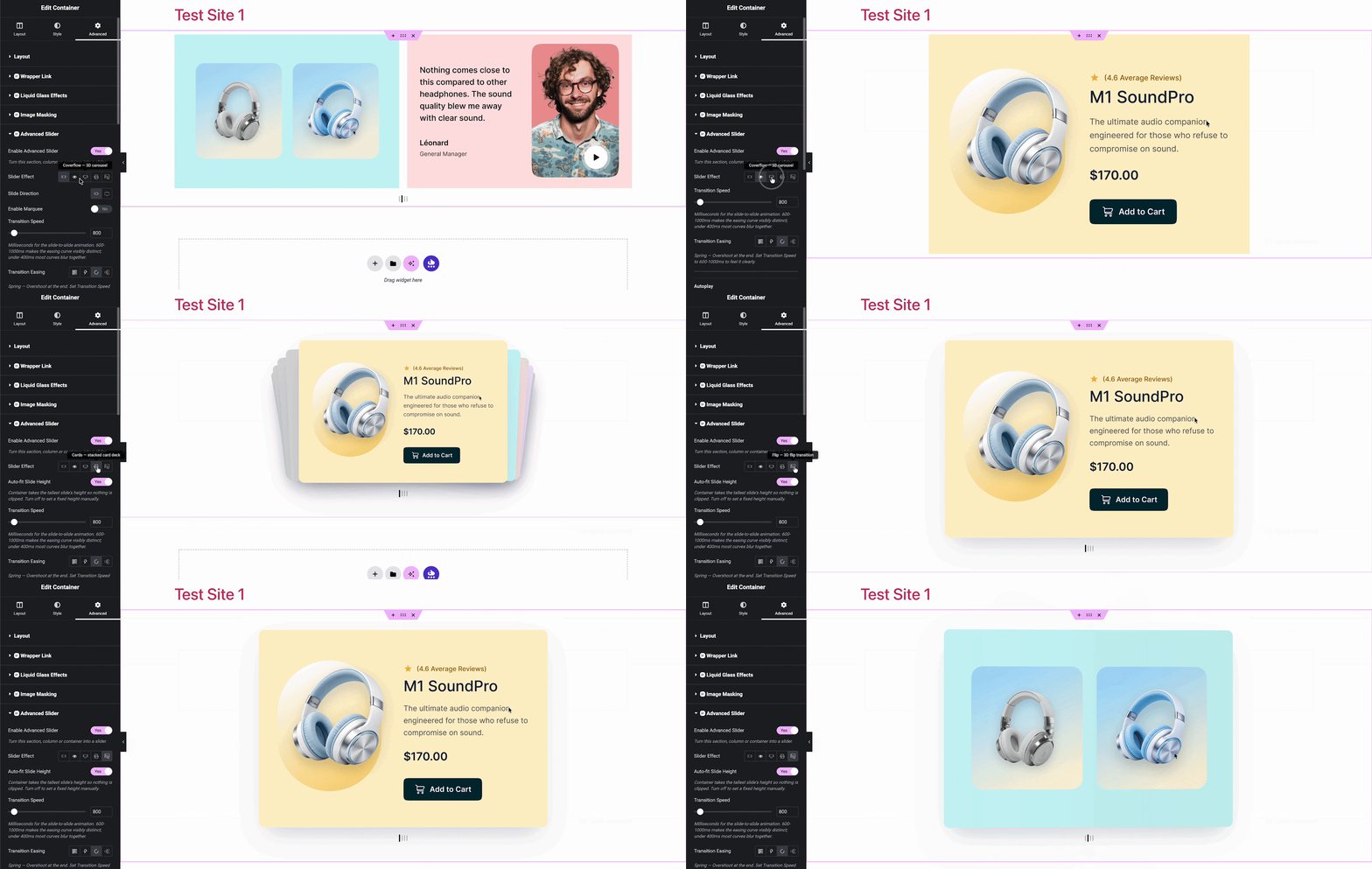
With this extension, you’ll get 5 different slider effects: Slide, Fade, Coverflow, Cards and Flip. Each of these effects will help you make your section more lucrative.
Auto/Manual Fit Slide Height #
The slider height automatically adjusts to the tallest slide. You can also set a fixed height for all slides manually as well. Under this section, you’ll get multiple options to make your section more advanced:
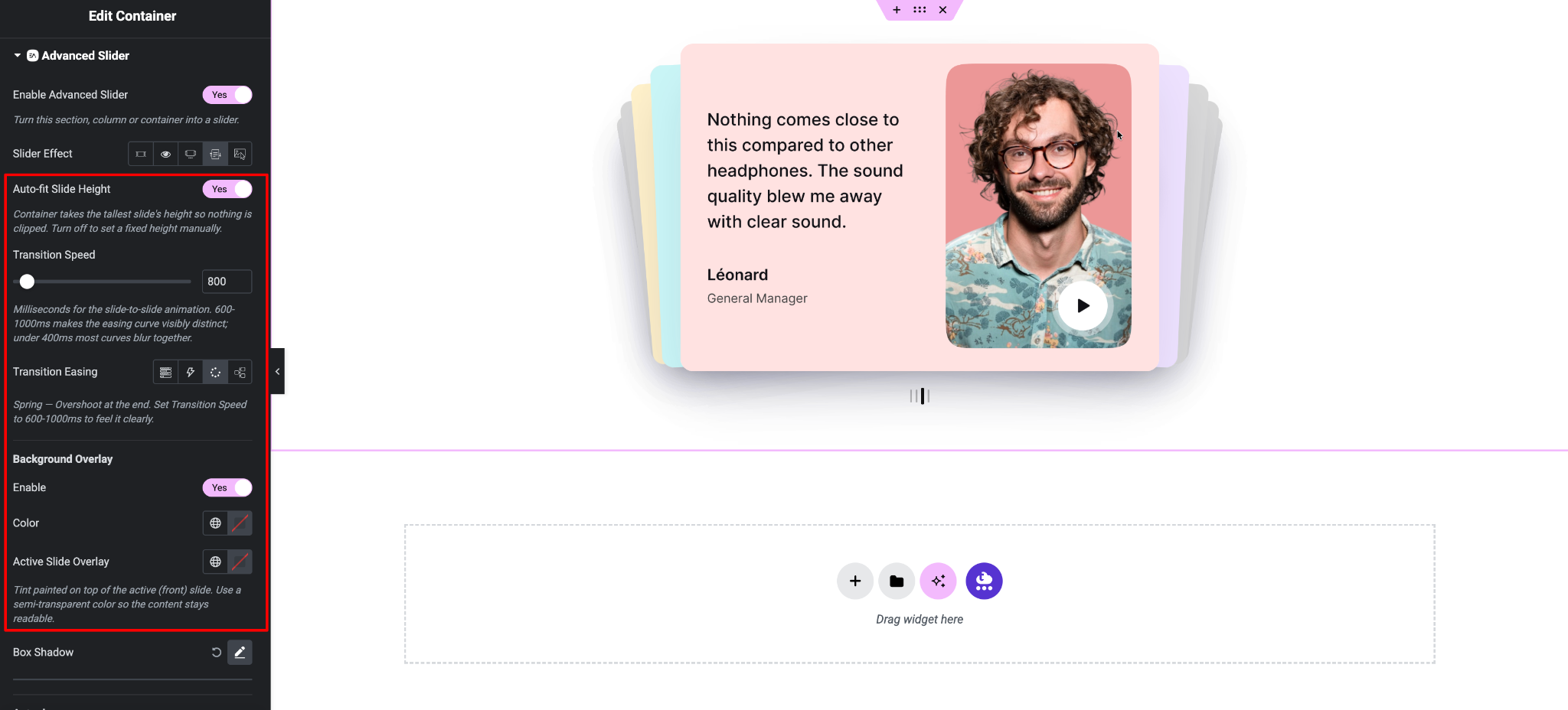
- Rotation: Controls the rotation angle of the side slides.
- Depth: Adjusts how far the side slides appear behind the active slide.
- Stretch: Increases or decreases the spacing between slides. Negative values create overlap.
- Transition Speed: Determines how fast slides transition from one to another.
- Transition Easing: Select the animation easing style for smoother slide transitions.
- Items Per Slide: Choose how many slides are displayed at once.
- Items Gap: Set the space between individual slides.
Background Overlay #
Using this option, you can add a visual layer on top of your slides to improve readability and create a more polished look. When enabled, the selected overlay color is applied across all slides.
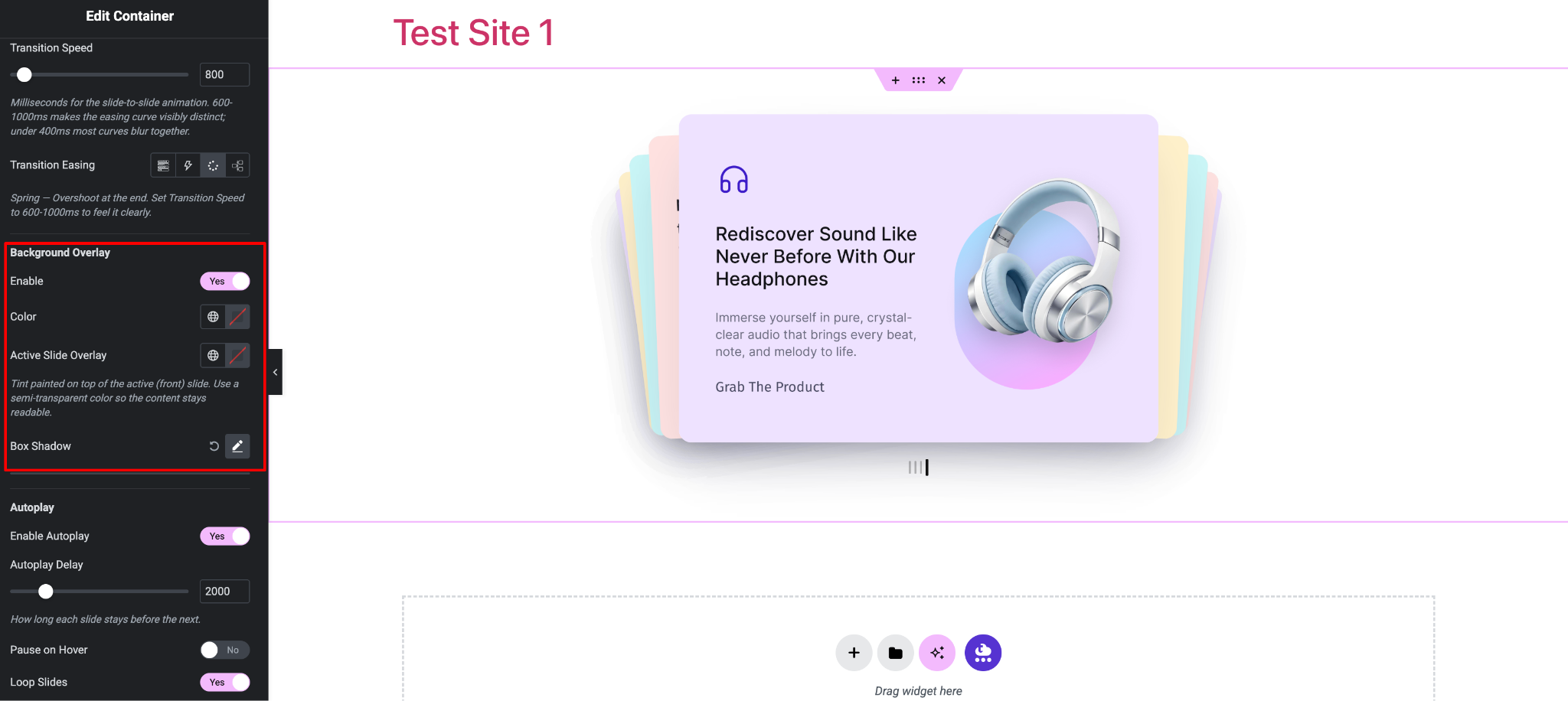
You can also set a separate overlay color for the active slide, allowing the front slide to stand out from the others while keeping text and content clear and easy to read. The Box Shadow option adds depth by creating a shadow around the slider container.
Autoplay #
‘Autoplay’ controls how the slider moves automatically. Once enabled, the slides transition on their own without requiring user interaction. The ‘Autoplay Delay’ setting determines how long each slide stays visible before switching to the next one.
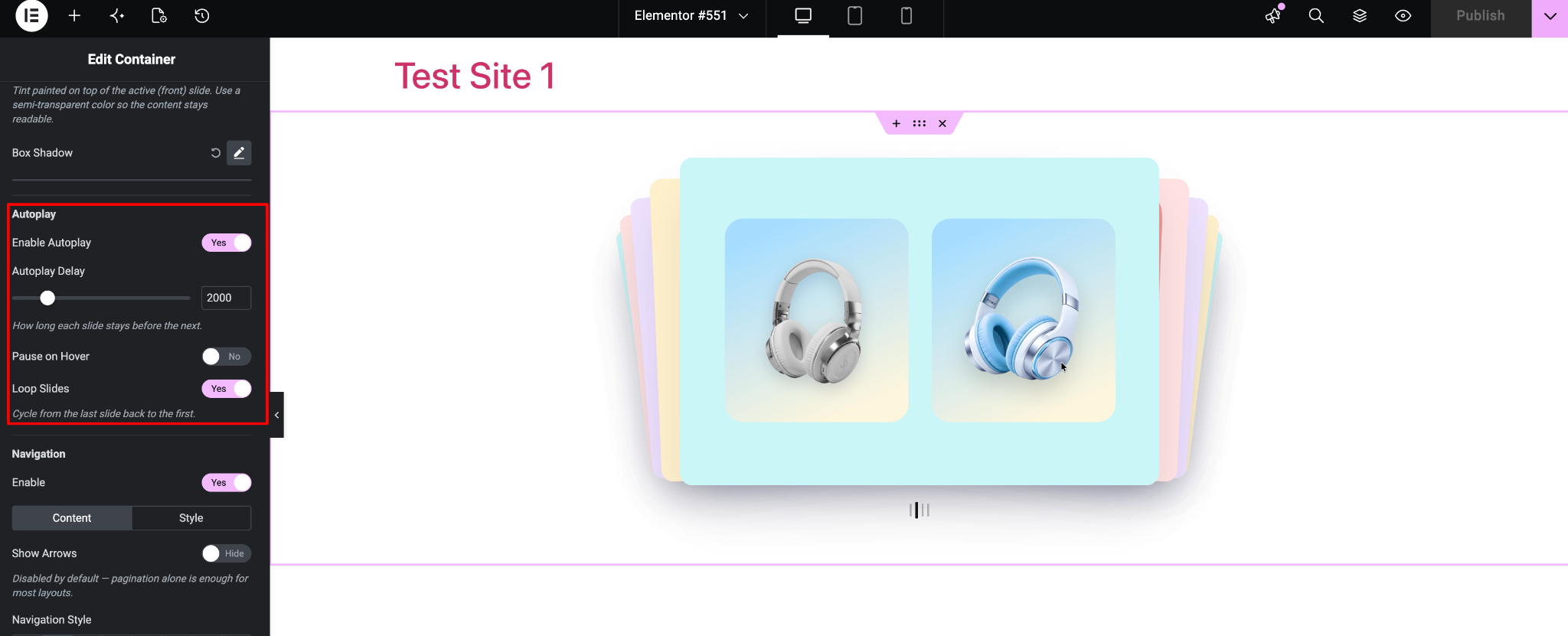
‘Pause on Hover’ temporarily stops the autoplay when a visitor hovers over the slider, making it easier to interact with the content. ‘Loop Slides’ ensures the slider continues cycling by returning to the first slide after reaching the last one.
Navigation #
‘Navigation’ provides manual controls for moving through the slides. Enabling navigation displays the selected navigation elements, while ‘Show Arrows’ adds previous and next buttons for quick browsing.
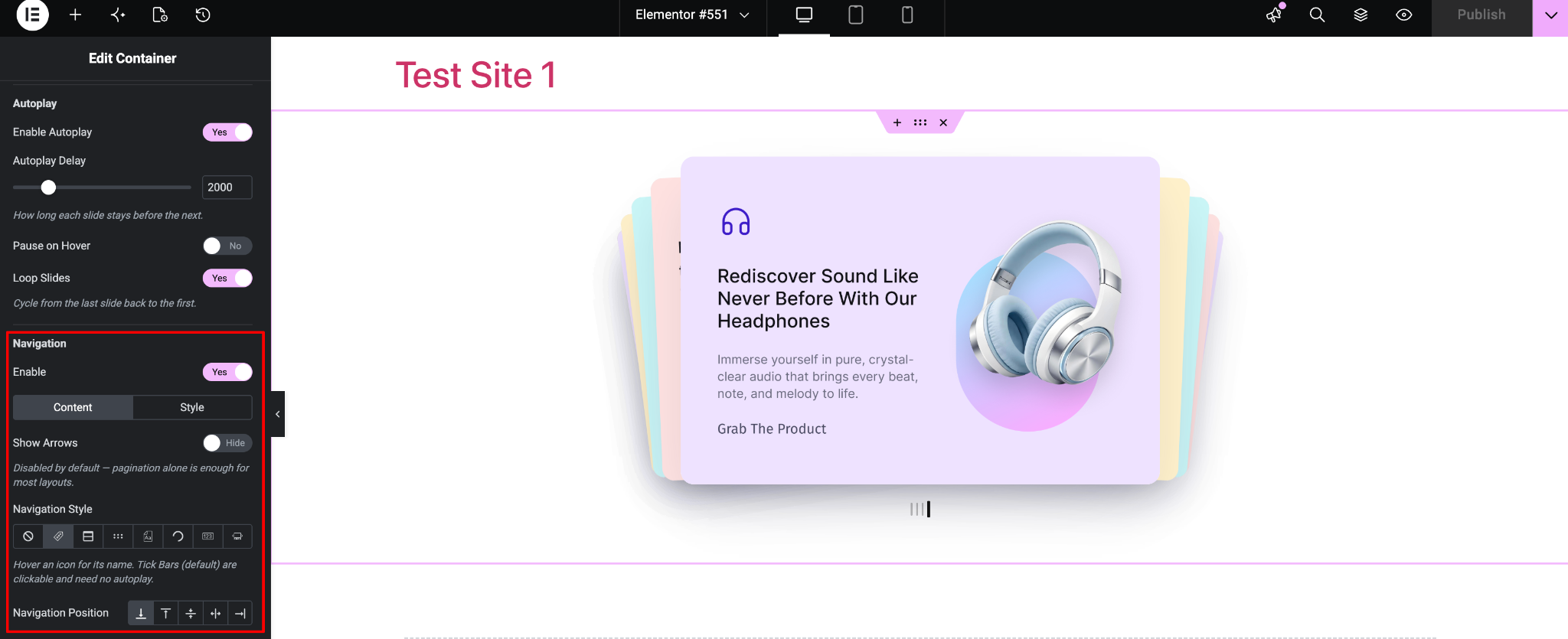
The ‘Navigation Style’ option lets you choose different indicator types such as dots, bars, numbers, or thumbnails to match your design. Finally, ‘Navigation Position’ allows you to place the navigation controls in the most suitable location within or around the slider layout.
Final Outcome #
The Advanced Slider in Essential Addons for Elementor offers a simple yet powerful way to transform static layouts into interactive, scrollable experiences. By converting sections into sliders, you can present your content in a more engaging and organized manner without adding complexity to your workflow.

With flexible customization options and smooth functionality, it helps you create modern, dynamic pages that capture attention and improve user experience. Once set up, you can easily fine-tune the design and behavior to match your website’s style and goals.
If you run into any issues or need further guidance, our support team is always ready to help you make the most out of the Advanced Slider feature.