
EA Pricing Slider lets you display dynamic, interactive pricing plans on your Elementor website using a beautiful slider. Whether you are building a SaaS pricing page, a hosting plans section or a subscription-based service, this widget is ideal for letting visitors explore different tiers by simply dragging a slider. With full customization options including billing toggles, plan badges, feature lists and CTA buttons, you can create a stunning pricing section that drives conversions.
Note:Pricing Slider is a PRO element. Make sure you have Elementor, Essential Addons free and PRO plugins installed and activated on your website.
How to Activate EA Pricing Slider #
To use this Essential Addons element, open the page in the Elementor Editor where you want to showcase the pricing plan. Now, search for ‘Pricing Slider‘ in the search box under the ‘Elements’ tab. Drag and drop the EA Pricing Slider widget into your desired section of the page as shown below.
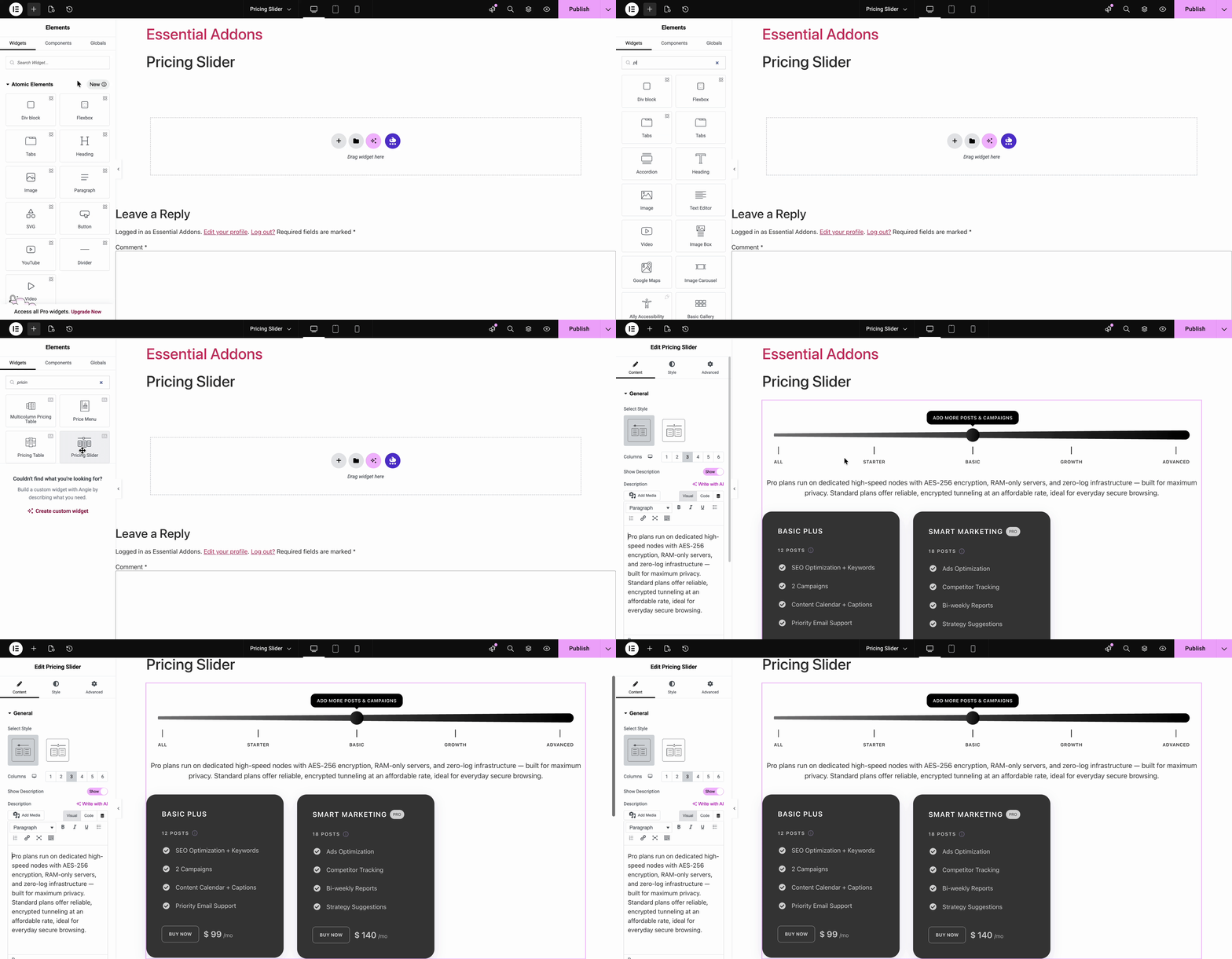
Once dropped, you will see a default pricing slider layout with sample plans rendered directly on the page, ready for you to customize. There are two styles available. You can choose your preferred from the sidebar.
How to Configure the Pricing Slider #
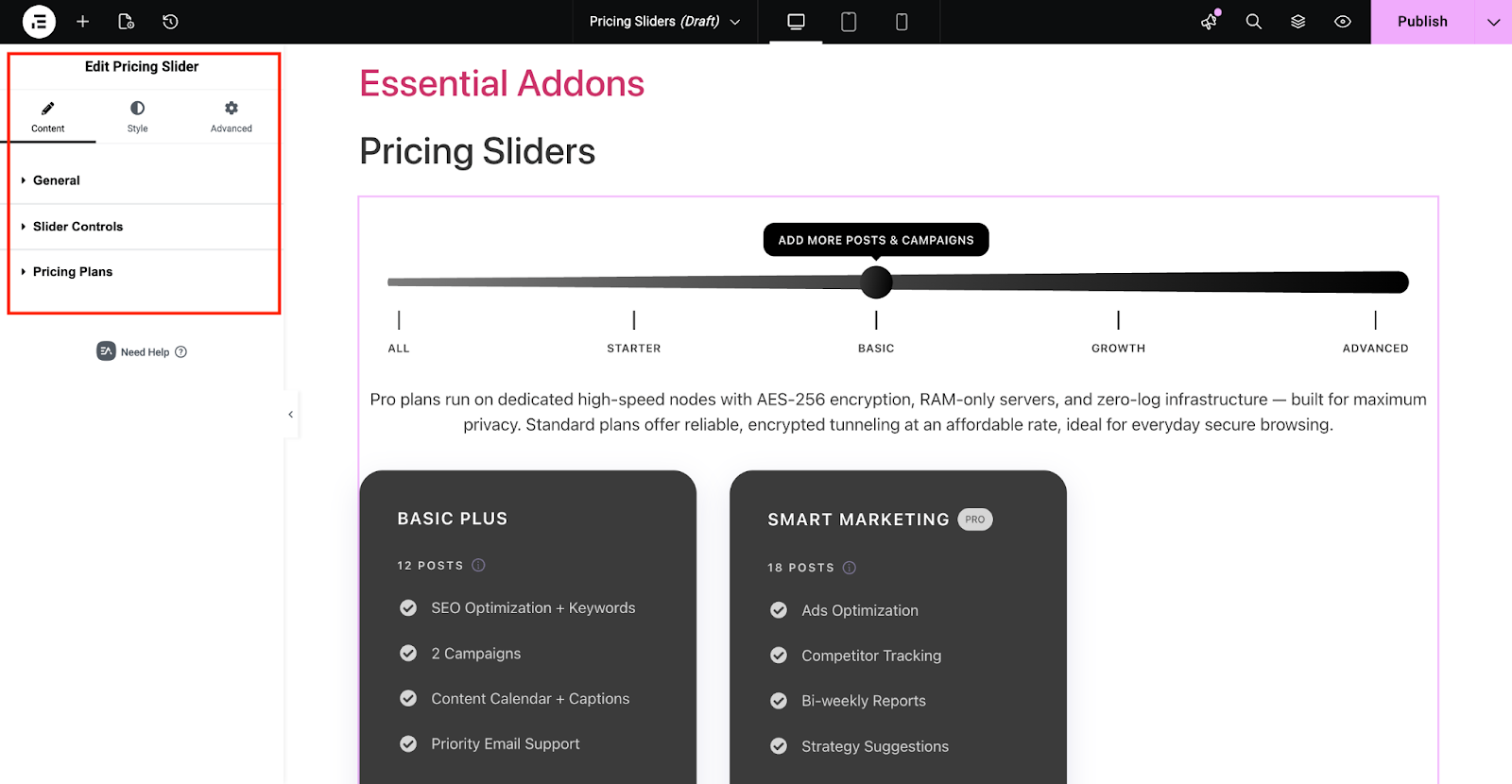
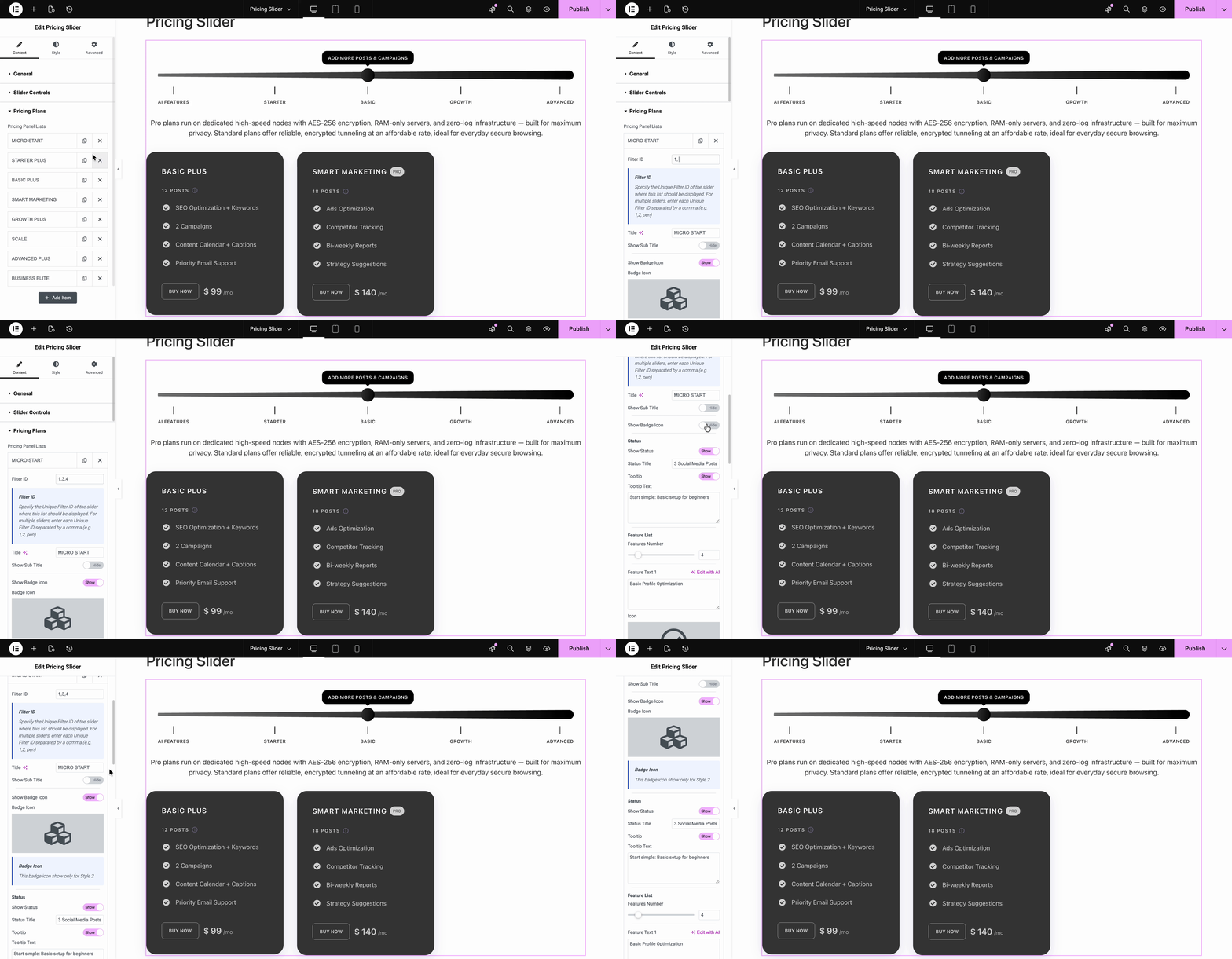
After placing the EA Pricing Slider element on your page, you will find ‘General’ in the Content tab in the left panel. You will find two more sections: ‘Slider Controls’ and ‘Pricing Plans’.
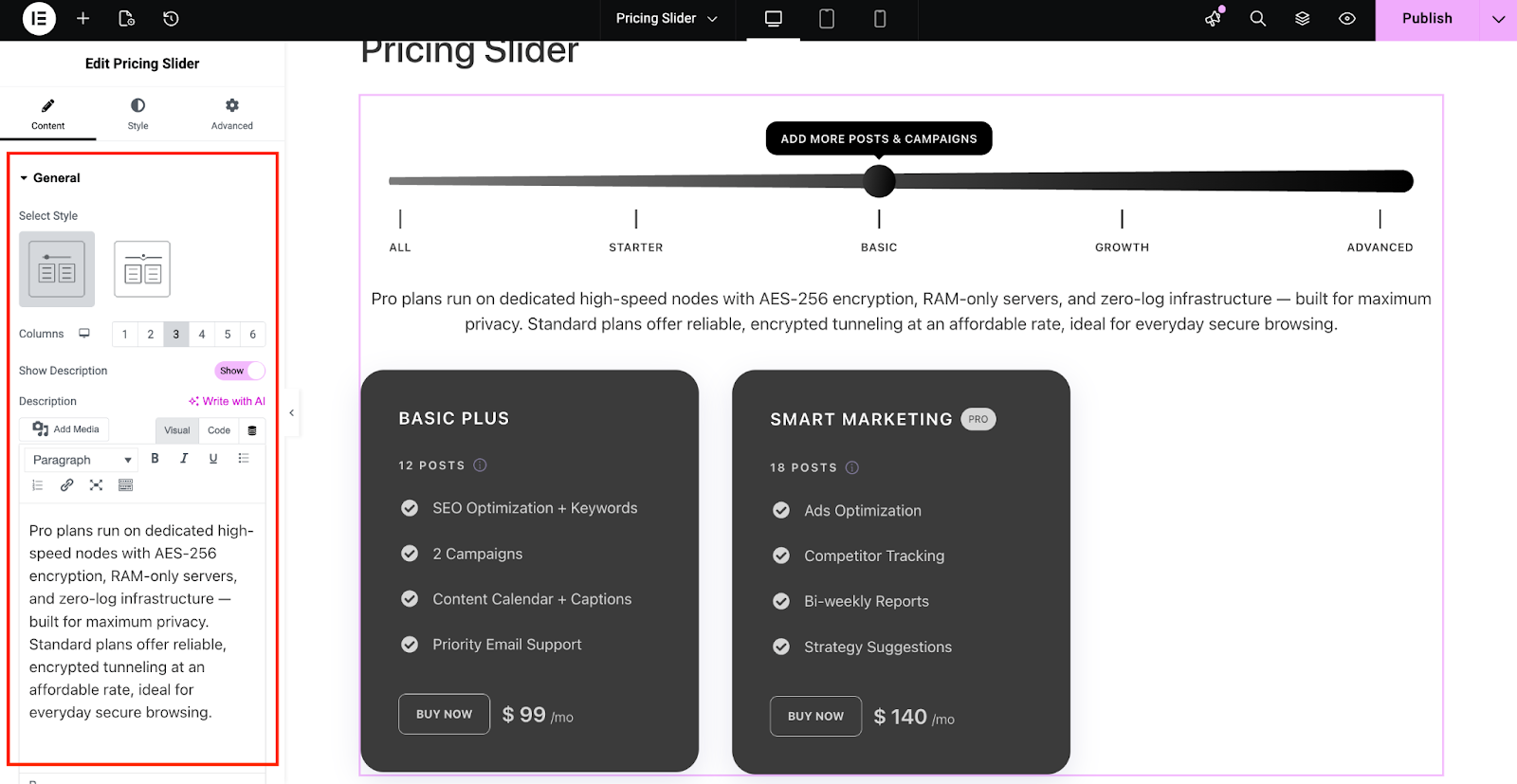
In the ‘General’ section, you can select the number of columns you want to showcase in the pricing chart. Also, you can either show or hide the description of the pricing and can add the content for description.
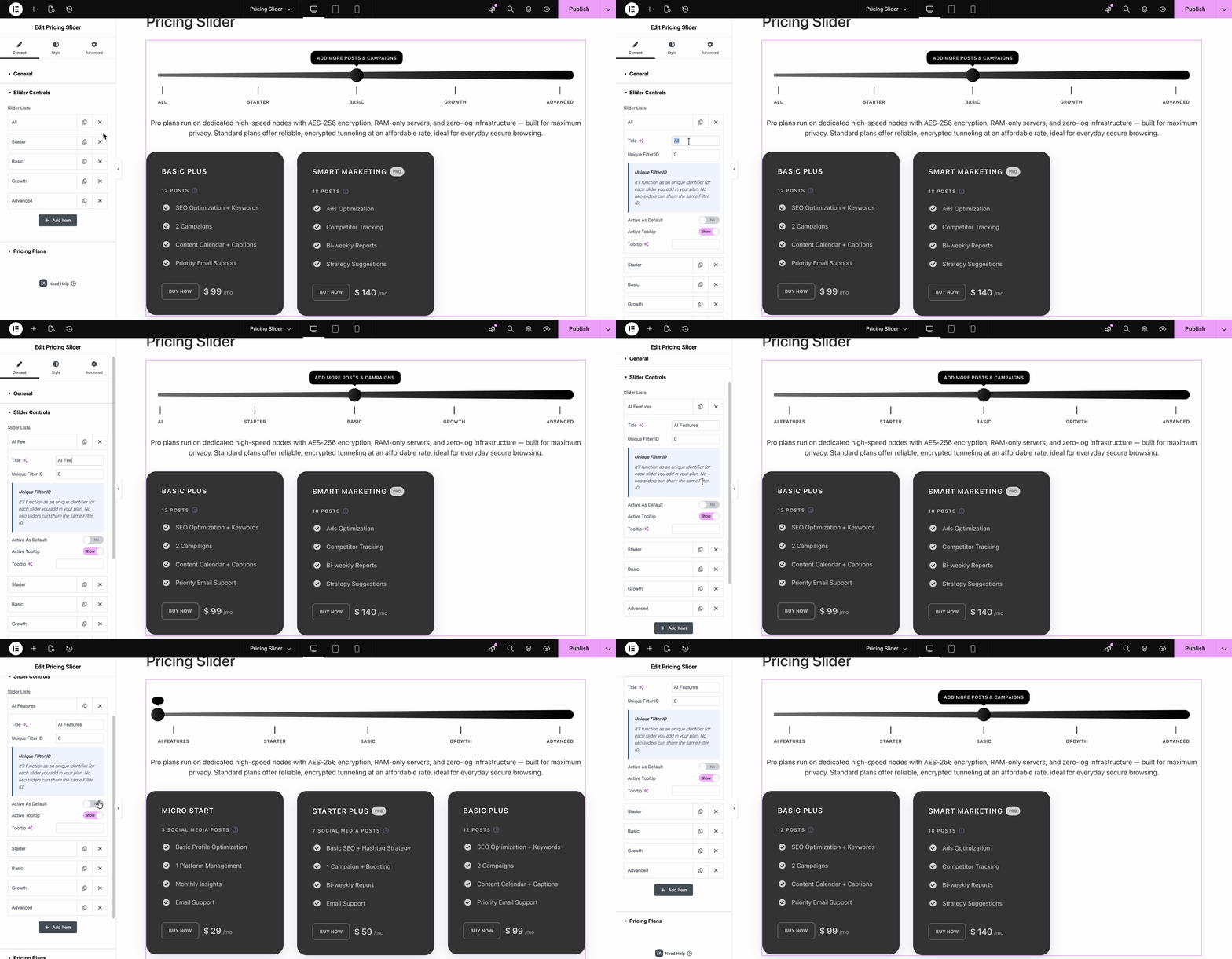
From the ‘Slider Controls’ section, you can add the list of features and functions you want to show in the slider. Here, you will get full flexibility to change the title, Filter ID, or add Tooltip if you want. If you want to enable or disable the ‘Active As Default’ or ‘Tooltip’ option.
After that you will find the ‘Pricing Plans’ option. Here you can add the specific pricing plan for a specific slider. Here are what you can customize in the pricing plan tab.
- Title: Add a unique title to your pricing plan.
- Unique Filter ID: Add unique Filter ID based on the ID you provided in the Pricing Slider. Specify the Unique Filter ID of the slider where this list should be displayed. For multiple sliders, enter each Unique Filter ID separated by a comma (e.g. 1,2, pen)
Note: Filter ID functions as an unique identifier for each slider you add in your plan. No two sliders can share the same Filter ID.
- Show/ Hide the Subtitle: If you want to add any note or subtitle in your pricing plan, you can control it from here.
- Status: Here, you can control whether you want to show/ hide the status of your pricing plan, customize the status title, add a tooltip text or even show/ hide the tooltip in the plan.
- Features List: In this section you can add as many features as you want for a specific pricing plan. For each feature you can customize the text, icon and show/ hide the tooltip for it.
- Price: You can add the specific pricing amount for the plan here. You can also add specific currency and period (e.g. per month or per year) in this section.
Button: To take action from your website visitors add an eye-catching text for the button and add the specific pricing link in this section.
How to Style the Pricing Slider #
Here, you can style every section of the pricing slider. For every control in the pricing section, you can customize the Background color, Margin/ Padding, Border Type, Box type, Box Shadow, Border Radius.

Final Outcome #
Finally after all the customization, click on the ‘Publish’ button to save the changes. Here, in your site you will see the customized pricing slider is working accordingly on your Elementor website.
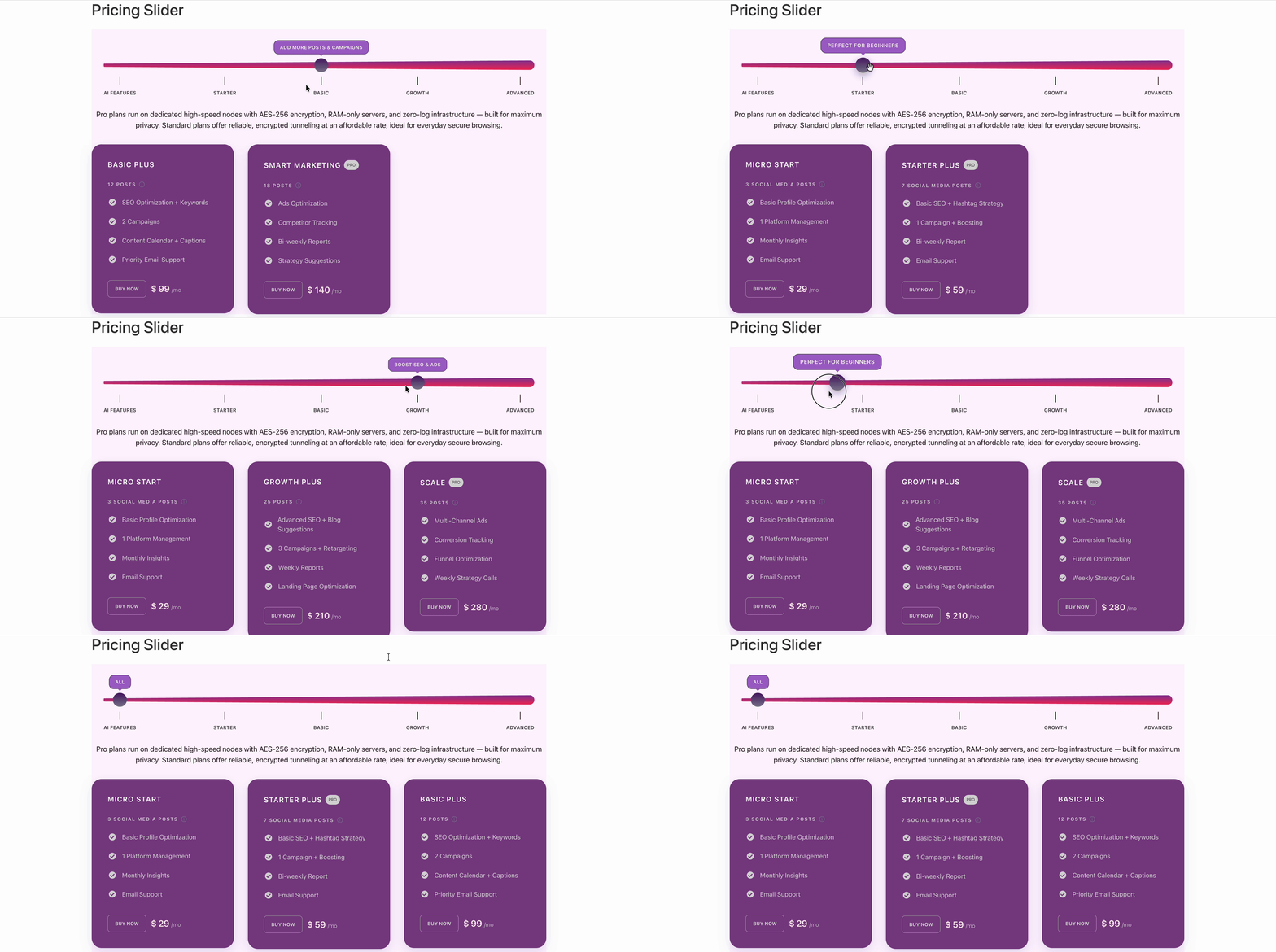
This is how easily you can add and configure EA Pricing Slider for Elementor on your website.
Getting stuck? Feel free to contact our support team for further assistance.