A great WooCommerce store is not just about having the right products. It is also about how you present them.
When shoppers land on a product page, they need to quickly understand what the product is, why it is worth buying, and where to find the information they need. Your product title, short description, full description, and additional details all play a role in that experience.
With Elementor and WooCommerce, you already have the foundation to build powerful online stores. Now, Essential Addons for Elementor is expanding its WooCommerce toolkit with four new widgets that give you more control over these essential product page elements: EA Woo Product Title, EA Woo Product Short Description, EA Woo Product Description, and EA Woo Product Tabs.
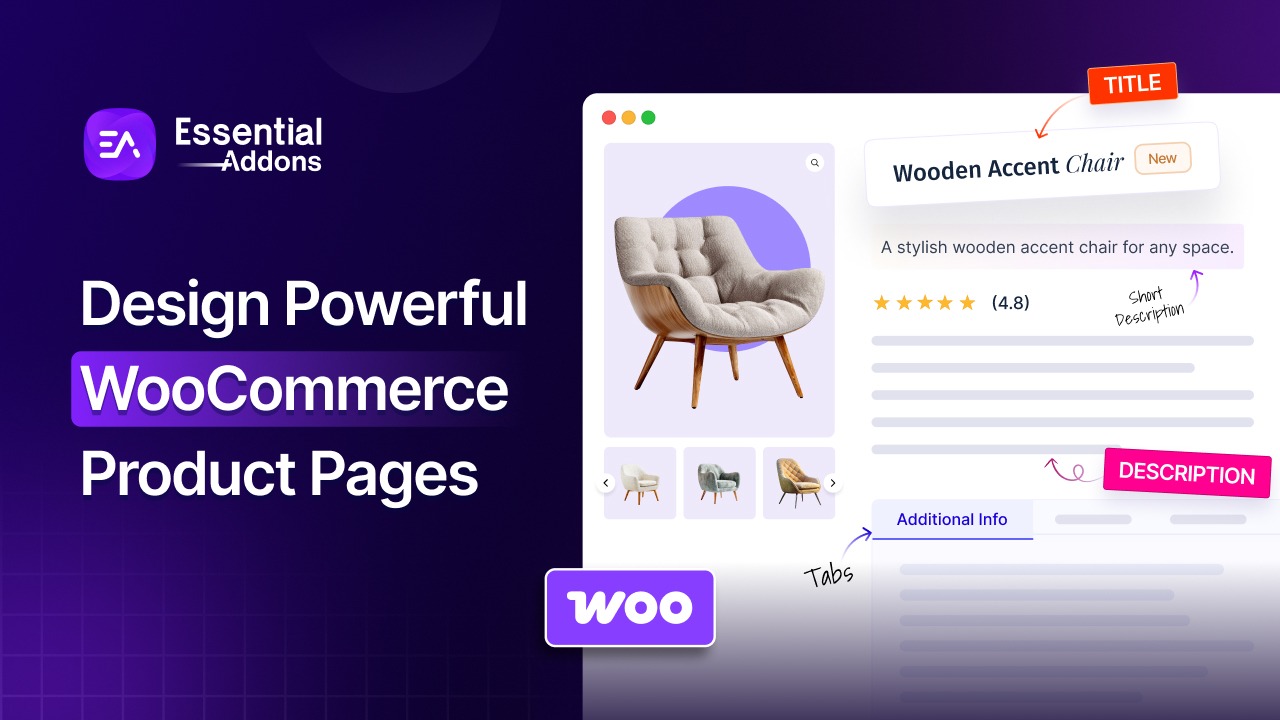
Together, these widgets help you create cleaner, more informative, and more brand-aligned WooCommerce product pages without being limited by the default layout.
Let us explore what each widget brings to your store, how you can use them to improve your product page experience, and how you can get started with these free-to-use WooCommerce widgets.
TL;DR: 4 New WooCommerce Widgets at a Glance
Here is a quick overview of the four Essential Addons WooCommerce widgets and what each one helps you do:
| Widget | Best For | Key Capabilities |
| EA Woo Product Title | Product titles | Display and customize product titles, add links, and use prefix or suffix text for additional context. |
| EA Woo Product Short Description | Quick product highlights | Showcase concise product information to help shoppers understand key product details at a glance. |
| EA Woo Product Description | Detailed product information | Display and style full product descriptions with flexible placement and design controls. |
| EA Woo Product Tabs | Organizing product information | Organize descriptions, specifications, reviews, FAQs, and other content into separate tabs for easier browsing. |
All four widgets are available for free in Essential Addons, giving you a unified way to build and customize essential WooCommerce product page elements with Elementor.
Why Your WooCommerce Product Page Layout Affects Conversions [With Solution]
Your product page is where browsing can turn into buying.
Shoppers want to know what you are selling, understand its key benefits, explore the details, and feel confident about making a purchase. But if important information is difficult to find or the page feels cluttered, visitors may leave before completing their purchase.
That is why every part of your product page matters.
A clear product title immediately tells shoppers what they are looking at. A concise short description highlights the most important information. A detailed description gives them everything they need to know, while organized product tabs keep additional information easy to browse.
But getting these elements to look and behave exactly the way you want can be tricky. WooCommerce’s default title, description, and tab markup does not always give you the flexibility you need to create a polished, custom product page.
And even when you use dedicated tools to customize individual elements, the challenge is making all these elements work together while maintaining a consistent visual identity across your store. That is where Essential Addons makes things simpler. Instead of stacking separate single-purpose plugins for product titles, descriptions, tabs, and other product elements, Essential Addons brings these essential WooCommerce elements together in one plugin, with one familiar Elementor workflow and a unified approach to styling and customization.
As you prepare your store for the busier months ahead, this is a great time to review your product pages, refine how you present product information, and make sure everything feels consistent and polished.
With these WooCommerce widgets, you can address each of these product page needs with more flexibility. Each widget focuses on a specific part of your product page, giving you more flexibility to position, style, and present your product information with Elementor.
1. Create Attractive Titles with EA Woo Product Title Widget
The product title is one of the first things shoppers notice when they arrive at a product page. It needs to be clear, easy to read, and visually consistent with the rest of your store.
EA Woo Product Title gives you a dedicated Elementor widget to display product titles on your WooCommerce product pages and customize their appearance to complement your store’s design. You can drag and drop the widget into your desired location and adjust the styling to create a more polished product page layout.
Create Product Title Sections with Ease
With a drag-and-drop workflow, you can position product titles wherever they make the most sense within your Elementor product page design.
This gives you more freedom to create custom WooCommerce layouts instead of relying entirely on the default product page structure. Whether you are building a minimalist store or a more visually rich eCommerce experience, you can place your product title where it fits naturally within your layout.
Match Product Titles with Your Store’s Design
Your product titles should feel like part of your brand, not like a separate element added to the page.
The EA Woo Product Title lets you customize typography, colors, spacing, alignment, and more. This makes it easier to create product titles that match your overall visual identity and maintain a consistent look across your WooCommerce store.
Add Prefix And Suffix Text for More Context
Sometimes, the product title alone does not tell the whole story.
You can add custom prefix or suffix text to provide additional context around your product titles. You could use a prefix to highlight a collection or product category, or add a suffix to mention a product type, promotion, or other important detail.
For example, a clothing store could add “New Arrival” before a product title or “Limited Edition” after it to give shoppers extra context without changing the original product name. This gives you another way to make product information more informative without changing the original product title.
📗Read: How to use Woo Product Title widget?
2. Help Shoppers Make Faster Decisions with EA Woo Product Short Description Widget
Not every shopper wants to read a long product description before deciding whether a product is right for them.
Sometimes, they simply need a quick overview of the product’s most important benefits and features.
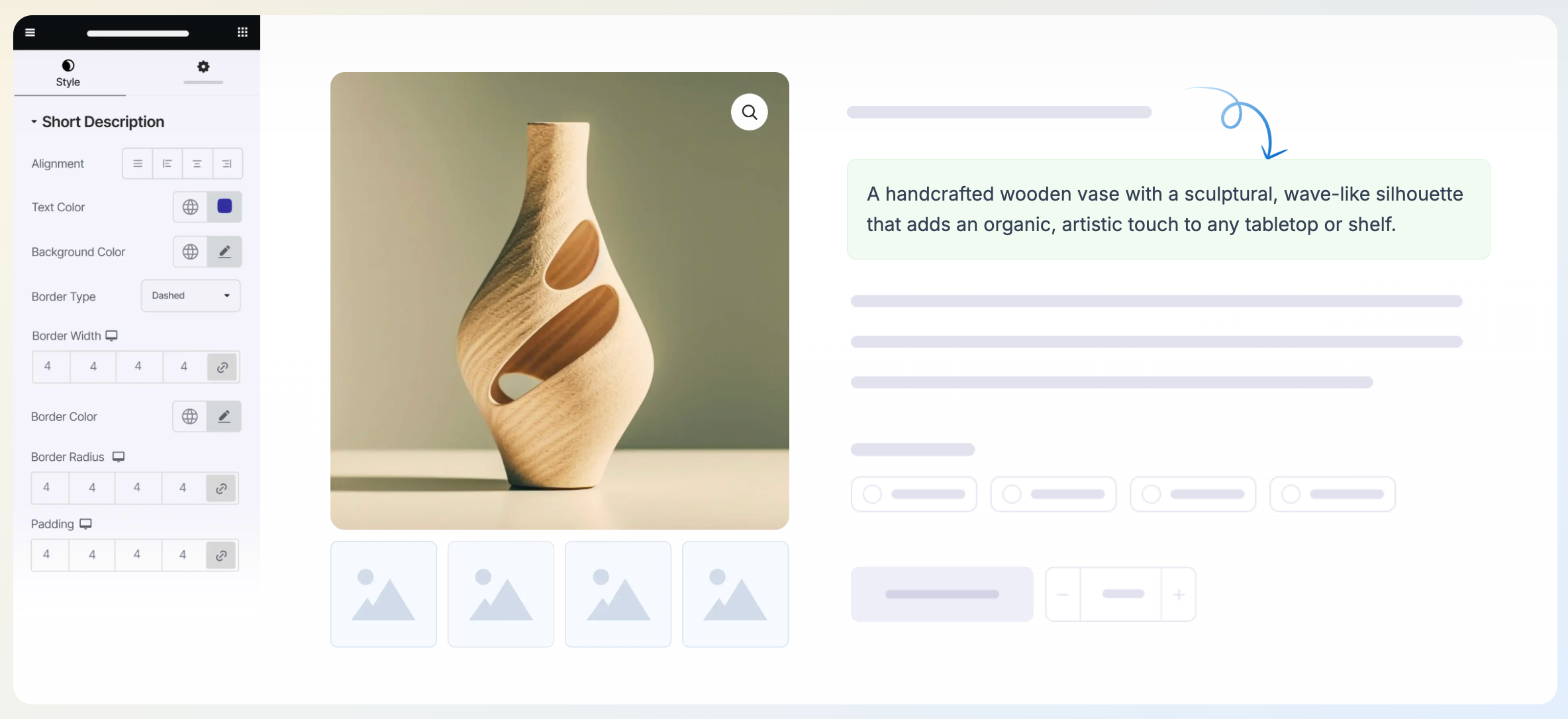
That is where EA Woo Product Short Description comes in. The widget helps you display concise product information in a visually appealing way, allowing shoppers to understand the product at a glance without having to scroll through lengthy content.
Turn Key Product Details into Quick Summaries
Your short description can act as a quick introduction to the product.
Use it to highlight the information shoppers are most likely to look for first. Depending on your store, this could include a product’s primary benefit, key feature, material, use case, or a short overview of what makes it worth considering.
By placing these details where shoppers can see them quickly, you can make product pages easier to scan and understand.
Communicate Product Value at a Glance
Online shoppers often scan product pages before deciding whether to explore further.
A concise, short description helps you communicate the product’s value without overwhelming visitors with too much information at once. It gives shoppers a quick reason to keep exploring the product and learn more.
Make Product Information More Scannable
Long blocks of text can make product pages feel difficult to navigate.
With a concise product summary, you can surface important information in a more digestible format. This is especially useful for stores with a wide range of products where shoppers need to compare options and quickly understand what each product offers.
For example, an online furniture store could use the short description to highlight a chair’s material, design style, or comfort features. A fashion store could use it to summarize the fabric and fit, while a tech store could use it to highlight a product’s most important features.
The goal is simple: give shoppers the right information at the right moment.
📗Read: How to use Woo Product Short Description widget?
3. Present Detailed Product Information with EA Woo Product Description Widget
While short descriptions help shoppers get the essentials quickly, some products need more detailed information before customers feel ready to buy.
That is where your full product description comes in.
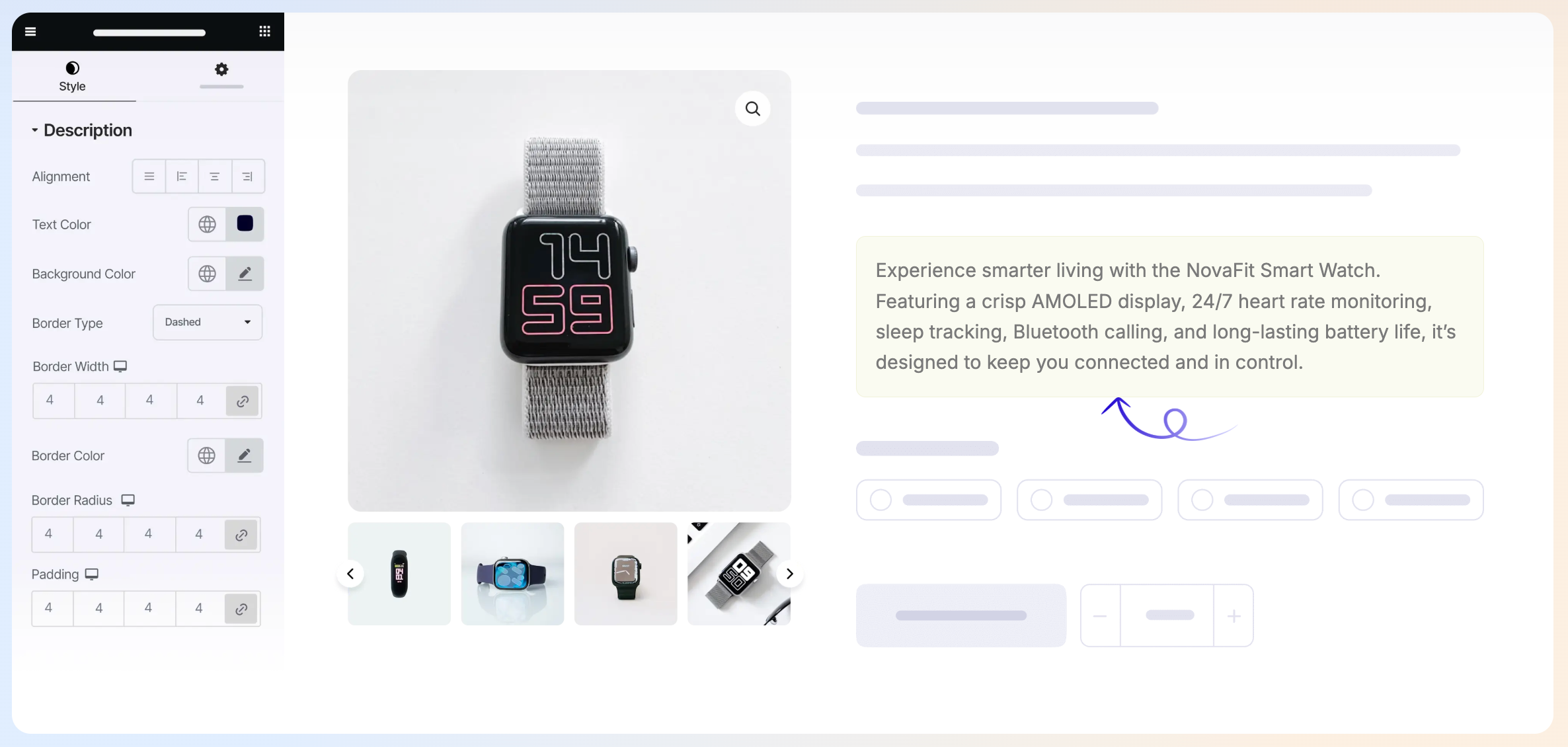
EA Woo Product Description lets you display your detailed WooCommerce product descriptions within your Elementor layouts and customize their presentation to match your brand. You can drag and drop the widget into your desired location and create a product page that feels more polished and consistent.
Place Product Descriptions Where You Want
You do not have to be restricted to a fixed product page structure.
With the drag-and-drop workflow, you can position your product description where it fits best within your custom Elementor layout. This gives you more flexibility to structure your product pages around your content and customer journey.
Style Product Descriptions to Match Your Brand
Product information should look like it belongs to your store.
EA Woo Product Description gives you flexible styling options, including color control and other customization settings. This allows you to create product descriptions that feel visually aligned with your website instead of looking disconnected from the rest of your design.
Fine-Tune Layout And Spacing
Good design is not only about colors and typography. Spacing and alignment also have a major impact on readability.
You can adjust alignment, margin, padding, and spacing to create a more structured product description section. This helps you maintain a clean layout and make longer product content easier for shoppers to read.
This can be particularly useful for stores that sell products requiring more explanation. From electronics and smart devices to furniture, fitness equipment, and specialty products, you can use the full description area to provide the context shoppers need before making a purchase.
For example, a furniture store can use the product description to explain materials, dimensions, care instructions, and other details shoppers need before making a purchase.
📗Read: How to use Woo Product Description widget?
4. Organize Product Details with EA Woo Product Tabs Widget
As your product pages become more informative, there is always a risk of overwhelming shoppers with too much content.
Product tabs offer a simple solution.
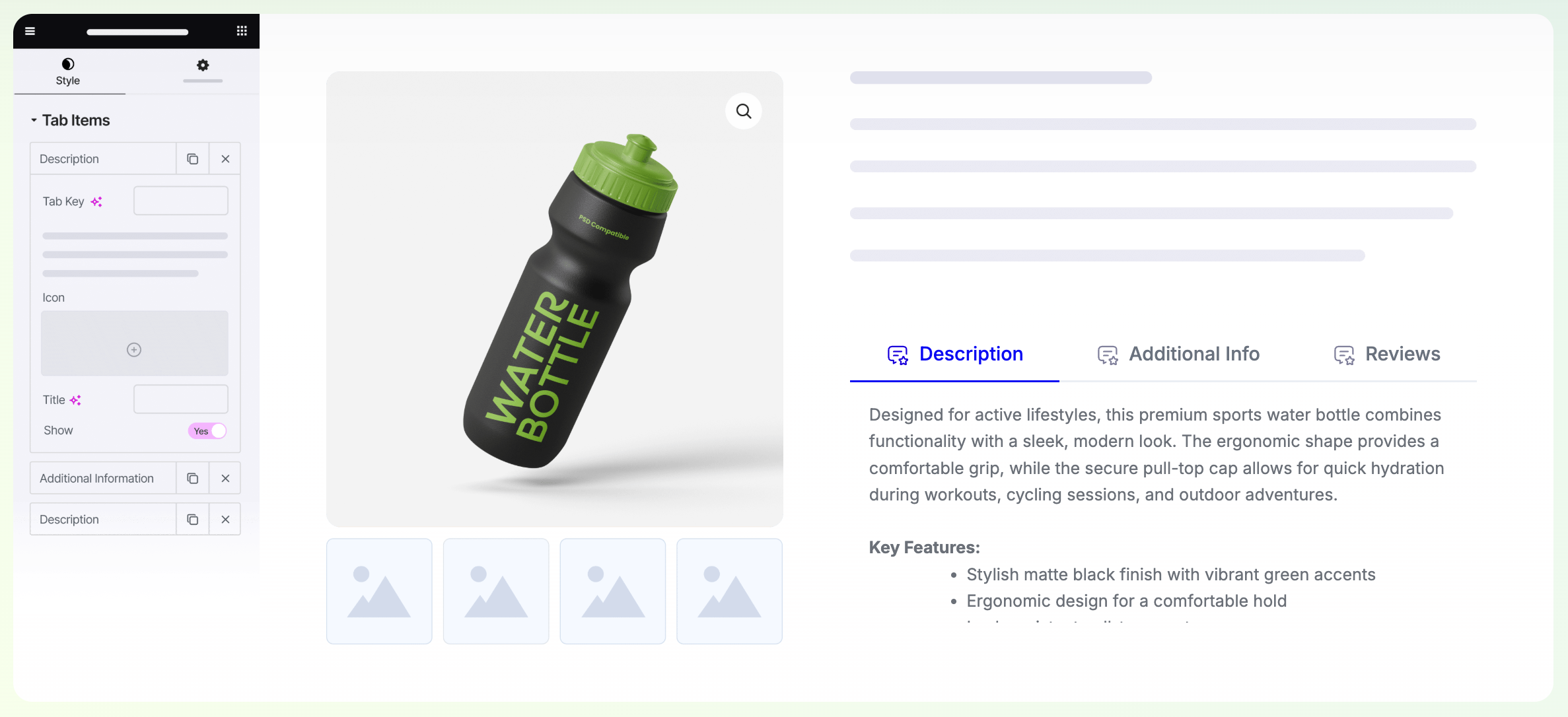
EA Woo Product Tabs helps you organize important product information into separate, easy-to-browse sections. You can use tabs to present descriptions, specifications, reviews, FAQs, and other custom content while keeping the overall product page clean and organized.
Keep Product Pages Clean And Clutter-Free
Instead of displaying every detail in one long section, you can group related information into separate tabs.
For example, you could organize your content into:
- Description
- Specifications
- Features
- Reviews
- FAQs
- Additional Information
This structure allows shoppers to focus on the information they need without having to scroll through everything else.
Help Shoppers Find Information Faster
Different shoppers look for different information.
Some may want to understand the product’s features. Others may be interested in technical specifications, customer reviews, or answers to common questions.
By separating these details into dedicated tabs, you can make your product pages easier to navigate and help shoppers find relevant information more quickly.
Add More Information without Overwhelming Visitors
Detailed product information is valuable, but presenting everything at once can make a page feel crowded.
Product tabs let you include more information while keeping it neatly organized. This makes them especially useful for products that require extensive specifications or additional details, such as electronics, appliances, sports equipment, furniture, and other complex products.
You can also use custom tabs to answer common questions, explain product care instructions, share shipping information, or provide other details that help customers make confident purchase decisions. For example, an electronics store could use separate tabs for “Specifications,” “Features,” “Reviews,” and “FAQs,” so shoppers can quickly find the information they need.
📗Read: How to use the Woo Product Tabs widget?
Step-by-step Guide: How to Use the EA WooCommerce Widgets in Elementor
Getting started with the 4 WooCommerce widgets in Essential Addons is quick and beginner-friendly. Once you have Essential Addons installed and activated on your Elementor website, you can add these widgets to your WooCommerce single product template and customize them without writing any code.
Follow the steps below to create a more engaging and informative WooCommerce product page.
Note: Before you start configuring the Essential Addons Woo Product Title widget, ensure you have the WooCommerce plugin and a full-site edit-available theme or plugin installed & activated on your site. We are using Templately here for free FSE access.
Step 1: Activate the Woo widgets
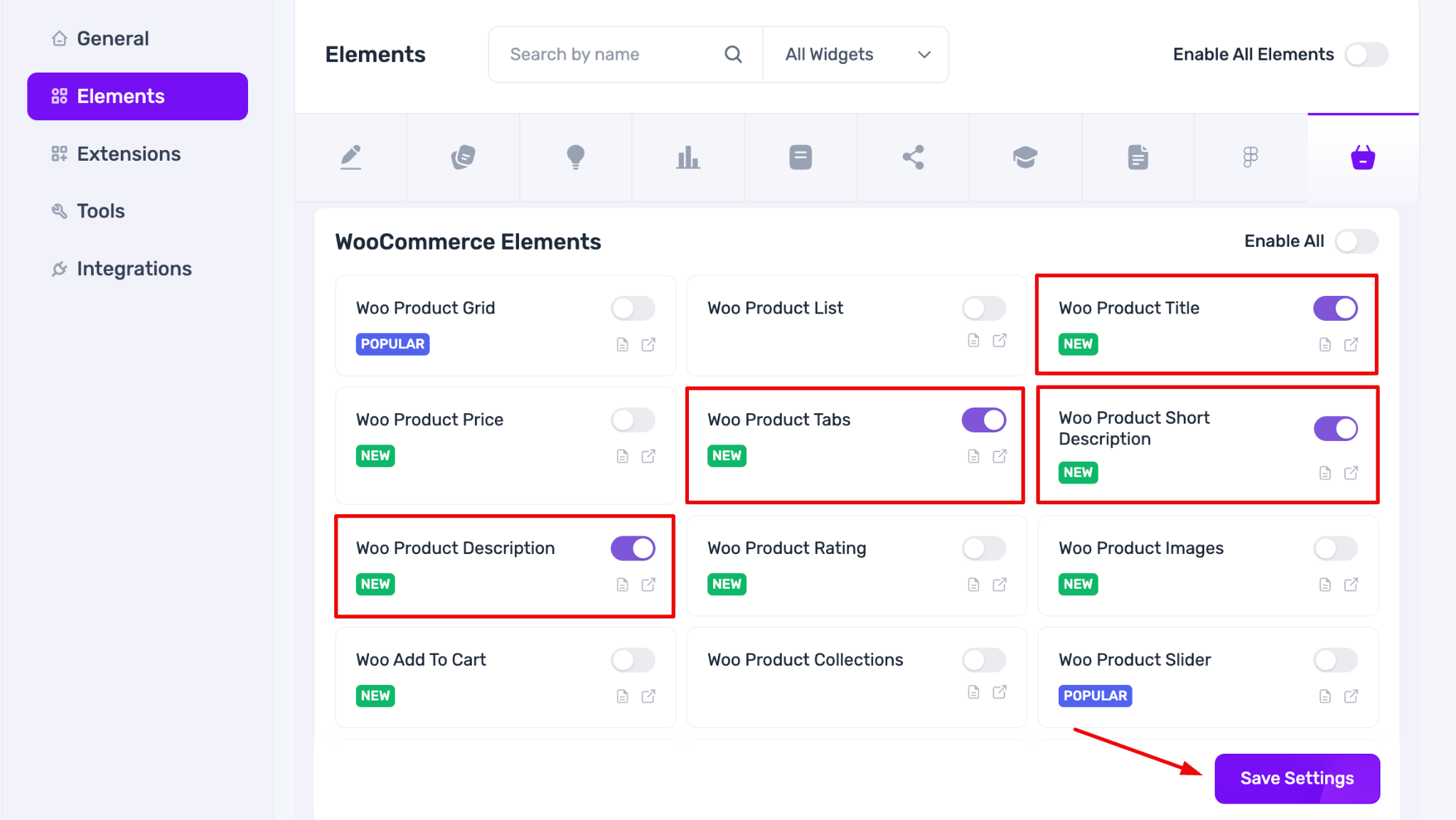
From the dashboard, go to Essential Addons → Elements → WooCommerce Elements tab. Toggle on the 4 widgets and click on the Save Settings button.
Step 2: Create Or Edit a Single Product Template
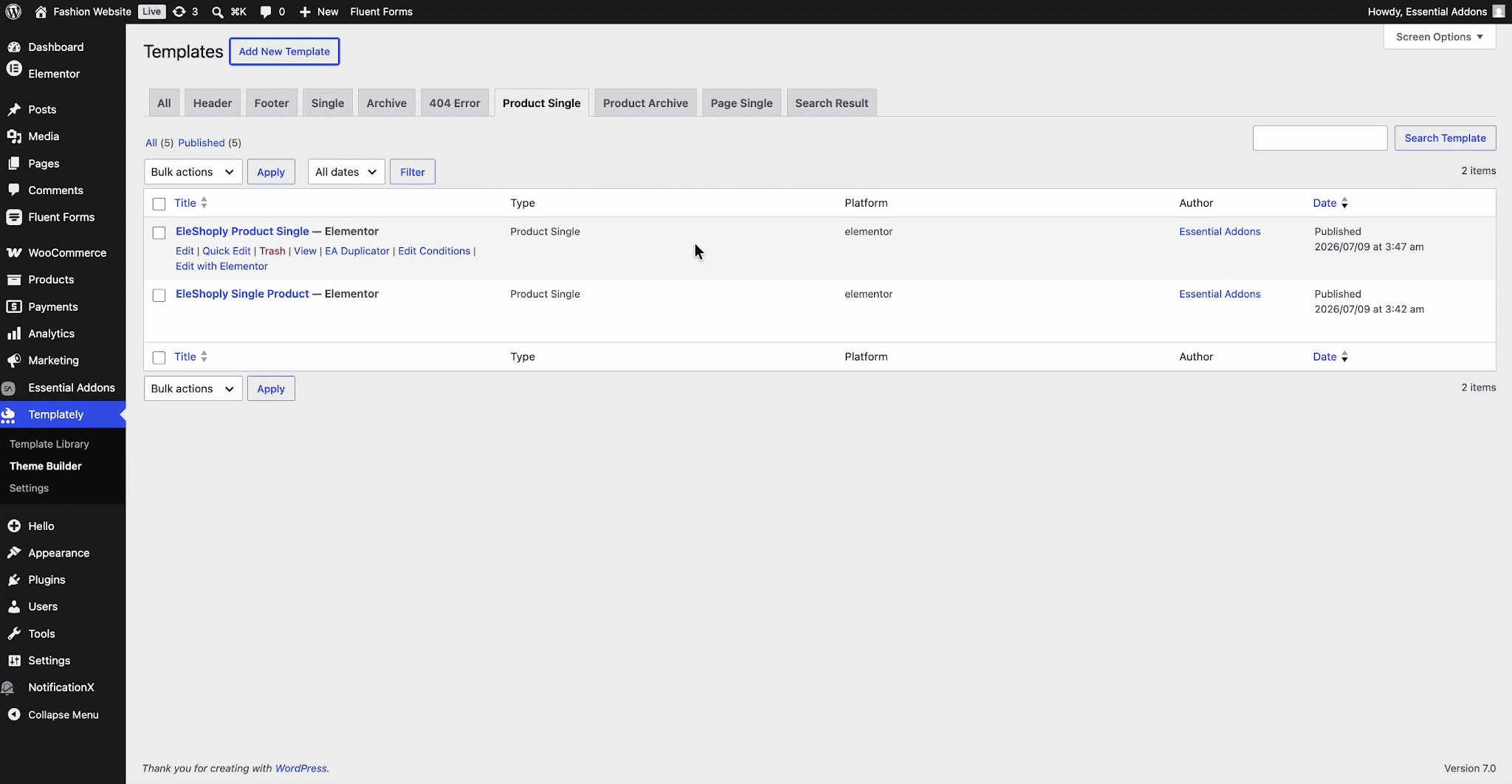
From your WordPress dashboard, navigate to Templately → Theme Builder → Product Single (or edit your existing WooCommerce Single Product template in Elementor).
Once the Elementor editor opens, you are ready to create a new template or customize your existing template to improve your product page layout.
Step 3: Add Your Preferred WooCommerce Widget
Search for the widget you want in the Elementor panel and drag it onto your product page. You can choose from EA Woo Product Title, EA Woo Product Short Description, EA Woo Product Description and EA Woo Product Tabs.
Each widget is designed for a specific section of your WooCommerce product page, giving you complete flexibility over where and how your product information is displayed.
Step 4: Configure the Widget Content
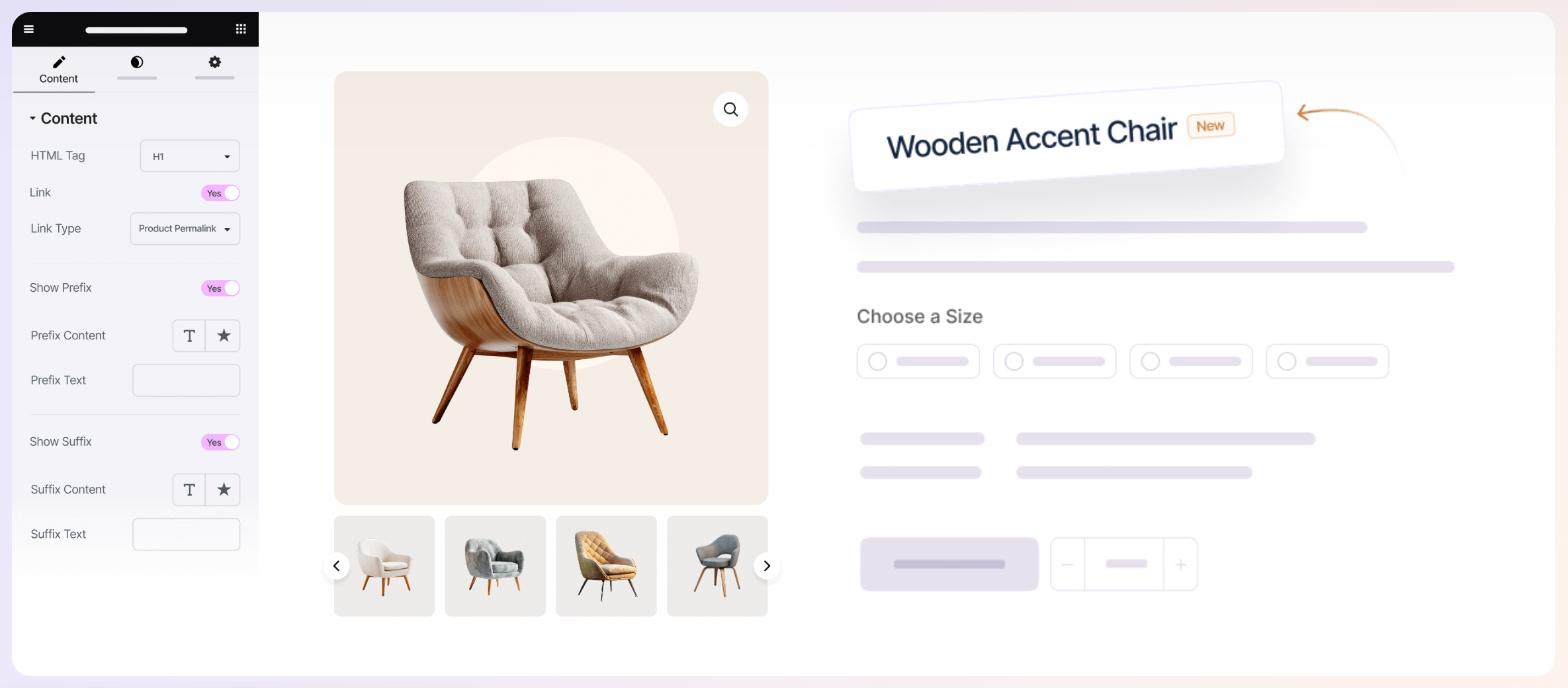
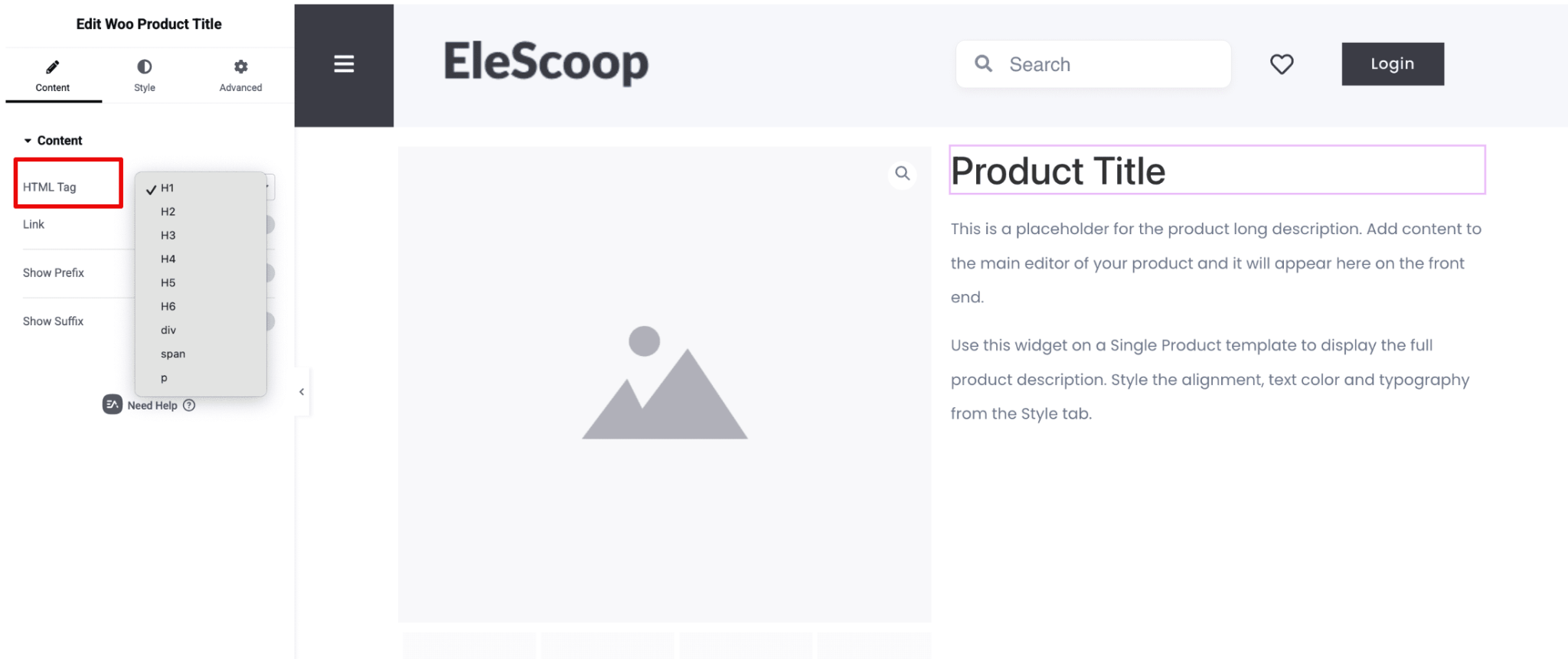
After adding a widget, use the Content tab to configure its settings. Depending on the widget, you can select the appropriate HTML tag for product titles, enable product title links, add custom prefix and suffix text, display WooCommerce short or full product descriptions, show product tabs for descriptions, specifications, reviews, FAQs, and additional information.
These options allow you to present product information in a way that best suits your store and customers. In the image below, you can see the content customization options for the Product Title widget.
Step 5: Customize the Design
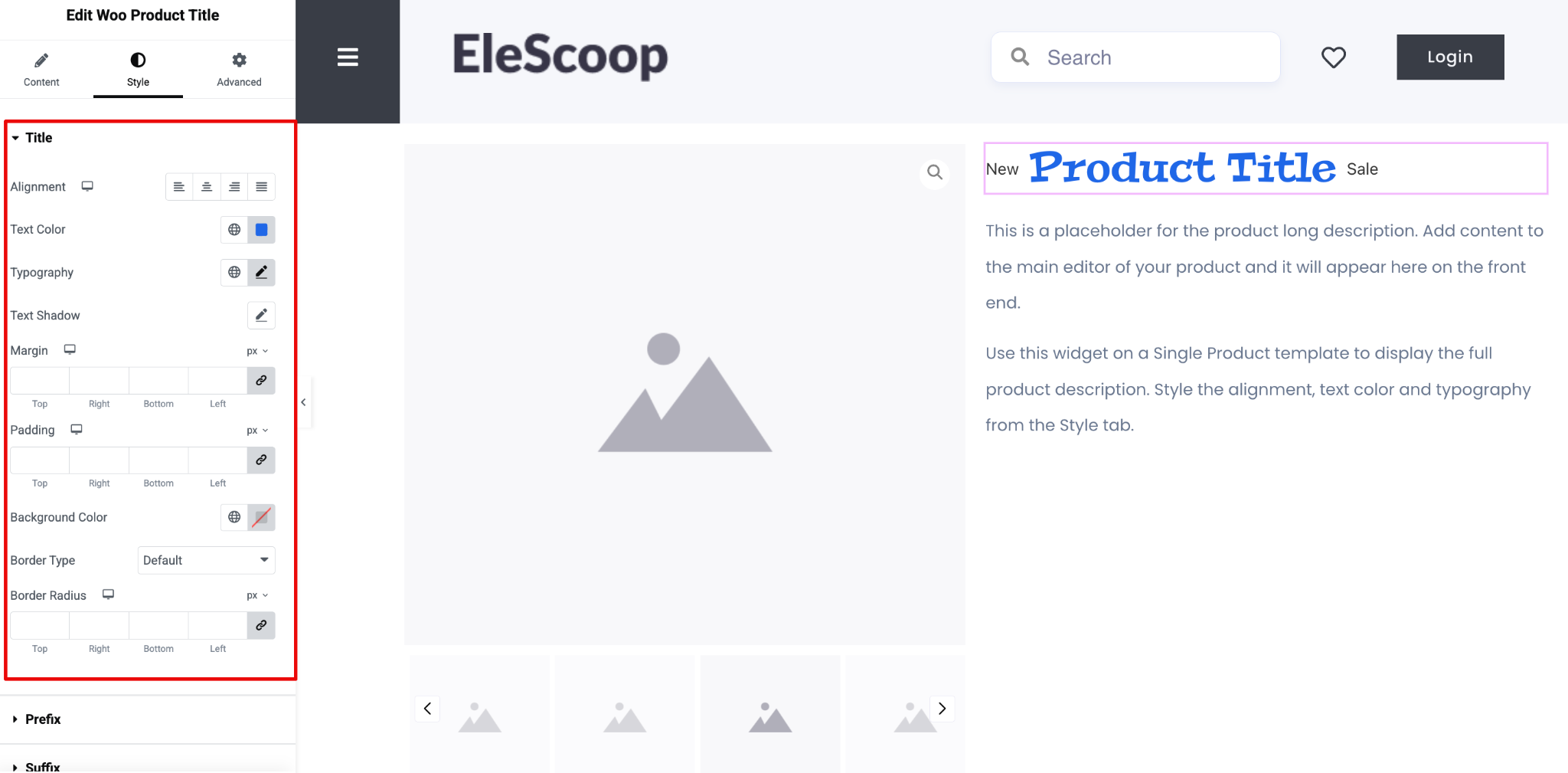
Switch to the Style tab to personalize the widget’s appearance. You can easily customize typography, colors, alignment, spacing, margin & padding, borders and other design settings. This helps every product page stay visually consistent with your store’s branding.
Step 6: Preview And Publish
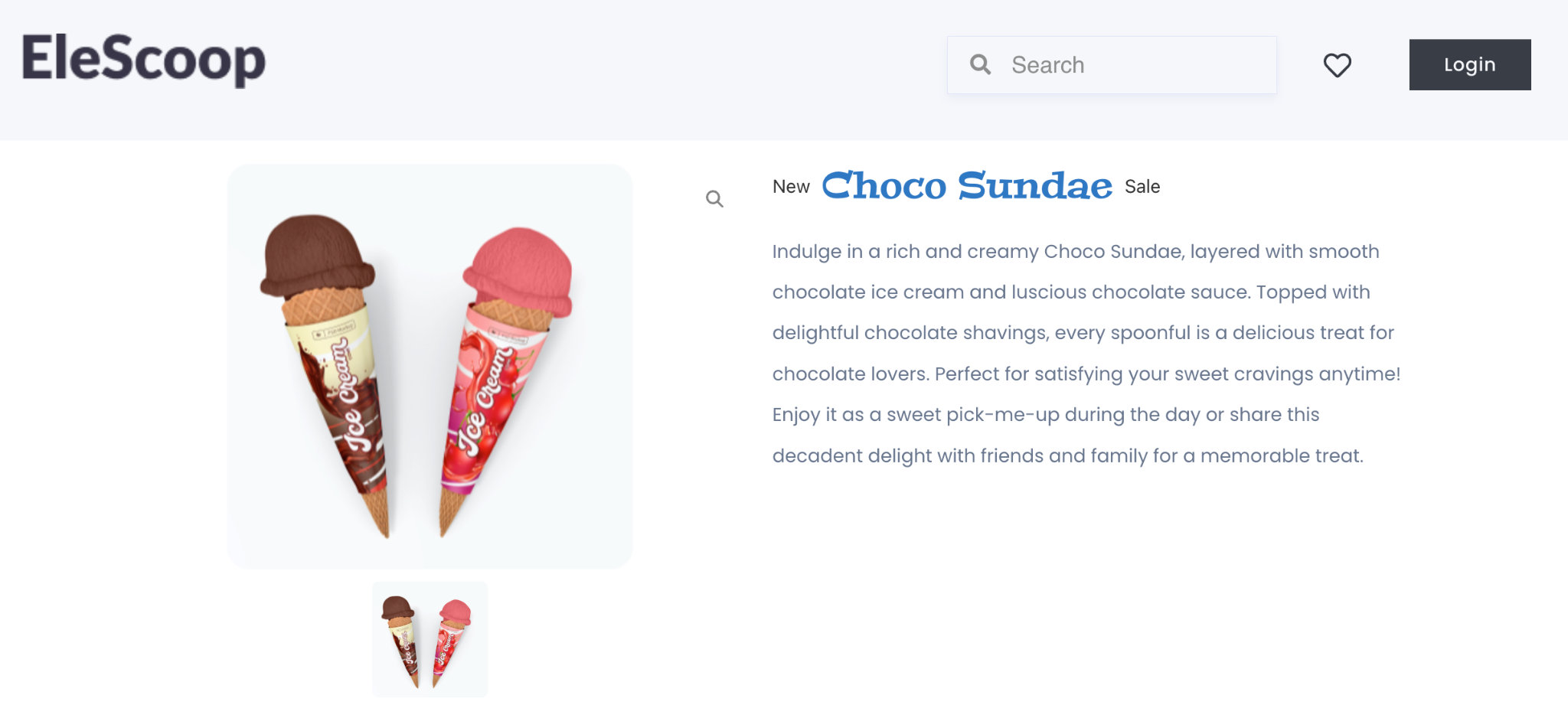
Preview your changes to ensure every product detail appears exactly where you want it. Once everything looks perfect, click Publish to make your custom WooCommerce product page live.
Your products will now have a cleaner, more organized, and professionally designed presentation.
Need Detailed Setup Instructions?
If you would like to explore every setting available for each widget, follow our step-by-step documentation guides:
📚 EA Woo Product Title Documentation
📚 EA Woo Product Short Description Documentation
📚 EA Woo Product Description Documentation
📚 EA Woo Product Tabs Documentation
These guides cover every available option, customization setting, and best practice to help you get the most out of each widget.
Build Better Product Pages with 4 New Essential Addons WooCommerce Widgets
These four widgets each solve a different product page challenge.
EA Woo Product Title helps you create attractive, well-styled product titles and add useful context with prefix and suffix text.
EA Woo Product Short Description helps you surface key product information quickly and make your pages easier to scan.
EA Woo Product Description gives you more control over where and how detailed product information appears on your page.
EA Woo Product Tabs helps you organize extensive product information into a cleaner, easier-to-browse layout.
Used together, they give you more flexibility to build WooCommerce product pages that are not only visually consistent but also structured around how shoppers explore products.
Whether you run a small online shop, manage an eCommerce business, or build WooCommerce websites for clients, these widgets can help you create product pages that better fit your design and content needs.
Best Practices for Better WooCommerce Product Pages
A well-designed product page should make it easy for shoppers to understand the product, find the information they need, and take the next step. Here are some best practices to keep in mind:
Make product titles clear and easy to scan: Use descriptive titles and style them to create a strong visual hierarchy.
Highlight key details upfront: Use a short description to surface the most important product information without making shoppers dig for it.
Provide enough detail to build confidence: Use the full product description to answer important questions and give shoppers the context they need before purchasing.
Keep information organized: Use product tabs to separate specifications, reviews, FAQs, and other details so your page does not feel overwhelming.
Maintain a consistent design: Make sure your titles, descriptions, tabs, and other product elements follow the same visual language across your store.
Make product information easy to navigate: Give shoppers a clear path from product discovery to the details that help them make a purchase decision.
Build around the complete shopping experience: Product information is only one part of a high-performing product page. Elements such as product sliders, collections, cross-sells, and other WooCommerce sections can help create a more complete shopping journey.
These are the essentials of a product page that is easy to understand, visually consistent, and designed around the shopper. The four new EA WooCommerce widgets cover the core product information elements, while Essential Addons also gives you additional WooCommerce widgets to customize more parts of the shopping experience from the same Elementor workflow.
Ready to Improve Your WooCommerce Product Pages?
Your product pages should do more than display products. They should make information easy to find, keep your store’s design consistent, and give shoppers everything they need to move closer to a purchase.
With EA Woo Product Title, EA Woo Product Short Description, EA Woo Product Description, and EA Woo Product Tabs widgets, you can take control of these essential product page elements and build them into your Elementor layouts with one familiar workflow.
And when you are ready to go beyond product information, Essential Addons gives you even more WooCommerce tools to refine your store’s shopping experience, from Product Slider and Product Collections to Account Dashboard, Cart, Checkout, Thank You, and Cross Sells.
Improve your WooCommerce product page layouts with Essential Addons and build a shopping experience that works better for your customers.
Is this article helpful to you? If you like this, then subscribe to our blog for more articles. You can have a look at our Documentation for more cool widgets of Essential Addons for Elementor. Also, join us on our Facebook community to interact with other Elementor users.