
The EA Vertical Text Orientation extension allows you to easily display text vertically on your website. This FREE extension provides a simple and flexible way to implement vertical text, whether for styling headers, side navigation, or typography in languages that read top-to-bottom.
However, building a modern website with a unique layout or need to create traditional East Asian typography? EA Vertical Text Orientation has everything to offer you.
Note: To use this FREE extension, make sure you’ve installed and activated Essential Addons on your WordPress site.
How to Activate EA Vertical Text Orientation #
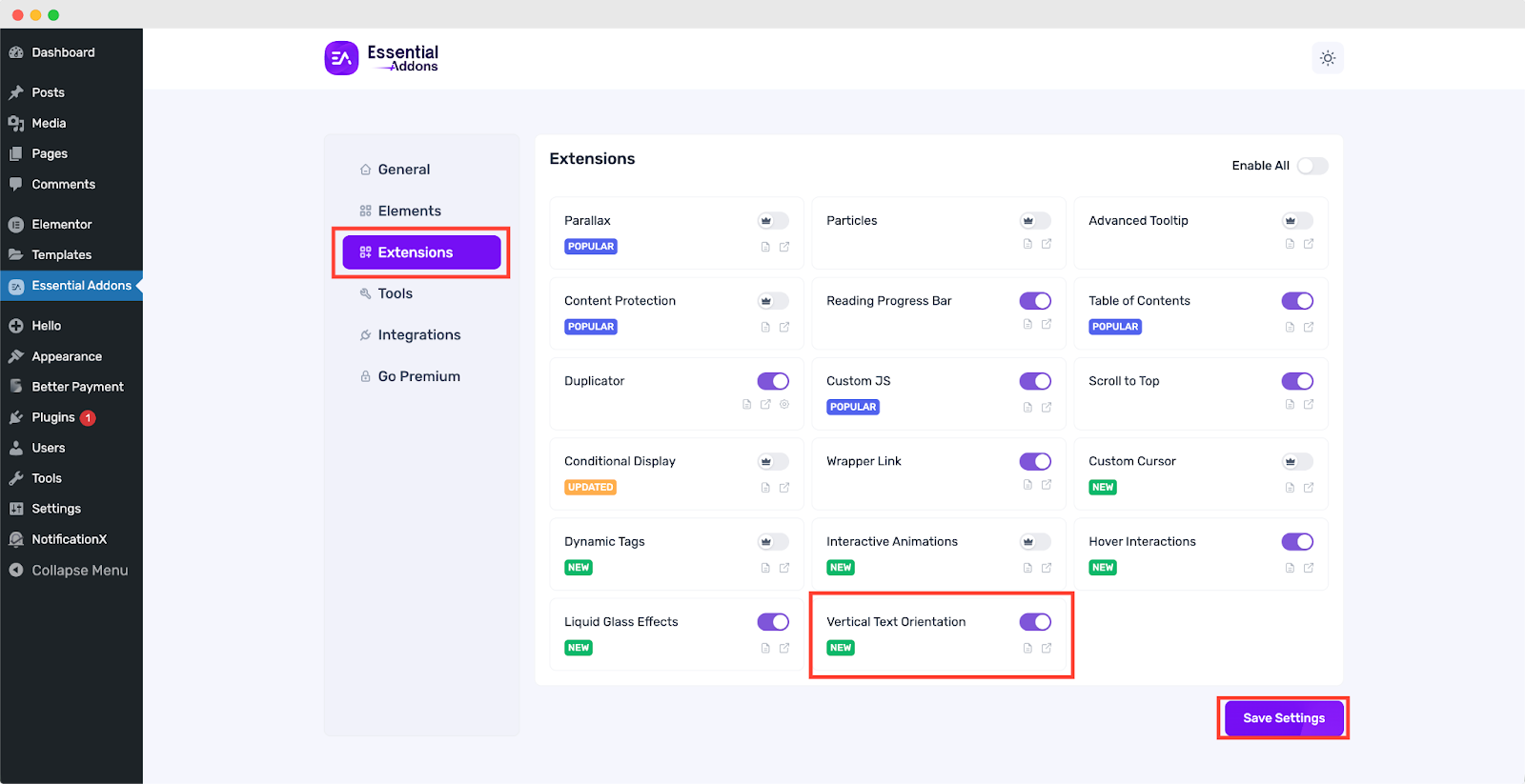
To access the Vertical Text Orientation and make your site interactive, first, you need to activate the ‘Extension’ from your WordPress dashboard. To activate, navigate to ‘Essential Addons’ → ‘Extensions’ and find the ‘Vertical Text Orientation’. Toggle on to activate and hit the ‘Save Settings’ button to use this extension on your website.
How to Configure EA Vertical Text Orientation #
When you have activated the EA Vertical Text Orientation extension on your element, you will find multiple options to customize it. You can use this effect in all text and heading-related Elementor & Essential Addons widgets.
- Text Editor
- Heading
- Dual Color Heading
- Fancy Text
- Animated Headline
For this documentation, let’s have a look at how it will work on the ‘Heading’ Element.
First of all, let’s take the ‘Heading’ element in Elementor to configure EA Vertical Text Orientation. Then, go to the ‘Style’ tab, where you will find the ‘Vertical Text Orientation’ extensions. Toggle the button to enable it.
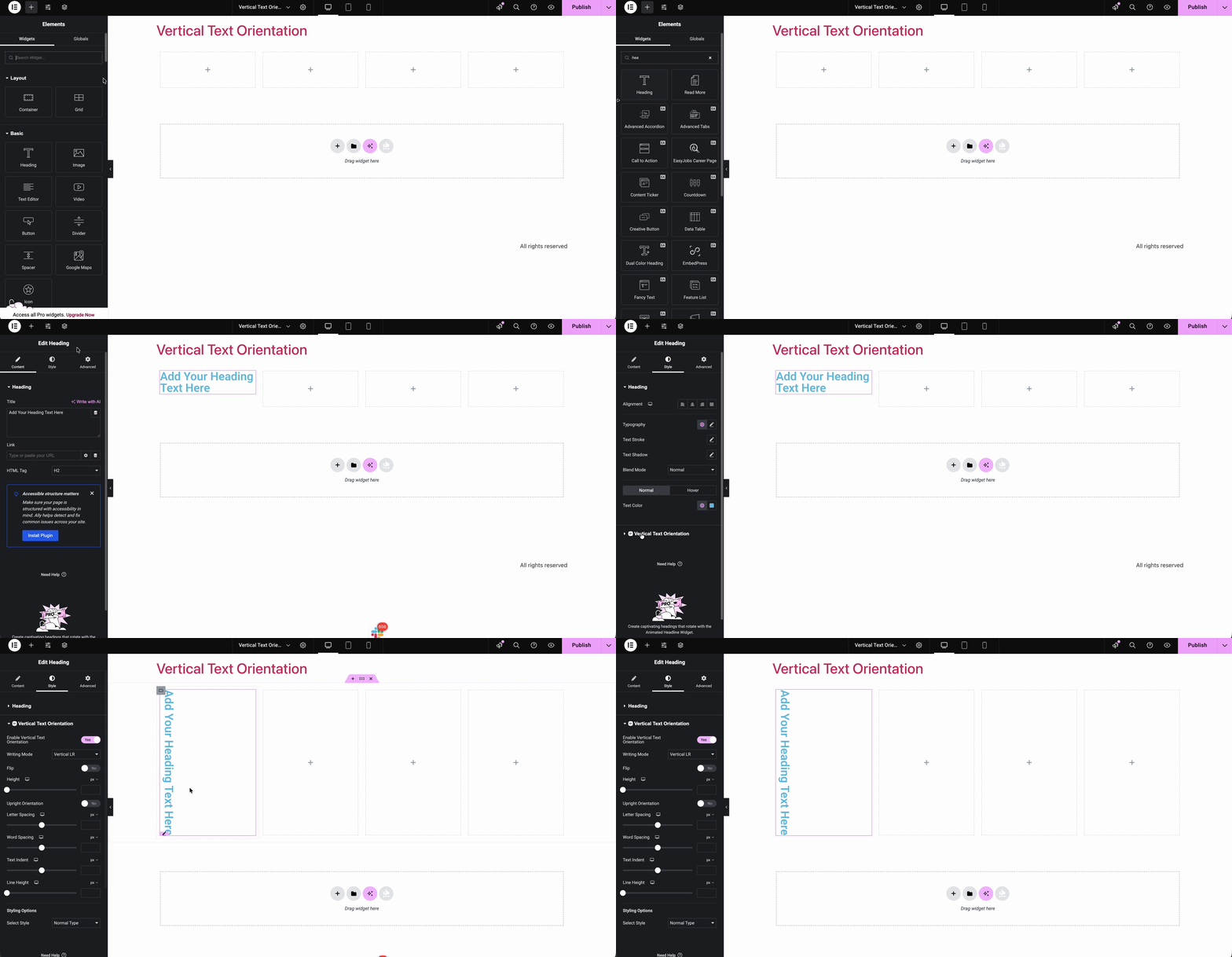
Now, before making changes to your vertical text orientation with the extension, adjust your Heading Typography, Alignment, Text Stroke, Text Shadow, Text Color & more.
Customize Text Orientation #
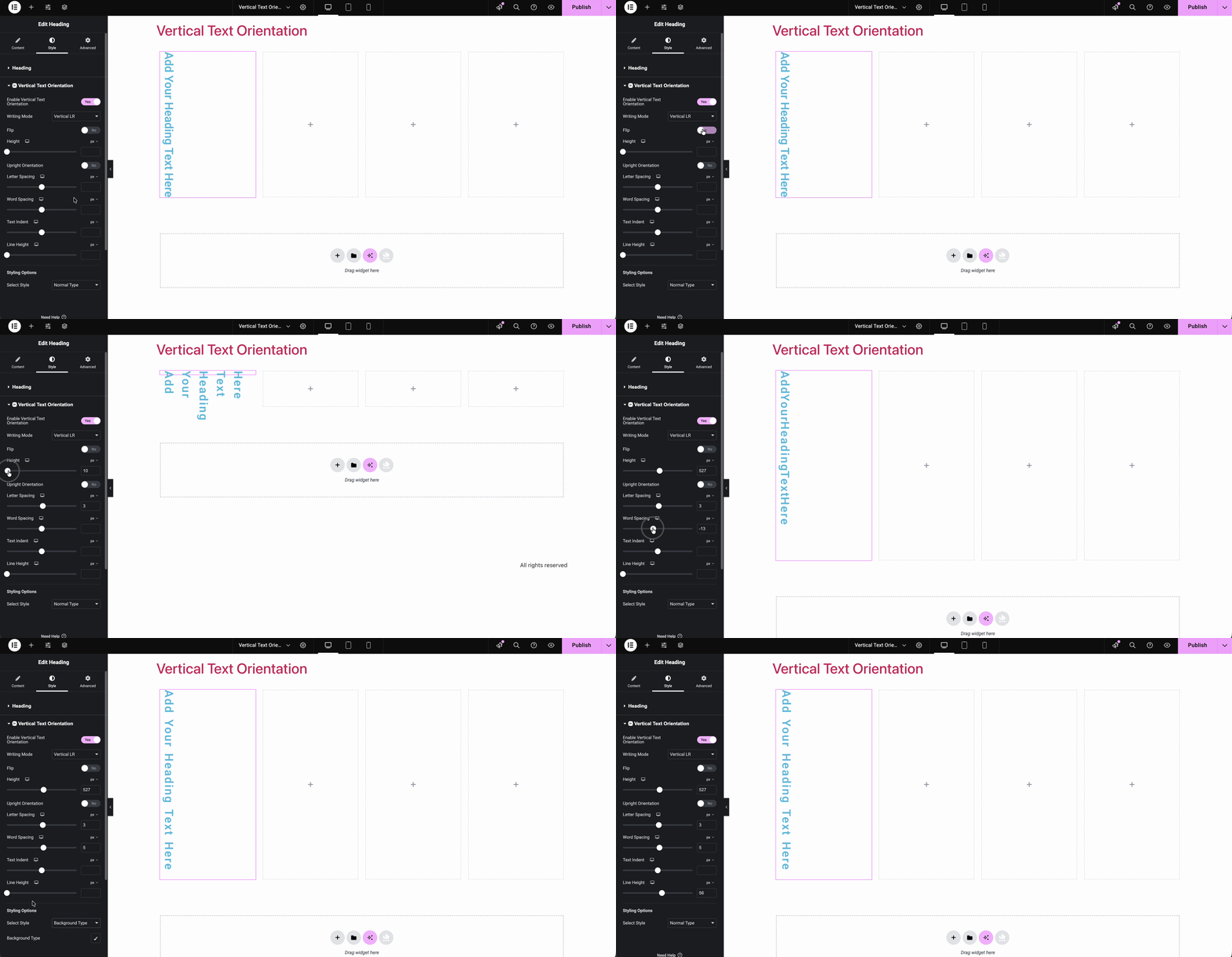
After enabling the extension, you’ll get a bunch of options to customize your vertical text & upright orientation. Select your writing mode from the two options: Vertical LR & Vertical RL. Toggle on/off to flip your text orientation. Adjust your vertical text Height, Letter Spacing, Word Spacing, Text Indent, Line Height & more.
Select Styling Options #
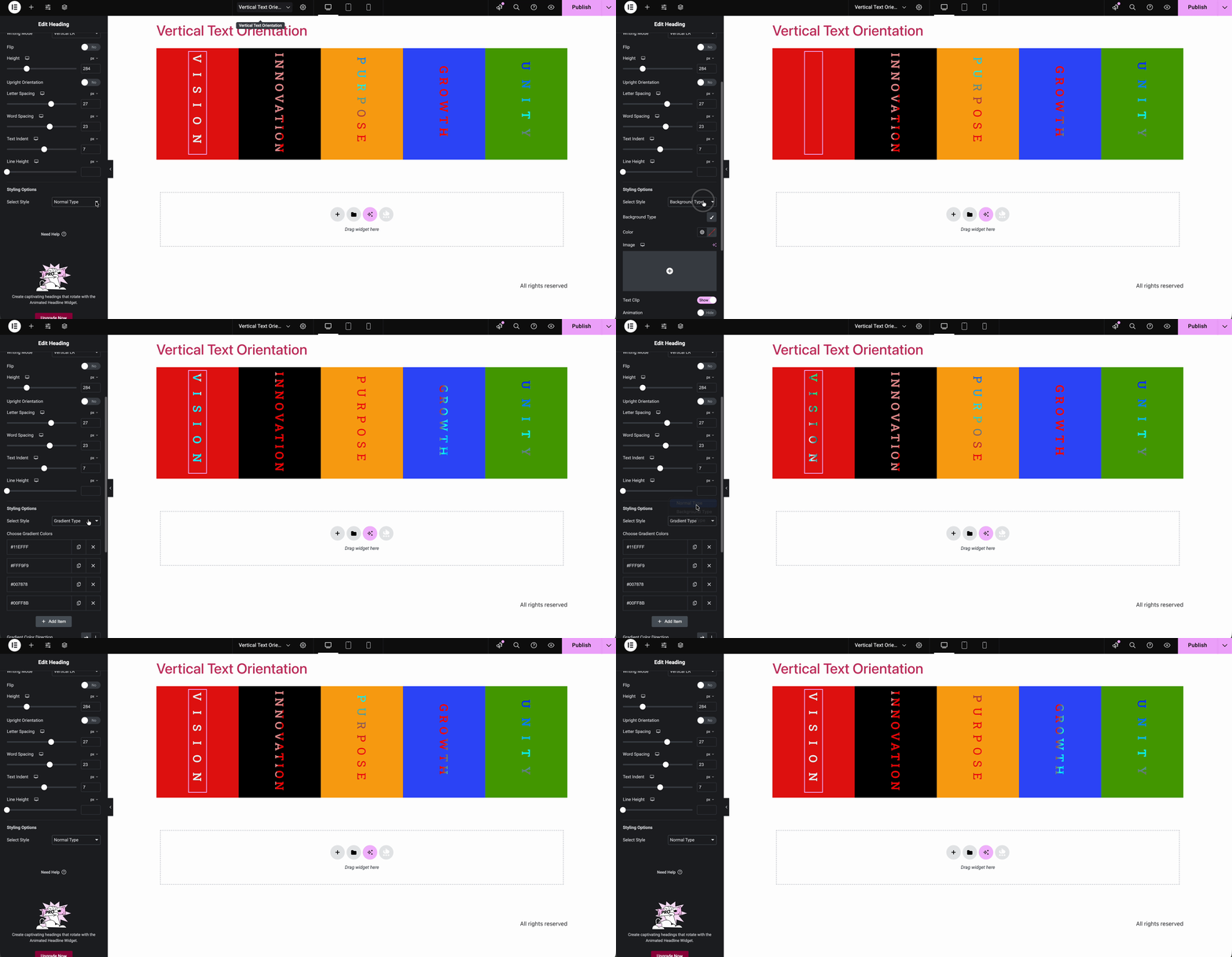
Within the extension, you’ll get three styling options: Normal Type, Background Type, and Gradient Type. Choose your preferred type and make your vertical text orientation more appealing to the visitors.
Bring Animations to Your Texts #
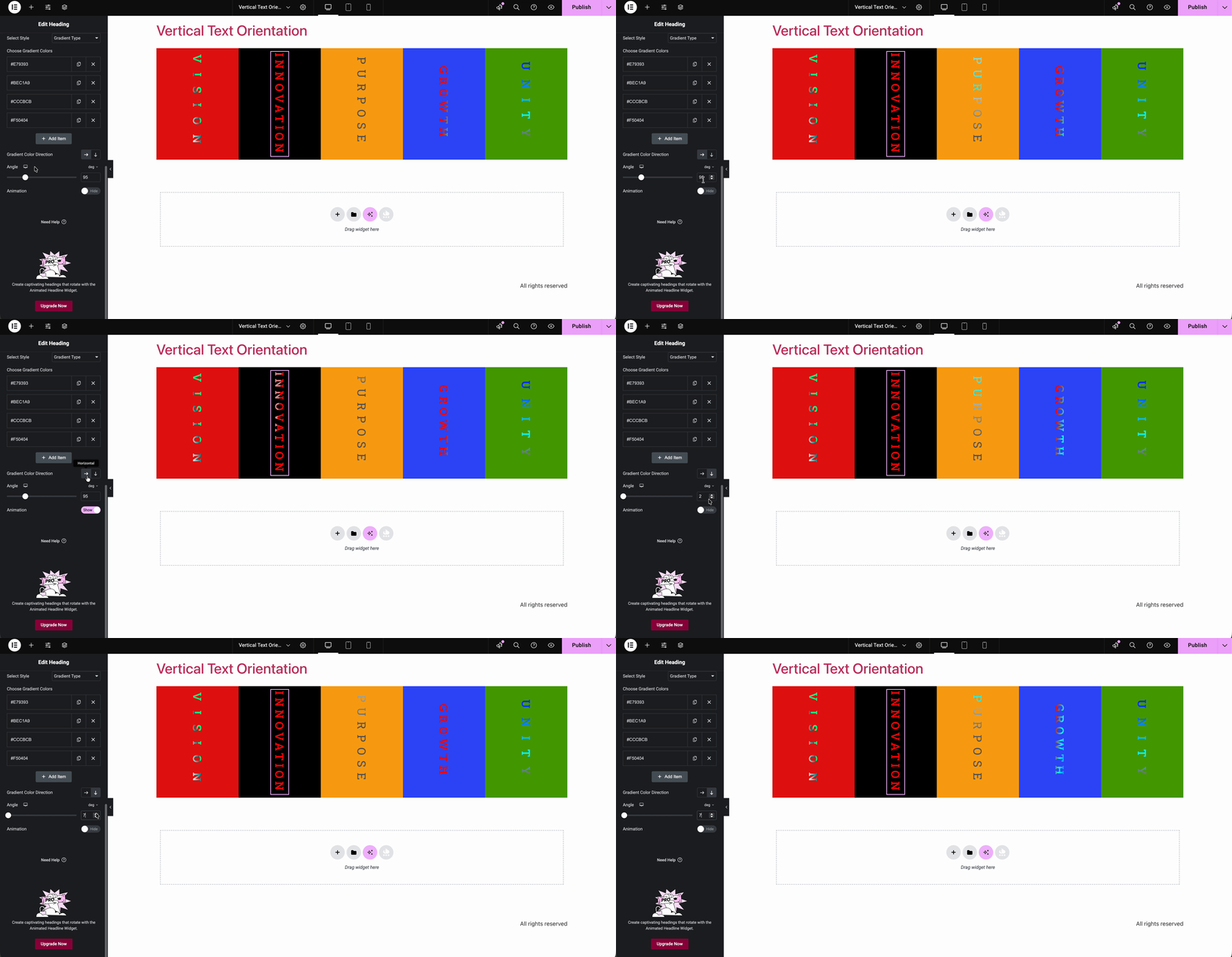
With the ‘Gradient Type’ style selected, you’ll see the ‘Animation Control’ section. Toggle the switch on/off to run the animation. You can also control your animation horizontally or vertically & set its angle.
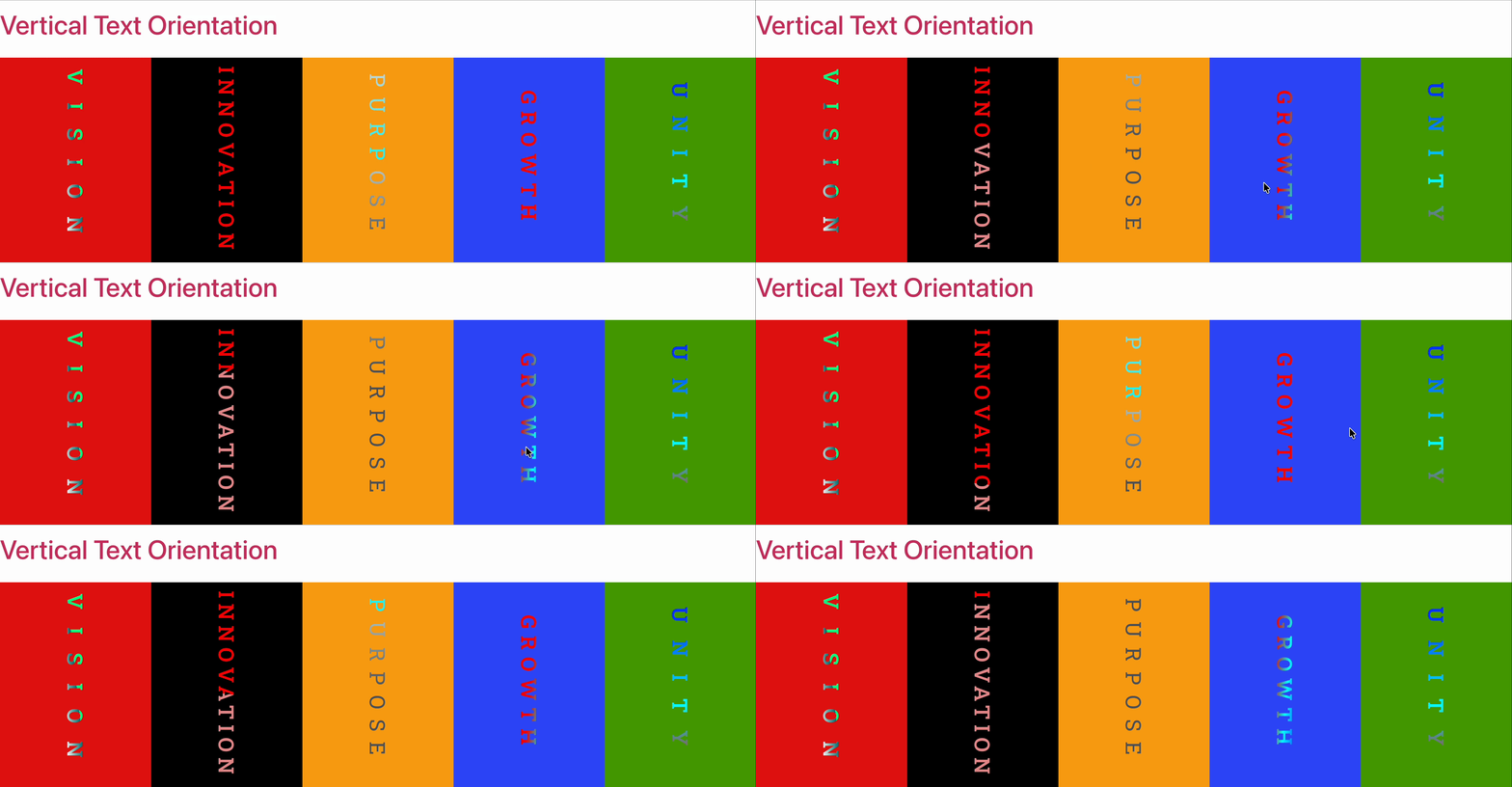
Final Outcome #
This is how you can make your website’s boring text into something catchy that draws attention with Vertical Text Orientation.
By following these basic steps and modifying them a bit more, you can easily control where you want the EA Vertical Text Orientation to appear and style it as per your preference.
Getting stuck? Feel free to Contact Our Support for further assistance.


