
With the EA Business Reviews widget, you can fetch your customer reviews without costing a dime. Google reviews allow your profitable business to prove itself to your potential customers and increase your online reputation.
Follow this step-by-step guide to add EA Business Reviews to your WordPress site.
Note: To explore EA Business Reviews, you will need the Places API key & Google Business Profile API key. Follow the documentation below to get the API keys:
How To Activate EA Business Reviews? #
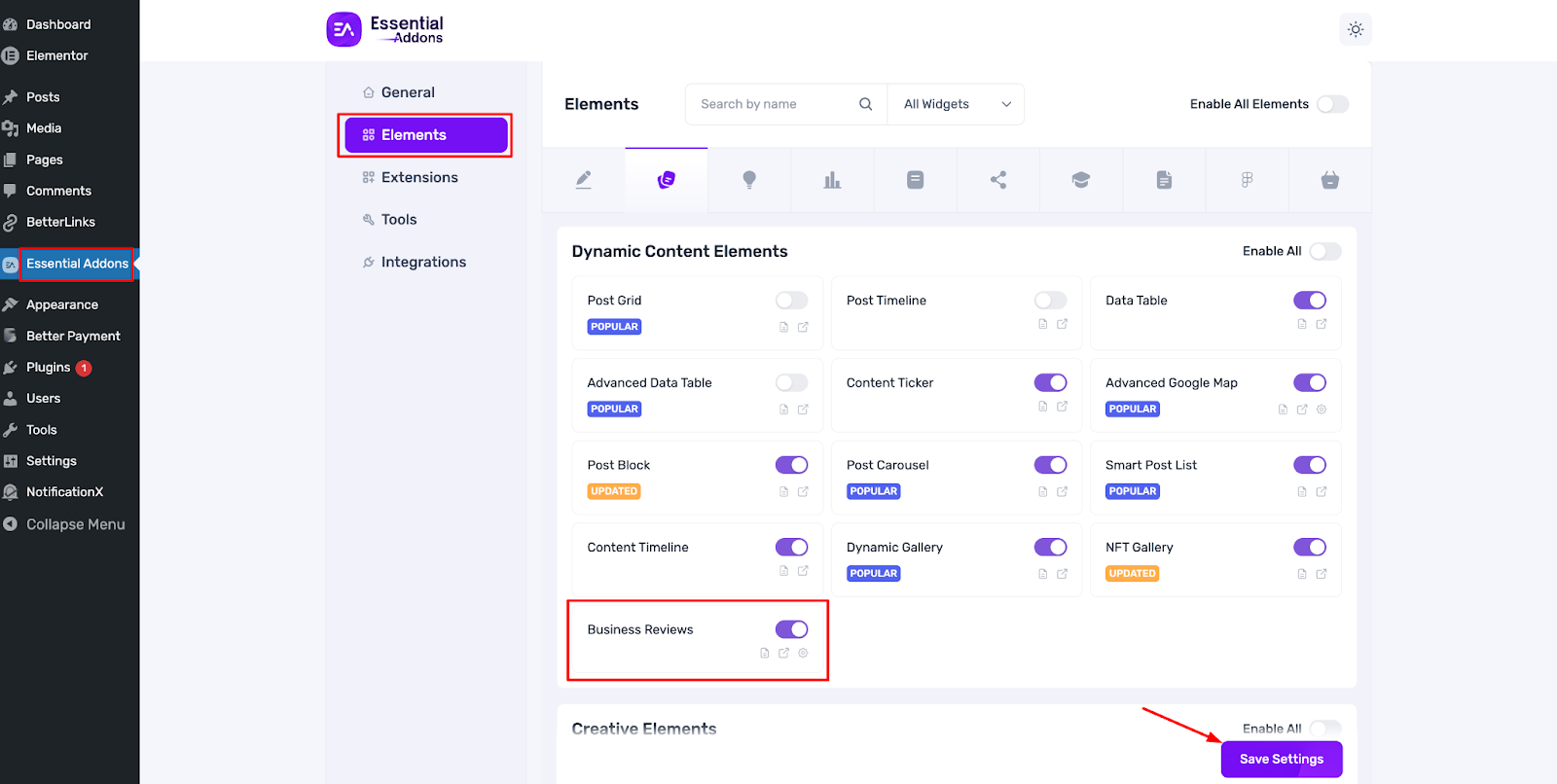
To access the Business Reviews, you need to activate the widget first. To activate, go to the ‘Elements’ and find the ‘Business Reviews’ element. Toggle on to activate and hit the ‘Save’ button to use this widget on your website.
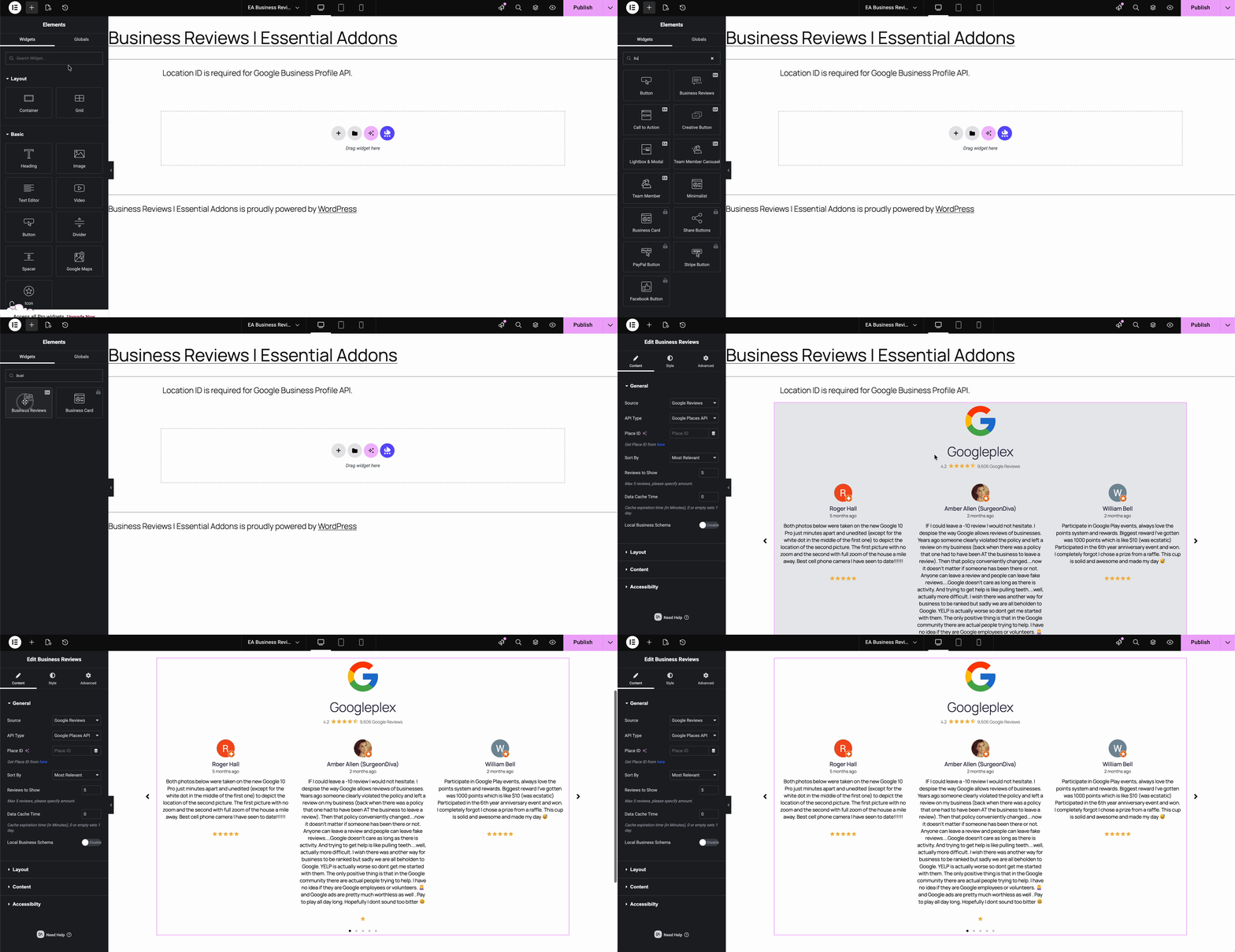
To use this Essential Addons element, go to the editor & find the ‘EA Business Reviews’ element from the Search option under the ‘Elements‘ tab. Simply drag & drop the ‘EA Business Reviews’ into the ‘Drag widget here‘ or the ‘+’ section.
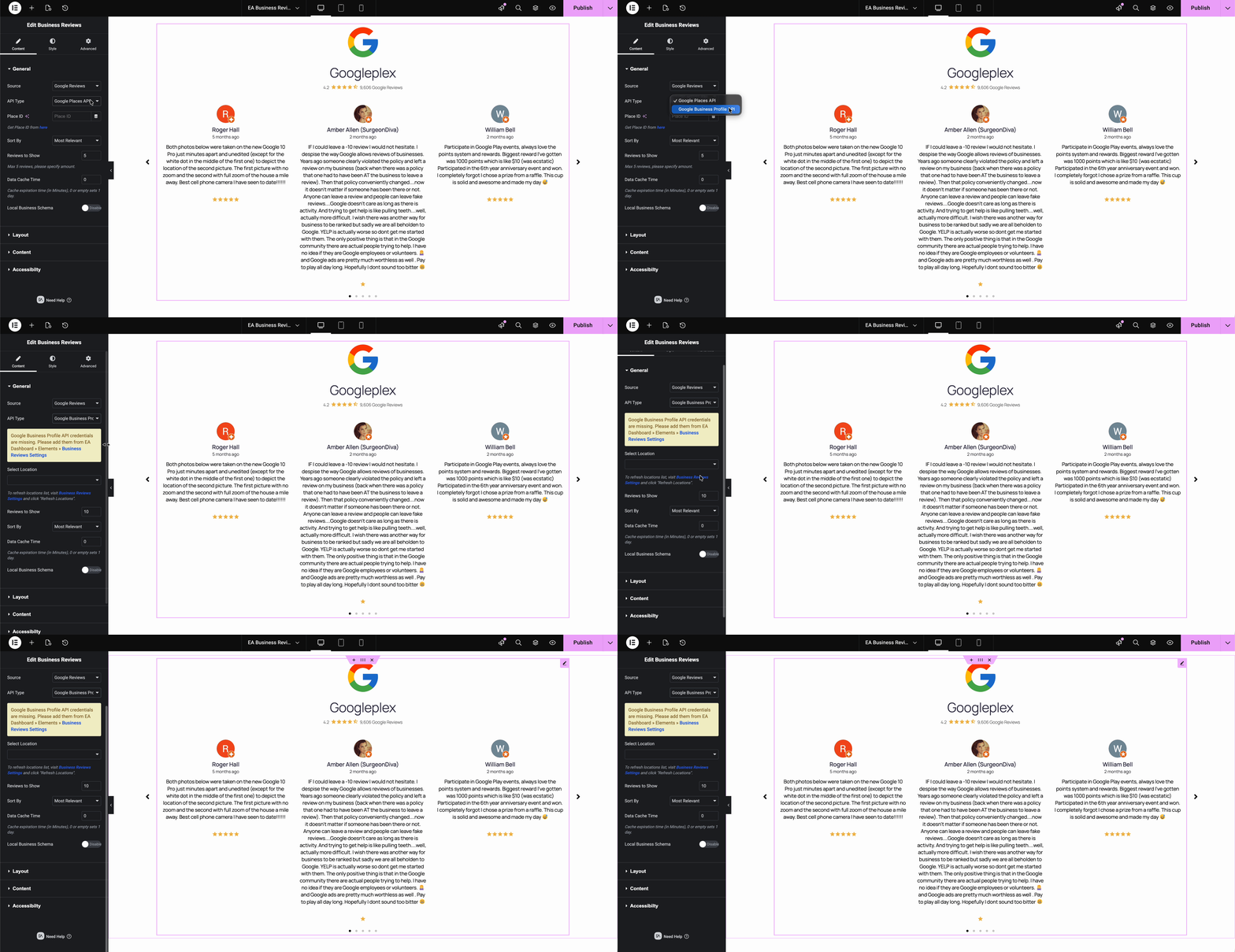
Note: With the Google Places API, you’ll be able to show a maximum of 5 reviews. But with the Google Business Profile API, you have the authority to show Google reviews to your audience as many as you want.
To do so, select “Google Business Profile API” from the API type dropdown. Get the API key, connect it & display Google reviews unlimited.
Follow the steps below to get the Google Business Profile API Key
- Go to Google Cloud Console
- Navigate to APIs & Services → Credentials → Create Credentials 0Auth Client ID
- Select Web Applications from the ‘Application Type’ dropdown
- Add your ‘Authorized Redirect URLs’ & click on ‘Create.’
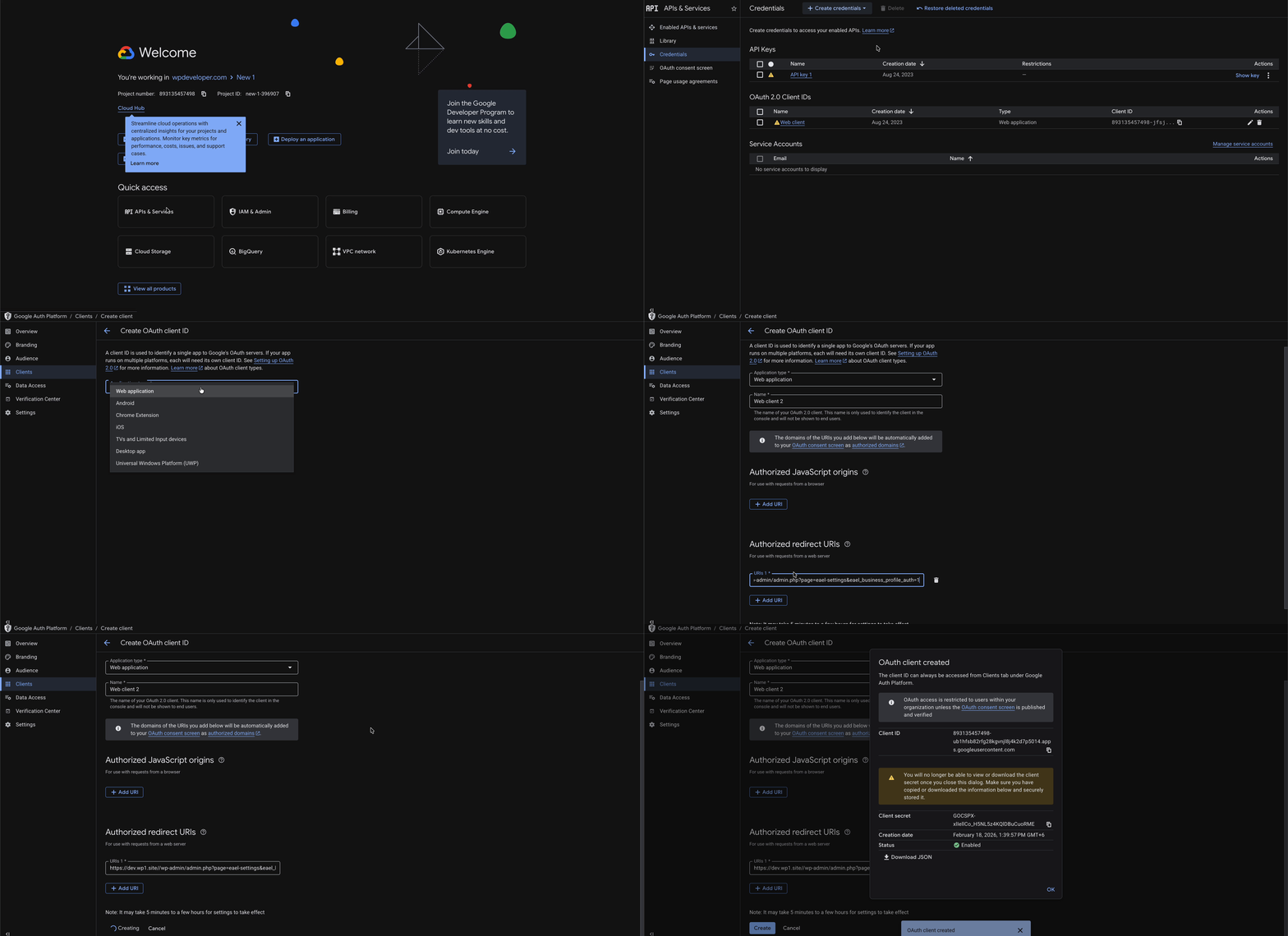
Now, copy the ‘Client ID’ and ‘Client Secret’ & paste them into your dashboard, following the same process you used for the Google Places API. Click on ‘Save Changes’ & you’re all set.
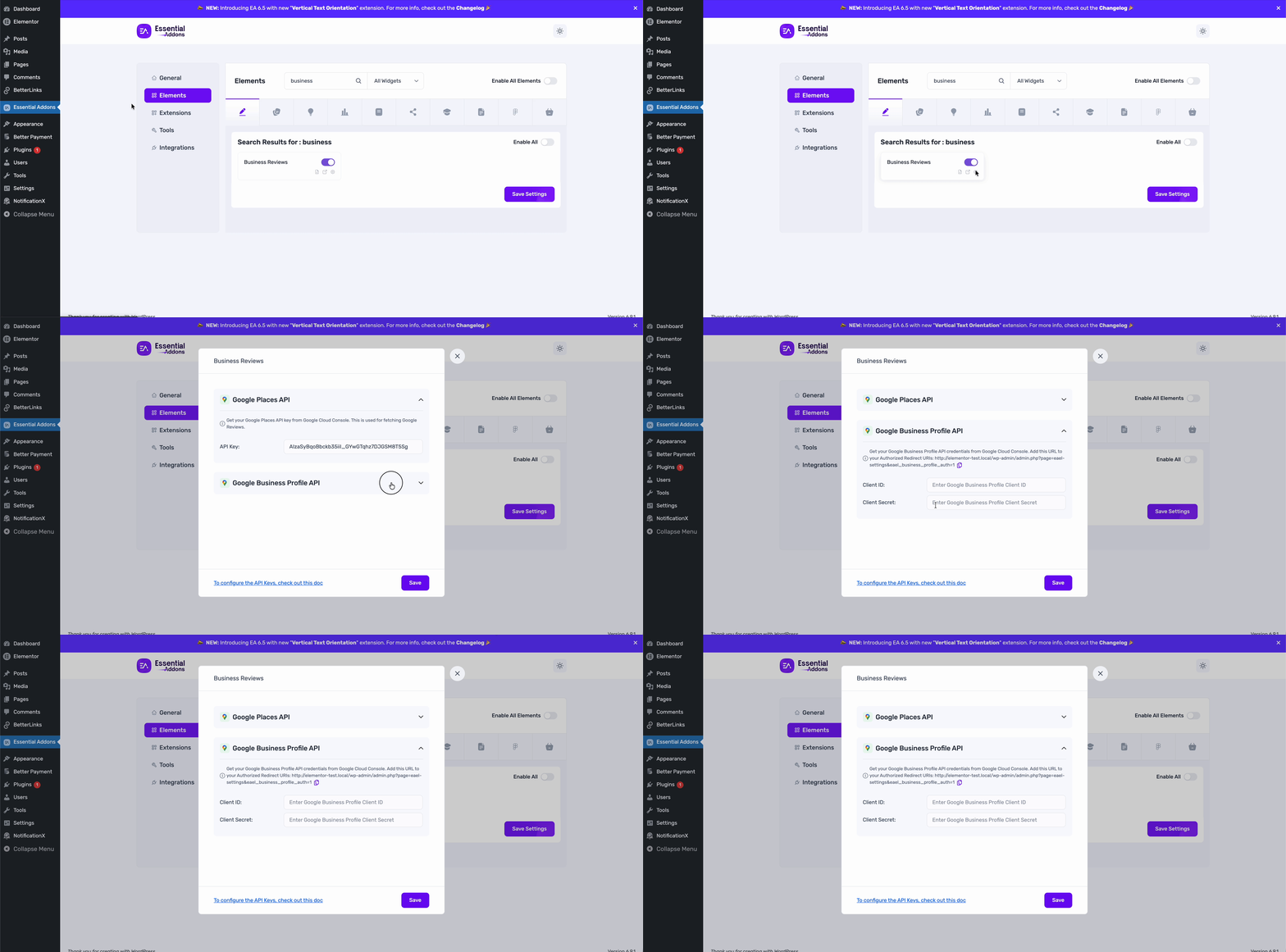
Let’s move on to the Content & Styling settings of your Business Reviews. For the tutorial, we’re going with the Google Places API.
How To Configure The Content Settings? #
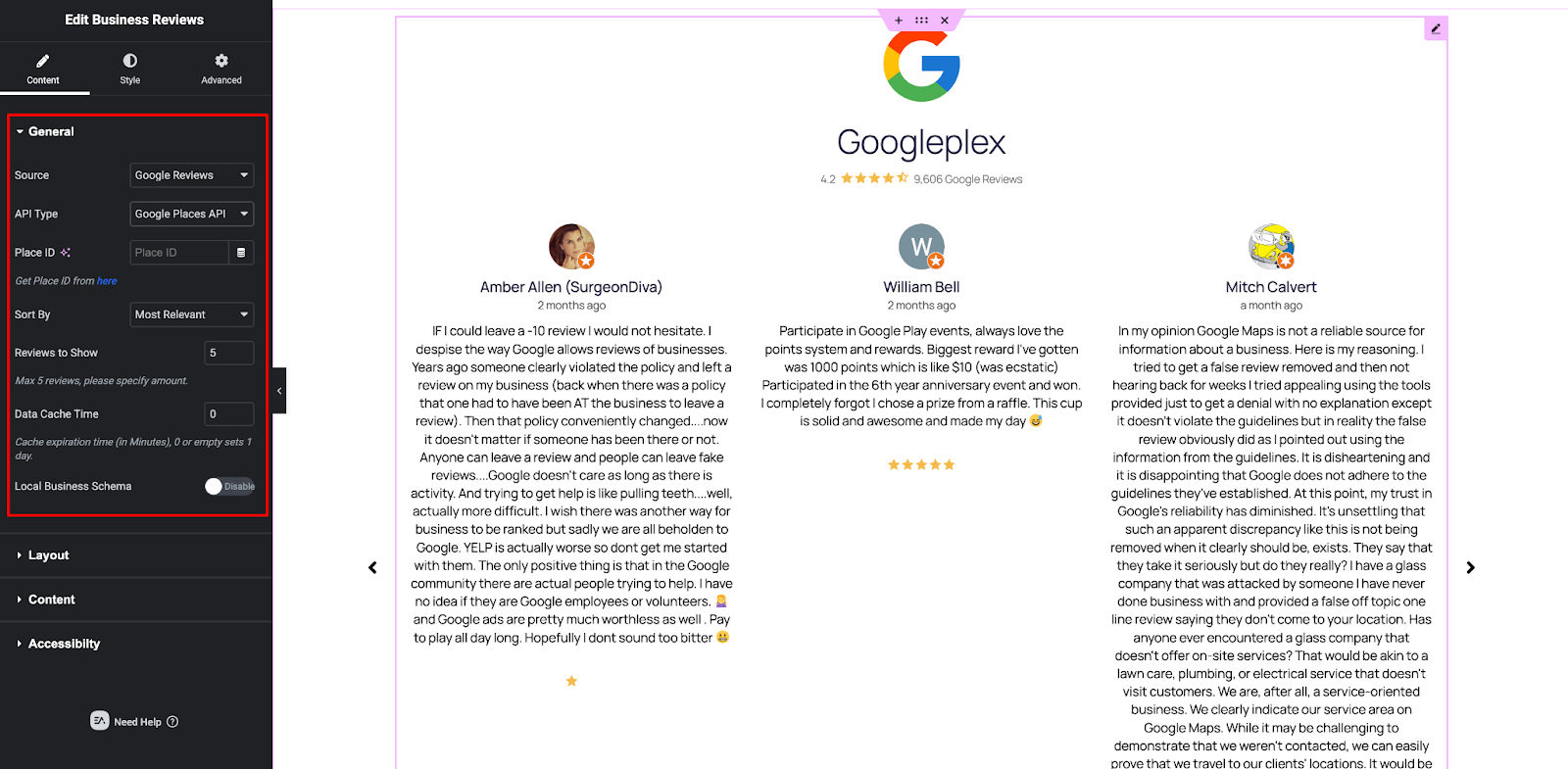
Under the ‘Content’ tab, you will be able to configure ‘General’, ‘Layout’, ‘Content’ and Accessibility Settings.
General Settings #
From the ‘General’ tab, you can set your ‘Source’, ‘Place ID’, ‘Sort By’, and many more options for displaying business reviews from Google. To get the Place ID key, follow this easy article.
Layout Settings #
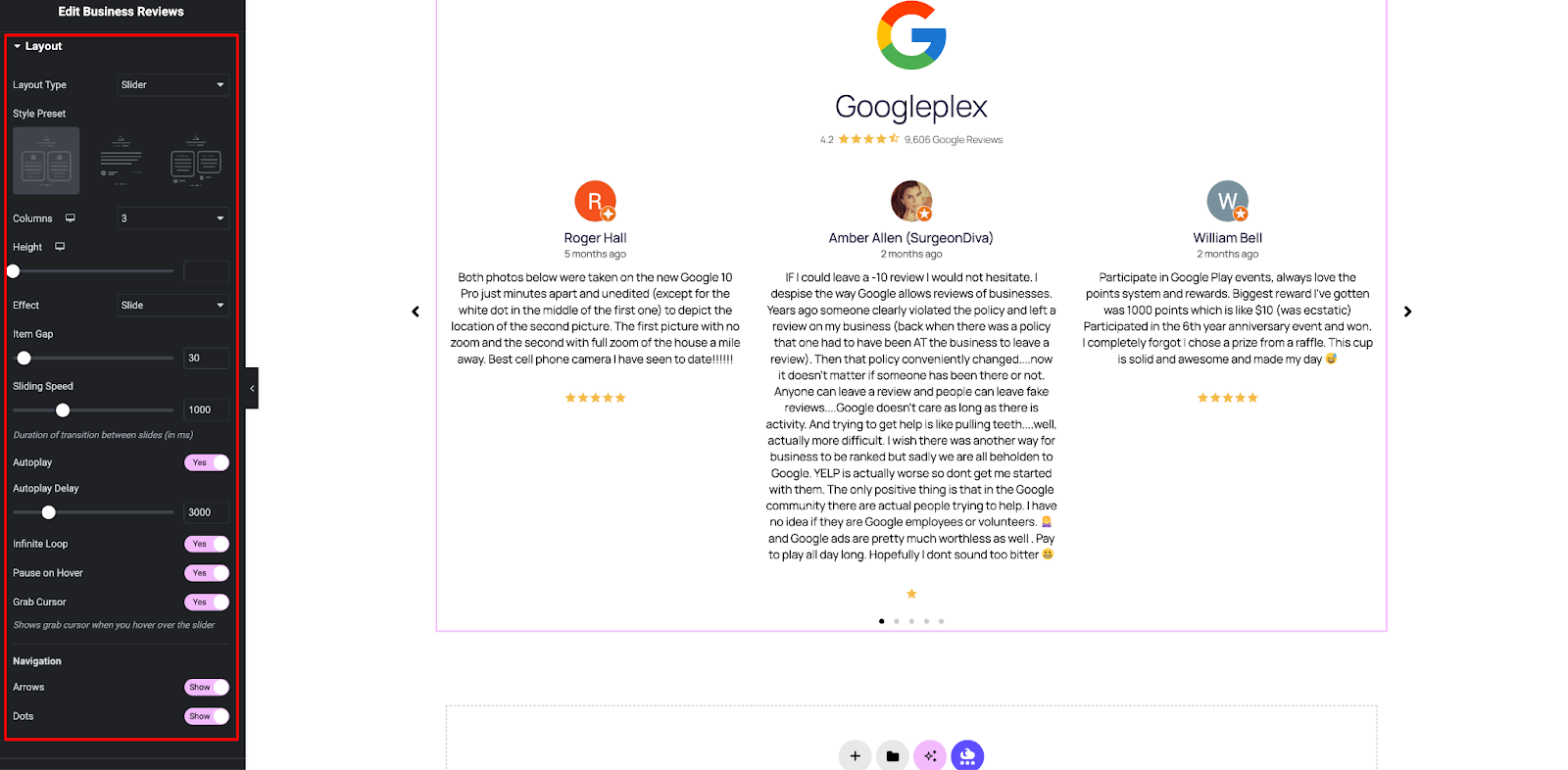
Under the ‘Layout’ tab, you can set your various ‘Style Presets’, preferred ‘Effects’, ‘Item Gap’, ‘Sliding Speed’, and much more to make the EA Business Reviews more presentable.
You will have more control & flexible options with this Business Reviews widget for Elementor. You can toggle on numerous options like ‘Autoplay’, ‘Infinite Loop’, ‘Grab Cursor’, ‘Arrows’, ‘Dots’, and much more.
Content Settings #
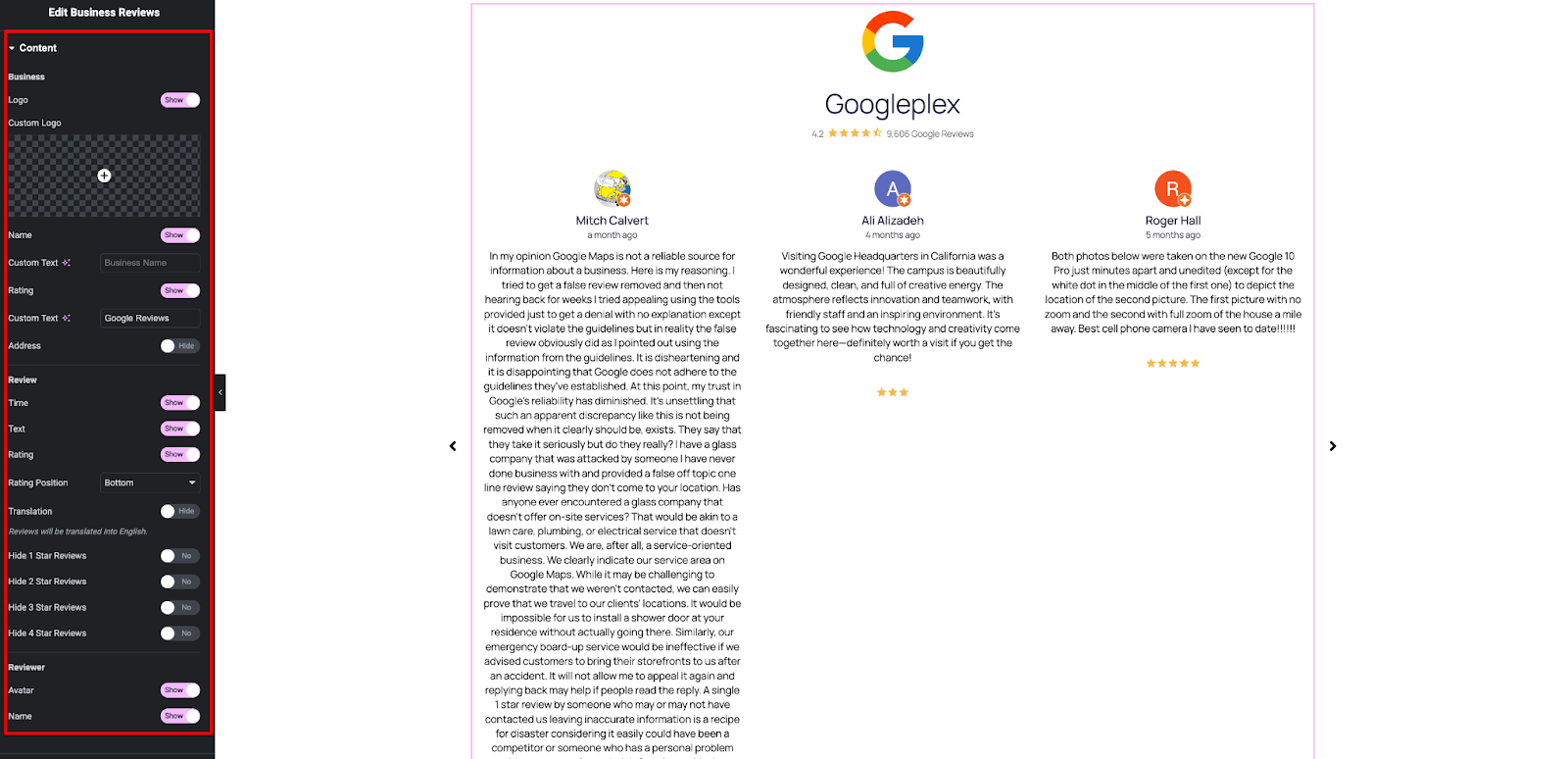
Now click on the ‘Content’ tab to explore more Business Reviews options. You can enable or disable your business ‘Logo’. You will have the option to enable ‘Name’, ‘Address’, ‘Rating’, ‘Time’, and much more.
Accessibility Settings #
Expand the ‘Accessibility’ tab, then toggle on the button to enable accessibility on your site and toggle the button if you want to open the link in the same tab instead of a new tab
How To Style EA Business Reviews? #
Switch to the ‘Style’ tab to style all the features of the EA Business Reviews and get your desired result.
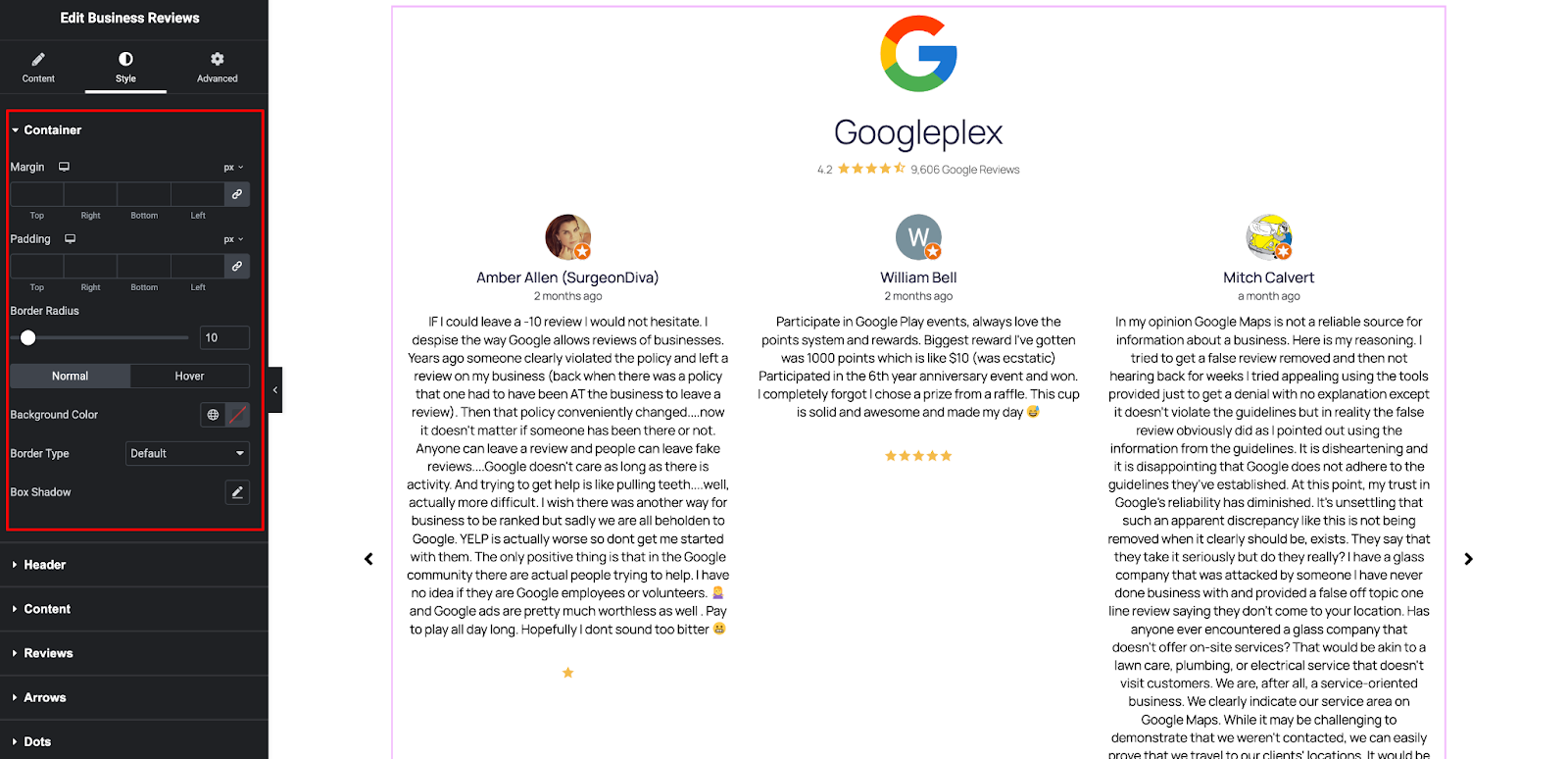
Container Settings #
Under the ‘Container’ tab you can customize the margin, padding, border radius, and much more with a single click.
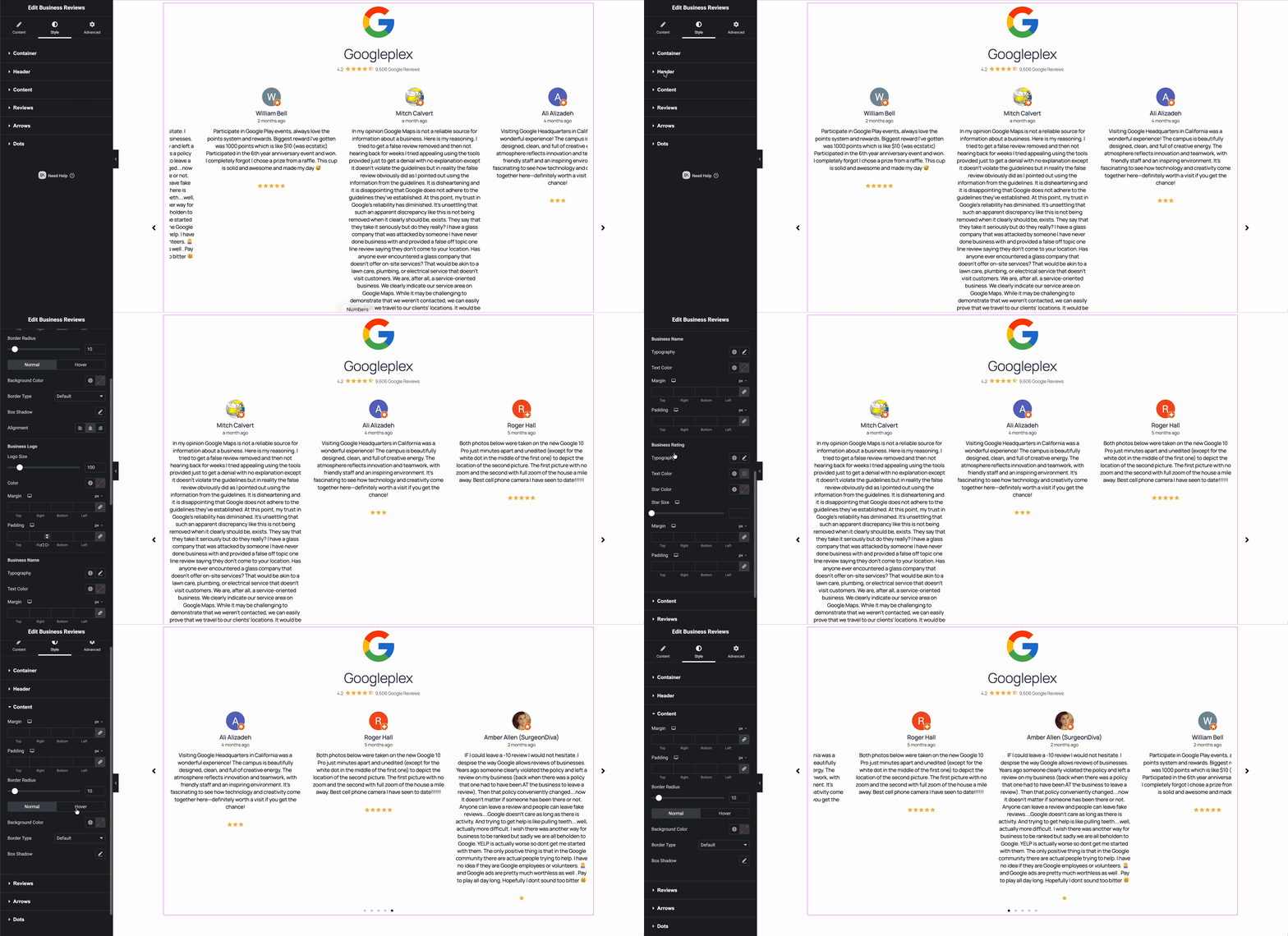
Header & Content Settings #
Click on the header and content tab to customize the margin, padding, box-shadow, alignment, etc. You can also add Business Ratings and Star Size to your reviews.
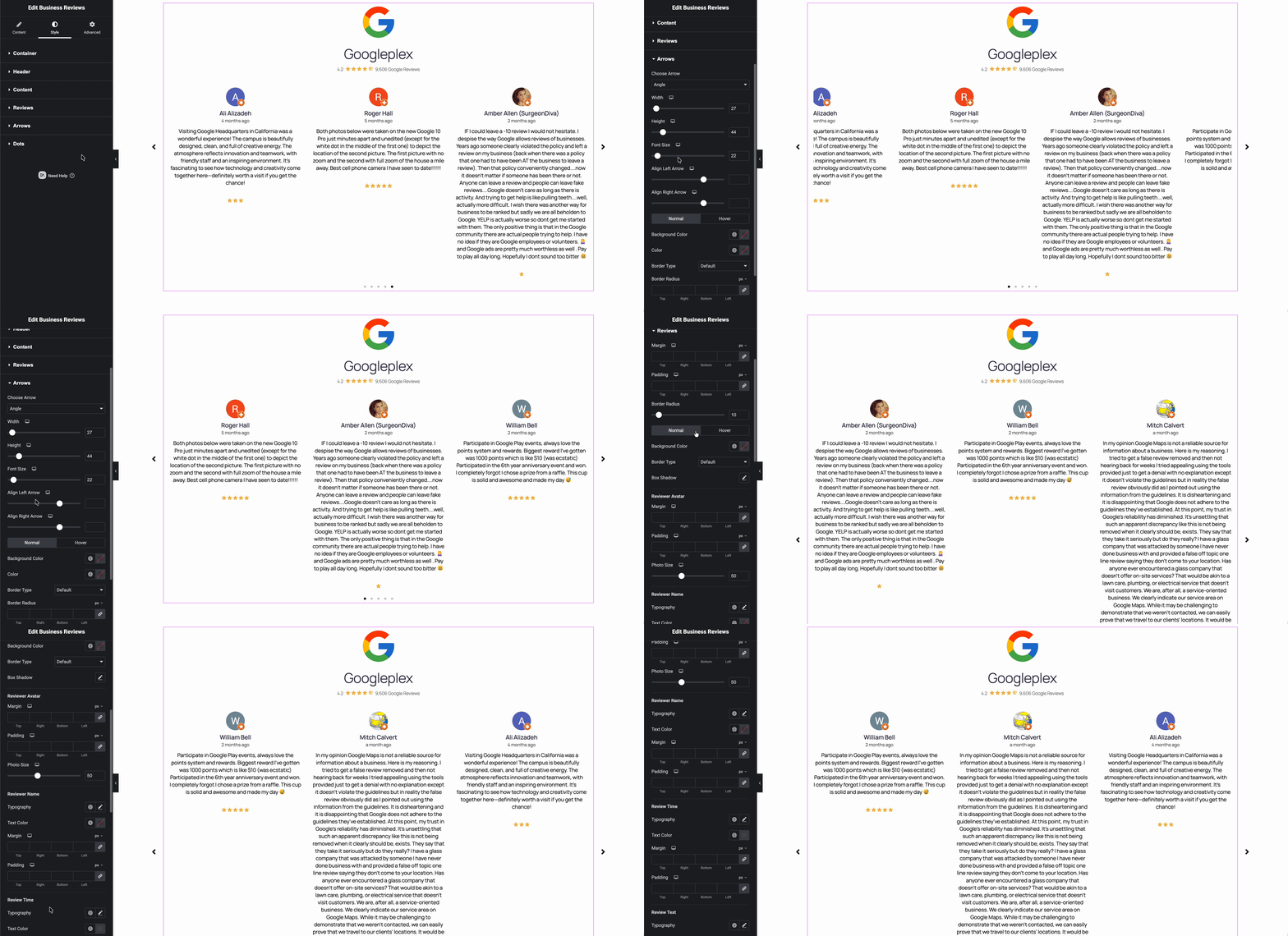
Reviews & Arrows Settings #
From the ‘Reviews’ tab, you can tweak your margin, padding, background color, border type, and much more without any coding.
You can set your Arrows direction easily under the ‘Arrows’ tab. Also, you will have more flexible options to set width, height, font size, alignment, etc.
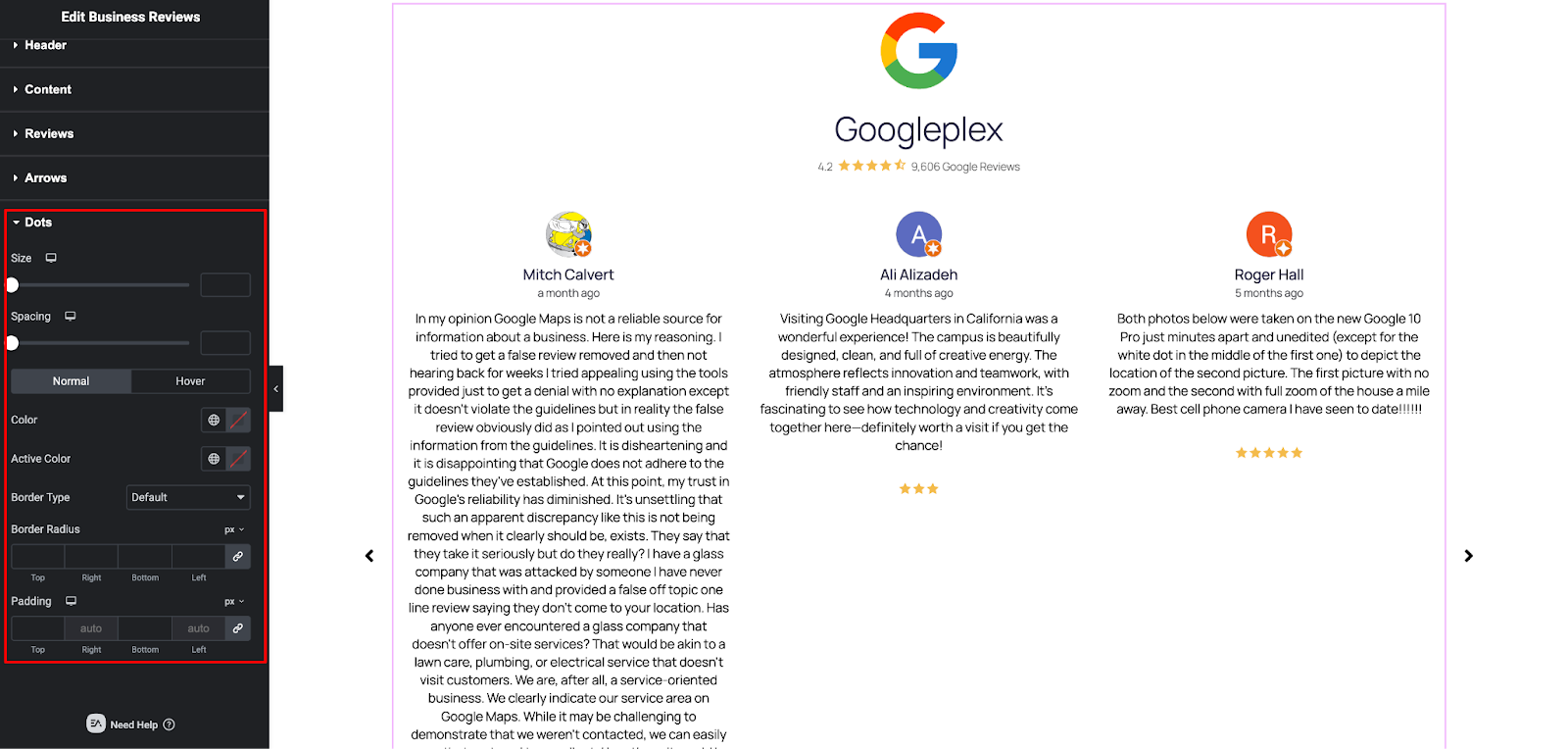
Dots Settings #
Under the ‘Dots’ tab, you can add the size, spacing, color, and active color of your dots between reviews. Also, customize your Border Radius and Padding.
Configure The Advanced Settings #
From the advanced settings tab, you can enable layout, content protection, motion effects, transform, and many other fascinating extensions and features from Essential Addons.
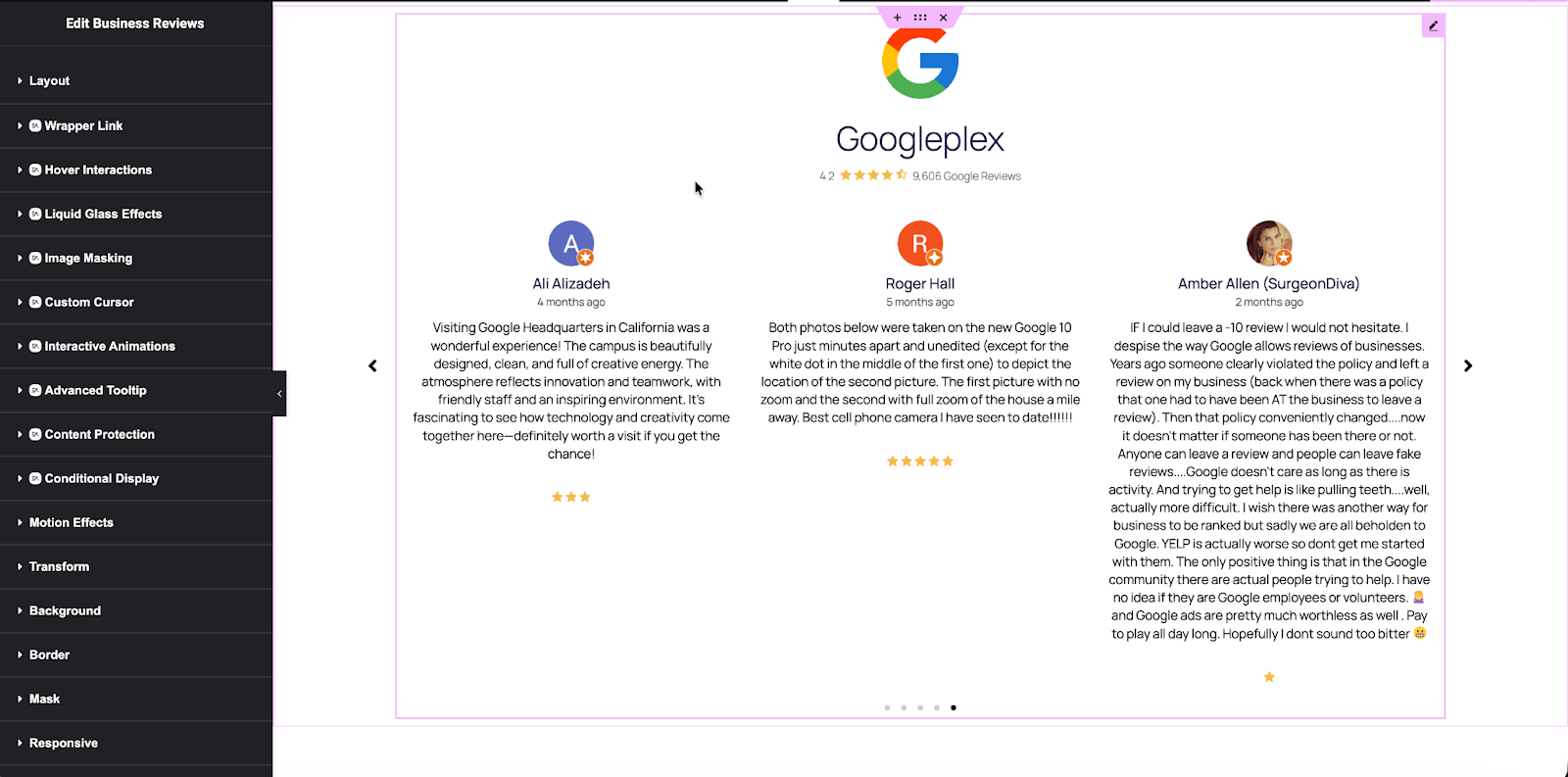
Final Outcome #
You may customize your Essential Addons Business Reviews widget to your liking by following the basic steps and tweaking them a little.
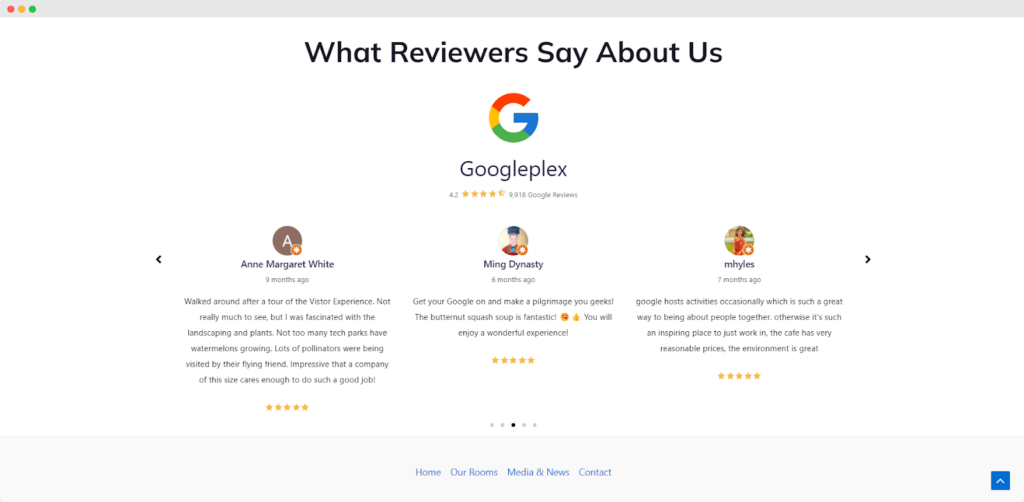
Using the EA Business Reviews widget, you can easily present your company reviews on your WordPress website with gorgeous layouts.
Getting stuck? Feel free to contact our support for further assistance.


