
EA Facebook Feed allows you to display your Facebook posts amazingly on your WordPress site. It gives you the complete freedom to personalize the Facebook Feed any way you want and make it appealing to your website visitors.
How to Create / Retrieve Facebook Page ID & Access Token #
Before you begin, make sure that you have already created a Facebook page on your account and that some posts have been published on that page. Afterward, follow the guidelines below to retrieve the Facebook Page ID & Access Token:
Step 1 – Create a New App ID #
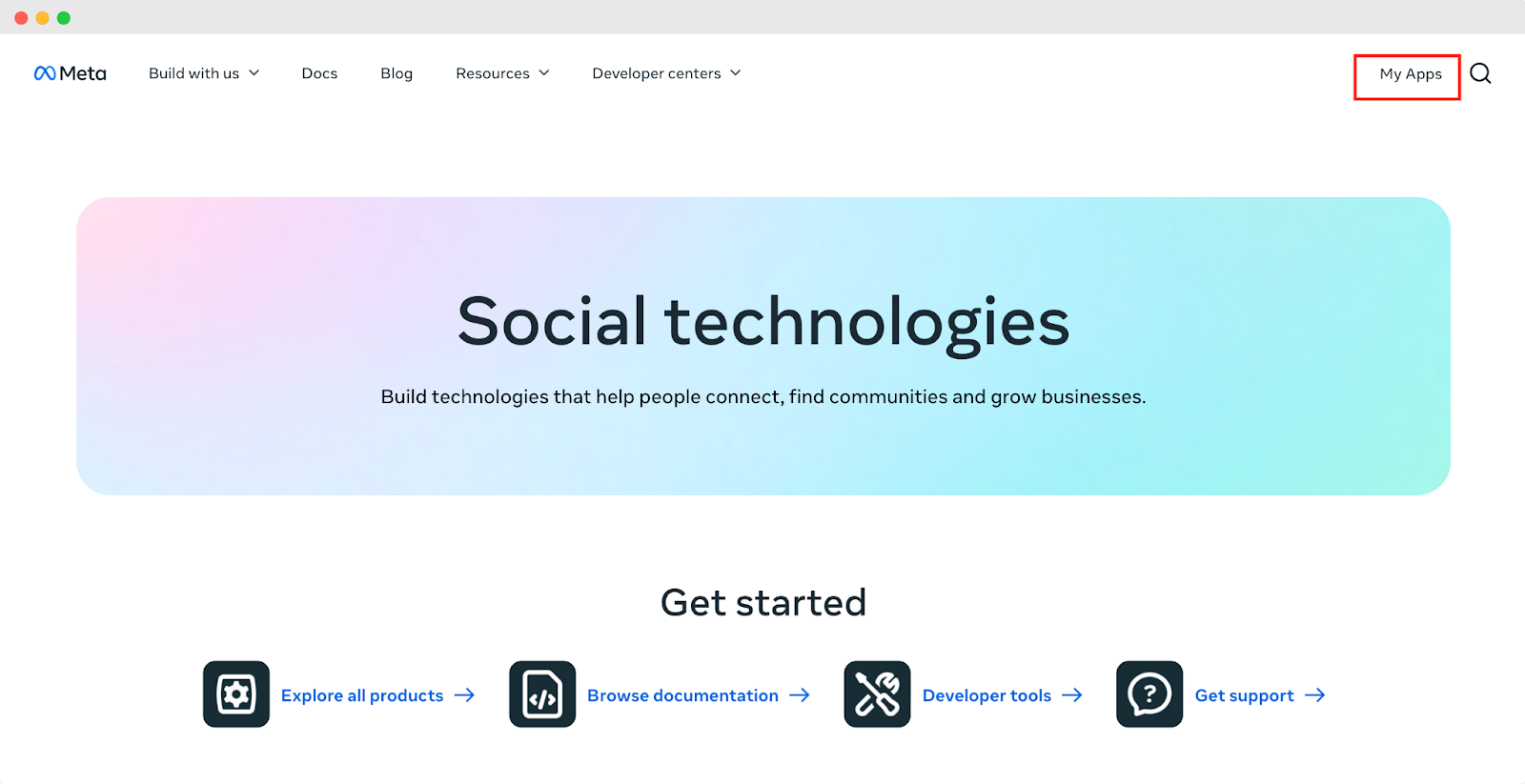
First, log in to your Facebook profile and go to your Meta For Developers Account. Afterward, click on the ‘My Apps’ option, as shown below.
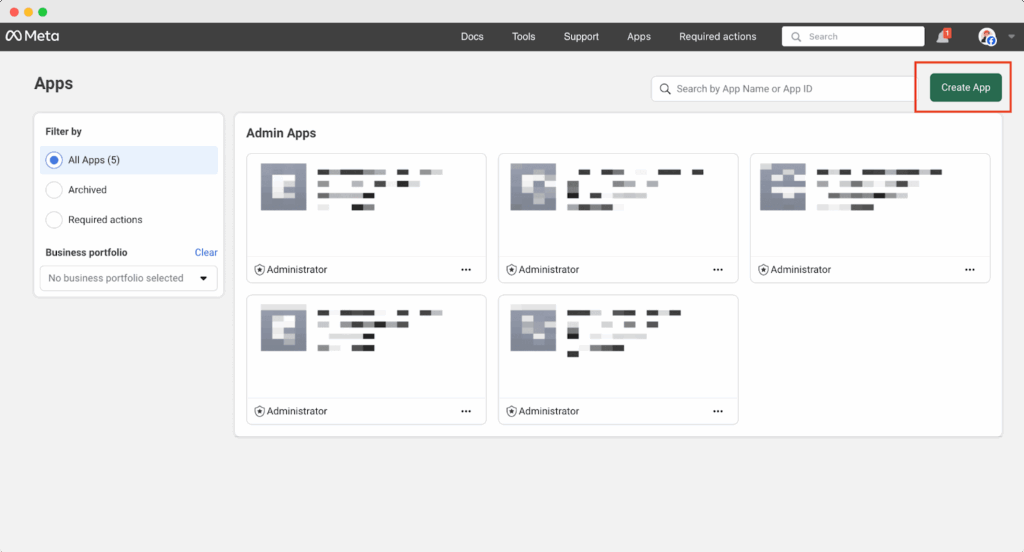
This will redirect you to a new page. Here, click on the ‘Create App’ button to create a new app in Meta Developers.
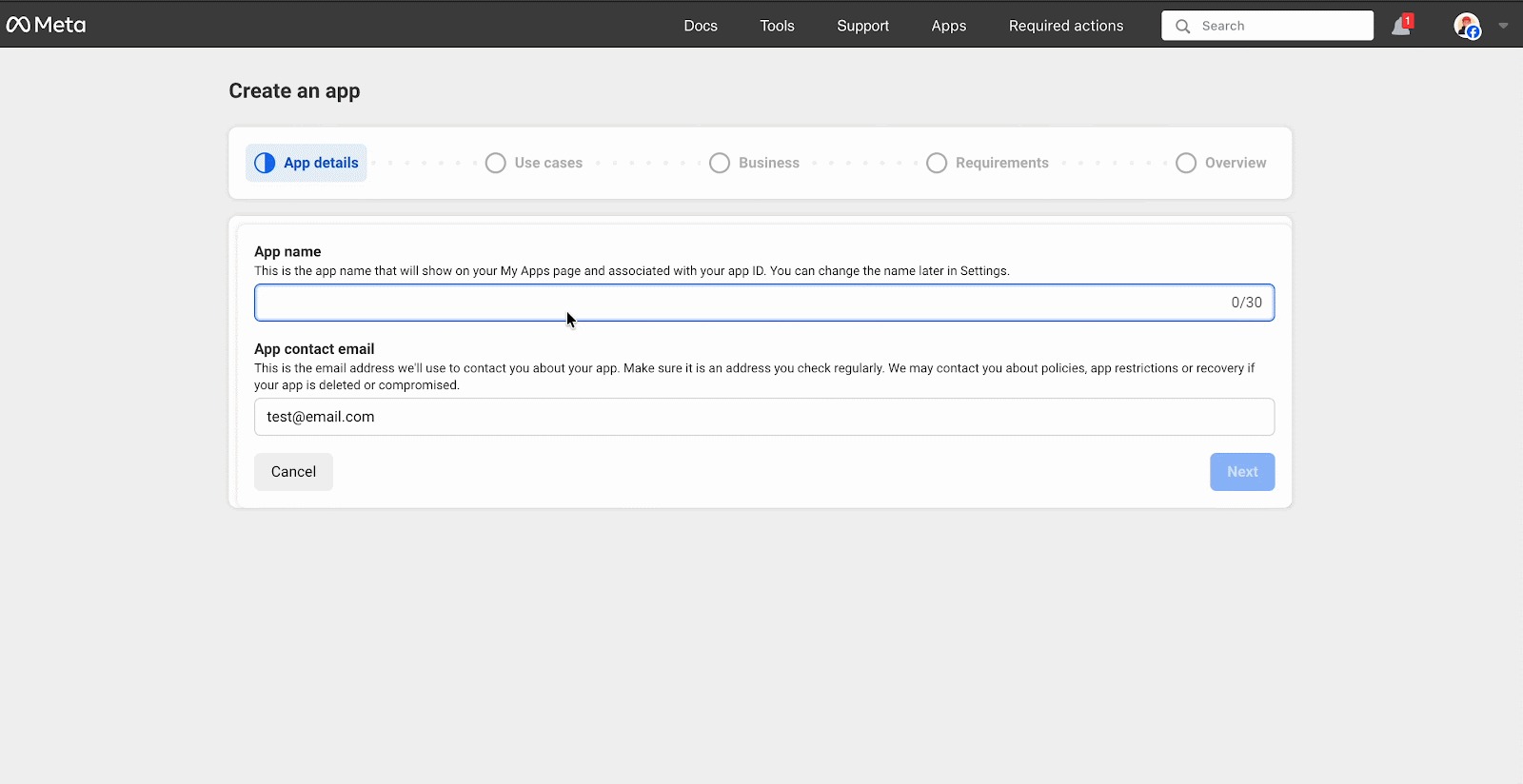
A popup will appear where you want to create an ‘App Name’ and add your contact email. Then click on the ‘Next’ button.
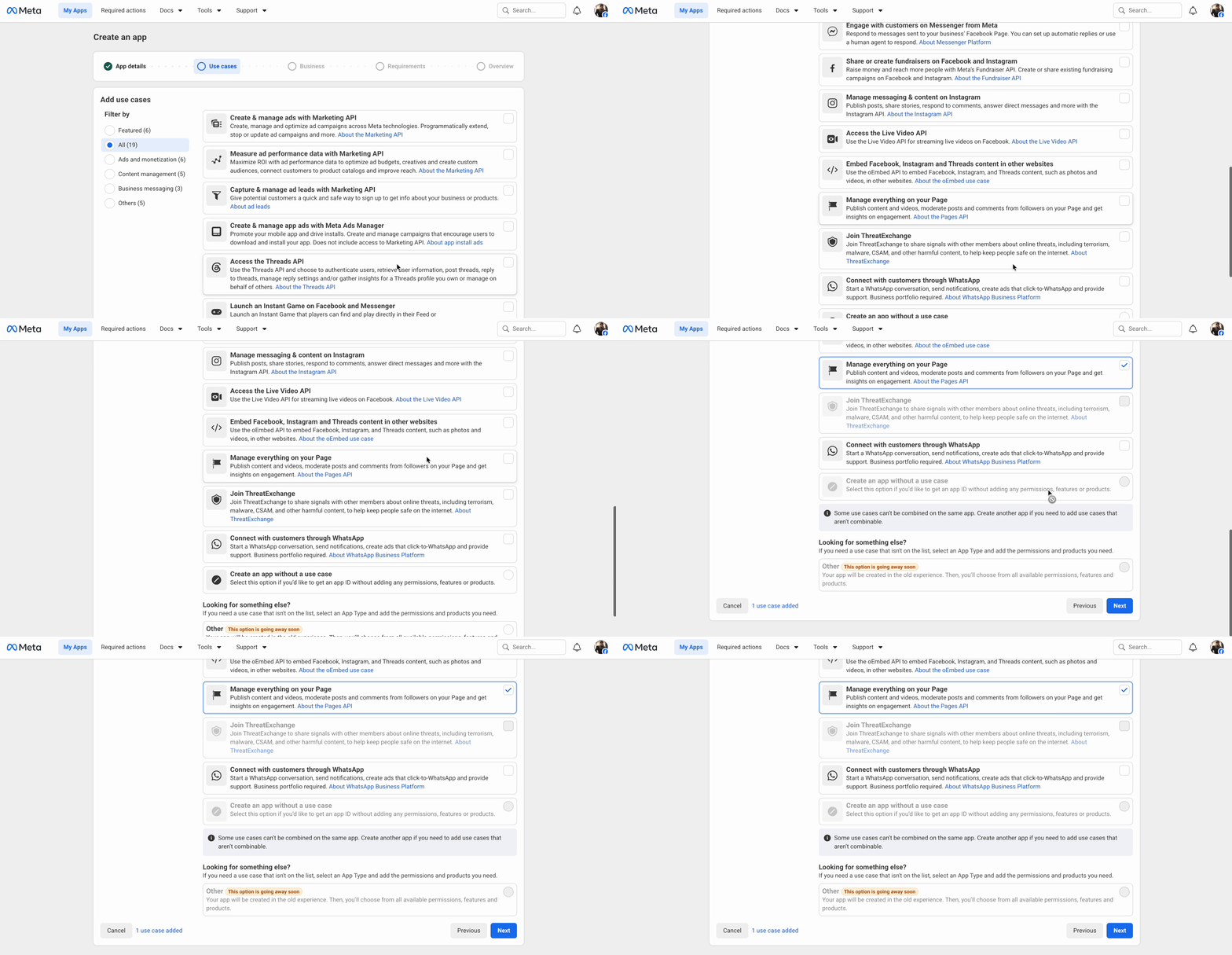
Next, you will be asked to specify your app’s use cases. Then go to the ‘All’ and select the ‘Manage everything on your page’ option. Then click on the next button.
In the next step, you need to choose which business portfolio you want to connect to this app. Here, select the business portfolio you want and then go to the ‘Requirements’ tab. From there, click on ‘Create App’.
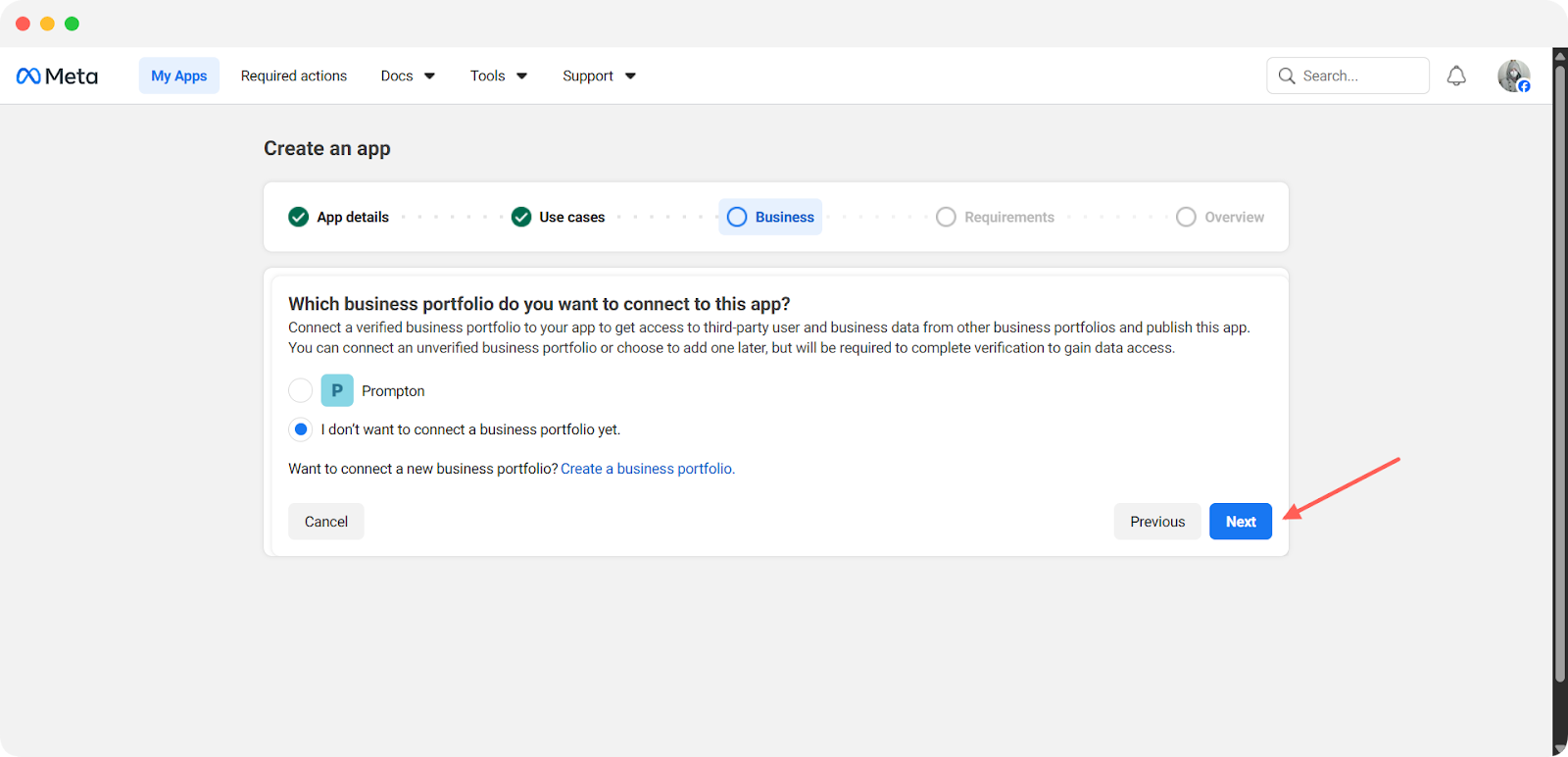
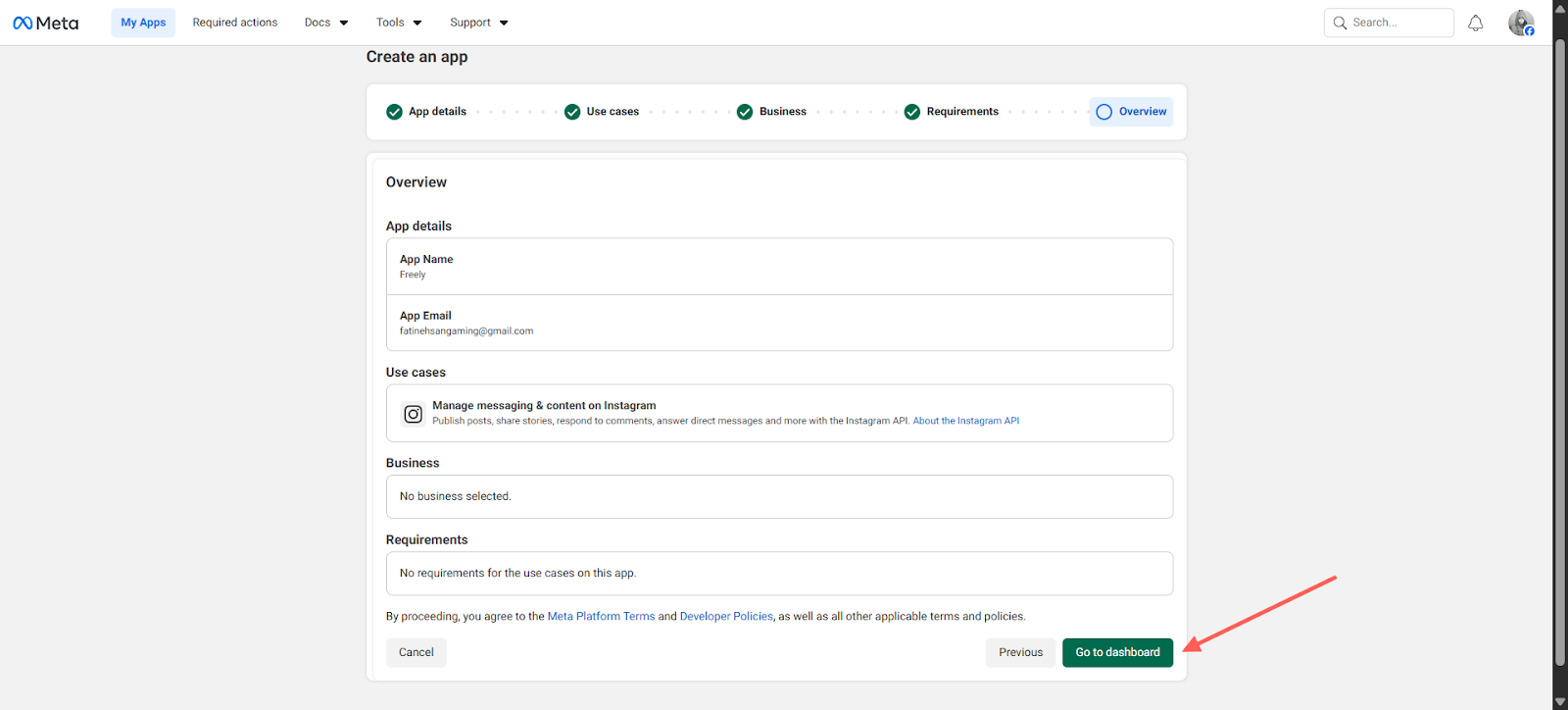
Then click ‘Next’ in the Publishing requirements tab. Then you will see the created App overview. If all fit your requirements, then tap ‘Go to dashboard’.
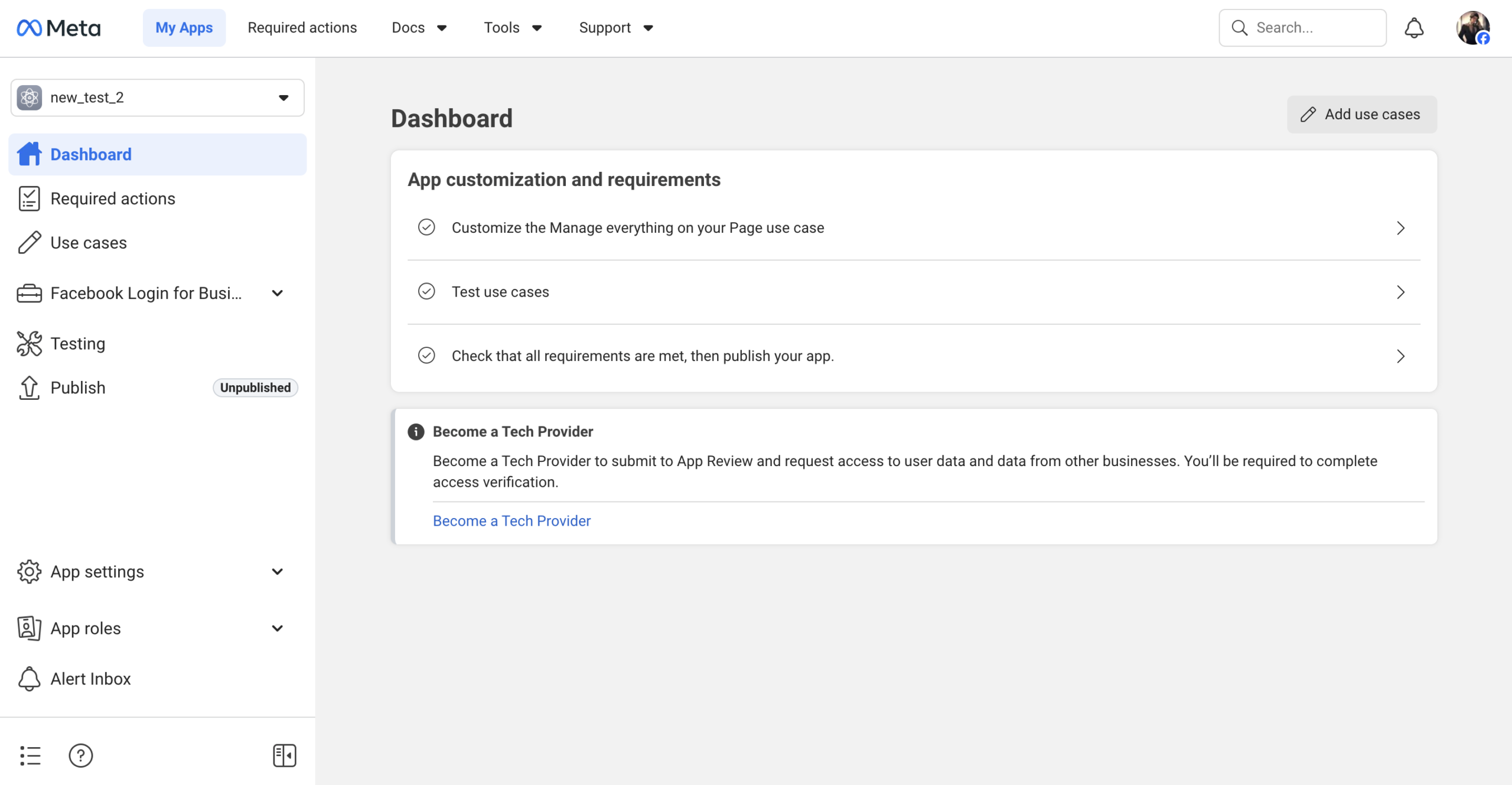
After that, you will then be redirected to the App Dashboard. This would look something like this:
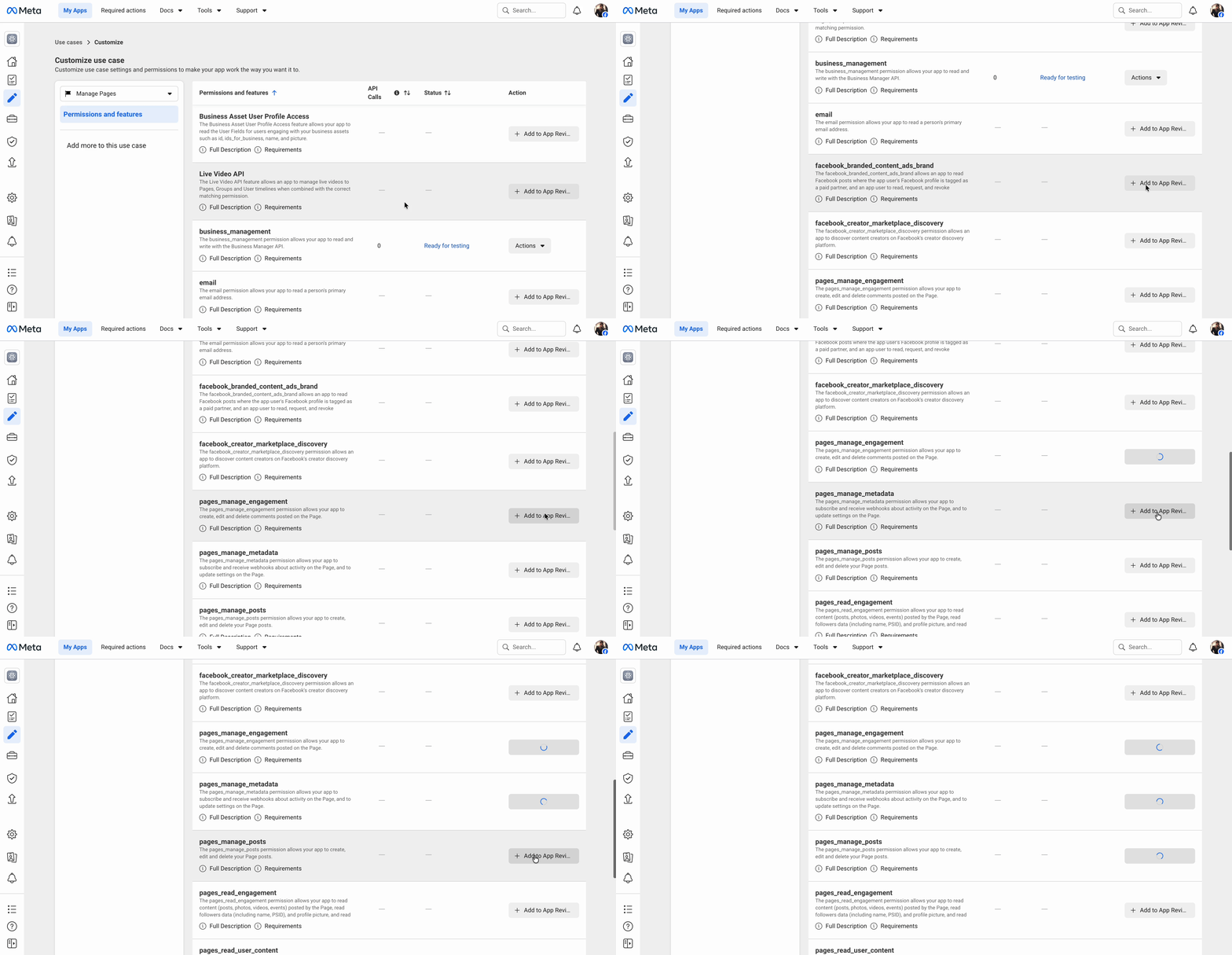
Next, go to the Use Case and from there choose “Permissions and features”. Select the specific permissions to connect your Facebook account.
- pages_show_list
- business_management
- pages_read_engagement
- pages_manage_metadata
- pages_read_user_content
- pages_manage_posts
- Pages_manage_engagement
Step 2 – Generate Page Access Token #
After creating your app, you will be redirected to the Dashboard page. From the ‘Facebook Login for Business’ option, click on ‘Quickstart’ and select ‘Web’ afterward.
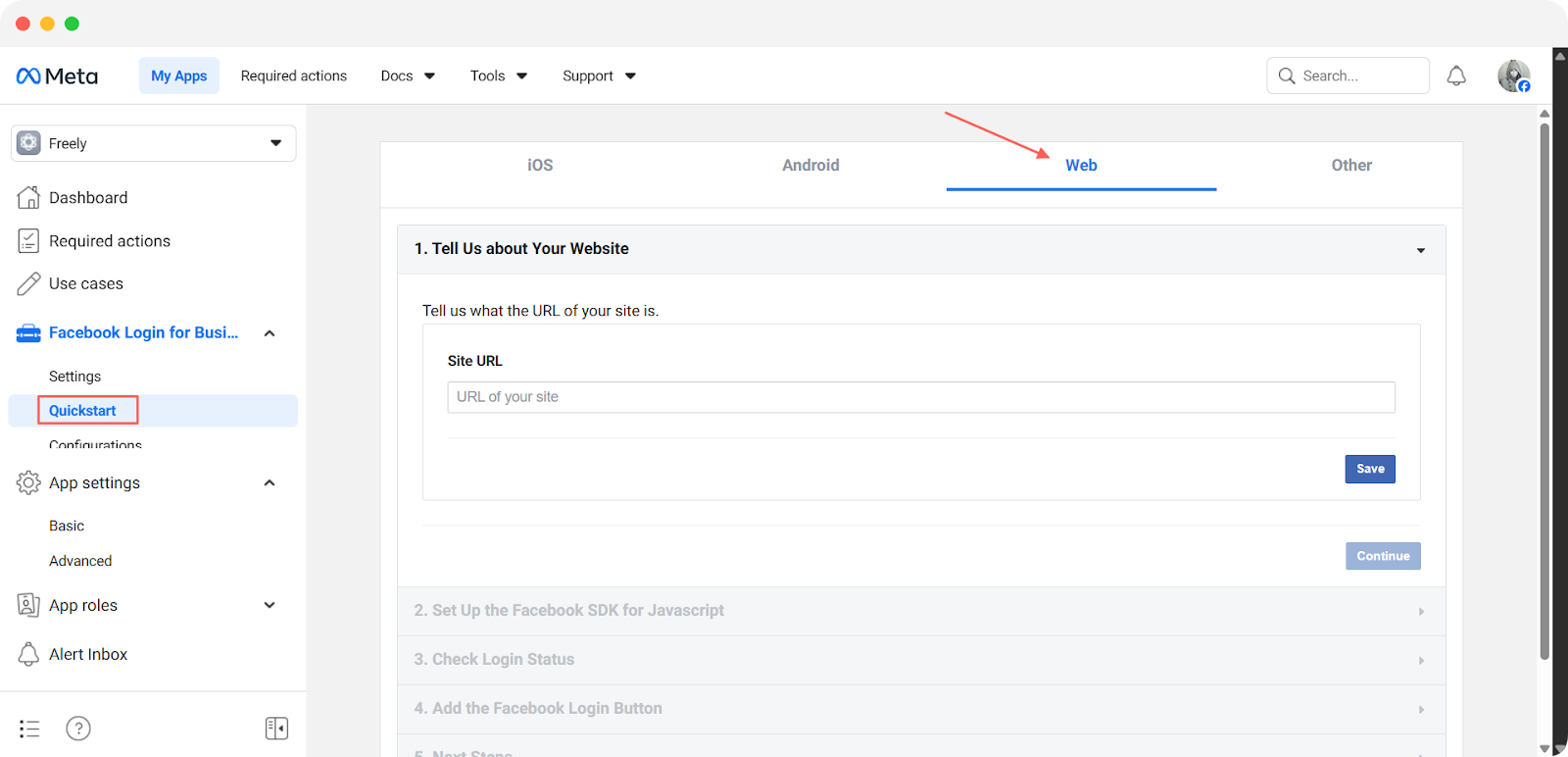
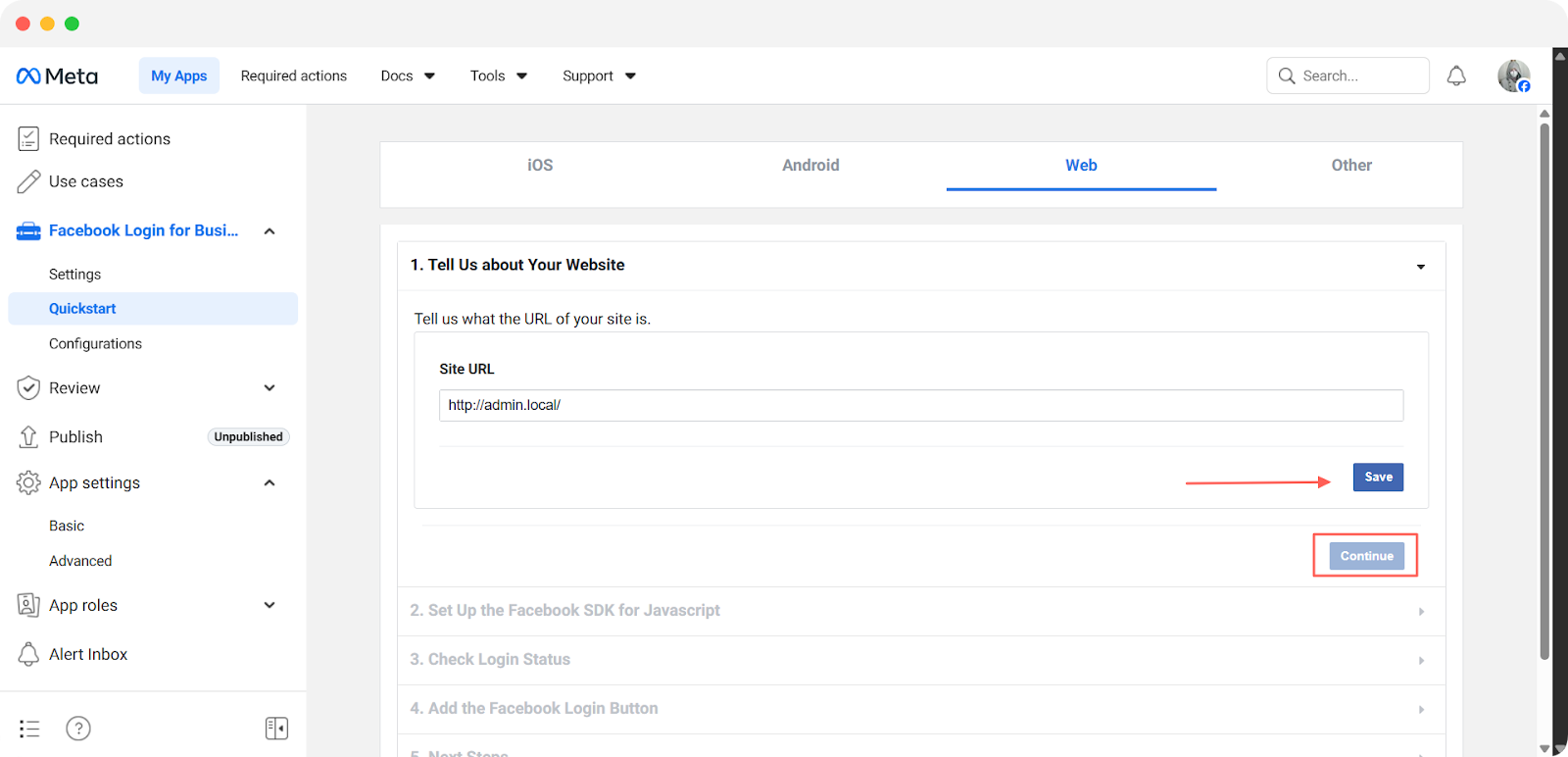
Now enter your Site URL and click on the ‘Save’ button.
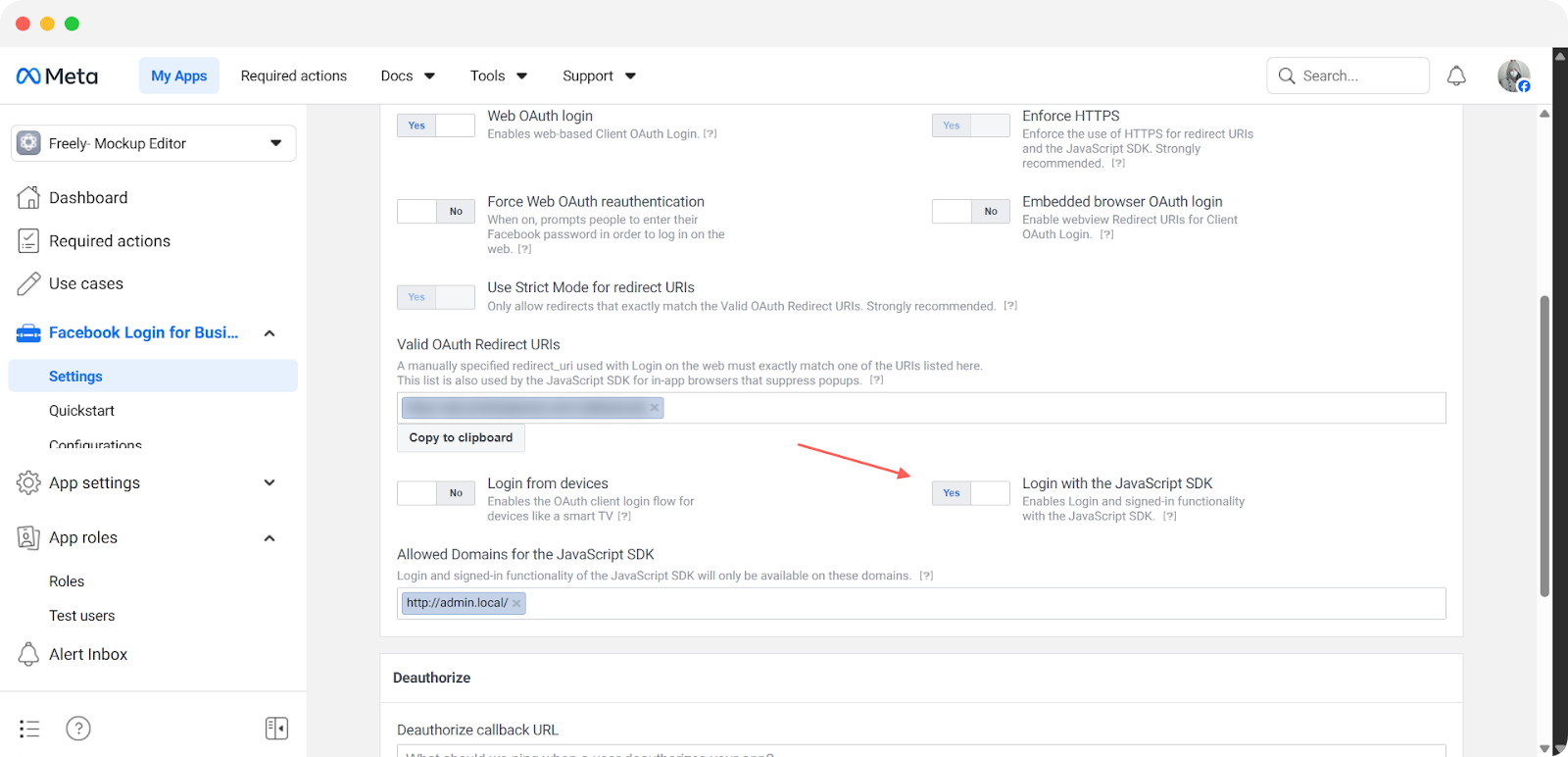
Now, go to the ‘Facebook Login for Business’ tab. Then go to settings and paste your site URL in the ‘Allowed Domains For The JavaScript SDK’ field. Then, toggle the ‘Login With The JavaScript’ button to enable it.
How to Get the Access Token? #
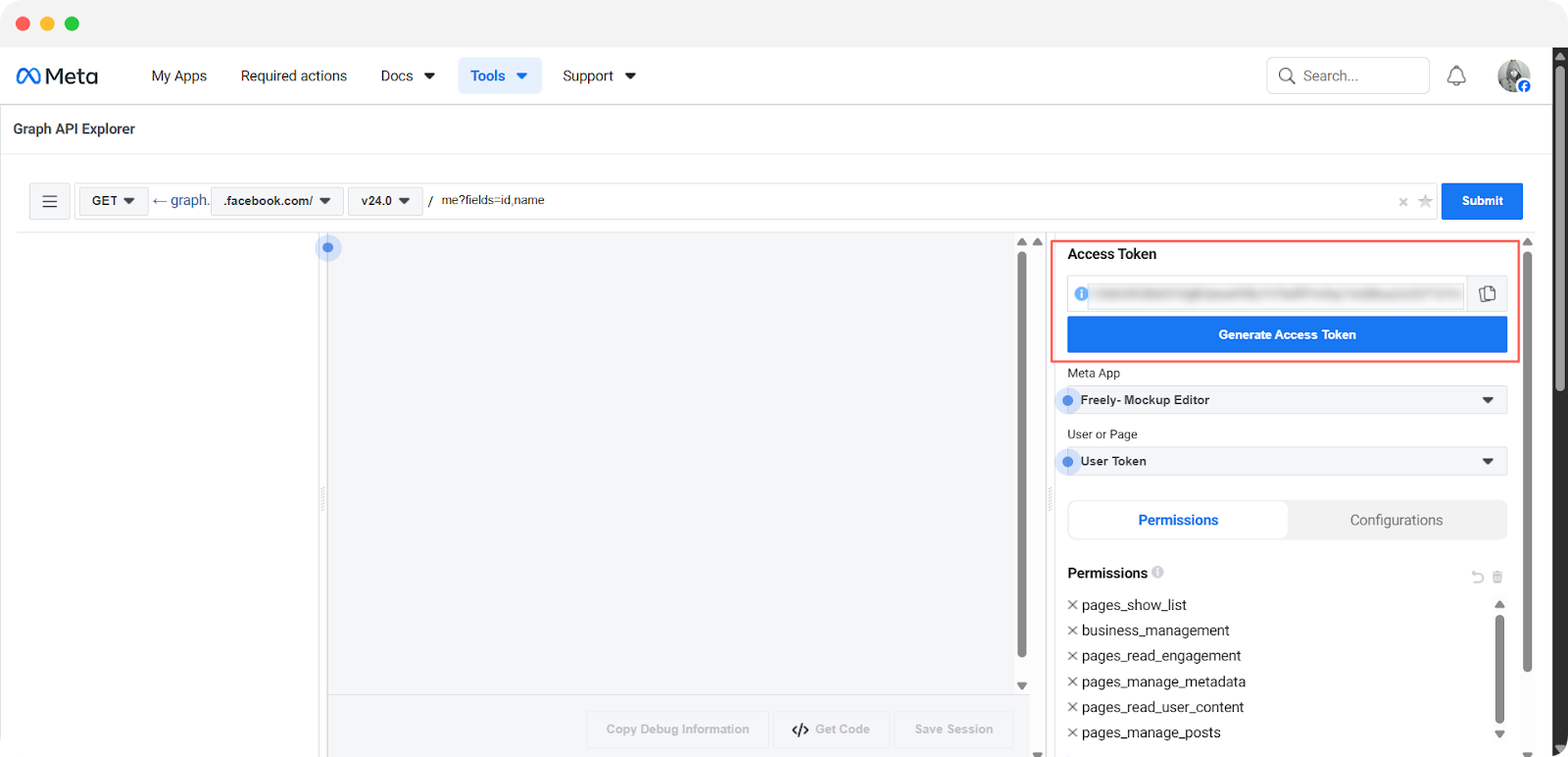
Now, go to ‘Tools’ → ‘Graph API Explorer’
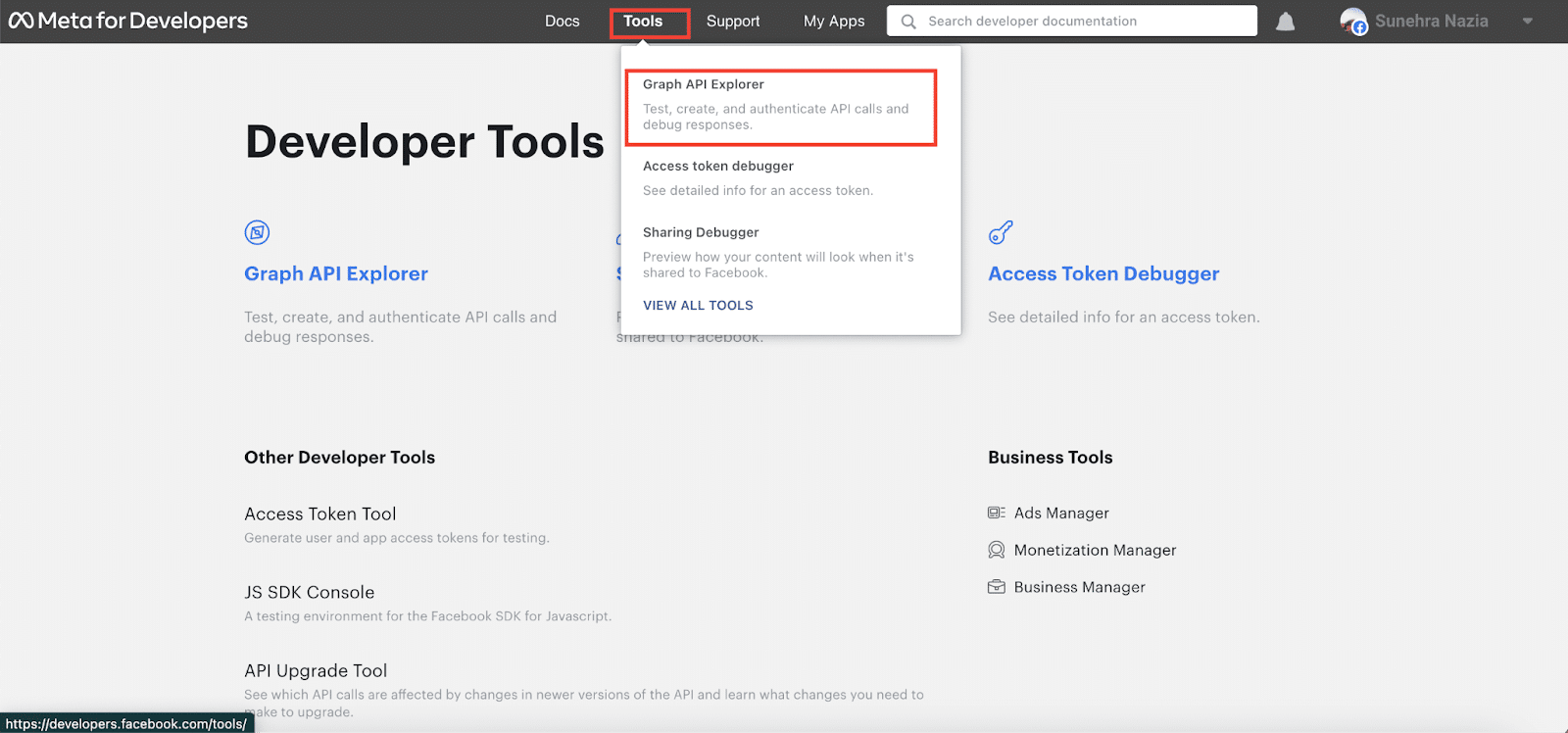
Then, you can choose the created app and then again, add the following permissions:
pages_show_list
business_management
pages_read_engagement
pages_manage_metadata
pages_read_user_content
pages_manage_posts
Pages_manage_engagement
Now, click on the ‘Generate Access Token’ button. Copy the access token from there.
How to Add the EA Facebook Feed? #
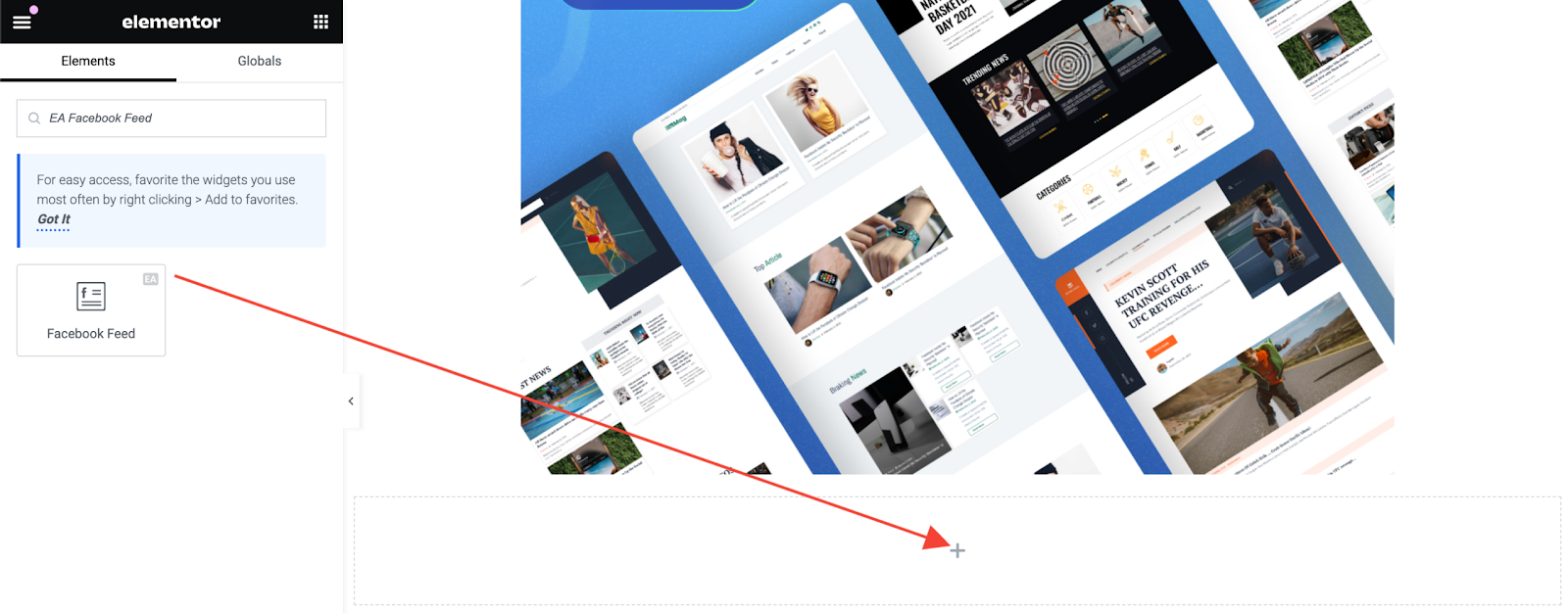
To use this Essential Addons element, find the ‘EA Facebook Feed’ element from the Search option under the ‘Elements’ tab. Then, simply drag and drop the ‘EA Facebook Feed’ into the ‘Drag widget here’ or the ‘+’ section.
How to Configure the Content Settings? #
Now, under the ‘Content’ tab, you can configure the settings for ‘EA Facebook Feed‘.
Facebook Account Settings #
Before you begin, you need to make sure that you have retrieved the necessary API Key to connect with your Facebook account. To insert the ‘Page ID’ and ‘Secret Key,’ simply follow the steps mentioned below.
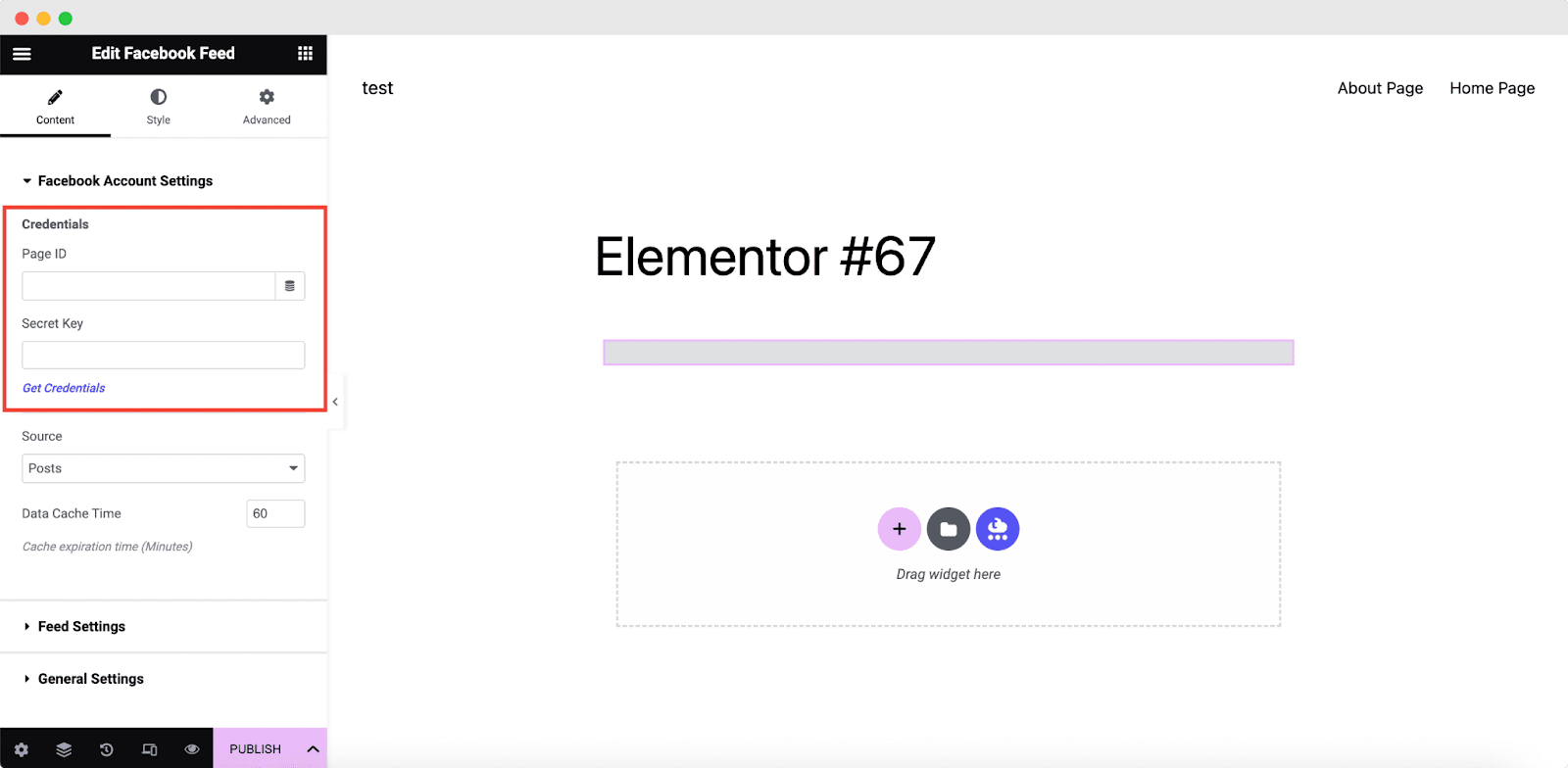
To get your Access Token for the Page ID, simply click on the ‘Get Credentials’ button.
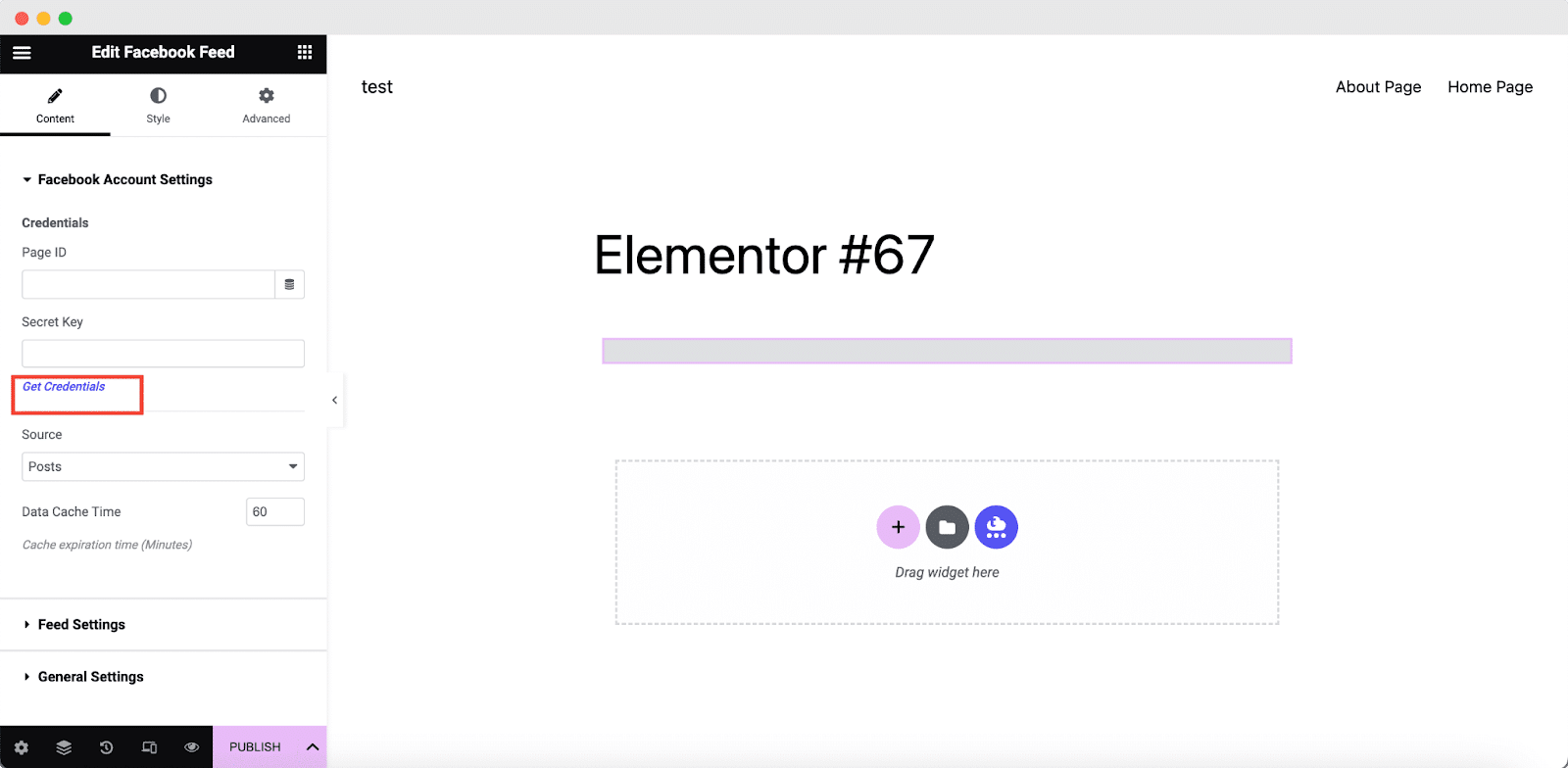
Now paste the Access Token you copied and click on the Get Credentials button. Once you click on it, you will get the ‘Page ID‘ and ‘Secret Key‘.
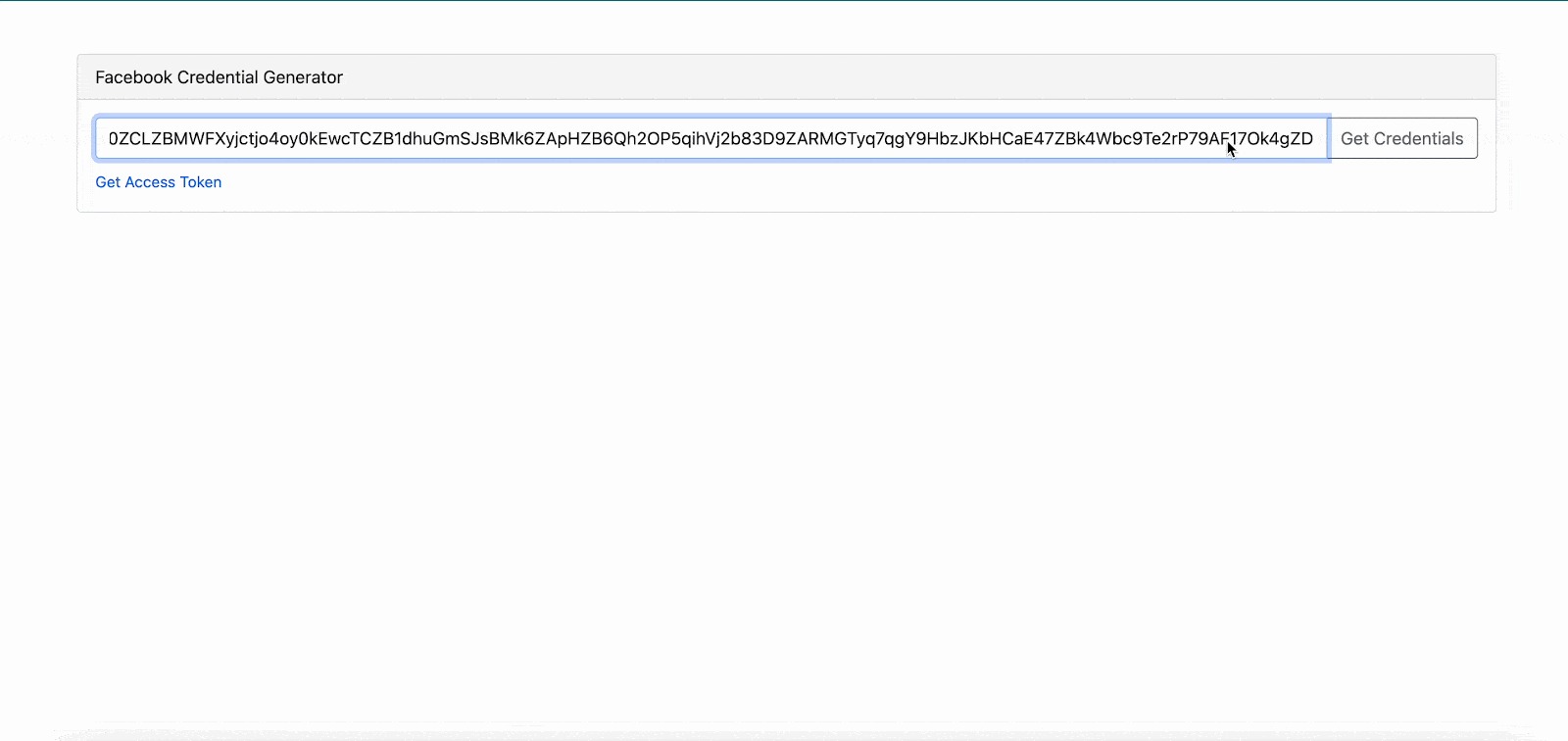
Now, simply place the ‘Page ID‘ and ‘Secret Key‘ in the relevant fields and you will be all set. Your Facebook feed will instantly appear.
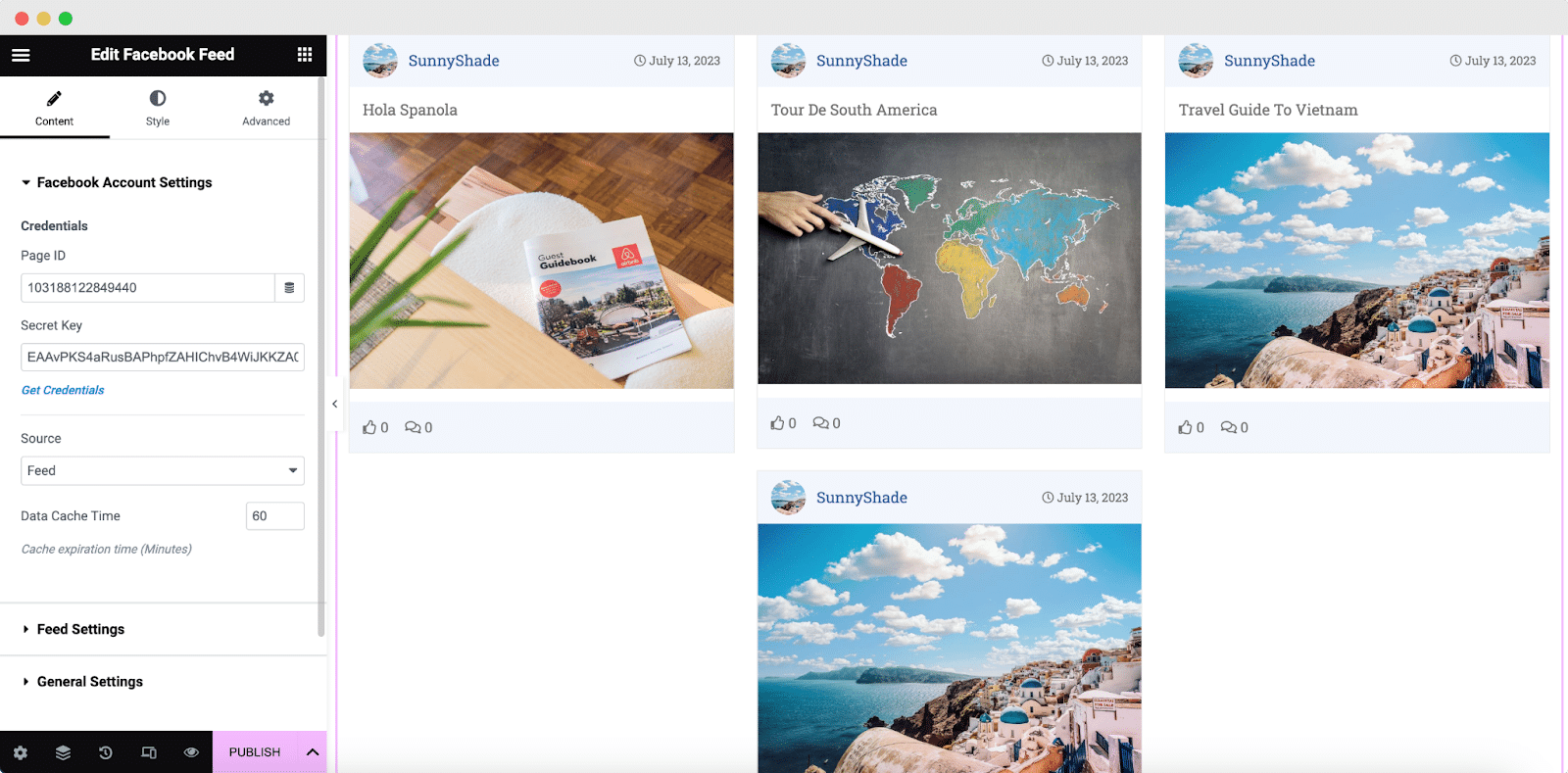
Feed Settings #
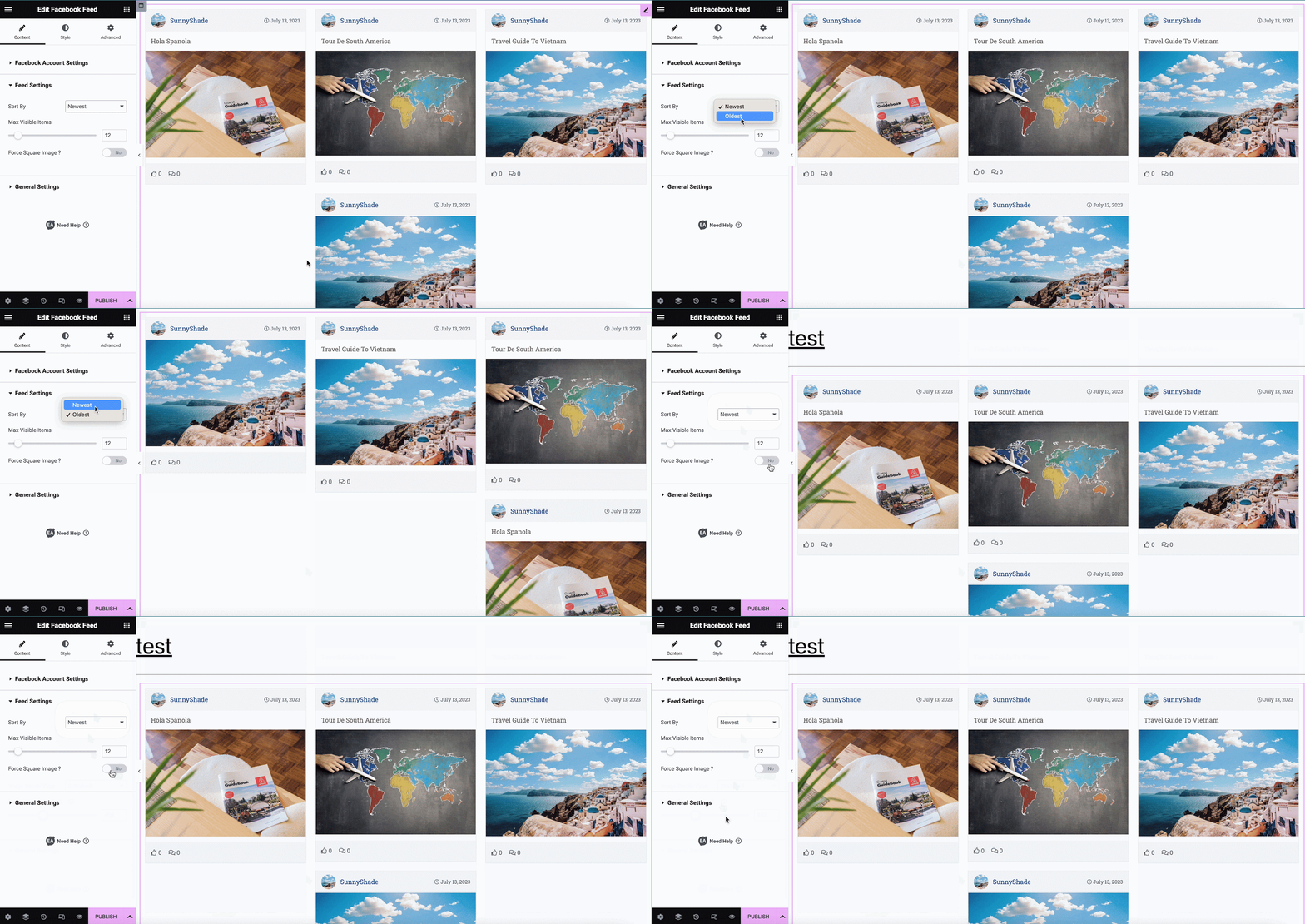
From the ‘Feed Settings’ section, you can use the dropdown ‘Sort By’ to change the order in which your Facebook Feed appears. You can also set the number of ‘Max Visible Items’ for your Facebook Feed.
General Settings #
In this section, you have the freedom to pick your preferred layout from ‘Card’ or ‘Overlay.’ In this visual, another Facebook feed with more posts has been used. You can also change the layout by picking the ‘Number of Columns’ that you want to display for the Facebook Feed.
If you wish, you can even enable the ‘Load More Button.’ Moreover, it gives you the opportunity to hide or display Comments, Like & other options.
How to Style Facebook Feed? #
Switch to the ‘Style’ tab to style all the features of the Facebook Feed.
Feed Item Styles #
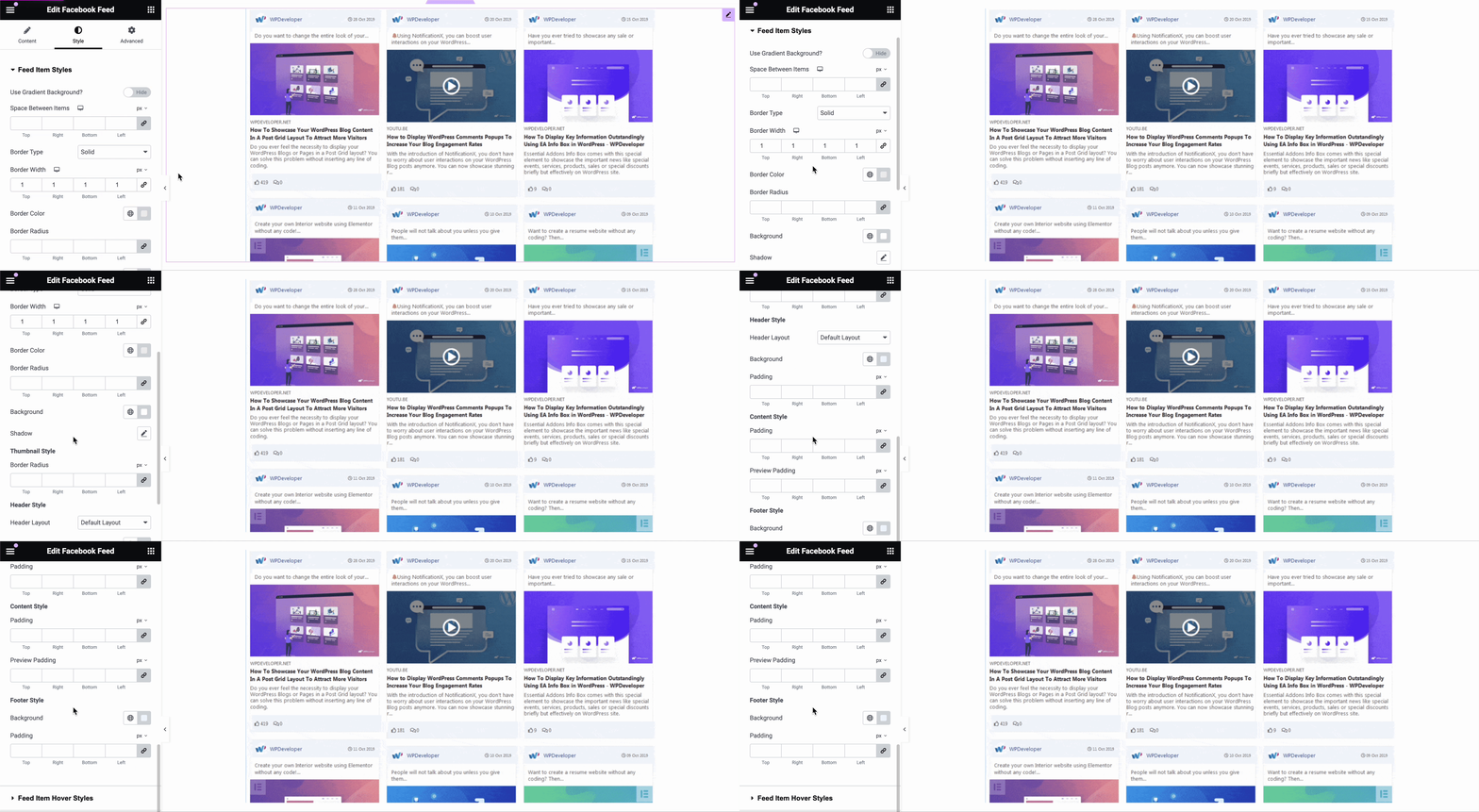
From the ‘Feed Item Styles’ section, you can set the Padding between the images of your Facebook Feed. You can also add a Border and change its styling. Moreover, you have complete control over how you want to style your Header, Content, and Footer.
Feed Item Hover Styles #
From the ‘Feed Item Hover Styles’ section, you can make changes to your feed items’ border color, box-shadow, header style, content style & footer style of your Facebook feed.
Color & Typography #
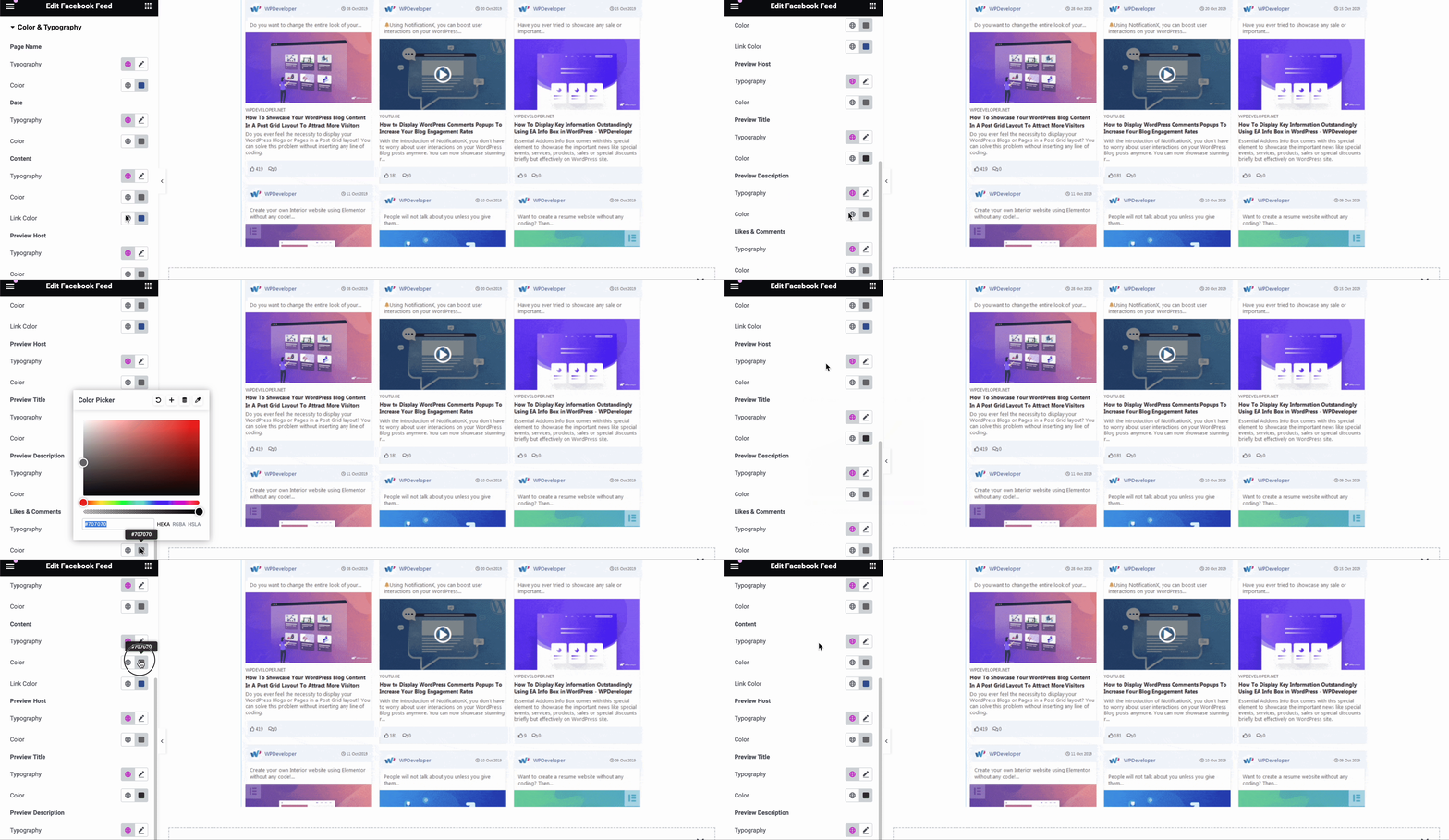
From the ‘Color & Typography’ section, you can experiment with the typography and colors of all the content of your EA Facebook Feed.
Final Outcome #
By following the basic steps and modifying it a bit more, you can style your Facebook Feed according to your preference.
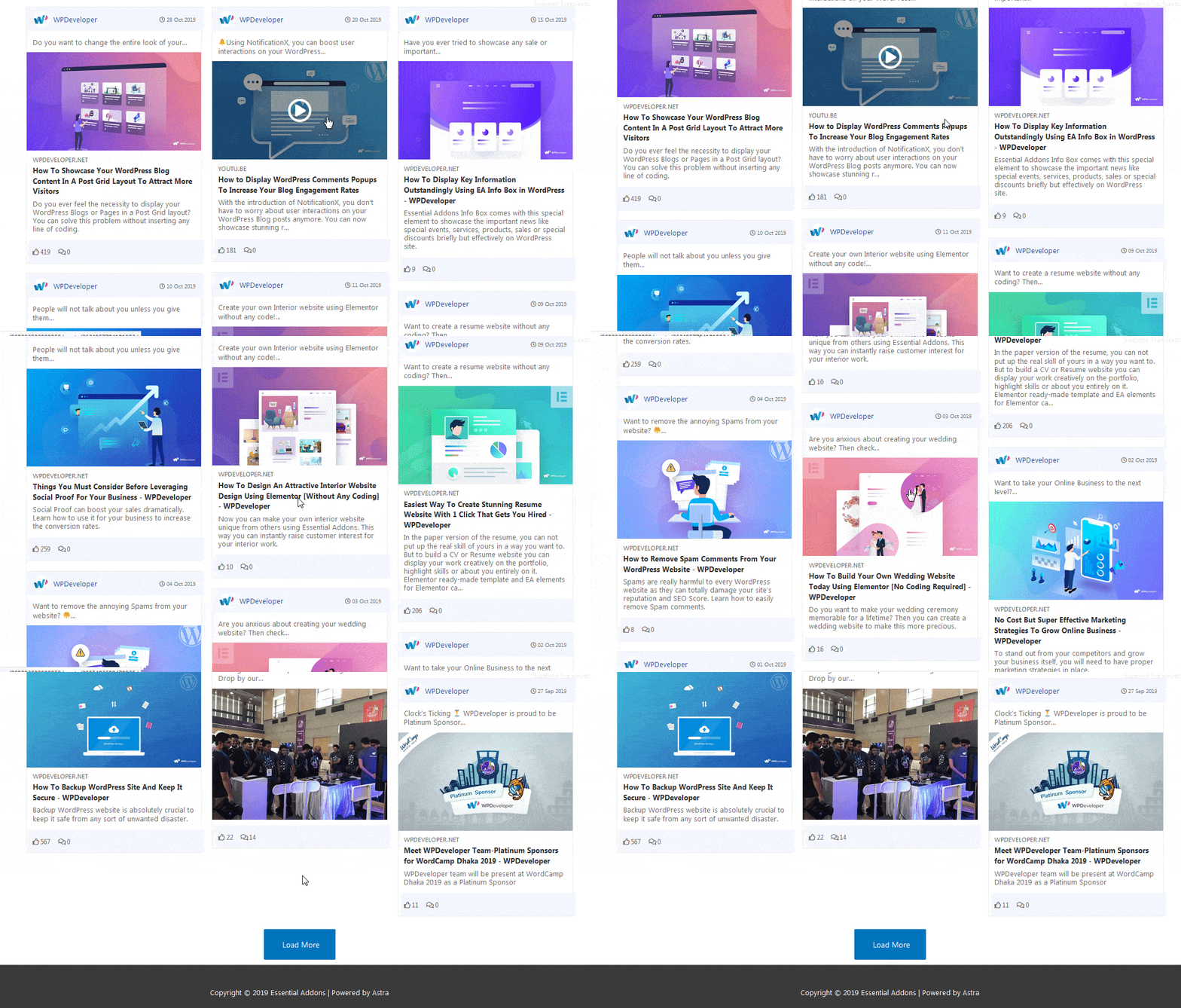
With the help of EA Facebook Feed, you can easily retrieve posts from your Facebook page and showcase them beautifully on your WordPress website.
Getting stuck? Feel free to Contact Our Support for further assistance.