
EA Pinterest Feed allows you to showcase stunning Pinterest content directly on your website. Whether you want to display inspiring boards, promote your brand’s visual content, or keep your site fresh with dynamic updates, this widget makes it effortless.
With easy customization options and seamless Elementor integration, it lets you embed Pinterest boards and pins in an engaging layout without writing a single line of code. From lifestyle blogs and fashion websites to business portfolios and online stores, you can create visually appealing sections that keep visitors engaged and inspired.
Note: EA Pinterest Feed is a PRO widget. Before you begin, ensure that you have installed & activated the Essential Addons PRO plugin to use the EA Pinterest Feed.
How to Activate EA Pinterest Feed? #
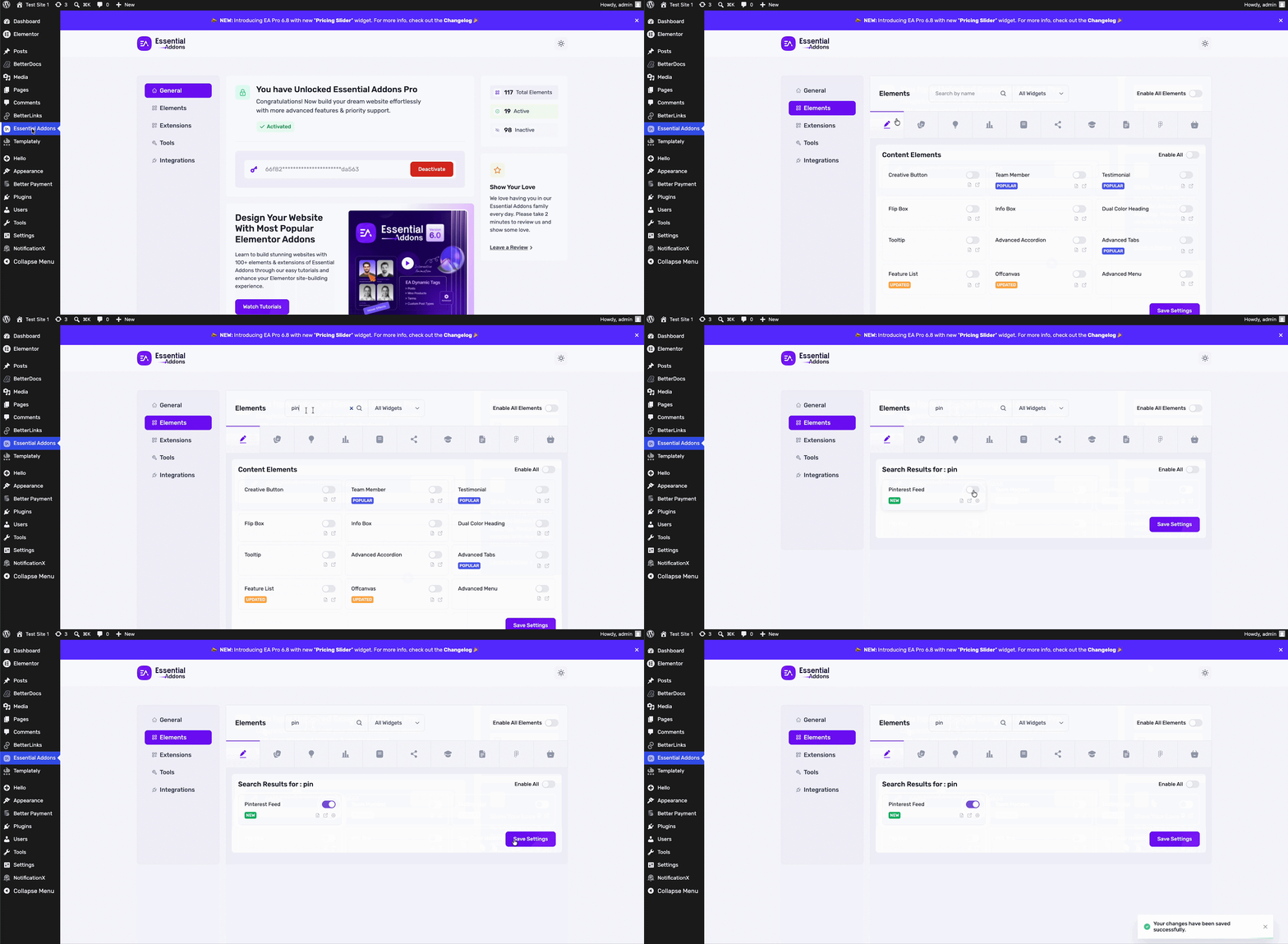
First, make sure to activate the EA Pinterest Feed on your plugin. To do so, navigate to your WordPress dashboard and select ‘Essential Addons’ → ‘Elements’ tab. Search for Pinterest Feed & click on the toggle button next to the ‘Pinterest Feed’ element to activate it. Then, click on ‘Save Settings’ as shown below.
How to Connect Your Pinterest Feed to Essential Addons? #
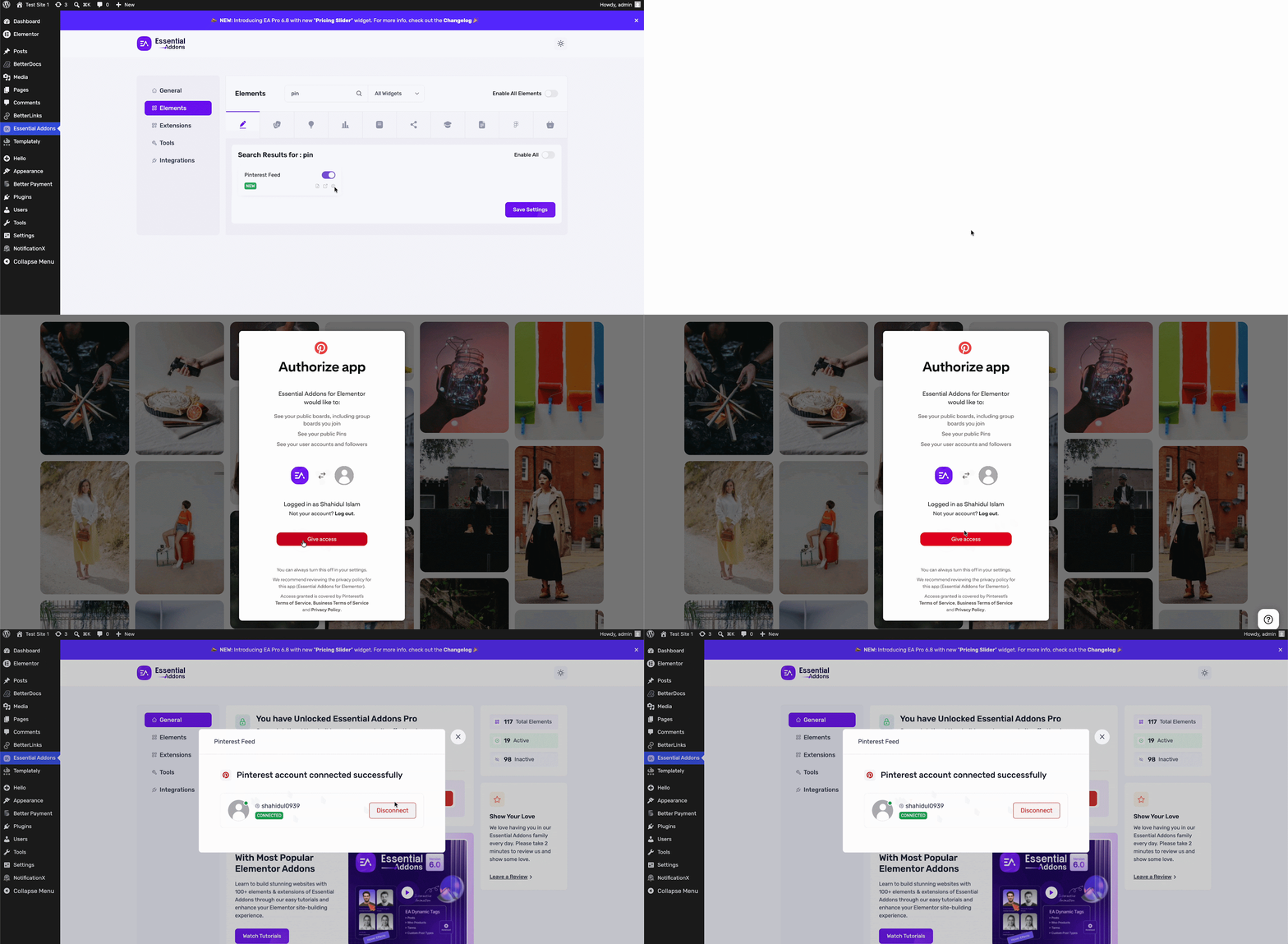
The process is very simple. Just click on the ‘Settings’ icon below the Pinterest Feed. From the resulting page, click on ‘Connect with Pinterest’ & you will be redirected to a page where you need to give your Pinterest access. To do so, click on ‘Give access.’ And you will be connected to your Pinterest account automatically.
How to Create EA Pinterest Feed? #
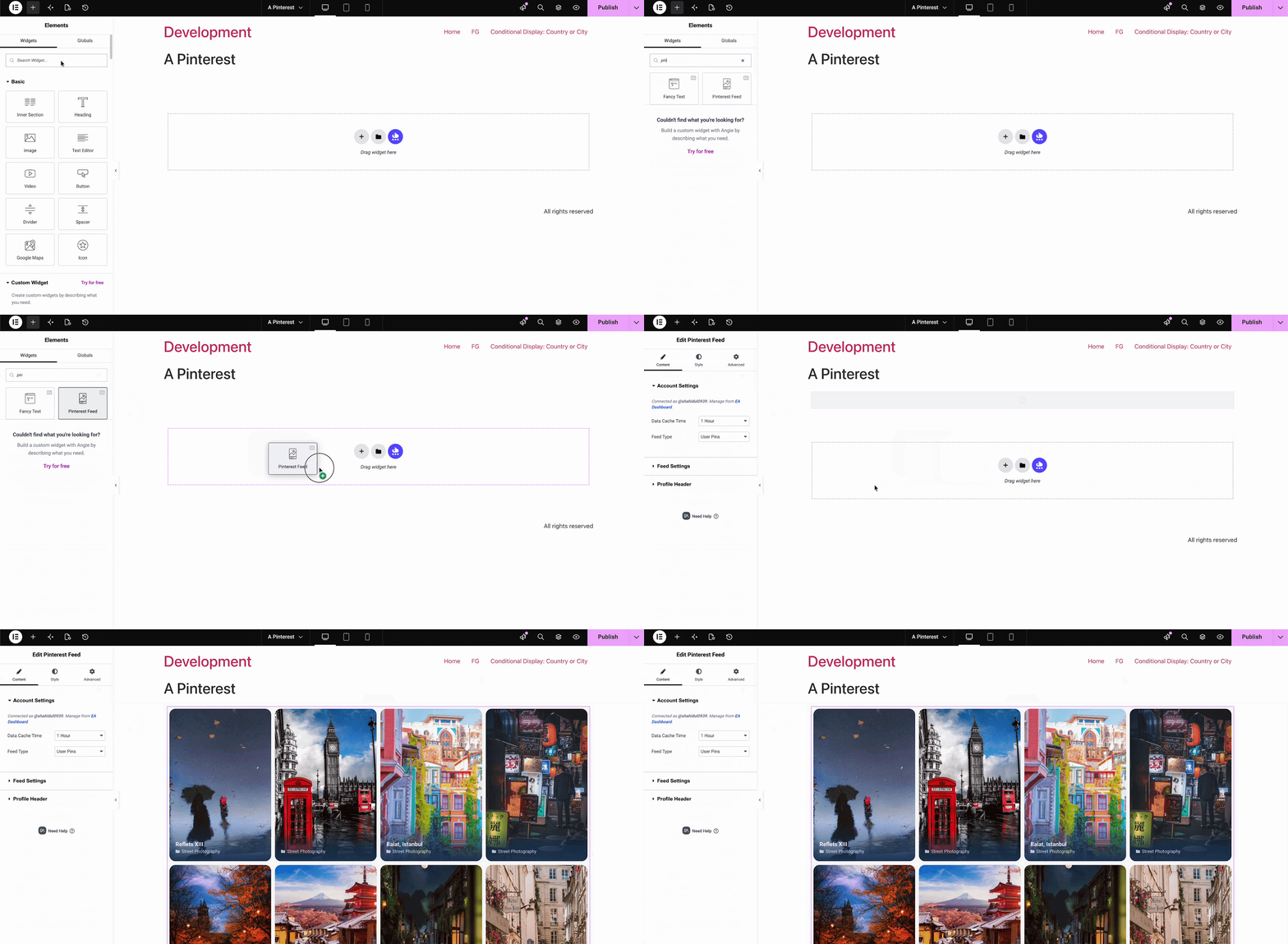
To use this Essential Addons widget, open a page in Elementor Editor and look for ‘Pinterest Feed’ in the search box under the ‘Elements’ tab. Drag and drop the element into any section of your page as shown below.
How to Configure EA Pinterest Feed? #
To configure your Pinterest feed, you will get the following options under the ‘Content’ tab. Each setting lets you configure your feed from multiple options.
Account Settings #
From ‘Data Cache Time’, you can set the time span of pulling your Pinterest feed live data into your Elementor website. All the types of feeds are available for you to display: User Pins, Board Pins, and Boards. Depending on your preferences, you can set it accordingly.
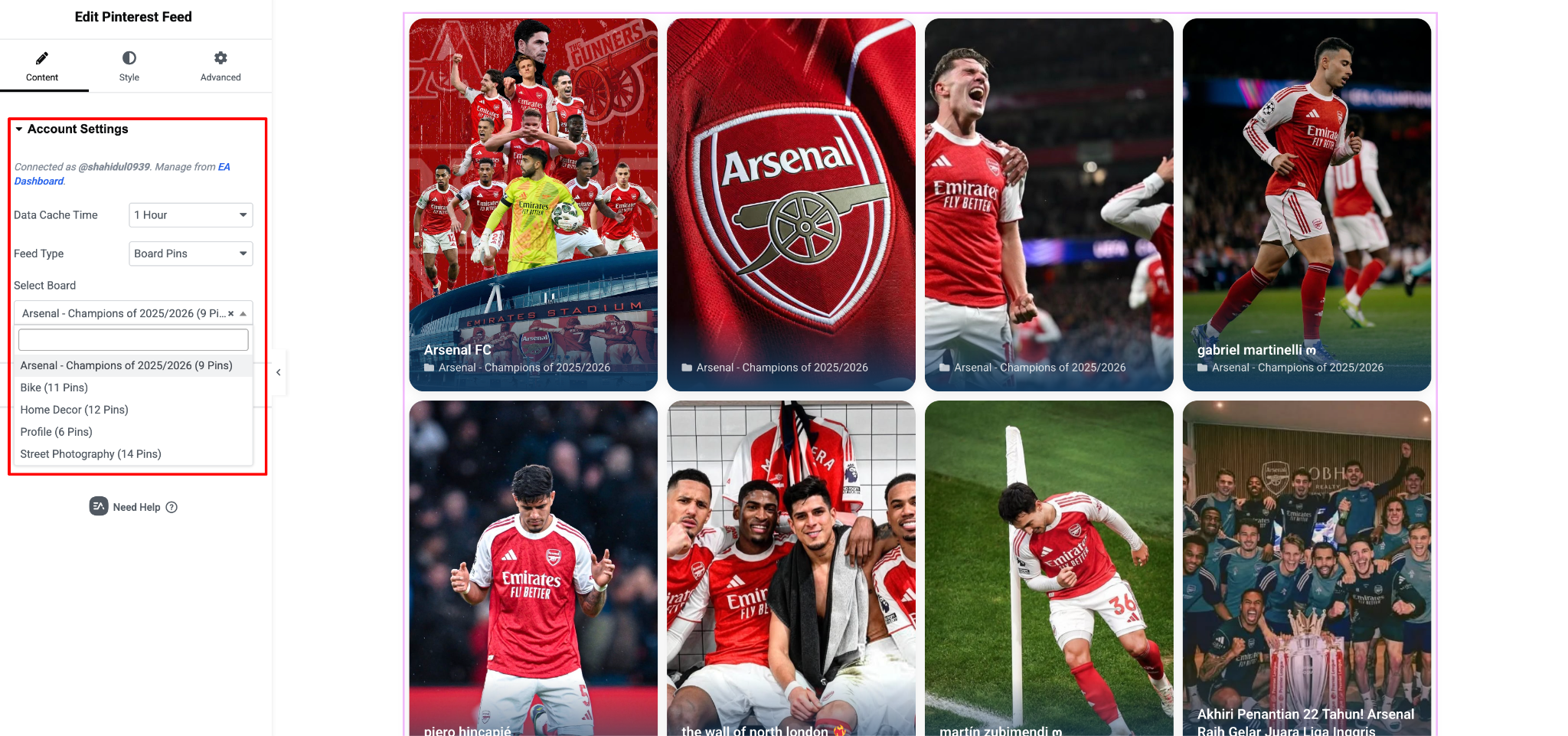
With the ‘Board Pins’ selected, you will get the dropdown menu ‘Select Board’ to select the exact board that you want to showcase. And with ‘Boards’ selected, you will see the ‘Board Cover Style option’, and ‘Show Board Name’, ‘Show Pin Count’ toggle on/off options.
Note: Depending on the feed type you pick, the ‘Feed Settings’ will differ & you will have several options out there. Moving forward here with selecting ‘Board Pins’ as the Feed Type.
Feed Settings #
Under the ‘Feed Settings’, you will get 5 different layout options for your Board Pins: Grid Overlay, Masonry Overlay, Polaroid Wall, Card Slider, & Featured Slider.
From ‘Overlay Mode,’ you can set your Board name to ‘Always Visible’ or ‘On Hover.’
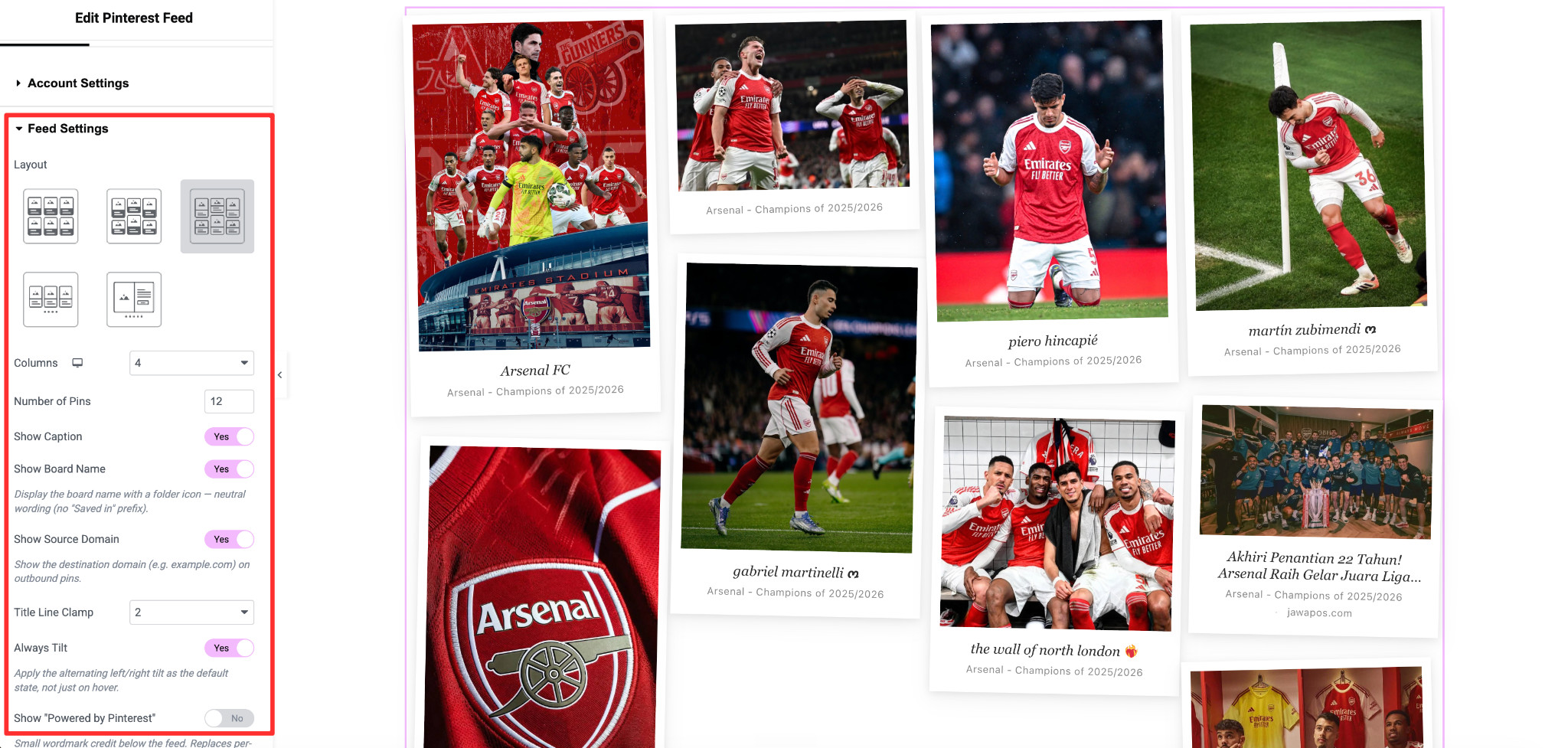
Moreover, you can get the options of setting up your feed columns, number of pins, caption style & show source domain option. Plus, get a toggle on/off switcher for show caption, show board name, show “Powered by Pinterest” & load more.
Profile Header #
Using the ‘Profile Header’ section, you can set your profile with your ‘Pinterest Feed.’ To do so, click on Profile Header and toggle on the ‘Show Profile Header.’
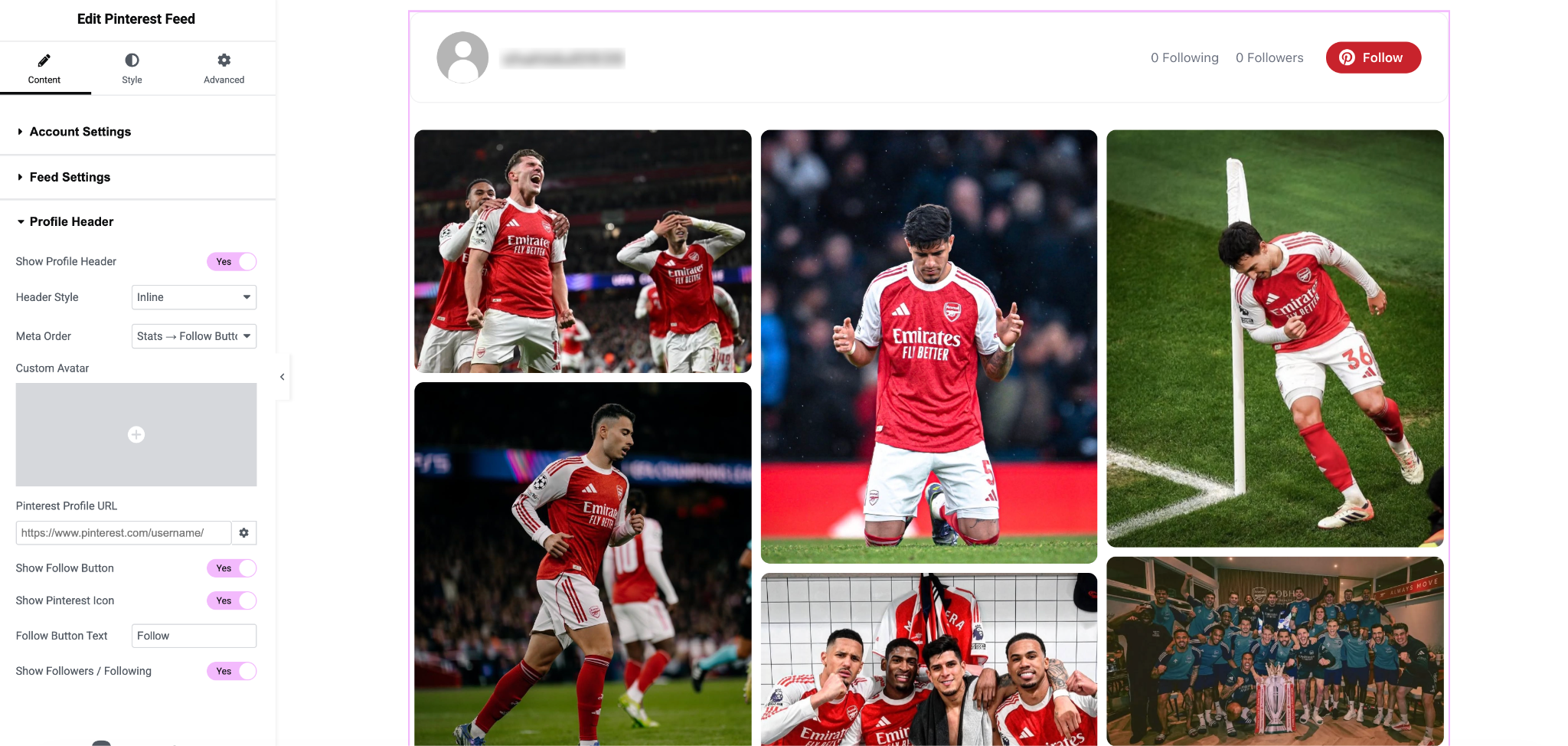
Once activated, you will get multiple configuration options: choosing the header style, meta style, setting a custom avatar, adding a Pinterest profile URL, showing (follow button, Pinterest Icon, followers & following icon) & the follow button text.
How to Style EA Pinterest Feed? #
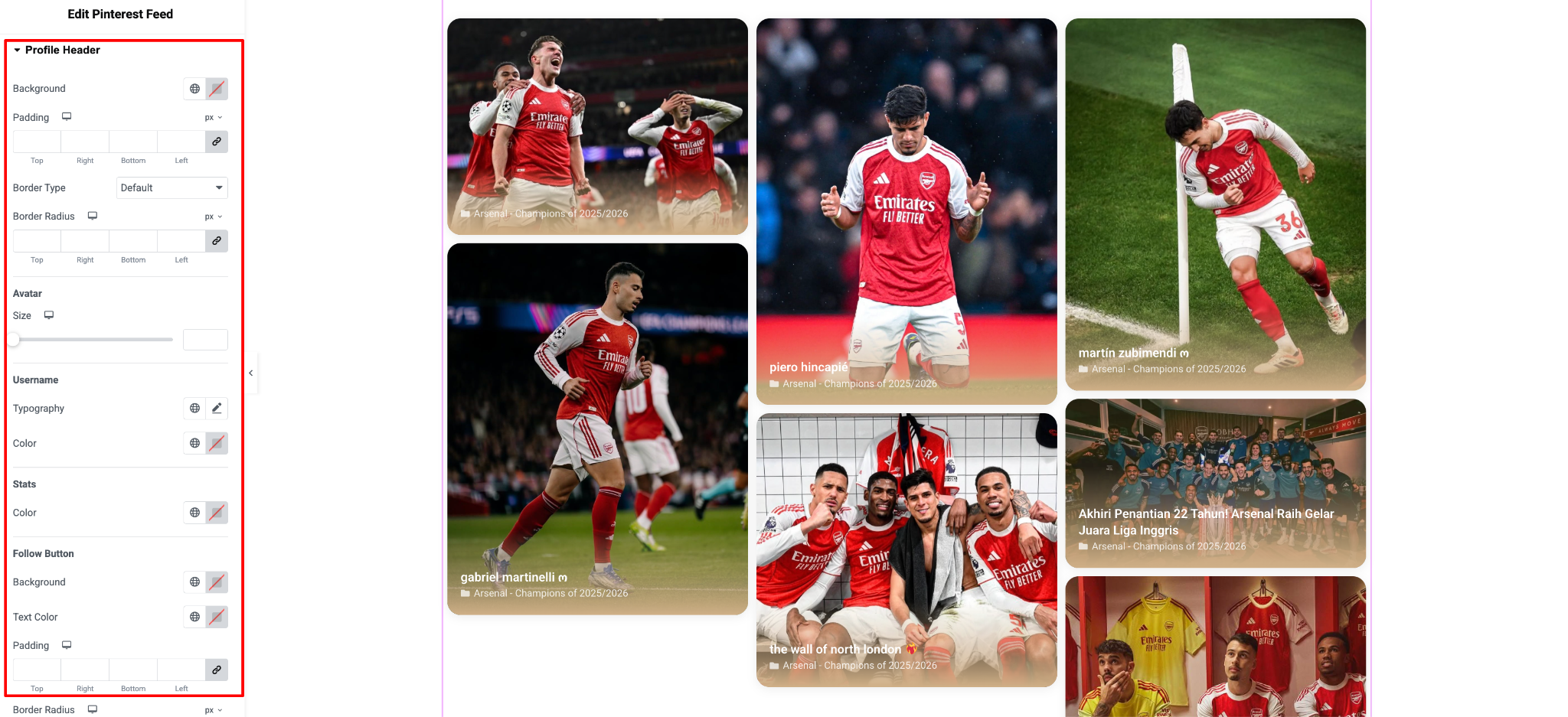
Under the ‘Style’ tab, you will get a bunch of styling options for your Pinterest Feed. Using the ‘Pin Item’, ‘Caption’, ‘Overlay’, ‘Meta’, and ‘Profile Header’ options, you can set your feed’s background color, typography, text color, margin, padding, spacing & more for each of the options available.
Final Outcome #
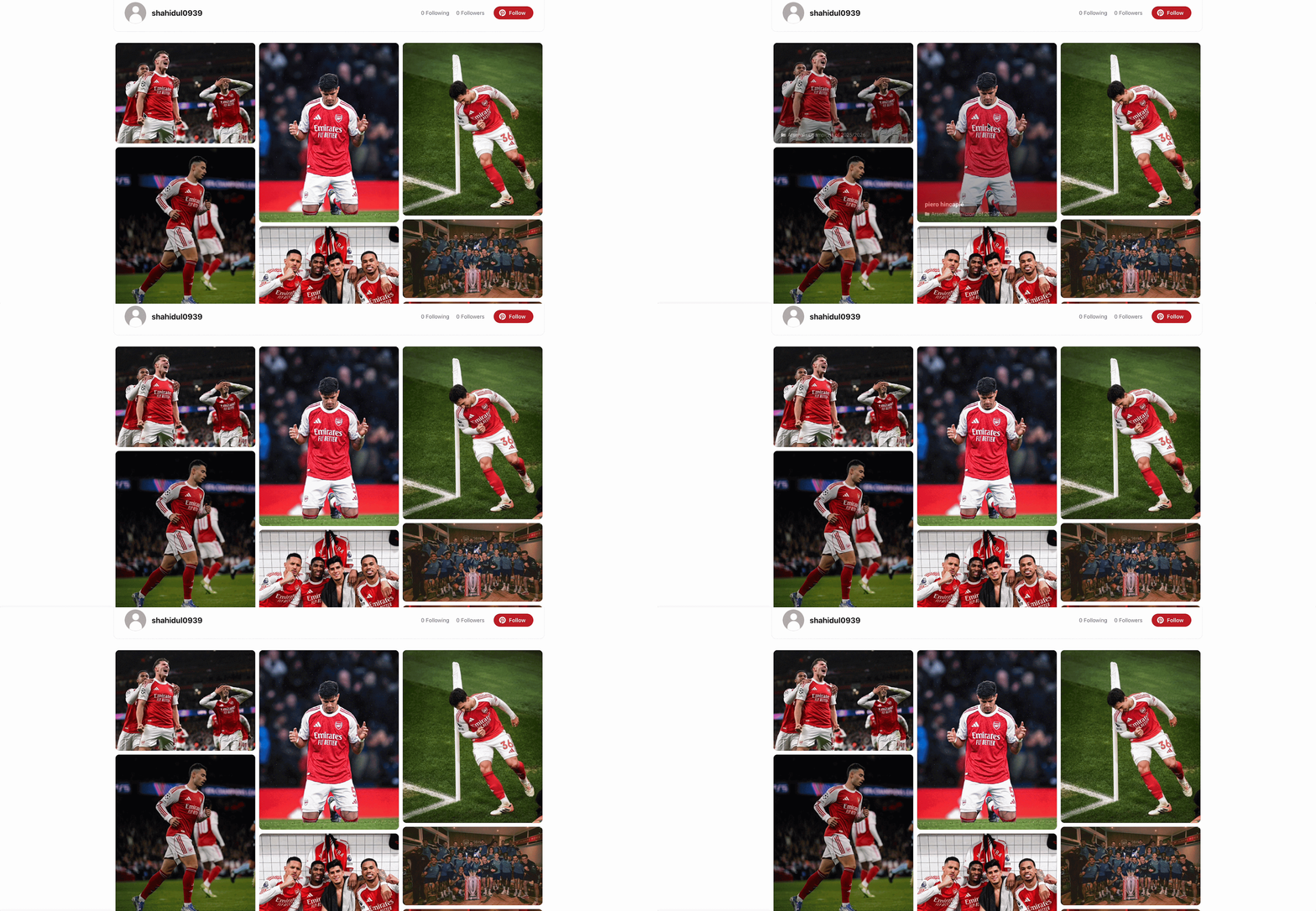
This is how you can easily and attractively display your Pinterest feed on your Elementor website with the EA Pinterest Feed widget.
If you face any issues while configuring and setting this up, feel free to contact our support for further assistance.